
How the app is organised
The app adds seven items to the Shopify admin sidebar. Most of them open a hub page with one card per feature. Each card shows how many rules are active.
| Menu item | What you find there |
|---|---|
| Home | Setup guide, Storefront status (app embed and app blocks), coverage metrics and your most recent pricing rules. |
| Pricing | Wholesale pricing and Volume pricing rules, plus the Refresh pricing data button. |
| Restrictions | Order limits, Catalog locks and Storefront lock. |
| Order forms | Quick order forms, Quotes & orders, Invoices, Draft orders and Notifications. |
| Registration | Registration forms and Customer submissions (applications waiting for approval). |
| Add-ons | Payment terms, Shipping rates, Tax display, Tax exempt, Variant Drawer and Request a Quote. |
| Settings | Pricing behaviour, price display, translations, registration approval, invoices, payment reminders and email. |
Theme app embed and blocks
Wholesale prices show on your storefront only while the Wholesale B2B app embed is on in your theme. On Home, the Storefront status card shows whether it is on. Click Enable on theme to open the theme editor with the embed already switched on, then click Save.
| Theme extension | Where it goes | What it does |
|---|---|---|
| Wholesale B2B (app embed) | App embeds | Required. Shows wholesale prices, save badges, catalog locks and the order-limit bar in the cart drawer. |
| Zero-flicker (head) (app embed) | App embeds | Optional. Stops retail prices from briefly showing before the wholesale price appears. |
| Volume Table | Product template | Shows the volume tier table on product pages. |
| Wholesale Price | Product template | A wholesale price block with the save badge. |
| MOQ Badge / MOQ Cart Enforce | Product / cart template | Shows quantity-limit messages on the product page and in the cart. |
| Order minimums (cart) / Order weight — cart | Cart template | Progress bars and checkout gating for order-value and order-weight limits. |
| Quick order form | Any page template | Shows a bulk order form. |
| Registration form | Any page template | Shows a wholesale registration form (paste its Form ID). |
| Variant Drawer | Product template | A bulk-order table that lists every variant of the product. |
| Request a Quote / Request a Quote (cart) / RaQ Quote List | Product template / cart template / app embeds | Quote buttons on the product page and cart, plus a store-wide quote list. |
| Storefront Lock (app embed) | App embeds | Shows the sign-in gate when the storefront lock is on. |
When you save your first pricing rule, the app creates an automatic discount called Nexora Wholesale Discount in Shopify Discounts. This discount applies wholesale and volume prices at checkout. Keep it active.
 Related guideShopify B2B without Shopify Plus: built-in B2B vs a wholesale app→
Wholesale pricing rules
Go to Pricing → Wholesale pricing and click Create new. A rule sets who gets a wholesale price, which products it covers and what the discount is. A live preview in the sidebar updates as you edit.
| Card | Settings |
|---|---|
| Basics | Title (customers see it in the cart and at checkout next to the discount). The switch next to the heading sets the rule to Active or Draft. |
| Customers | All customers, Logged in only, By customer tags (match any of or all of the tags) or Specific customers. Optional: Exclude customers with these tags and Exclude specific customers. |
| Markets | All markets or Specific markets. The rule applies to buyers in the countries of the selected markets, on the storefront and at checkout. |
| Products | All products, Specific products (including individual variants), Collections, Product tags, Vendor or Product type. Optional: Exclude products from the selection and Bulk import by SKU (up to 50 SKUs at a time). |
| Discount | Master discount, with Discount type set to Percentage off, Fixed amount off or Flat price. Use Override for specific products to give individual products or variants their own value. |
| Display | Save badge, wholesale price label, crossed-out price for fixed prices, and custom CSS (see below). |
| Active dates | Optional Start date and End date. Leave both empty to keep the rule always on. |
Display options
| Setting | What it does |
|---|---|
| Show original price crossed out for fixed prices | By default, flat prices show only the wholesale price. Turn this on to also show the regular price crossed out. Settings → Display → Show original price with strikethrough must also be on. |
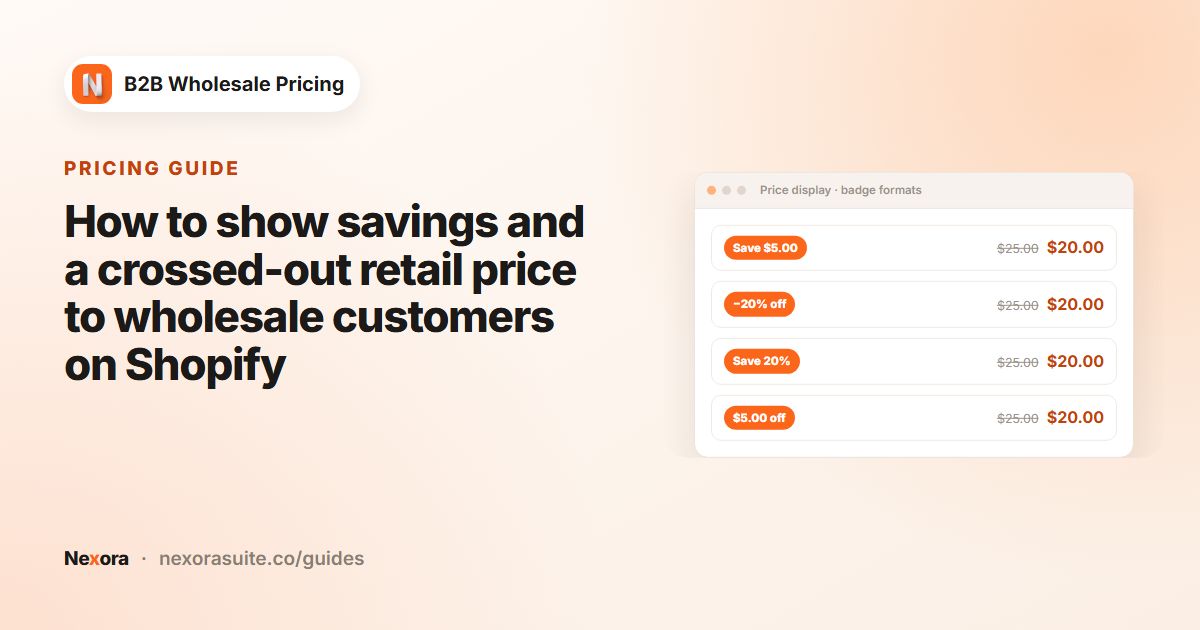
| Save badge → Format | Save {amount}, -{percent}% OFF, Save {percent}% or {amount} off, with text color, background, transparent background, font size, border radius and padding. |
| Show a label under the price | Shows a pill such as Wholesale price under the price on product cards, product pages and the wholesale block. Only customers the rule applies to see it. Leave Label text empty to use the default text, which you can translate in Settings → Translations. |
| Custom CSS (advanced) | Extra CSS applied on top of the app's styles. |
If prices on the storefront ever look out of date after a bulk product import, open Pricing and click Refresh pricing data. This rebuilds every active rule.
 Related guideHow to set up wholesale pricing on Shopify→
Volume (tier) pricing and volume tables
Go to Pricing → Volume pricing and click Create new. Volume rules use the same Basics, Customers, Markets, Products and Active dates cards as wholesale rules. The Tiers and Display cards are specific to volume rules.
Tiers
| Setting | Options |
|---|---|
| Tier basis | Quantity or Cart amount. You can't change this after the rule is created. |
| Qualifying products | Same variant (the buyer must reach the breakpoint on one variant), Mix variants (same product) or Mix across all products (every matching product counts toward the tier). |
| Discount type | % off, Amount off or Flat price. |
| Tier rows | Each tier has From, To and Value. Click Add tier for more breakpoints. |
| Overrides | Open Per-product & per-variant overrides, then click Edit on a row and turn on Use custom tiers to give a product or variant its own tiers. |
Volume table designs
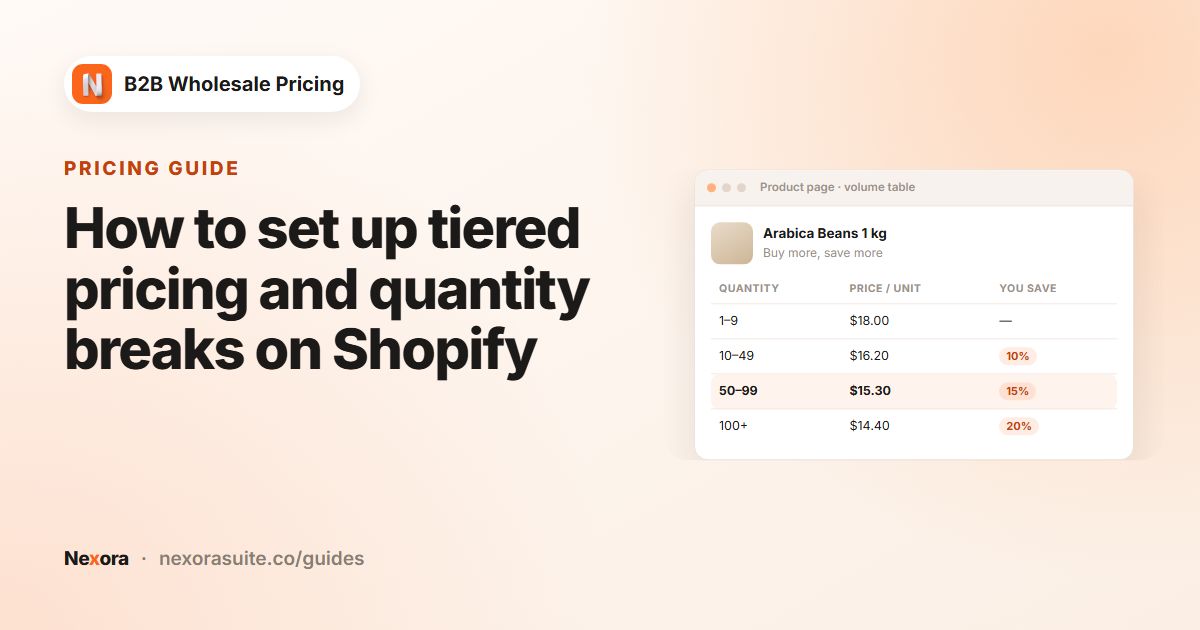
Under Display, click Change template and pick a design: Classic, Striped, Savings (adds a Save column), Highlighted (marks the top tier as recommended), Badges, Cards or Inline. The color, border, radius and font controls change to fit the chosen design.
- Heading text: an optional heading above the table, with font size, color, alignment and weight.
- Highlight the tier matching the entered quantity: the row lights up as the buyer changes the quantity on the product page.
- Advanced → Show volume table on product page: turn this off to keep the tier discount at checkout without showing the table.
- Advanced → Show pricing note under the table: explains how tier prices combine with a wholesale price. It only appears when a wholesale rule also applies.
To show the table, add the Volume Table block to your product template. On Home, the Volume table app block row has an Add to theme button that opens the theme editor with the block ready to place.
 Related guideHow to set up tiered pricing and quantity breaks on Shopify→
Pricing behaviour and price display settings
Open Settings. Under Storefront, the Pricing and Display sections control how rules combine and how prices look in your theme.
Settings → Pricing
| Setting | Options |
|---|---|
| Combine Wholesale & Volume | Best price for customer (recommended): the lower price wins and the other discount is skipped. Stack both discounts: the wholesale price applies first, then the volume discount on top. |
| Combine with Shopify discounts | Keep B2B pricing (recommended): B2B prices stay, and Shopify order and shipping discounts stack on top. Shopify code wins: when the buyer enters a Shopify discount code, B2B pricing is removed so the code applies cleanly. This affects codes only; automatic discounts still stack. |
| Cart and checkout labels | Templates for the discount name shown on each cart line: Wholesale + volume, stacked, Wholesale + volume, best price, Volume only and Volume tier. Discount wording covers the percentage, amount, fixed-price and per-variant wording. A live preview shows the result, and Reset to defaults clears your changes. |
| Rule tiebreaker (advanced) | Decides which rule wins when two rules of the same type match one product: Most specific scope first (recommended), Lowest final price, Newest rule first or Oldest rule first. |
Shopify allows only one product discount per item. A product-level discount code can't stack with B2B pricing. Make the code an order-level discount, or choose Shopify code wins.
Settings → Display
| Setting | What it does |
|---|---|
| Show original price with strikethrough | Shows the retail price crossed out next to the B2B price on product, collection, home page and search cards. The cart and checkout use Shopify's own display. |
| Show savings badge | Shows Save 15% or Save $10 style badges. The badge hides automatically when the B2B price is a flat price. |
| Currency format | Currency code (for example 108 VND) or Currency symbol (for example ₫108). |
| Product page price style / Product card price style | Font size, weight, color and spacing for the B2B price and the crossed-out price, if your theme's defaults don't match. Leave a field empty to keep the theme's value. |
| Custom CSS | Store-wide CSS for everything the app shows on the storefront. |
| Theme & selectors | Shows the theme the app detected, with Re-detect. You can pick your theme from Store theme and add Custom selectors (one per line, for example card:.card-wrapper||.price-item) for heavily customised themes. Insert sample fills in an example. |
Turn on the Zero-flicker (head) app embed so shoppers never see the retail price flash before the wholesale price appears. On Home, the Zero-flicker app embed row has an Enable on theme button for this.
 Related guideHow to show savings and a crossed-out retail price to wholesale customers on Shopify→
Order limits (quantity, value and weight)
Go to Restrictions → Order limits and click Create limit. In Basics, choose a Type. You can't change the type after the limit is created.
| Type | Rule settings |
|---|---|
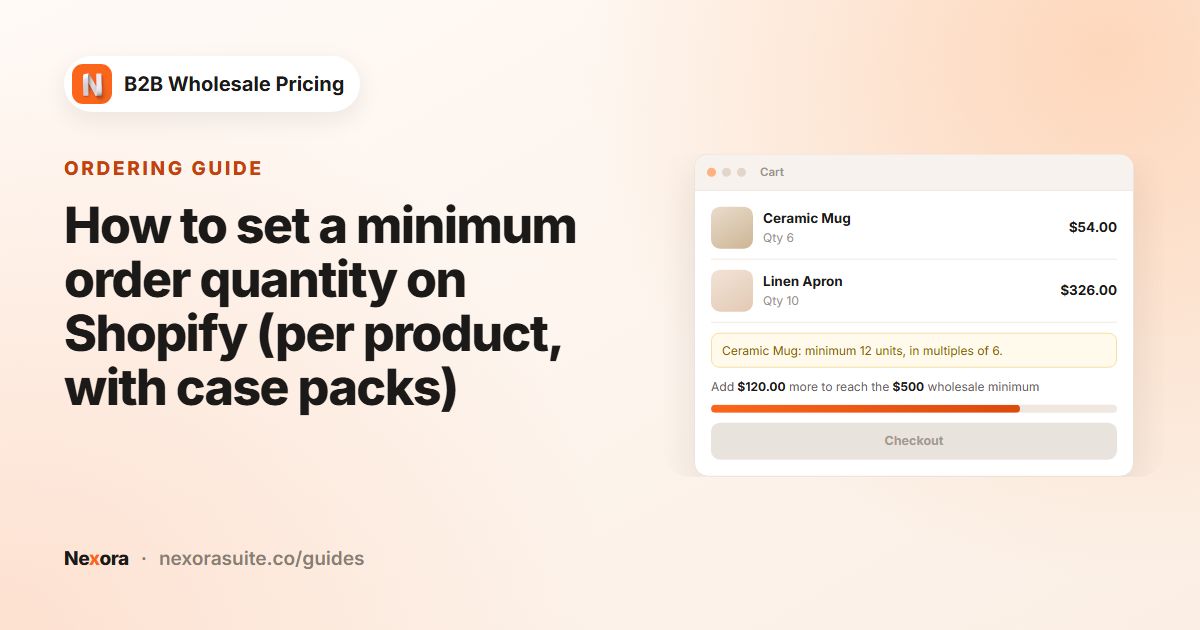
| MOQ — Order quantity (per product) | Minimum quantity, Maximum quantity (optional) and Step (optional), so buyers order in multiples, for example cases of 6. Use Scope to pick the products and Override for specific products to give products their own min, step and max. |
| MOV — Order value (cart total) | Minimum cart value and Maximum cart value (optional) in your store currency. Per-currency minimums (optional) lets you set an exact minimum for specific currencies. Other currencies convert by exchange rate. |
| MOW — Order weight (cart total) | Minimum weight and Maximum weight (optional) in kg, g, lb or oz. Products must have a weight set in Shopify. |
In Customers, choose who the limit applies to: By customer tags (recommended), Logged in only, Specific customers or All customers.
Enforcement & messages
- Block checkout: buyers can't continue past the cart until the limit is met. The app's checkout validation also enforces this at checkout.
- Warn only: the storefront shows the message, but checkout still works. This is useful for testing.
- Customize messages (optional): PDP badge text, Cart warning text, Cart warning text (wrong multiple / step) and Checkout block error text. You can use tokens such as
{{min}},{{max}},{{step}},{{current}},{{title}},{{remaining}}and{{unit}}. Leave a field blank to use the built-in text. - Design (optional): colors and sizes for the PDP badge, the cart progress card and the banner. Banner tones are Critical, Warning, Info or Custom.
Progress bar in the cart drawer (order value)
For MOV limits, tick Show in cart drawer to show the progress bar in your theme's slide-out cart. When enforcement is Block checkout, the drawer's checkout button stays disabled until the minimum is reached. Choose Position in the drawer (Above the checkout button or Above the product list) and a Progress bar style: Classic or Milestone. Milestone shows a short line and an icon at the end of the bar. You can also set Milestone name, Message below the minimum and Message when the minimum is reached.
On the cart page, add the Order minimums (cart) block for value limits, Order weight — cart for weight limits and MOQ Cart Enforce for quantity limits. Add MOQ Badge to the product template to show quantity rules on the product page.
 Related guideHow to set a minimum order quantity on Shopify (per product, with case packs)→
Catalog locks and storefront lock
Catalog locks
Go to Restrictions → Catalog locks and click Create lock. In Basics, choose a Lock mode. You can't change the mode after the lock is created.
| Lock mode | What visitors who don't qualify see |
|---|---|
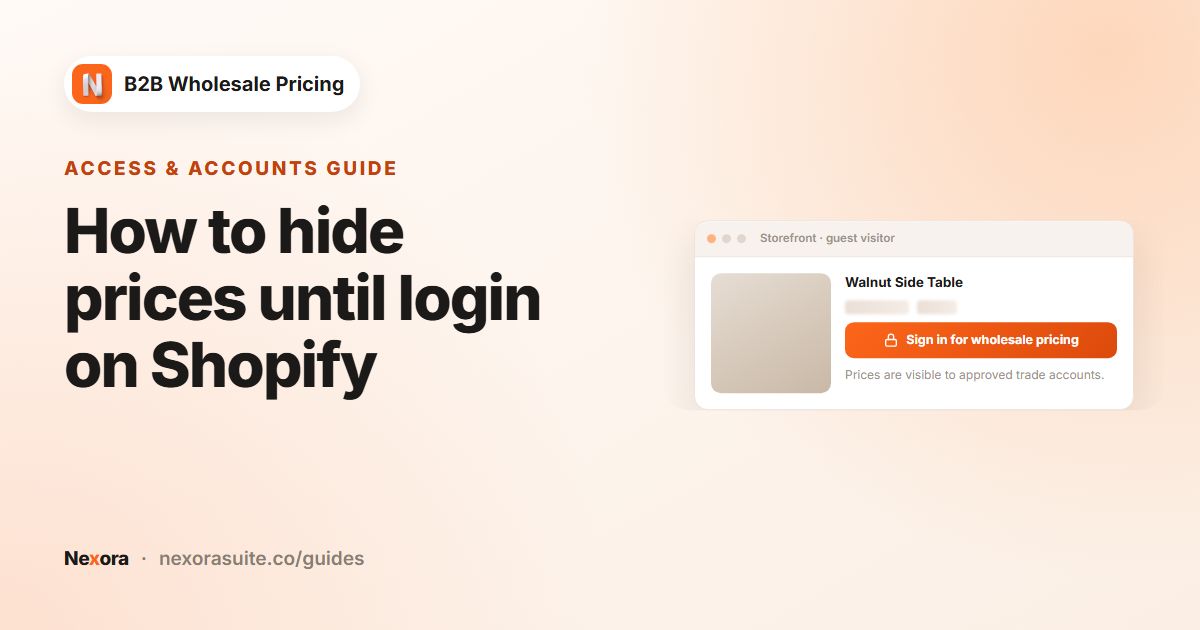
| Hide price | The price is replaced by a Sign in for wholesale pricing button. You can style it under Button appearance with the presets Default, Solid dark, Minimal or Red accent, plus background, text and border color, and lock icon. |
| Hide product | The product page is unavailable. |
| Hide collection | The collection page is unavailable. Choose the collections under Locked collections. |
- Who can see: By customer tags (recommended), Logged in only or Specific customers. Customers who match see the content. Everyone else sees the locked state.
- Locked-state messages: Price replacement text and Unavailable message (you can use
{{title}}), and Sign-in link URL. Leave the URL blank to use the store login page, or enter a path such as/account/register.
Storefront lock
Go to Restrictions → Storefront lock to require sign-in for the whole store, not just prices. Switch on Enable storefront lock and turn on the Storefront Lock app embed.
| Card | Settings |
|---|---|
| Scope | Lock the entire store (with public exceptions below), or Lock specific paths only — everything else stays public with Locked path prefixes such as /collections/b2b. |
| Customers | Who can browse: All customers, Logged in only, By customer tags or Specific customers, with optional exclusions. |
| Access without an account | Show a passcode field on the gate, and Secret links you can share with buyers who don't have a login yet. Changing the passcode or removing a link locks out everyone who used it. |
| Public exceptions | Keep the homepage public and Public page handles (for example about-us, contact). Login, account and policy pages and the store password page are always public. |
| Gate design | Alignment, corner radius, content width, logo, Heading, Message, Footer note, primary and secondary buttons, button style and background image. |
| Preview while locked | Opens your live store with the lock bypassed, so you can check the gate before switching it on. |
The storefront lock and passcodes hide content visually, but prices are still in the page source. To keep prices out of the page completely, also create a catalog lock with Hide price.
 Related guideHow to hide prices until login on Shopify→
Registration forms and customer approval
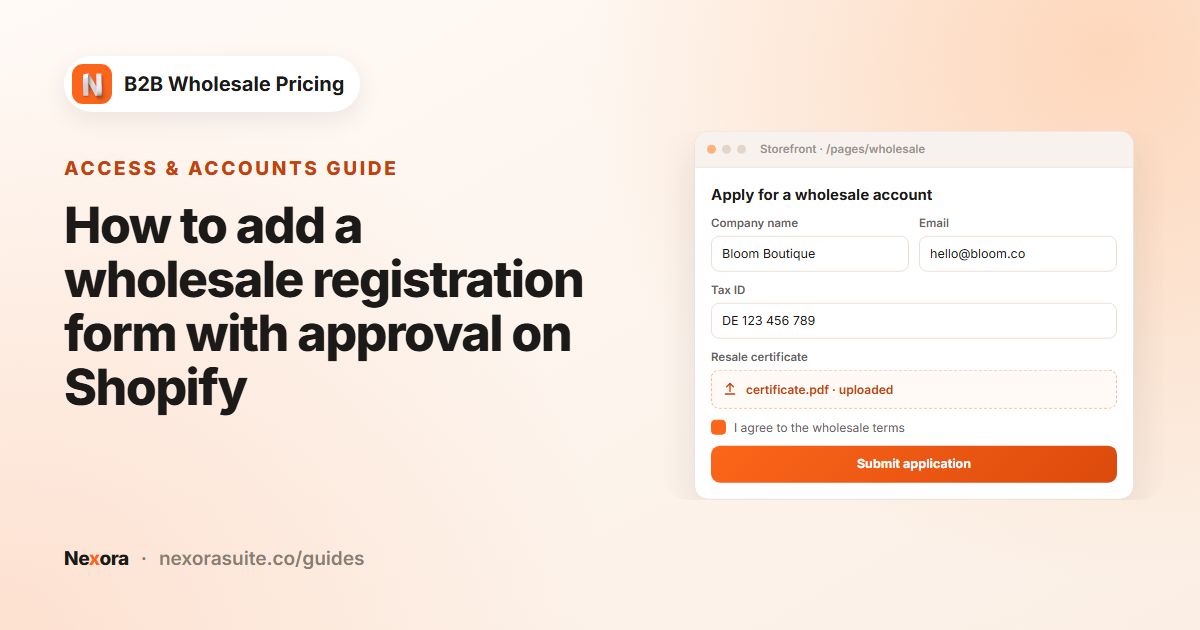
Go to Registration → Registration forms and click Add registration form. Give it a Form name, then build the form with four tabs: Configuration, Appearance, Email and Post-submit.
| Tab | What you can do |
|---|---|
| Configuration | Add and drag-to-reorder elements. Input: Text, Email, Name, Textarea, URL, Phone, Number, Password, Date time, File, Tax ID. Selects: Checkboxes, Accept terms, Radio buttons, Dropdown, Country. Static text: Heading, Paragraph, HTML. For dropdown, radio and checkbox options, Customer tag per option adds a tag to the customer when you approve them. |
| Appearance | Font sizes, field style and density, borders, spacing, and the submit button (text, sending text, style, size, width, alignment). |
Four templates, each with an on/off switch, subject and body: Customer — Submitted, Customer — Approved, Customer — Rejected and Admin — Received (add the staff recipients). Variables include {{customer.first_name}}, {{store.name}} and {{admin.url}}. | |
| Post-submit | Show a confirmation message (icon, heading, body and styling) or Redirect to a page. |
After saving, copy the Form ID from the Basics card. In the theme editor, add the Registration form block to a page and paste the ID.
Reviewing submissions
Registration → Customer submissions lists every application, with All, Pending, Approved and Rejected tabs, search, and a form and date filter. Select rows to Approve selected, Decline selected or Add tags. You can also use Export CSV and Import CSV.
Open a pending submission to choose Approve request or Decline request, then save. When you decline, choose whether the customer can resubmit or is permanently blocked. On approval, the app creates the customer account in Shopify and adds the tags you set, plus the nb2b tag.
In Settings → Registration, set Approval mode to Manual (review each registration) or Automatic (create the customer account as soon as the form is submitted).
 Related guideHow to add a wholesale registration form with approval on Shopify→
Quick order forms, quotes, draft orders and invoices
Quick order forms
Go to Order forms → Forms and click Create new. The editor has three tabs, plus a live preview.
| Tab | Settings |
|---|---|
| General | Name (sets the form slug). Submit behavior: Add to cart, Request a quote, Create draft order or Submit purchase order. Customer targeting, markets and active dates. Advanced settings has a currency option. |
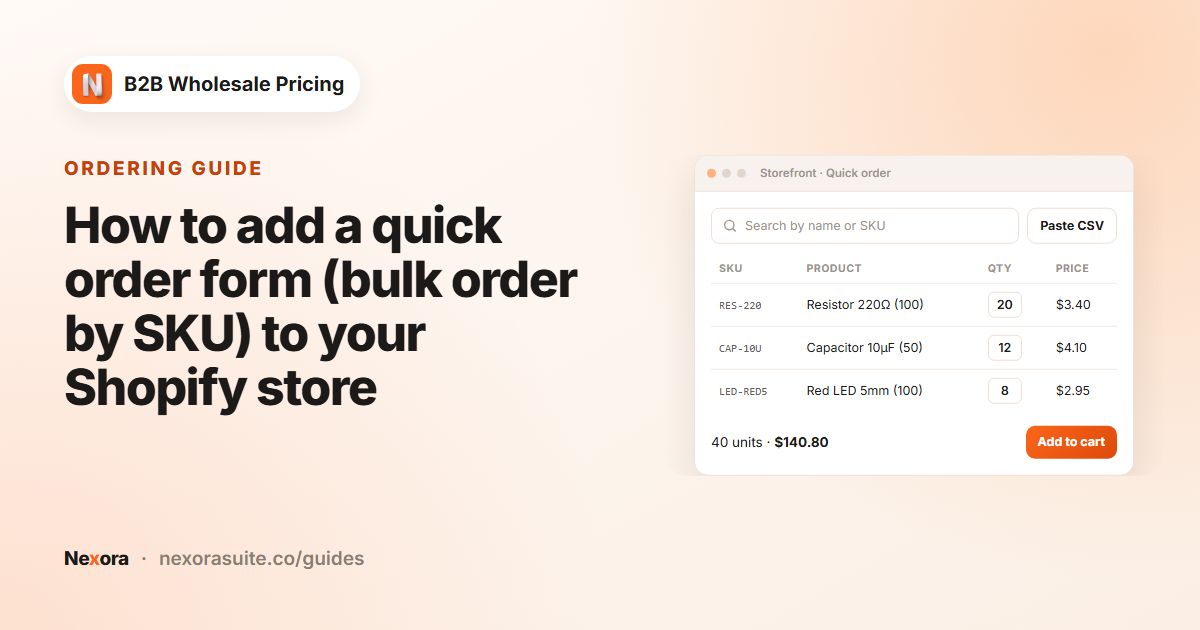
| Products & quantities | Catalog: which products appear in the form. Quantity: Quantity presets, Step / case size and Respect product stock. Inherit store-wide MOQ / MOV applies your order limits. Advanced limits: min/max order subtotal, min/max per line and minimum total units. Per-product overrides is also here. Customer tools: Paste from CSV (buyers paste SKU,qty lines) and Show B2B pricing (applies wholesale and volume prices on each row). |
| Appearance | Layout, heading, colors, typography, spacing and shape, plus an Advanced section for the button label, empty-state message and custom CSS. |
Add the Quick order form block to a page in the theme editor. Leave Form slug blank to pick the form automatically by customer and market, or paste a slug to always show that form.
Quotes & orders
Order forms → Quotes & orders collects quote requests and purchase orders from order forms, product pages, the cart and the quote list. Filter by status (Pending, Reviewed, Approved, Rejected, Converted) or type. Open a quote to see items, target prices, submission details and internal notes. Actions follow the status: Mark as reviewed, Approve, Reject, Convert to order, Convert to draft order, Create & send invoice and Reopen as pending.
Draft orders
Order forms → Draft orders lists the open draft orders in your Shopify admin. Open one to preview your wholesale and volume prices line by line, then click Apply wholesale pricing. This updates the draft in Shopify with per-line discounts. Next, you can Apply payment terms (when a payment term matches the customer) and Send proforma invoice.
A draft order without a customer can't match rules that target customer tags. Add the customer to the draft in Shopify first.
Invoices and pay-after
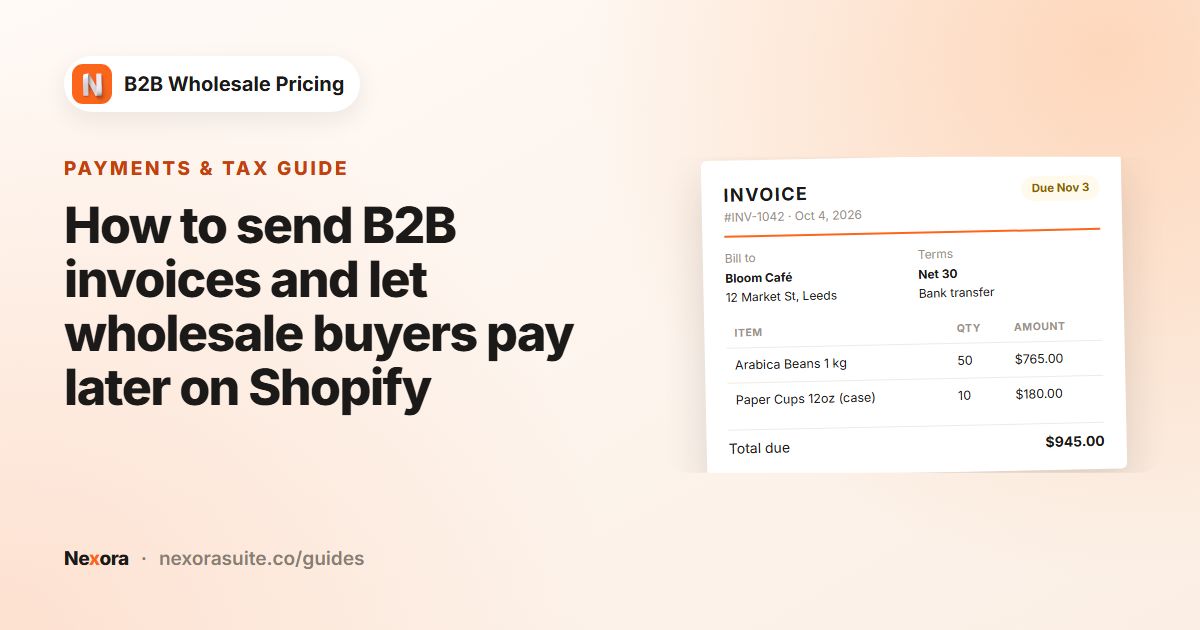
Order forms → Invoices tracks every invoice and proforma, with Draft, Sent, Overdue, Paid and Void tabs. Invoices are created automatically when a payment term is applied to an order at checkout. You can also create them from a quote or a draft order. On an invoice you can Download PDF, Resend, Mark as paid or Void.
Click Edit invoice template to design the PDF with a live preview. Logo & shop identity, Layout (header and title alignment, accent color, font), Sections (ship-to, PO number, payment instructions, footer), Labels and Typography. Numbering, payment instructions and the invoice email are under Settings → Invoices.
Notifications
Order forms → Notifications is an in-app inbox for new quotes, purchase orders, draft orders and status changes. The number of unread items shows on the tab.
 Related guideHow to add a quick order form (bulk order by SKU) to your Shopify store→
Net payment terms and shipping rates
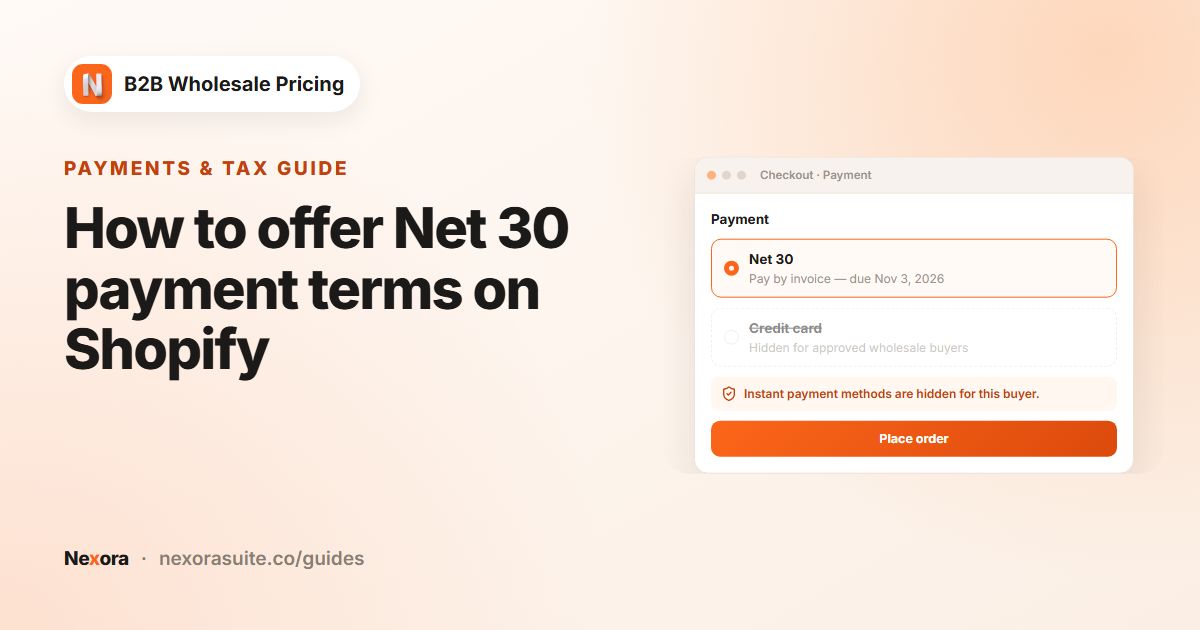
Payment terms
Go to Add-ons → Payment terms and click Create payment term.
| Card | Settings |
|---|---|
| Payment term | Term type: Net days (Net 7, 15, 30, 45, 60 or 90), Due on receipt, Due on fulfillment or Fixed date. |
| Order value | Optional minimum and maximum order value. Orders outside the range pay immediately. |
| Checkout enforcement | Enforce this payment term at checkout, plus Hide these payment methods at checkout (Shopify Payments, PayPal, Apple Pay, Google Pay, Amazon Pay, or any method name you add). |
| Customers | Who gets the term: all customers, logged in, by tags or specific customers. |
| Invoice reminder (sidebar) | Email the customer before the due date, with a Lead time of 3, 7 or 14 days. You can edit the email under Settings → Payment reminders. |
Shopify doesn't let apps create payment methods. Before enforcing a term, go to Settings → Payments → Manual payment methods in Shopify, click Create custom payment method (for example NET 30 — Pay later) and activate it. Leave that method out of the hide list, and hide the instant-pay methods so the manual method is what customers see. Some themes may still show express-pay buttons above checkout.
Shipping rates
Go to Add-ons → Shipping rates and click Create rule. First create your rates in Shopify → Settings → Shipping. Then, in the app, enter the rate names exactly as they appear at checkout.
| Setting | Options |
|---|---|
| What should this rule do? | Hide matching rates, Show only matching rates or Free shipping (reveal only the named free rate). For free shipping, create a $0 flat rate in Shopify first. |
| Rate names | One or more rate names, each matched by Exact name or Name contains. |
| Apply when | Always (no condition), Cart subtotal, Total quantity or Total weight, with an optional Minimum and Maximum. |
| Customers | Who the rule applies to, for example customers tagged wholesale. Exclude-by-tag is available. |
Payment terms and shipping-rate rules target customers only, not markets. There is no live checkout preview for shipping rules, so test with a customer account that matches the rule.
 Related guideHow to offer Net 30 payment terms on Shopify→
Tax display and tax exemption
Tax display
Go to Add-ons → Tax display and click Create tax display rule to show prices with or without VAT to the buyers you choose. Click Sync tax rates on the list page to load the rates from your Shopify tax settings.
| Card | Settings |
|---|---|
| Price display format | Both — side by side, Incl. VAT only, Excl. VAT only, Both — stacked or Incl. VAT + tooltip. |
| Tax rate source | Auto from Shopify Tax settings (recommended) or Custom rate (this rule only). |
| Customers / Products | Who sees it and on which products. Leave the tags empty to apply to all logged-in customers. |
| Apply to surfaces | Product page, Cart page, Mini-cart / Drawer, Collection page and Search results. Each one can follow the main format or use its own. |
| Design | Incl. VAT label, Excl. VAT label, colors, font sizes and custom CSS. |
Tax exemption
Go to Add-ons → Tax exempt and click Create tax exempt rule.
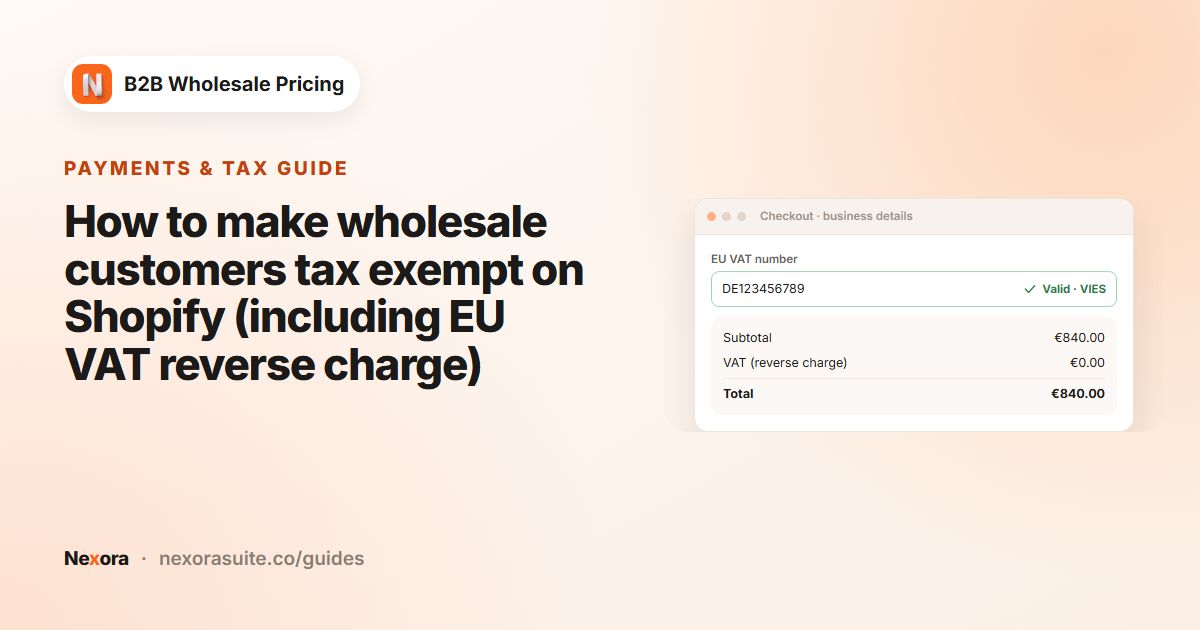
- Exemption mode: Reverse charge — EU cross-border only removes VAT only when the buyer's Tax ID is valid and the order crosses a border. Domestic orders are taxed as normal. Exempt all tax — resale removes VAT on every matching order once the buyer's Tax ID is valid.
- Validation: EU VAT numbers are checked against the EU VIES registry. Choose which EU countries to include.
- Order tagging: an Order tag added to every order that qualifies.
- Tax-inclusive discount: for stores whose prices include VAT. Exempt buyers see the VAT removed as a discount line, so displayed prices stay consistent.
Buyers can enter their VAT number with the Tax ID element on your registration form (add a Country element too). On a customer's page, the Tax exemption card lets you Validate a Tax ID, Apply exemption or Revoke exemption. Exempt without Tax ID (supplier-exempted) marks a customer exempt without a VIES check.
Automatic checks use the EU VIES registry. UK (GB) VAT numbers are not validated automatically — they show as Pending so you can review them, then exempt the buyer with Exempt without Tax ID (supplier-exempted).
Tax rules depend on your country and your customers. Check with your accountant before relying on reverse charge or resale exemptions.
 Related guideHow to make wholesale customers tax exempt on Shopify (including EU VAT reverse charge)→
Variant drawer and Request a Quote
Variant Drawer
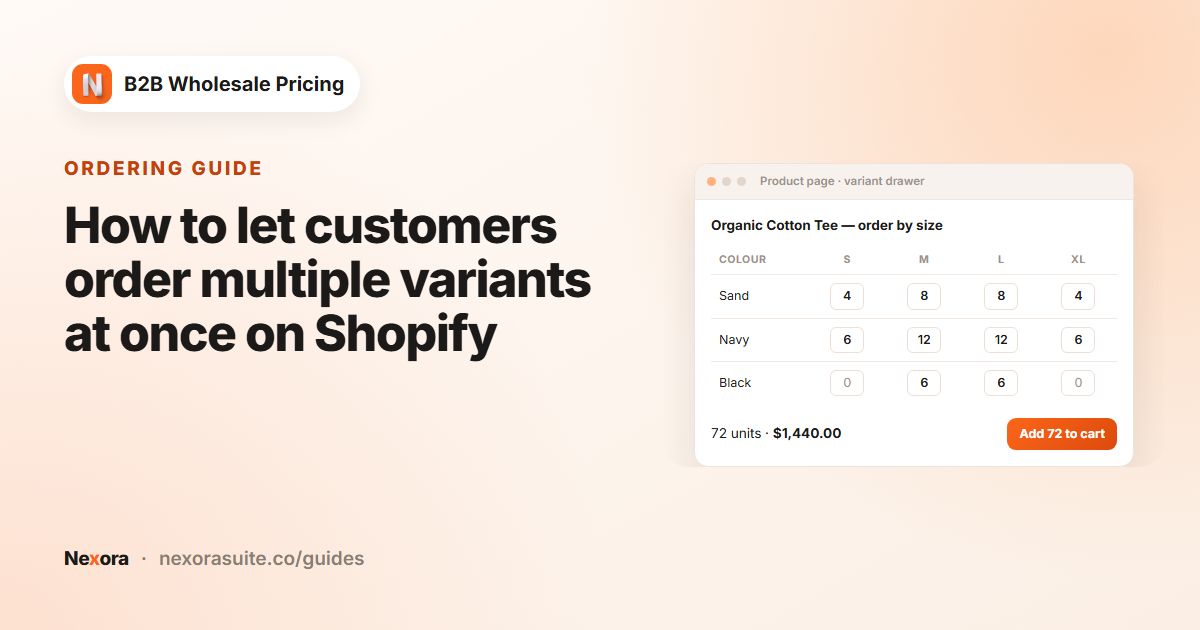
Go to Add-ons → Variant Drawer and click Create new. Buyers can order many variants of a product at once from the product page. Add the Variant Drawer block to your product template.
- Products and customers who see the drawer, and optional active dates.
- Quantity constraints: Min qty per variant (MOQ), Min qty per product (MOQ) and Max qty per variant. Leave 0 for no limit.
- Display & Actions → Display mode: Button (a trigger near the product), Floating (a sticky button) or Inline (a variant table on the page). Quantities are added to the cart as buyers enter them.
- Labels: Trigger button label (Order in bulk by default), Trigger icon and Drawer title. A Design card controls colors, fonts and the table style.
Request a Quote
Go to Add-ons → Request a Quote and click Create new. Each rule has three tabs: General, Button and Modal.
| Tab | Settings |
|---|---|
| General | Products and customers (set customers to All customers to let guests request quotes). Quote-only (replace Add to cart) hides Add to cart and Buy it now on matching products. Auto-create draft order (pay later) creates a Shopify draft order, emails a proforma invoice and shows the shopper a payment link. Use a custom tag for submitted quotes groups quotes under one tag. |
| Button | Button label, icon and Storefront placement: an add-to-quote button on product cards and a floating quote-list launcher, with toast texts. |
| Modal | Modal title, Subtitle, Submit button label and Success message. Optional fields: Message to the seller, PO number, Needed by (ship date). Guest fields: email, name, company and phone. |
Add the Request a Quote block to the product template and Request a Quote (cart) to the cart template. Turn on the RaQ Quote List app embed for the store-wide quote list. Submitted quotes appear under Order forms → Quotes & orders.
 Related guideHow to let customers order multiple variants at once on Shopify→
Email, translations and support
Settings → Email
- Default email service usage: how many emails the app's built-in service has sent this month, out of the monthly allowance.
- Default sender name and Sender email. The sender email is used as Reply-To on the built-in service, and as the From address when you use your own provider.
- Mail SMTP & API → Use a custom email provider: send through Google, Sendinblue (Brevo), SendGrid, Outlook, Pepipost, Amazon SES, Elastic Email, Mailgun, Zoho Zepto or any SMTP server (Other). There is no monthly limit, and credentials are stored encrypted. Custom sender information lets you set a different From email, From name and Reply-To.
The app sends registration emails (submitted, approved, rejected, admin alert), invoice emails with the PDF attached, and payment reminders. Settings → Invoices holds the Invoice number prefix (for example INV-0001), Payment instructions, Email subject and Email body (HTML). Settings → Payment reminders holds Enable payment reminder emails and the reminder subject and body, with tokens such as {{due_date}} and {{amount}}.
Settings → Translations
Pick a Language from the languages published in your store, then enter your own text for any storefront string: prices, badges, order-limit messages, catalog locks, quotes and more. Leave a field blank to keep the default text. For 26 languages, including German, French, Spanish, Italian, Dutch, Japanese, Korean, Polish, Portuguese and Chinese, Fill in suggested translations fills the empty fields with ready-made text for you to review. Your own Request a Quote text appears in its own section.
Getting help
Click the chat bubble inside the app to talk to us, or email [email protected]. We're happy to help with setup and theme compatibility.
 Related guideHow to send B2B invoices and let wholesale buyers pay later on Shopify→