Why one-variant-at-a-time doesn't work for wholesale
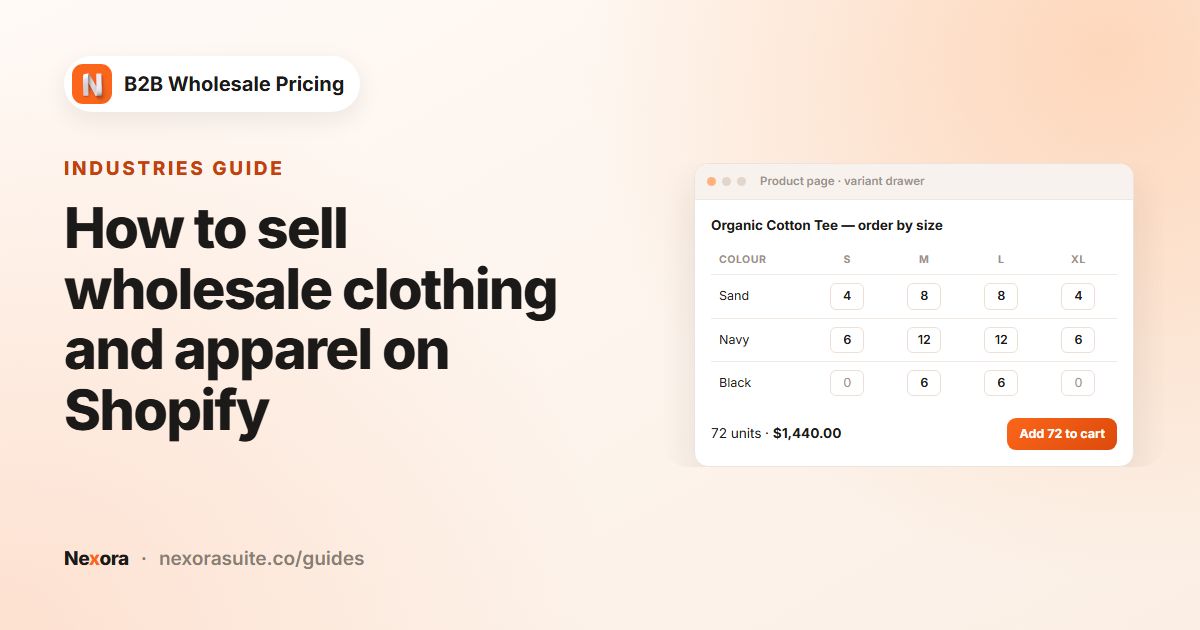
A boutique ordering a T-shirt for the new season doesn't want one size. They want a size run: 4 × S, 8 × M, 8 × L, 4 × XL, in three colours. On a standard Shopify product page, that is 12 rounds of choosing options, typing a quantity and clicking Add to cart, with a good chance of a missed size.
A variant table shows every combination on one screen. The buyer types quantities into a grid, sees the running total and adds everything together. It is the single most common request from apparel, footwear and any catalog with many options per product.
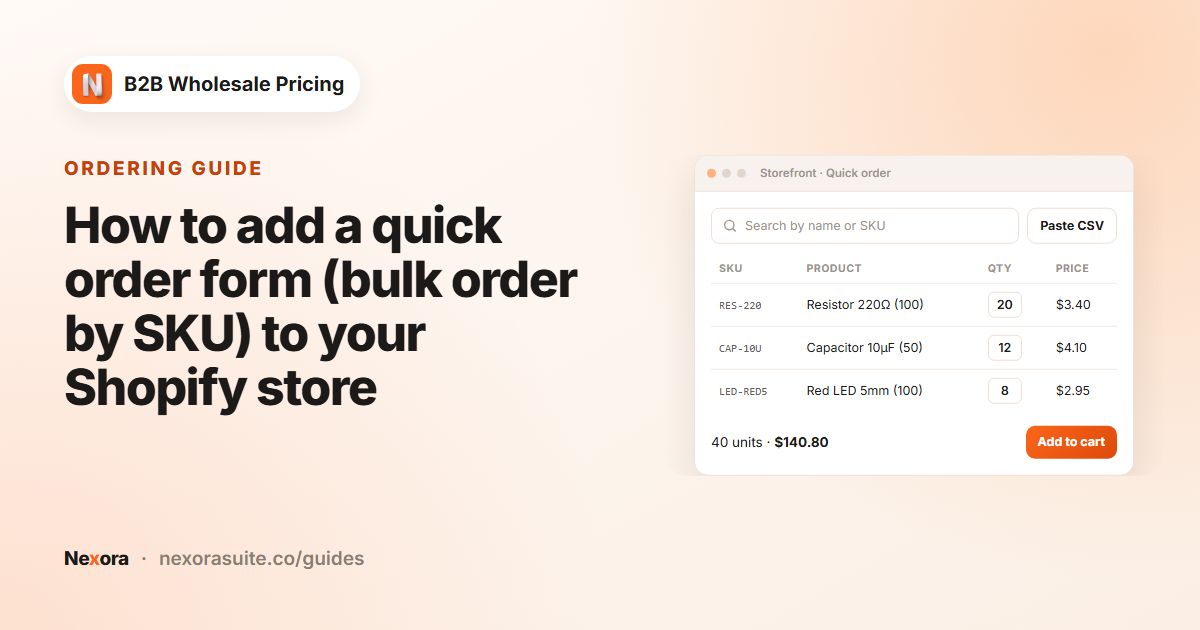
This is different from a quick order form. A quick order form lists many products on its own page. The Variant Drawer lives on each product page and lists the variants of that one product.
Your options on Shopify
Shopify's native B2B features include a quick order list that lets B2B buyers add several variants from the product page. The Shopify Help Center lists it on Basic, Grow, Advanced and Plus. It works for customers who belong to B2B companies in supported themes.
If your wholesale buyers are tagged customers, or you want to choose how the table opens (a button, a floating button or a table on the page) and add per-variant or per-product minimums, an app gives you more control. The Variant Drawer in Nexora B2B Wholesale Pricing is free.
How to set up the Variant Drawer
- Create a drawer
Go to Add-ons → Variant Drawer and click Create new. Give it a Name (only you see it).
- Choose products and customers
Pick the products the drawer appears on, for example a collection of multi-size products, and the customers who see it, for example customers tagged
wholesale. Add active dates if it's seasonal. - Set quantity constraints
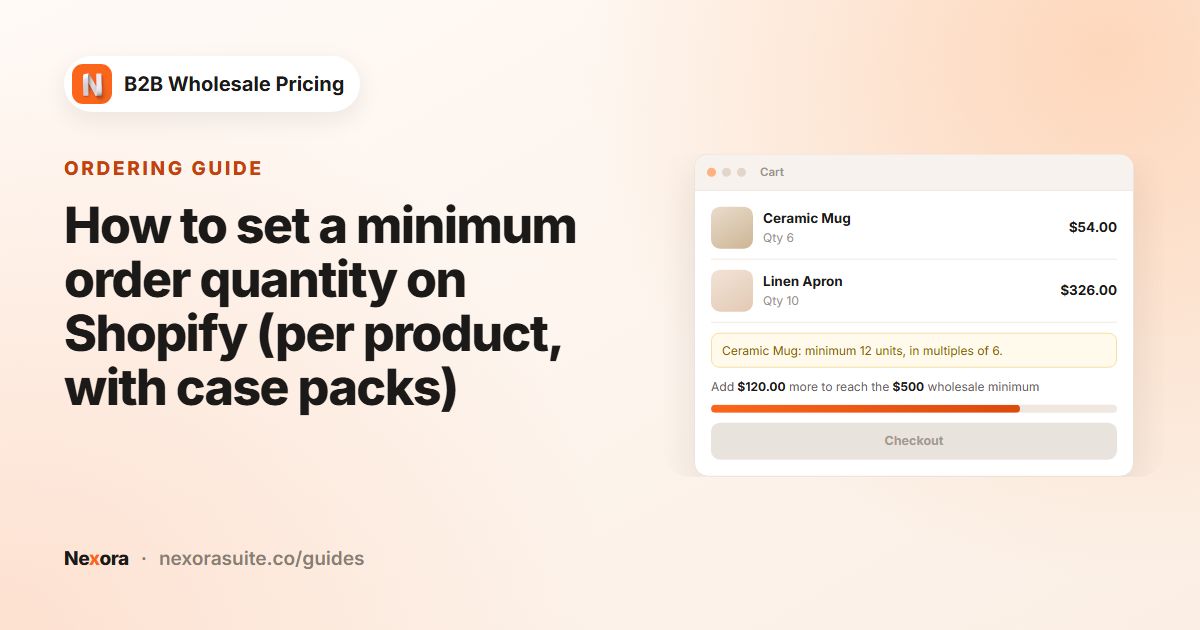
Under Quantity constraints, enter Min qty per variant (MOQ), Min qty per product (MOQ) and Max qty per variant as needed. Leave 0 for no limit.
- Pick the display mode
Under Display & Actions, choose a Display mode: Button, Floating or Inline.
- Set labels and design
In Labels, set the Trigger button label (Order in bulk by default), Trigger icon and Drawer title. Use Design for the button preset, table style and colours.
- Add the block
In the theme editor, add the Variant Drawer block to your product template and save. Make sure the Wholesale B2B app embed is on so the table shows B2B prices.
Display modes compared
| Display mode | What buyers see | Best for |
|---|---|---|
| Button | A trigger button near the product. Clicking it opens the variant table in a drawer. | Stores where retail and wholesale share product pages. The normal page stays clean. |
| Floating | A sticky button pinned to the screen (bottom left or bottom right), shaped as a pill with text or a circle with an icon. | Long product pages where the buyer may scroll past the main button. |
| Inline | The variant table is embedded on the page itself. | Wholesale-only stores, where the bulk table should be the main way to buy. |
In every mode, quantities are added to the cart as the buyer enters them. For products with two options, such as colour and size, the first option appears as a selector and the second as rows, so a buyer picks a colour and fills in the sizes.
Settings explained
| Setting | What it does |
|---|---|
| Min qty per variant (MOQ) | Each variant the buyer orders must reach this number. Variants left at 0 are ignored. |
| Min qty per product (MOQ) | The combined quantity across all variants of the product must reach this number. Good for size runs where sizes can be mixed. |
| Max qty per variant | The most units of a single variant. 0 means no cap. |
| Display mode | Button, Floating or Inline. |
| Trigger button label / Trigger icon / Drawer title | The button text (Order in bulk if empty), its icon and the drawer heading. |
| Design → Trigger button | Presets such as Solid black, Outline, Blue and Pill, then fine-tune colours, radius, size and Full width. |
| Design → Table style | Row dividers, Full border, Striped rows or Borderless, plus Show variant images, column headers and footer totals. |
| Design → Floating | Shape, Position, Distance from edges and Diameter for the floating button. |
The drawer's minimums are checked in the drawer. If a minimum must also hold in the cart and at checkout, add an MOQ limit under Restrictions → Order limits. See the minimum order quantity guide.
Example setup: a size run for boutique stockists
An apparel brand sells tees in 3 colours and 5 sizes. Stockists are tagged stockist. The brand wants at least 12 units per style, any mix of sizes, and no more than 48 of one size so stock is shared fairly.
| Setting | Value |
|---|---|
| Products | Collection: Tees & sweats |
| Customers | Tag stockist |
| Min qty per variant (MOQ) | 0 (any size can be skipped) |
| Min qty per product (MOQ) | 12 |
| Max qty per variant | 48 |
| Display mode | Button |
| Trigger button label | Order a size run |
| Drawer title | Choose colours and sizes |
| Table style | Striped rows, Show variant images on |
A stockist opens the drawer, picks Navy, enters 2 × S, 4 × M, 4 × L, 2 × XL, then switches to Black and repeats. Each quantity goes into the cart as it's entered, and the total passes the 12-unit minimum without visiting 8 separate variant pages. If the brand also runs a volume rule set to Mix variants (same product), the tier is worked out from the product total, so mixed sizes still earn the break.
Tips and common mistakes
- Turn on the app embed. Without the Wholesale B2B app embed, the drawer falls back to retail prices.
- Use per-product minimums for apparel. A per-variant minimum of 6 forces 6 of every size the buyer touches, which rarely matches how shops buy.
- Keep variant images small and clear. Turning on Show variant images helps with colours but adds height on phones.
- Choose Inline only when wholesale is the main audience. On a mixed retail store, Button keeps the standard page familiar for consumers.
- Check the layout on a phone. Use the live preview and your own phone, especially with five or more sizes.
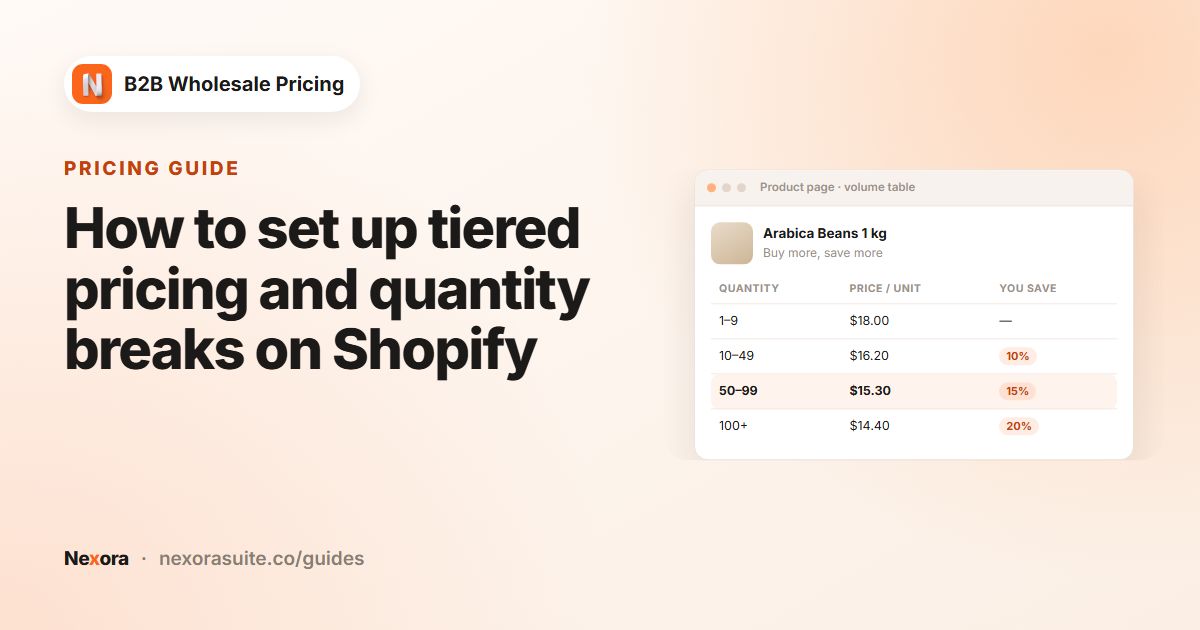
Pair the drawer with a volume pricing rule so buyers see the price drop as their size run grows.
Frequently asked questions
Can buyers add several sizes and colours to the cart at once?
Yes. The Variant Drawer lists every variant of the product, and quantities are added to the cart as the buyer enters them.
Does the variant table show wholesale prices?
Yes, when the Wholesale B2B app embed is on. Each row uses the buyer's wholesale and volume price, and falls back to the retail price for shoppers no rule applies to.
Can I require a minimum per product but let buyers mix sizes?
Yes. Set Min qty per product (MOQ) and leave Min qty per variant (MOQ) at 0. The combined quantity across all sizes must reach the minimum.
Can I show the table directly on the product page?
Yes. Set Display mode to Inline to embed the variant table on the page, instead of opening it from a button.
Can retail shoppers still use the normal product form?
Yes. Target the drawer at your wholesale tag. Other shoppers see the standard product page.