What tiered pricing is and why wholesale buyers expect it
Tiered pricing (also called quantity breaks, volume discounts or price breaks) is a short ladder of prices. The more a buyer orders, the less each unit costs. Trade buyers compare suppliers on these ladders, so a clear table on the product page often answers the first question they would otherwise email you about.
Tiers also shape order size. If 24 units cost noticeably less per unit than 20, many buyers round up. That helps you ship fuller cartons, cut per-order handling, and move slower stock.
Quantity tiers vs spend tiers
| Quantity tiers | Spend (cart amount) tiers | |
|---|---|---|
| Breakpoint measured in | Units | Money, in your store currency |
| Example ladder | 12–47 units: 5% off · 48+ units: 12% off | $500–$999: 5% off · $1,000+: 10% off |
| Works best for | One product or product family sold by the unit or case | Mixed baskets where buyers order many different items |
| App setting | Tier basis → Quantity | Tier basis → Cart amount |
Your options for volume discounts on Shopify
A standard Shopify discount can require a minimum quantity or purchase amount, but each discount has a single threshold. A three-step ladder means three discounts, careful combination settings, and no tier table on the product page unless you add one to the theme.
Shopify's built-in B2B features include volume pricing and quantity rules inside B2B catalogs, for buyers set up as companies. Since April 2026, Shopify offers these foundational B2B features on its Basic, Grow and Advanced plans as well as Plus. See Shopify's B2B guide for the current details.
Nexora B2B Wholesale Pricing handles tiers as one rule per ladder, for any customer group you choose: retail shoppers, tagged wholesale accounts, or specific customers. It includes a product-page table. The app is free.
How to set up tiered pricing with Nexora B2B Wholesale Pricing
- Create a volume rule
Go to Pricing → Volume pricing and click Create new. Enter a Title in Basics.
- Pick who gets the tiers
In Customers, choose All customers for public bulk discounts, or By customer tags (for example
wholesale) for trade-only tiers. Use Markets if the tiers apply only in some countries. - Pick the products
In Products, choose All products, Specific products, Collections, Product tags, Vendor or Product type.
- Choose the tier basis
In Tiers, set Tier basis to Quantity or Cart amount. Decide carefully, because you can't change it after the rule is created.
- Choose what counts toward a tier
Set Qualifying products: Same variant, Mix variants (same product) or Mix across all products.
- Enter the tiers
Pick a Discount type (% off, Amount off or Flat price). Fill in From, To and Value for the first tier, then click Add tier for each further breakpoint.
- Design the table
In Display, click Change template and pick one of the seven designs. Optionally add Heading text and turn on Highlight the tier matching the entered quantity.
- Activate, save and place the block
Set the rule to Active and click Save. On Home, click Add to theme next to Volume table app block to put the Volume Table block on your product template, then save the theme.
Tier settings and the 7 volume table designs
| Setting | Options | When to use it |
|---|---|---|
| Tier basis | Quantity or Cart amount | Quantity for unit or case pricing; cart amount for basket-size rewards. |
| Qualifying products → Same variant | Each variant must reach the breakpoint on its own. | Prices genuinely differ by size or material. |
| Qualifying products → Mix variants (same product) | All variants of one product add up. | Apparel: 6 S + 6 M + 12 L count as 24 of one style. |
| Qualifying products → Mix across all products | Every product in the rule counts. | Build-your-own assortments, e.g. any 50 candles. |
| Discount type | % off, Amount off or Flat price | Flat price when you quote exact unit prices like $4.20 at 100+. |
| Per-product & per-variant overrides | Click Edit on a row and turn on Use custom tiers. | One product needs a different ladder from the rest. |
Choosing a table design
| Design | What it looks like | Suits |
|---|---|---|
| Classic | A clean table with a header row and simple rows. | Most themes; the safest default. |
| Striped | Colored header and alternating row stripes. | Longer ladders with five or more tiers. |
| Savings | Adds a Save column next to each tier. | Making the value of each step obvious. |
| Highlighted | Marks the top tier as recommended. | Nudging buyers toward the biggest break. |
| Badges | Quantities shown as colored pill badges. | Visual, consumer-style product pages. |
| Cards | Each tier as an accented horizontal card. | Two or three tiers with plenty of space. |
| Inline | Compact pill chips in a single wrapping row. | Tight layouts or narrow product columns. |
- Advanced → Show volume table on product page: turn off to keep the discount at checkout without showing the table.
- Advanced → Show pricing note under the table: explains how tiers combine with a wholesale price. It appears only when a wholesale rule also applies.
Example: case-based tiers for a candle supplier
A candle maker sells a $12 candle in four scents. Trade buyers tagged wholesale already get 30% off through a wholesale rule. The maker wants an extra break for large orders, counted across all scents of the same candle.
| Tier | From | To | Value (% off) |
|---|---|---|---|
| 1 | 24 | 71 | 5 |
| 2 | 72 | 143 | 10 |
| 3 | 144 | 15 |
Settings used: Tier basis = Quantity, Qualifying products = Mix variants (same product), design = Savings. With Settings → Pricing → Combine Wholesale & Volume set to Stack both discounts, a buyer ordering 72 candles gets the 30% wholesale price ($8.40) and then 10% off that, about $7.56 each. With Best price for customer, only the larger single discount applies, so the buyer pays $8.40.
Tips and common mistakes
- Leave no gaps: if tier 1 ends at 47, start tier 2 at 48. A gap means quantities in between get no tier. Leave To blank on the last tier so it covers everything above its start; only the last tier can be open-ended.
- Pick Qualifying products deliberately: with Same variant, a buyer ordering 12 red and 12 blue won't reach a 24-unit break.
- Decide stacking up front: Best price for customer protects your margin; Stack both discounts rewards trade buyers who also order in bulk.
- Table not showing? The Volume Table block must be on the product template, and Show volume table on product page must be on.
- Spend tiers need a fresh rule: you can't switch an existing quantity rule to Cart amount. Create a new rule instead.
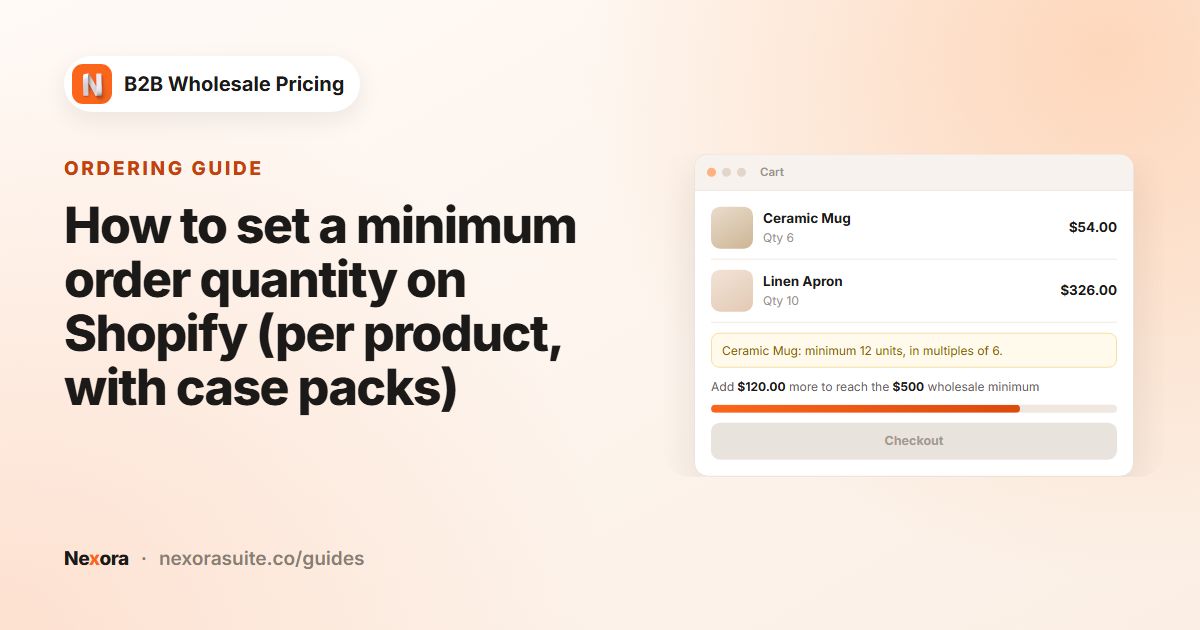
Tiers reward bigger orders, but they don't enforce a minimum. To require a minimum order quantity, see minimum order quantity.
Frequently asked questions
Can tier prices apply to retail customers too?
Yes. Set the volume rule's Customers card to All customers. Create a second rule for tagged trade buyers if they should get a different ladder.
Can different sizes of one product count toward the same tier?
Yes. Set Qualifying products to Mix variants (same product). To let different products add up, choose Mix across all products.
How many table designs are there?
Seven: Classic, Striped, Savings, Highlighted, Badges, Cards and Inline. Pick one under Display → Change template.
Can I give one product its own tiers inside the rule?
Yes. Open Per-product & per-variant overrides, click Edit on the product or variant and turn on Use custom tiers.
Do the tier prices apply at checkout?
Yes. Volume prices are applied at checkout by the Nexora Wholesale Discount automatic discount that the app creates in Shopify.
Can I base tiers on order value instead of units?
Yes. Choose Cart amount as the Tier basis when you create the rule. It can't be changed later.