Why the price display matters to trade buyers
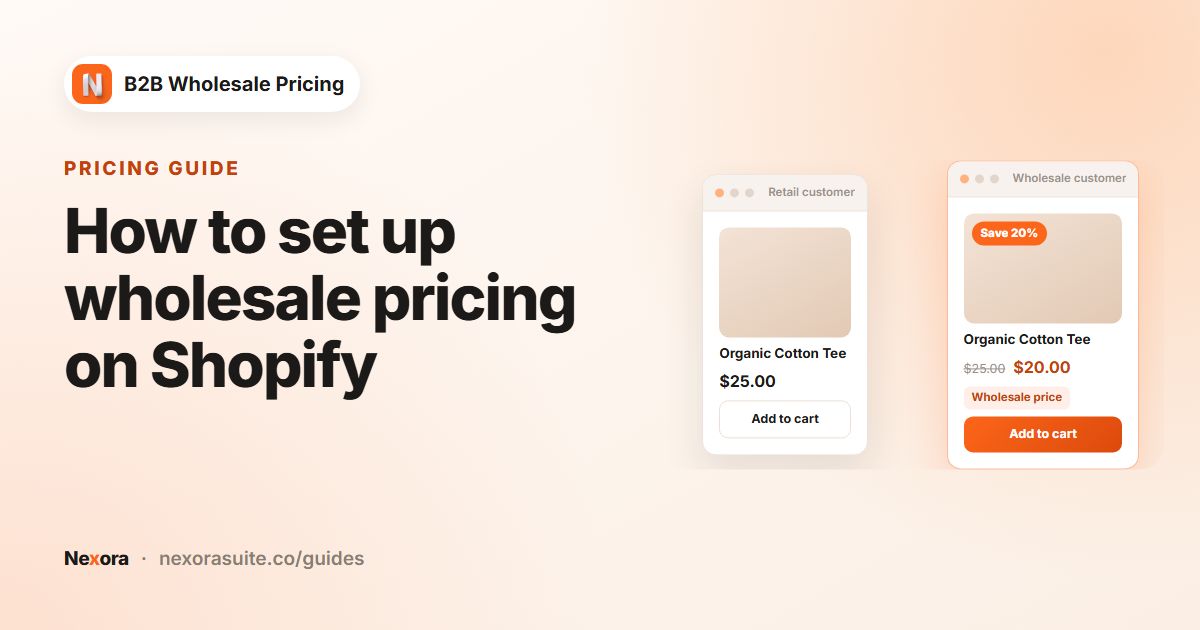
A wholesale buyer who signs in and sees $24 has an unspoken question: is this my trade price, or the normal one? Showing the retail price crossed out, with the saving next to it, answers that at a glance. It also makes your price levels tangible when a buyer moves up a level and the badge changes from Save 25% to Save 35%.
- Confidence: buyers know the account is set up correctly before they order.
- Fewer support emails: no Am I seeing wholesale prices? messages.
- A visible reason to stay signed in: the savings are spelled out on every product card.
Compare-at price vs customer-aware price display
Shopify's compare-at price field shows a crossed-out price on a product, but it applies to every visitor and stores one fixed number per variant. That's right for a public sale. It doesn't work for wholesale, where retail shoppers should see the normal price with nothing crossed out and each trade level should see its own saving.
| Shopify compare-at price | Wholesale price display (app) | |
|---|---|---|
| Who sees the crossed-out price | Everyone | Only customers a wholesale or volume rule applies to |
| Different savings per buyer group | No | Yes, each rule shows its own saving |
| Save badge | Depends on your theme | Four formats, styled per rule |
| Maintenance | Edit each variant | Follows your rules automatically |
Nexora B2B Wholesale Pricing adds the crossed-out price, badge and label on product cards, product pages, the home page and search results for qualifying buyers. The app is free.
How to set up the savings display with Nexora B2B Wholesale Pricing
- Turn on store-wide display settings
Open Settings → Display. Turn on Show original price with strikethrough and Show savings badge. Pick a Currency format: Currency code or Currency symbol.
- Choose the badge format per rule
Open a rule in Pricing → Wholesale pricing. In the Display card under Save badge, pick a Format and set Text color, Background color (or Transparent background), Font size, Border radius, Padding horizontal and Padding vertical.
- Add a wholesale label
Still in Display, tick Show a label under the price. Leave Label text empty to show Wholesale price, or enter your own, such as Trade price. Style it with its own colors, size, radius and padding.
- Decide on flat prices
Flat prices show only the wholesale price by default. To show retail crossed out next to them, tick Show original price crossed out for fixed prices in the rule.
- Stop the retail price flashing
On Home, click Enable on theme next to Zero-flicker app embed and save in the theme editor. Buyers then never see the retail price for a split second before the wholesale price loads.
- Check your theme
Sign in as a wholesale test customer. If the price sits in the wrong place, use Settings → Display → Theme & selectors: click Re-detect, choose your Store theme, or add Custom selectors.
Display settings explained
The four save badge formats
| Format | Example on a $40 product at $30 | Reads best when |
|---|---|---|
Save {amount} | Save $10.00 | Prices are low and the cash saving is what buyers notice. |
-{percent}% OFF | -25% OFF | You want a bold, sale-style tag. |
Save {percent}% | Save 25% | Your levels are expressed as percentages. |
{amount} off | $10.00 off | You want a quiet, factual label. |
Where each setting lives
| Setting | Where | What it does |
|---|---|---|
| Show original price with strikethrough | Settings → Display | Retail price crossed out on product, collection, home page and search cards. The cart and checkout use Shopify's own display. |
| Show savings badge | Settings → Display | Shows the save badge. It hides automatically when the B2B price is a flat price. |
| Product page price style / Product card price style | Settings → Display | Font size, weight, color and spacing for the B2B and crossed-out prices. Empty fields keep the theme's style. |
| Save badge → Format | Rule → Display | One of the four formats above, with its own styling. |
| Show a label under the price | Rule → Display | A pill such as Wholesale price, visible only to customers the rule applies to. |
| Show original price crossed out for fixed prices | Rule → Display | Adds the crossed-out price to flat prices. Needs the store-wide strikethrough setting on. |
| Custom CSS (advanced) | Rule → Display | Extra CSS for that rule's elements. |
You can translate the default Wholesale price label in Settings → Translations.
Example: two trade levels with different badges
A homeware brand has a Stockist rule (25% off, tag stockist) and a Partner rule (flat prices on a bestseller set, tag partner).
| Retail shopper | Stockist | Partner (flat $26) | |
|---|---|---|---|
| Price shown on a $40 vase | $40.00 | $30.00, with $40.00 crossed out | $26.00, with $40.00 crossed out (fixed-price option on) |
| Badge | None | Save 25% | None, badges hide on flat prices |
| Label | None | Stockist price | Partner price |
The Stockist rule uses Save {percent}% with a dark green background and Label text Stockist price. The Partner rule ticks Show original price crossed out for fixed prices, so partners still see the retail comparison even though there is no badge. Retail visitors see a clean $40.00 with nothing crossed out.
Tips and common mistakes
- Don't also set a compare-at price on products you discount for trade. Retail shoppers would then see a crossed-out price too.
- Flat price, no badge? That's expected: the badge hides on flat prices. Use the label or the fixed-price crossed-out option instead.
- Badge looks off-brand? Each rule has its own badge styling, and Settings → Display → Custom CSS applies store-wide.
- Prices look unstyled? Fill in Product card price style so the B2B price matches your theme's size and weight.
- Flicker on slow connections? Make sure the Zero-flicker (head) embed is on as well as Wholesale B2B.
Frequently asked questions
Will retail customers see a crossed-out price?
No. The crossed-out price, badge and label show only to customers a wholesale or volume rule applies to. Retail visitors see your normal price.
Which save badge formats are available?
Four: Save {amount}, -{percent}% OFF, Save {percent}% and {amount} off. Choose one per rule under Display → Save badge → Format.
Why doesn't the badge show on some products?
The save badge hides automatically when the B2B price is a flat price. Also check that Show savings badge is on in Settings → Display.
Does the crossed-out price show in the cart?
The cart and checkout use Shopify's own display, which shows the discount line with the rule's title.
Can I change the Wholesale price label text?
Yes. Enter your own Label text in the rule, or translate the default text in Settings → Translations.