What customer-specific pricing solves
One wholesale price list rarely fits everyone. A national distributor ordering every week, a café buying two cases a month and a key account with a negotiated contract all expect different terms. Customer-specific pricing lets you keep those agreements on the storefront itself, so each buyer sees their own price when they sign in and pays it at checkout.
- Price levels: Bronze, Silver and Gold accounts with increasing discounts.
- Contract prices: a flat agreed price for one buyer on a few key products.
- Regional price lists: different trade prices for buyers in the EU and the US.
- Exceptions: a buyer who is in the Gold group but has a special contract that overrides it.
Ways to target customers on Shopify
Shopify's built-in B2B features handle customer-specific pricing through catalogs assigned to B2B companies. Since April 2026, Basic, Grow and Advanced plans include up to three custom catalogs. Unlimited catalogs, and assigning catalogs directly to companies and locations, remain on Shopify Plus. If you need more price levels than that, or your buyers are ordinary customer accounts rather than companies, an app is the usual route. See Shopify's B2B guide.
In Nexora B2B Wholesale Pricing, every wholesale and volume rule has a Customers card and a Markets card. Together they decide who the rule applies to.
| Targeting | How it matches | Best for |
|---|---|---|
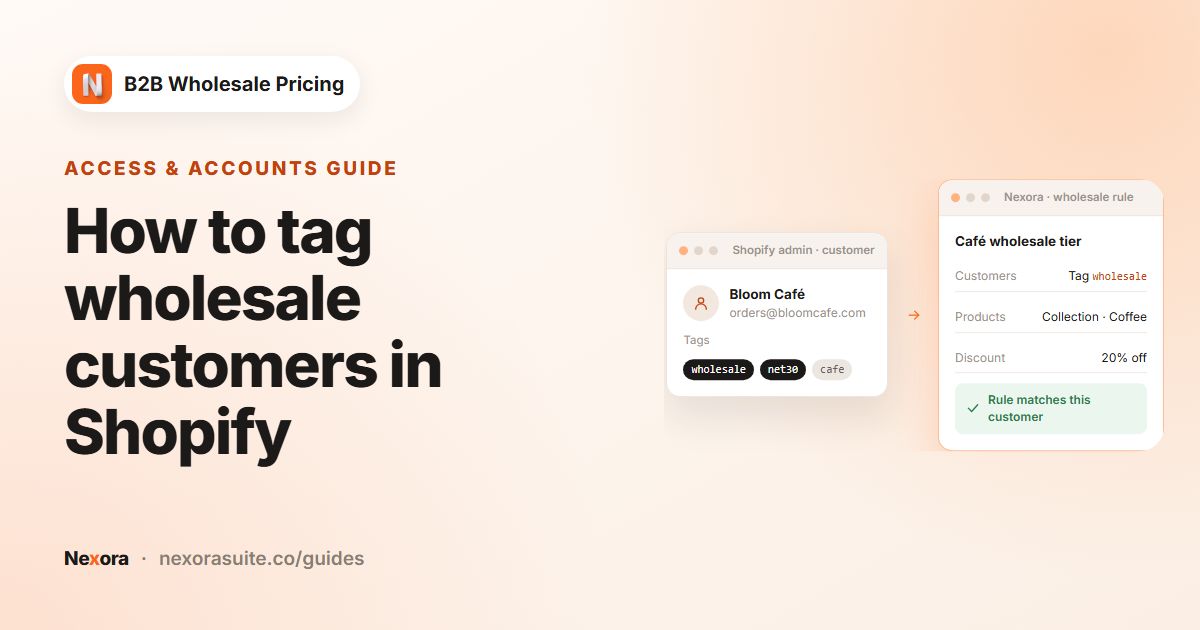
| By customer tags | Customers whose account carries the tags you list, matching any of or all of them. | Price levels and groups of any size. The recommended option. |
| Specific customers | Accounts you hand-pick under Selected customers. | A few key accounts with negotiated prices. |
| Logged in only | Any signed-in customer. | A single members' price for everyone with an account. |
| All customers | Everyone, including guests. | Public promotions or volume breaks open to all. |
| Markets → Specific markets | Buyers in the countries of the markets you select. Combines with any customer option above. | Regional price lists. |
What about Shopify customer segments?
Rules don't target Shopify customer segments directly. If you already group buyers with a segment, for example customers who spent over $5,000 last year, use it to find those customers in Shopify, add a tag to them, and target that tag in the rule. Remember that tags don't update by themselves when segment membership changes.
How to set up customer-specific prices with Nexora B2B Wholesale Pricing
- Plan your groups
Write down each price level and the tag that identifies it, for example
tier-bronze,tier-silver,tier-gold. One tag per level keeps rules easy to read. - Create one rule per group
Go to Pricing → Wholesale pricing and click Create new. Give the rule a Title that names the level, such as Silver trade price.
- Target the tag
In Customers, choose By customer tags, keep any of, and add
tier-silver. Under Exclude customers with these tags (optional), add any tag that should never get this price, for exampleon-hold. - Limit it to a region if needed
In Markets, choose Specific markets and pick the markets this price list belongs to. Otherwise leave All markets.
- Set the discount and save
Choose products and a Discount type, enter the value, switch the rule to Active and click Save. Repeat for each level.
- Add contract prices for named accounts
Create another rule, choose Specific customers and pick the account under Selected customers. Set Products to the contract items and use Flat price with Override for specific products for exact agreed prices.
- Decide which rule wins
A contract account that also carries a level tag matches two rules. Open Settings → Pricing → Rule tiebreaker (advanced) and pick Most specific scope first, Lowest final price, Newest rule first or Oldest rule first.
Customer and market settings explained
| Setting | Where | What it does |
|---|---|---|
| Match mode (any of / all of) | Customers → By customer tags | any of: one listed tag is enough. all of: the buyer needs every listed tag, e.g. wholesale and eu. |
| Exclude customers with these tags (optional) | Customers → By customer tags, All customers or Logged in only | Removes tagged accounts from a broad rule, such as retail-only or on-hold. |
| Exclude specific customers (optional) | Customers → All customers or Logged in only | Removes named accounts from a broad rule. On a tag-based rule, exclude by tag instead. |
| Selected customers | Customers → Specific customers | The hand-picked accounts the rule applies to. |
| Which markets? | Markets | All markets or Specific markets. The rule applies on the storefront and at checkout only for buyers in those markets' countries. |
| Rule tiebreaker (advanced) | Settings → Pricing | Which rule wins when two rules of the same type match one product for one buyer. |
Example: three price levels plus one contract account
A coffee roaster sells a 1 kg bag that retails at $32. It has three trade levels and one hotel group with a negotiated price.
| Rule | Customers | Markets | Discount | Bag price |
|---|---|---|---|---|
| Bronze trade | By customer tags: tier-bronze | All markets | Percentage off 20 | $25.60 |
| Silver trade | By customer tags: tier-silver | All markets | Percentage off 30 | $22.40 |
| Gold trade | By customer tags: tier-gold, excluding on-hold | All markets | Percentage off 40 | $19.20 |
| Hotel contract | Specific customers: the hotel group's buyer account | All markets | Flat price 18 on the house blend | $18.00 |
The hotel buyer is also tagged tier-gold, so two rules match the house blend. With Lowest final price as the tiebreaker, the $18.00 contract price wins on the house blend, and the 40% Gold rule still covers everything else. When a Gold account falls behind on payments, adding on-hold drops them back to retail prices without editing the rule.
Tips and common mistakes
- Use tags for levels, specific customers for exceptions. A rule with 200 hand-picked customers is hard to audit; a tag is one change on the customer.
- Keep one level tag per account. Two level tags on one buyer leave the result to the tiebreaker, which surprises people later.
- Check the market match. A buyer browsing from a country outside the rule's markets sees retail prices, even when tagged.
- Test with each kind of account. Create a test customer per level and sign in as each one before announcing new prices.
- Customer-specific minimums or terms are separate features. Order limits, payment terms and shipping rules each have their own Customers card.
Payment terms and shipping-rate rules target customers only. They don't have a Markets card, so regional terms need their own tag.
Frequently asked questions
How many price levels can I create?
Create as many wholesale rules as you need, one per tag or group. The app is free, and there is no paid tier that unlocks more rules.
Can I give one customer a special price on a single product?
Yes. Create a rule with Specific customers, set Products to that product, and use Flat price or an override with the agreed value.
Can a rule require two tags at once?
Yes. Under By customer tags, switch the match mode to all of. Only customers carrying every listed tag match.
Can I target Shopify customer segments?
Not directly. Tag the customers in the segment and target the tag. Tags don't follow later changes to the segment, so re-tag when your list changes.
What happens if a customer matches two rules?
Settings → Pricing → Rule tiebreaker (advanced) decides. Most specific scope first is the recommended default.