Why wholesale accounts need an application step
Trade prices only work if the right people get them. A normal customer sign-up creates an account straight away, with no chance to check who is behind it. For wholesale, you usually want to know the business name, whether it's a real shop, where it trades and sometimes its VAT number before anyone sees a trade price.
An application form with manual approval gives you that checkpoint. It also collects the details you'd otherwise chase by email (business type, expected order volume, resale certificate) in one place, attached to the request.
- Screen applicants before they see trade prices.
- Collect documents such as a business licence or resale certificate.
- Sort buyers automatically into price levels from their answers.
- Keep applicants informed with submitted, approved and rejected emails.
Your options on Shopify
Shopify's standard customer sign-up doesn't include a review step or custom business fields. Merchants often fall back to a contact form and then create and tag each account by hand, which works for a handful of buyers but gets slow quickly. Shopify's built-in B2B features manage buyers as companies; see Shopify's B2B guide for how companies are set up.
Nexora B2B Wholesale Pricing includes a drag-and-drop registration form builder, a submissions inbox with approve and decline actions, and approval emails. It creates the Shopify customer account for you on approval. The app is free.
How to build the form with Nexora B2B Wholesale Pricing
- Create the form
Go to Registration → Registration forms and click Add registration form. Enter a Form name.
- Add the fields
On the Configuration tab, add and drag elements into order. A typical wholesale form uses Name, Email, Password, Phone, a Text field for Company name, URL for the website, Country, Tax ID and File for a business licence.
- Sort buyers with tags
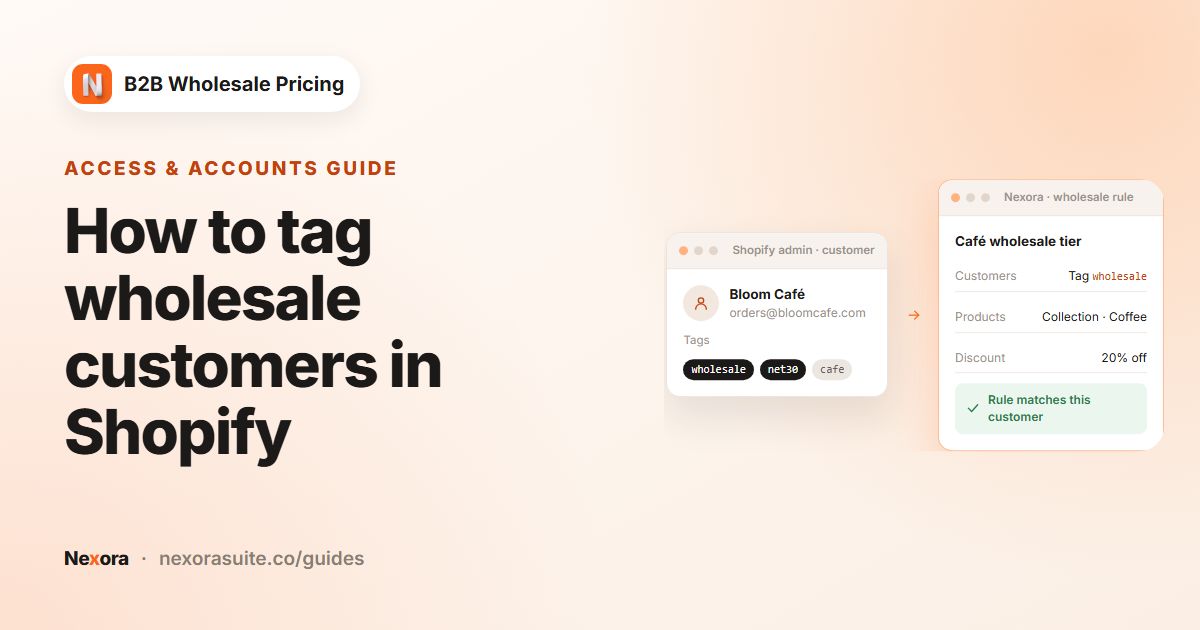
Add a Dropdown or Radio buttons element, for example Business type with Retail shop, Salon and Distributor. In Customer tag per option, give each option a tag such as
type-retailordistributor. The tag is added to the customer when you approve them. - Add terms
Add an Accept terms element so applicants agree to your trade terms before submitting.
- Style it
On Appearance, set font sizes, field style and density, borders and spacing, and the submit button's text, size, width and alignment.
- Set the emails
On Email, review the four templates: Customer — Submitted, Customer — Approved, Customer — Rejected and Admin — Received. Add your team's address as a recipient on Admin — Received.
- Choose what happens after submit
On Post-submit, choose Show a confirmation message or Redirect to a page.
- Publish it
Save, copy the Form ID from the Basics card, create a Shopify page such as Wholesale application, and add the Registration form block to it in the theme editor. Paste the Form ID into the block and save.
- Set the approval mode
In Settings → Registration, set Approval mode to Manual to review each request, or Automatic to create the account on submission.
Form elements and approval options explained
| Group | Elements | Wholesale use |
|---|---|---|
| Input | Text, Email, Name, Textarea, URL, Phone, Number, Password, Date time, File, Tax ID | Company name, website, expected monthly spend, licence upload, VAT number. |
| Selects | Checkboxes, Accept terms, Radio buttons, Dropdown, Country | Business type, product interests, trade terms, country of trade. |
| Static text | Heading, Paragraph, HTML | Explain who qualifies and how long review takes. |
Reviewing submissions
| Action | Where | Result |
|---|---|---|
| Approve request | Open a submission in Registration → Customer submissions, then save | Creates the Shopify customer account with your tags, the option tags and nb2b; sends Customer — Approved if enabled. |
| Decline request → Allow this customer to resubmit the wholesale account request | Submission detail | The applicant can apply again later. |
| Decline request → Permanently block this customer | Submission detail | The applicant can't create a wholesale account. |
| Approve selected / Decline selected / Add tags | Select rows in the submissions list | Handle many requests at once. |
| Export CSV / Import CSV | Submissions list | Move submission data in or out. |
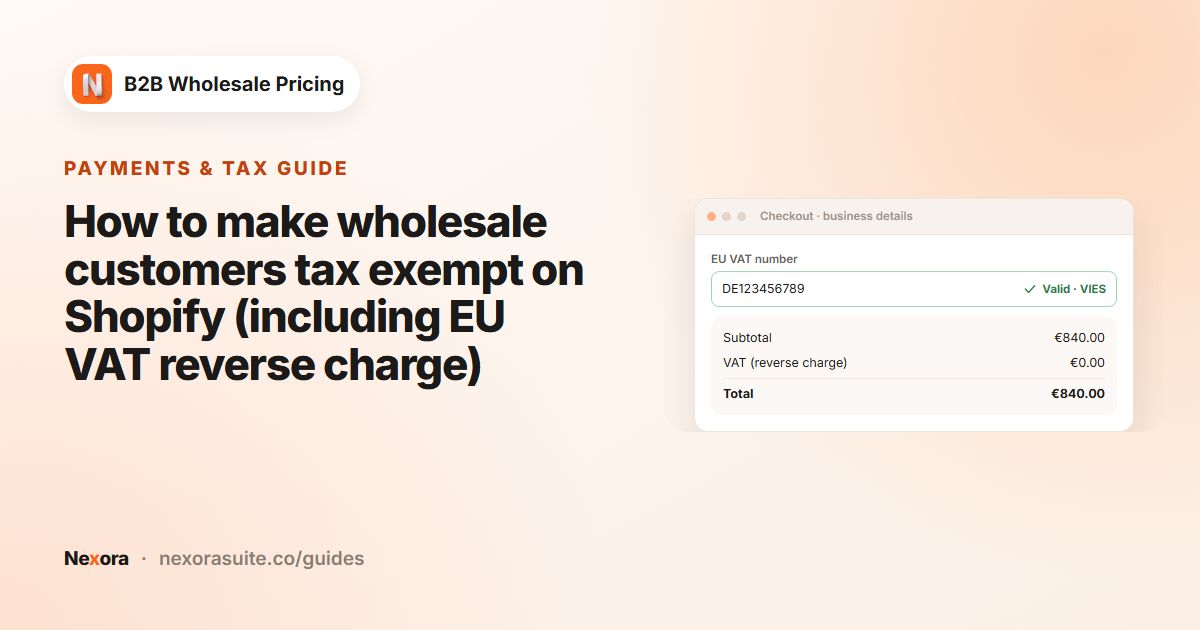
The Tax ID element pairs with the app's tax exemption feature. With a Country element on the form, EU VAT numbers can be checked against the EU VIES registry.
Example: a two-level application for a beauty supplier
A haircare brand wants salons and distributors to apply, with different prices for each.
| Field | Element | Setting |
|---|---|---|
| Your name / Email / Password | Name, Email, Password | Required |
| Salon or company name | Text | Required |
| Business type | Dropdown | Salon → tag salon · Distributor → tag distributor |
| Country | Country | Required |
| VAT number | Tax ID | Optional |
| Business licence | File | Required |
| Trade terms | Accept terms | Linked to the terms page |
Approval mode is Manual. When a salon applies, the team gets the Admin — Received email, opens the request in Customer submissions, checks the licence and clicks Approve request. The new account carries salon and nb2b. A wholesale rule targeting salon gives 30% off; another targeting distributor gives 45% off. Neither applicant had to wait for someone to tag them by hand.
Tips and common mistakes
- Keep the form short. Ask only what you need to decide. Extra questions can wait for the first order.
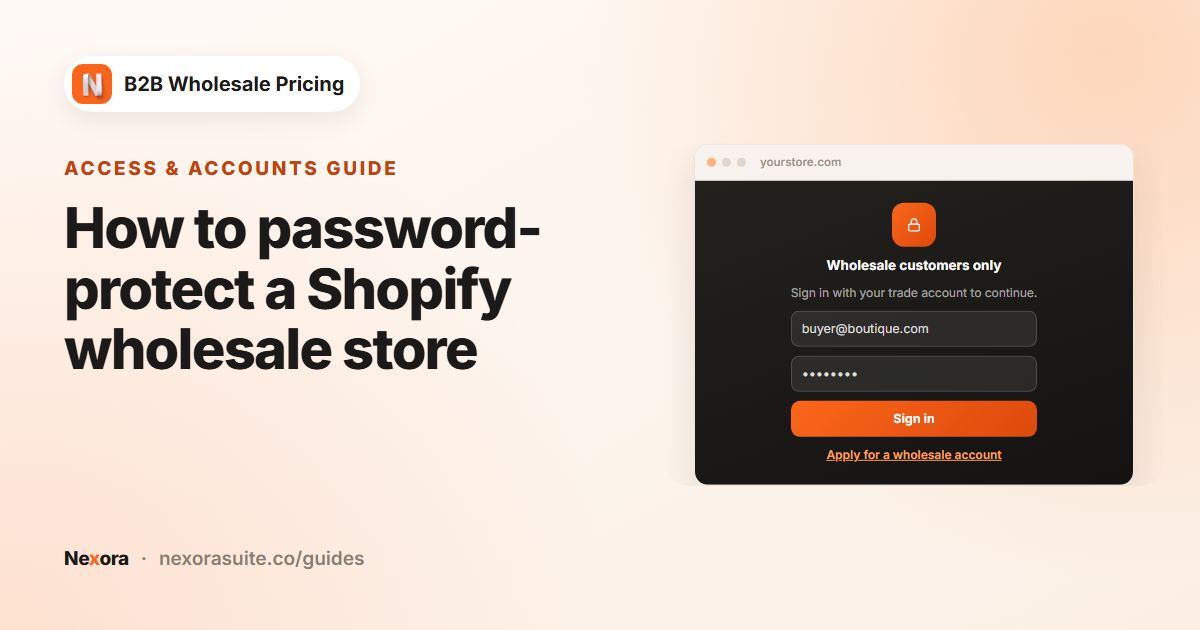
- Make the application page reachable. If you use a storefront lock, add the page handle to Public page handles.
- Tell applicants the timeline. A Paragraph element saying Requests are reviewed within two working days cuts follow-up emails.
- Map every option to a tag you actually use in a rule. A tag no rule targets does nothing.
- Use Automatic approval carefully. It's convenient, but anyone who submits the form gets an account and its tags immediately.
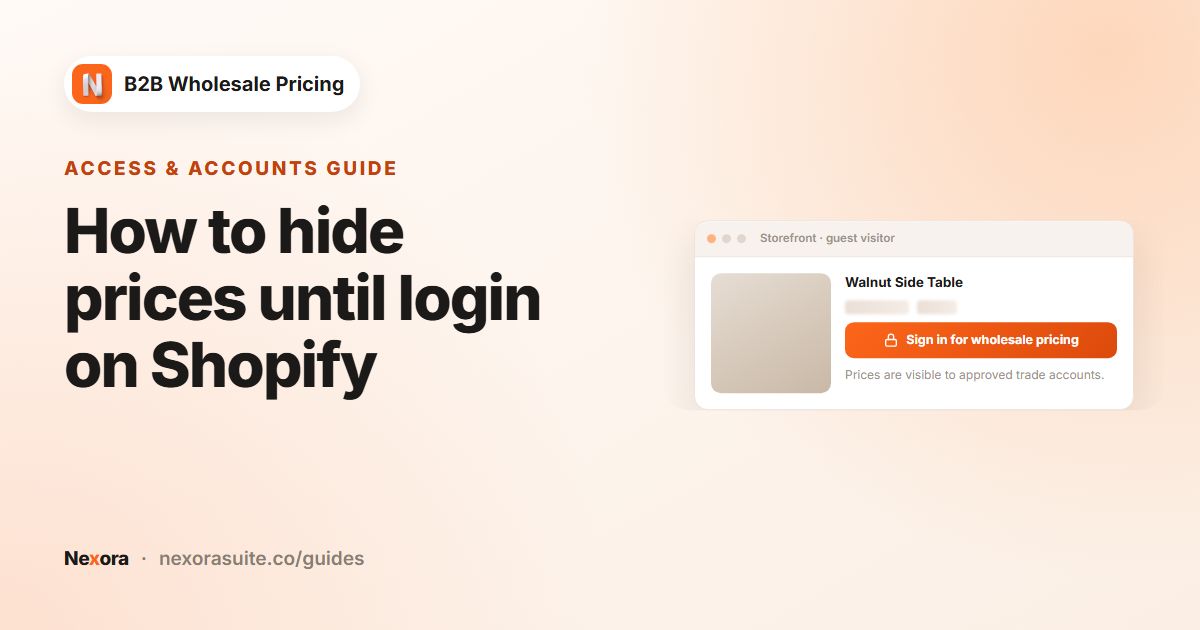
Link your catalog lock's Sign-in link URL to the application page so guests who hit a locked price can apply in one click.
Frequently asked questions
Can applicants upload documents?
Yes. Add a File element to the form, for example for a business licence or resale certificate.
Is the customer account created before I approve?
Not in Manual mode. The account is created in Shopify when you approve the request. In Automatic mode, it's created on submission.
Can I approve many applications at once?
Yes. In Registration → Customer submissions, select the rows and click Approve selected.
Can different applicants get different tags?
Yes. Use Customer tag per option on a Dropdown, Radio buttons or Checkboxes element, and each answer adds its own tag on approval.
What happens when I decline someone?
You choose whether they can resubmit later or are permanently blocked. The Customer — Rejected email is sent if it's switched on.
Can I have more than one form?
Yes. Create a form per audience, such as one for salons and one for distributors, each with its own Form ID.