Why wholesale stores hide prices
Many suppliers want their products to be discoverable in search and shareable with prospects, but don't want trade prices on public view. Publishing them can undercut your retailers, invite price comparisons from competitors, and confuse retail visitors who can't buy at those prices anyway.
Hiding the price, and only the price, keeps product pages useful: photos, descriptions and specifications stay visible, and the empty price slot becomes a prompt to sign in or apply for an account. It's a gentler option than locking the whole store, and it suits brands that sell both retail and wholesale from the same catalog.
- Wholesale-only brands: show the range to everyone, prices only to approved stockists.
- Mixed stores: hide prices on a trade-only collection while retail products stay normal.
- Restricted lines: hide some products or collections entirely from anyone who isn't approved.
Your options on Shopify
Shopify themes don't include a setting to hide prices from signed-out visitors. You can do it by editing theme code to check whether a customer is logged in, but every price snippet in the theme (product cards, product page, quick view, search, recommendations) has to be changed, and theme updates can undo the edits.
Shopify's built-in password page hides the whole store behind one shared password, which is a different job; see the password-protect guide for that. An app like Nexora B2B Wholesale Pricing can lock prices, products or collections for chosen buyers without code changes. The app is free.
How to hide prices with Nexora B2B Wholesale Pricing
- Check the app embed
On Home, confirm the Wholesale B2B app embed is on in Storefront status. Catalog locks are shown through it.
- Create a catalog lock
Go to Restrictions → Catalog locks and click Create lock. In Basics, enter a Name (only you see it).
- Pick the lock mode
Choose Lock mode: Hide price, Hide product or Hide collection. You can't change the mode after the lock is created, so create a new lock if you change your mind.
- Choose what's locked
In Scope, choose Specific products, Collections, Product tags, Vendor or Product type. All products is available, but the app warns you because it locks every product in the store. For Hide collection, the card is called Locked collections: pick Collections and add the ones to lock.
- Choose who can see
In Who can see, pick By customer tags (recommended), Logged in only or Specific customers. These customers see normal content. Everyone else sees the locked state.
- Write the locked-state text
In Locked-state messages, set the Price replacement text and the Unavailable message (you can use
{{title}}for the product name). Leave Sign-in link URL blank to use your store login page, or enter/account/registeror your application page. - Style the button and activate
For Hide price, open Button appearance and pick a preset, then set the lock to Active and click Save. Open a locked product in a private browser window to check what guests see.
Catalog lock settings explained
| Setting | Options | Notes |
|---|---|---|
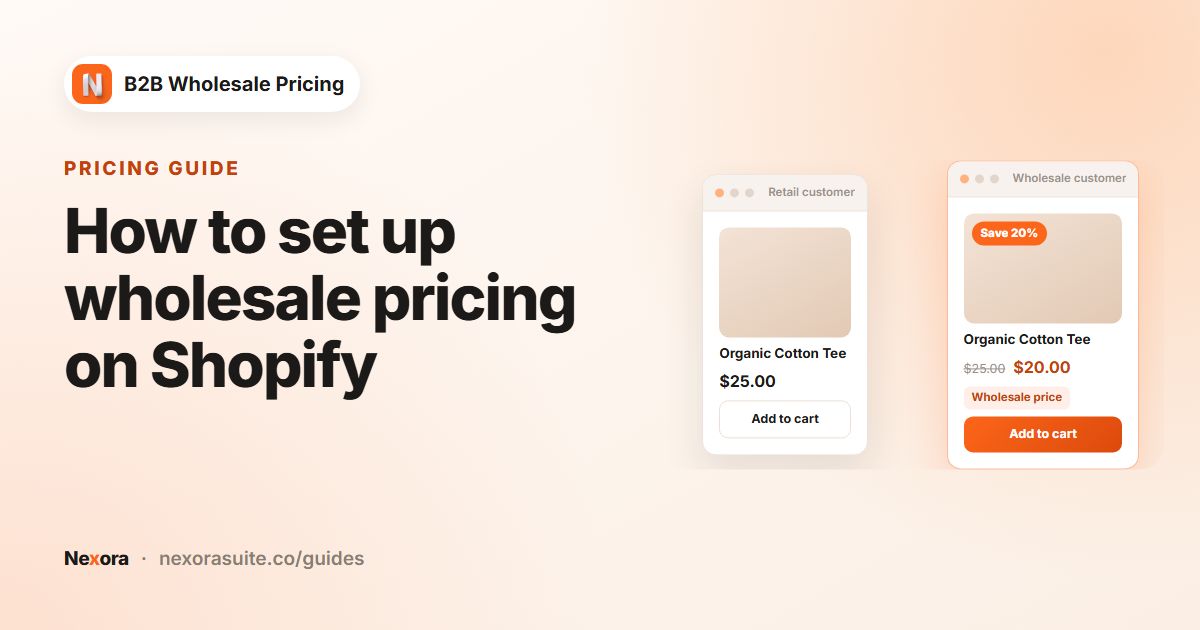
| Lock mode → Hide price | Price replaced by a Sign in for wholesale pricing button. | Product pages stay visible and can still be found in search. |
| Lock mode → Hide product | The product page is unavailable. | Use for items you only sell to approved accounts. |
| Lock mode → Hide collection | The collection page is unavailable. | Choose the collections under Locked collections. |
| Who can see | By customer tags (with any of / all of), Logged in only, Specific customers | Tag-based locks can also exclude tags with Exclude customers with these tags (optional). |
| Price replacement text | Free text | E.g. Sign in to see trade prices. |
| Unavailable message | Free text with {{title}} | Shown on hidden products and collections. |
| Sign-in link URL | Blank, or a path such as /account/register | Blank uses the store login page. |
| Button appearance | Presets Default, Solid dark, Minimal, Red accent; Background, Text + border, Show lock icon, Font size, Font weight, Border width, Border radius | Only shown for Hide price. |
A live preview next to the form shows the locked button as you change the text and style.
Example: public catalog, trade-only prices
A furniture maker sells a few accessories to the public and the main range only to interior designers. Designers are tagged trade when they're approved.
| Lock | Lock mode | Scope | Who can see | Message |
|---|---|---|---|---|
| Trade range prices | Hide price | Collections: Sofas, Tables, Lighting | By customer tags: trade | Price replacement text: Trade price, sign in |
| Samples library | Hide collection | Locked collections: Fabric samples | By customer tags: trade | Unavailable message: This collection is for trade accounts. |
Sign-in link URL is set to /pages/trade-application, a page holding the registration form. A visitor sees the full sofa page, photos and dimensions, with a Trade price, sign in button in place of the price. After approval and tagging, the same visitor sees the price and can add the sofa to the cart. Retail accessories outside the scope behave normally for everyone.
Tips and common mistakes
- Avoid All products unless you mean it. Locking everything also hides prices on retail items. Use a trade collection or a product tag such as
trade-only. - Use Hide price, not just a storefront lock, to keep prices out of the page. The storefront lock hides content visually, but prices are still in the page source.
- Give guests a next step. Point Sign-in link URL at a registration page so the button leads to an application, not a dead end.
- Tag-based locks need approved accounts tagged. If an approved buyer still sees the locked button, check that their customer record has the tag.
- Translate the button text in Settings → Translations if you sell in several languages.
Frequently asked questions
Can I hide prices only on some products?
Yes. Set the lock's Scope to Collections, Product tags, Vendor, Product type or Specific products. Products outside the scope show prices normally.
Can customers see prices once they log in?
Yes, if Who can see is Logged in only. With By customer tags, only signed-in customers carrying the tag see prices.
Do hidden prices stay out of the page source?
Use a catalog lock with Hide price for that. A storefront lock alone hides content visually but leaves prices in the page source.
Can I change a price lock into a product lock later?
No. Lock mode can't be changed after creation. Create a new lock with the other mode and deactivate the old one.
Where does the sign-in button link to?
To your store login page by default. Enter a path in Sign-in link URL, such as /account/register or your application page, to send visitors elsewhere.