When a wholesale store should be locked
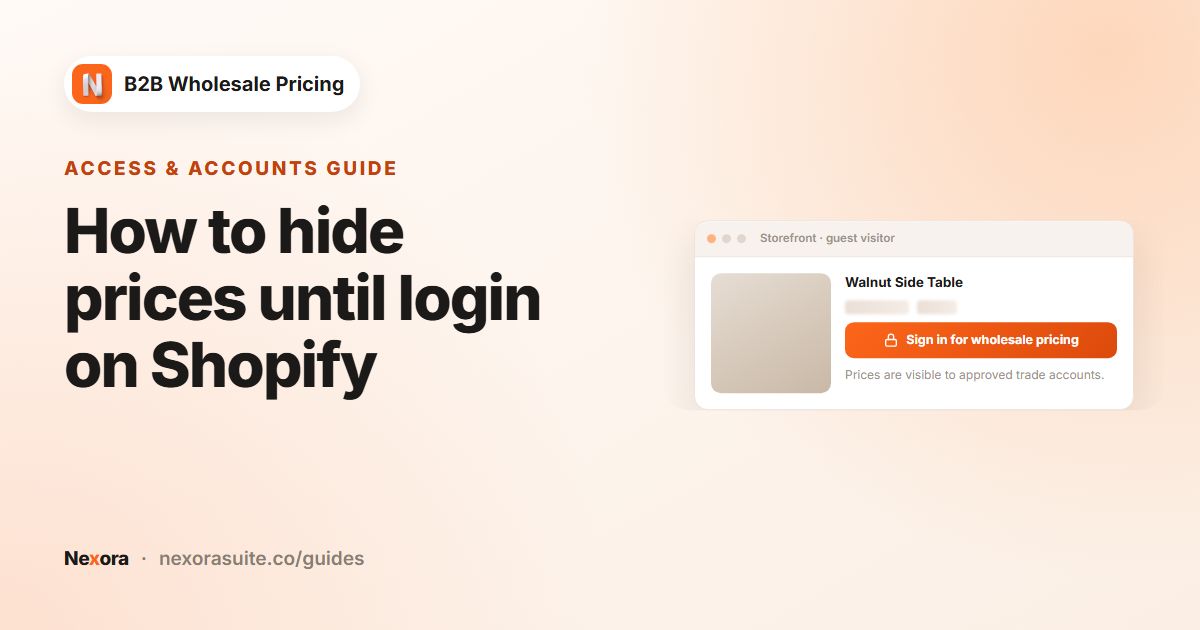
Some B2B stores have no reason to be public. A distributor that only sells to registered retailers, a brand running a private trade section next to its retail site, or a manufacturer showing next season's range to a few buyers all want the same thing: people who aren't approved should see a sign-in screen, not the catalog.
The useful version of this isn't a single shared password. It's a gate that knows who your customers are: approved buyers sign in with their own account and walk straight in, while everyone else sees a branded page explaining how to apply.
Shopify's password page vs a customer sign-in gate
| Shopify password page | Storefront lock (app) | |
|---|---|---|
| Who gets in | Anyone with the one store password | Signed-in customers you choose (by tag, login or name), plus optional passcode and secret links |
| Partial lock | No, the whole online store | Yes, the whole store or only chosen paths |
| Public pages | Only the password page | Homepage and any page handles you list; login, account and policy pages always stay public |
| Typical use | Pre-launch or maintenance | Ongoing private wholesale access |
Shopify's password page is built for stores that aren't open yet. For a store that trades every day with a known list of buyers, a sign-in gate tied to customer accounts usually fits better. Nexora B2B Wholesale Pricing includes a storefront lock, and the app is free.
How to lock your store with Nexora B2B Wholesale Pricing
- Open the storefront lock
Go to Restrictions → Storefront lock. Leave Enable storefront lock off while you configure it.
- Choose the scope
In Scope, choose Lock the entire store (with public exceptions below), or Lock specific paths only — everything else stays public and list the Locked path prefixes (one per line), for example
/collections/b2band/pages/trade-catalog. - Choose who can browse
In Customers, choose By customer tags (for example
wholesale), Logged in only, Specific customers or All customers, with optional exclusions. - Decide on access without an account
In Access without an account, optionally turn on Show a passcode field on the gate and set a Passcode. Click Add link under Secret links to create a link you can send to a prospect who doesn't have a login yet.
- Set public exceptions
In Public exceptions, tick Keep the homepage public if you want a public landing page, and add Public page handles such as
about-us,contactandwholesale-application. - Design the gate
In Gate design, add your logo, a Heading, a Message and a Footer note, and set the primary and secondary buttons, for example Sign in and Apply for an account. Tick Set noindex on locked pages so search engines don't index gated content.
- Preview, then switch it on
Use Preview while locked to open the live store as a locked visitor would see it. When it looks right, turn on Enable storefront lock, make sure the Storefront Lock app embed is on in your theme, and save.
Storefront lock settings explained
| Card | Setting | What it does |
|---|---|---|
| Scope | Lock the entire store (with public exceptions below) | Everything is gated except your public exceptions. |
| Scope | Lock specific paths only — everything else stays public | Only URLs starting with your Locked path prefixes are gated. |
| Customers | All customers, Logged in only, By customer tags, Specific customers | Who can browse locked pages once signed in. |
| Access without an account | Show a passcode field on the gate / Passcode | A shared code for buyers without a login. Changing it re-locks everyone who used the old one. |
| Access without an account | Secret links | Shareable links that open the store without an account. Up to 20; removing one re-locks everyone who used it. |
| Public exceptions | Keep the homepage public, Public page handles | Pages anyone can see. Login, account and policy pages and the store password page are always public. |
| Gate design | Alignment, corner radius, content width, logo, Heading, Message, Footer note, buttons, Button style, background image | How the sign-in gate looks. |
| Gate design | Set noindex on locked pages | Asks search engines not to index gated content. |
| Preview while locked | Preview link | Opens the store with the lock applied so you can check it before enabling. |
The storefront lock and passcodes hide content visually, but prices are still in the page source. To keep prices out of the page completely, also create a catalog lock with Hide price.
Example: a private trade section next to a public retail site
A cosmetics brand sells retail on the same Shopify store but wants its salon range and pro prices visible only to approved salons tagged salon-pro.
| Setting | Value |
|---|---|
| Scope | Lock specific paths only — everything else stays public |
| Locked path prefixes | /collections/pro and /pages/pro-price-list |
| Customers | By customer tags: salon-pro |
| Passcode | Off |
| Secret links | One link labelled Trade show 2026, removed after the event |
| Gate heading / message | Salon professionals only · Sign in with your pro account, or apply below. |
| Buttons | Primary: Sign in → login page. Secondary: Apply → /pages/pro-application |
Retail shoppers browse the main shop as usual. Anyone opening the pro collection sees the branded gate. A catalog lock with Hide price on the pro collection keeps pro prices out of the page source as well.
Tips and common mistakes
- Keep your application page public. If the form lives on a locked page, nobody can apply. Add its handle to Public page handles.
- Prefer accounts over passcodes. A passcode is shared and easy to forward. Use it for short periods, and rotate it when people leave.
- Label each secret link by who you sent it to, so you can remove one without affecting the rest.
- Test signed out and signed in. Use a private window as a guest, then sign in as a tagged test customer.
- Turn on the Zero-flicker (head) embed so locked pages don't flash before the gate appears.
Frequently asked questions
Can I lock only the wholesale section of my store?
Yes. Choose Lock specific paths only — everything else stays public and enter the path prefixes to lock, such as /collections/b2b.
Can approved buyers get in without typing a password?
Yes. They sign in with their own customer account. If they match the Customers card, for example a wholesale tag, the gate lets them through.
Can a prospect see the store before they have an account?
Yes. Send them a secret link from Access without an account, or share a passcode. Remove the link or change the passcode to revoke access.
Will locked pages appear in Google?
Tick Set noindex on locked pages in Gate design to ask search engines not to index gated content.
Does the storefront lock hide prices completely?
It hides them visually. Prices can still be in the page source, so add a catalog lock with Hide price if that matters to you.