Why business buyers want to see prices excluding VAT
In the UK, the EU and many other countries, consumer prices are shown including VAT. Business buyers think the other way round. A VAT-registered shop usually reclaims the VAT it pays, so the number that matters for its margin is the price excluding VAT. When a trade buyer sees £28.80 they have to do the maths to get to the £24.00 they will actually compare with other suppliers.
The usual answer is to show B2B buyers the excl. VAT price first, often with the incl. VAT price next to it so there are no surprises at checkout. Consumers on the same store should see exactly what they see today.
Your options on Shopify
Shopify's tax settings decide whether your storefront prices include tax. You can also use dynamic tax-inclusive pricing so each market shows prices with or without its local tax. See including or excluding tax in prices for the basics.
These settings work by market, not by customer. They don't show business buyers a second, labelled price while consumers in the same country keep the normal one. Nexora B2B Wholesale Pricing adds that layer: it targets customers by tag, shows one or both prices with your own labels, and leaves your Shopify tax settings and checkout tax calculation as they are. It's free.
How to set it up with Nexora B2B Wholesale Pricing
- Sync your tax rates
Go to Add-ons → Tax display and click Sync tax rates. The app loads the rates from your Shopify tax settings.
- Create a rule
Click Create tax display rule and give it a Name (only you see it).
- Pick the display format
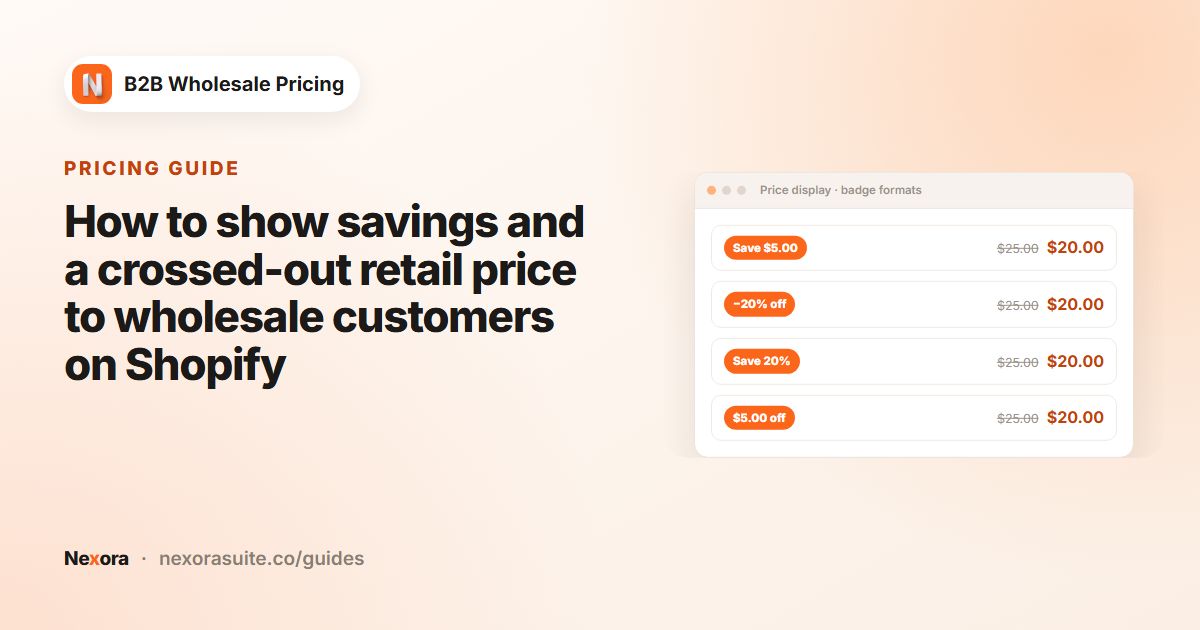
In Price display format, choose Both — side by side, Incl. VAT only, Excl. VAT only, Both — stacked or Incl. VAT + tooltip. The live preview shows the result.
- Keep the automatic rate
In Tax rate source, keep Auto from Shopify Tax settings (recommended). Use Custom rate (this rule only) only for special cases.
- Choose customers and products
In Customers, choose your trade tag, for example
trade. If you leave the tags empty, the rule applies to all logged-in customers. In Products, keep All products or narrow it down. - Choose the pages and style
In Apply to surfaces, tick Product page, Cart page, Mini-cart / Drawer, Collection page and Search results as needed. Set the labels in Design, then activate and save.
Display formats and settings explained
| Price display format | What buyers see | Good for |
|---|---|---|
| Both — side by side | Both prices on one line, each with its label. | Product pages with room for two prices. |
| Both — stacked | Both prices, one above the other. | Narrow layouts such as the cart drawer or phone screens. |
| Excl. VAT only | Only the price excluding VAT. | Trade-only stores and collection grids. |
| Incl. VAT only | Only the price including VAT. | Buyers who aren't VAT registered. |
| Incl. VAT + tooltip | The incl. VAT price with a tooltip that shows the other figure. | Keeping the page clean while the excl. price is one tap away. |
| Setting | What it does |
|---|---|
| Tax rate source | Auto from Shopify Tax settings (recommended) uses your synced Shopify rates. Custom rate (this rule only) uses the Custom VAT rate (%) you enter, for example 0 for EU B2B reverse charge buyers. |
| Customers | Who sees the rule. Leave tags empty for all logged-in customers. |
| Products | All products, specific products, collections, tags, vendor or product type. |
| Apply to surfaces | Product page, Cart page, Mini-cart / Drawer, Collection page, Search results. Each surface can Inherit (use master format) or use its own Display format. Only Product page is ticked on a new rule. |
| Design | Incl. VAT label and Excl. VAT label (inc. VAT and ex. VAT by default), colours, font sizes and Custom CSS (advanced). |
The app reads whether your Shopify prices include tax and works out the other figure. It changes how prices are shown, not how Shopify calculates tax at checkout.
Example setup: a UK trade supplier
A UK interiors brand shows consumer prices including 20% VAT. Interior designers and shops are tagged trade and also get 25% off through a wholesale rule.
| Setting | Value |
|---|---|
| Price display format | Both — side by side |
| Tax rate source | Auto from Shopify Tax settings (recommended) |
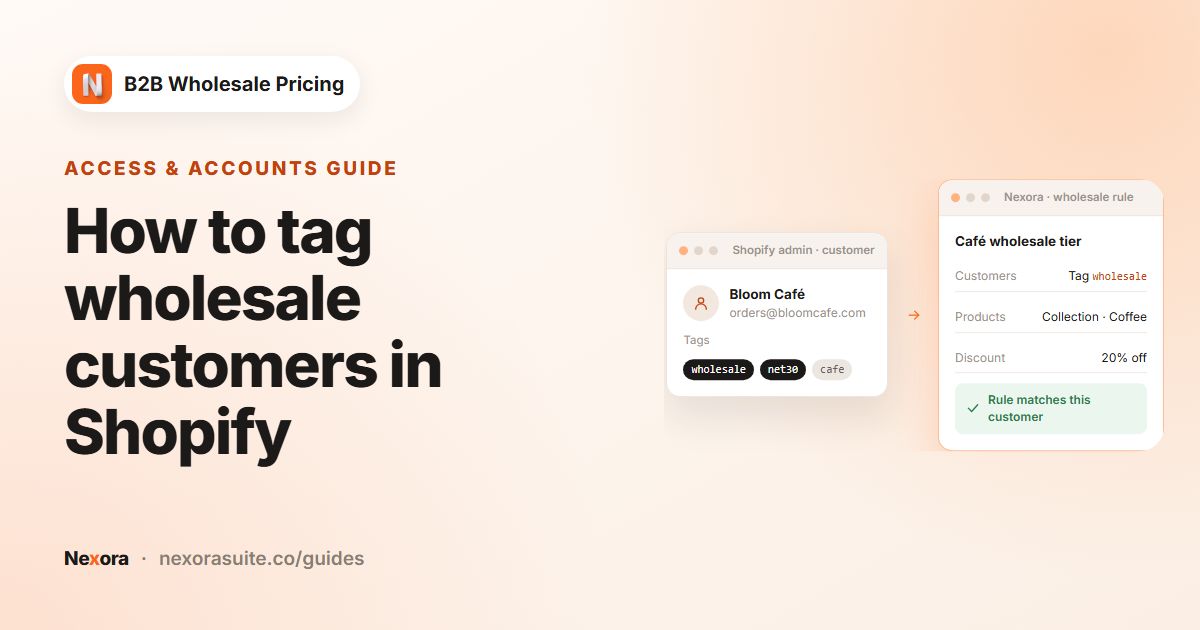
| Customers | Tag trade |
| Products | All products |
| Product page | Inherit (both, side by side) |
| Collection page / Search results | Excl. VAT only |
| Cart page / Mini-cart / Drawer | Both — stacked |
| Excl. VAT label / Incl. VAT label | ex. VAT / inc. VAT |
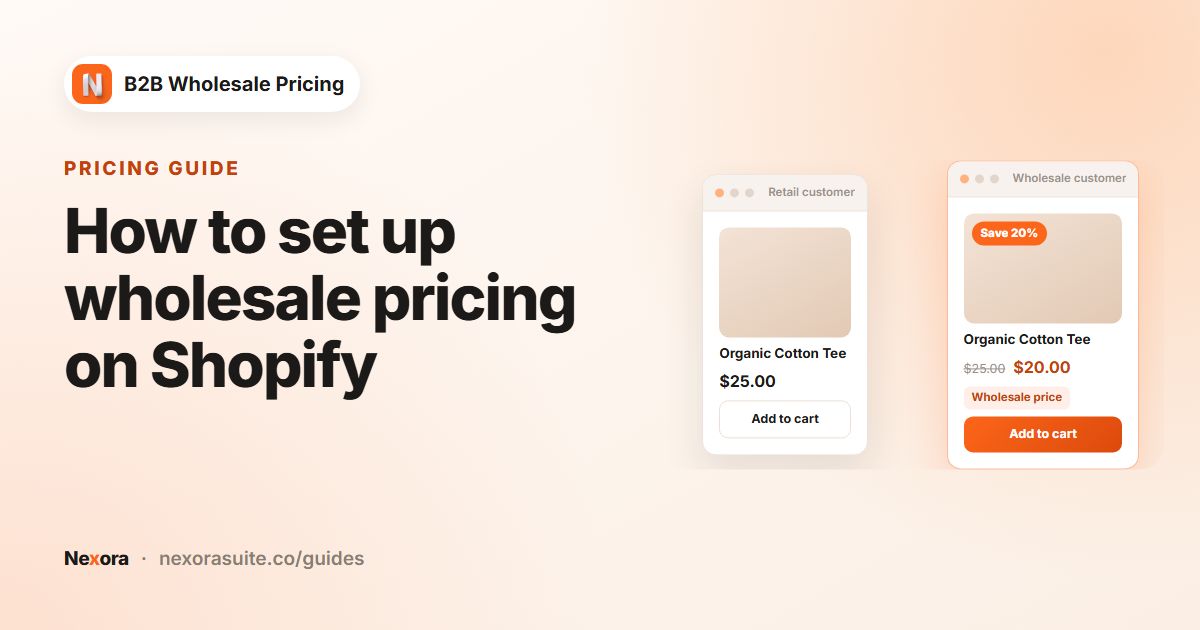
A cushion retails at £40.00 including VAT. A trade buyer's wholesale price is £30.00 including VAT, so the product page shows £25.00 ex. VAT next to £30.00 inc. VAT. Collection grids show only £25.00 ex. VAT, and the cart drawer shows both, stacked. A consumer sees £40.00 as before.
Tips and common mistakes
- Sync after changing tax settings. Click Sync tax rates again if you change rates or registrations in Shopify.
- Tick more than the product page. New rules start with only Product page on. Buyers notice when the collection page and cart switch back to the other figure.
- Use stacked on narrow areas. Side by side can wrap awkwardly in a cart drawer on phones.
- Keep labels short and familiar. ex. VAT and inc. VAT, or excl. BTW and incl. BTW for Dutch buyers. You can also translate labels.
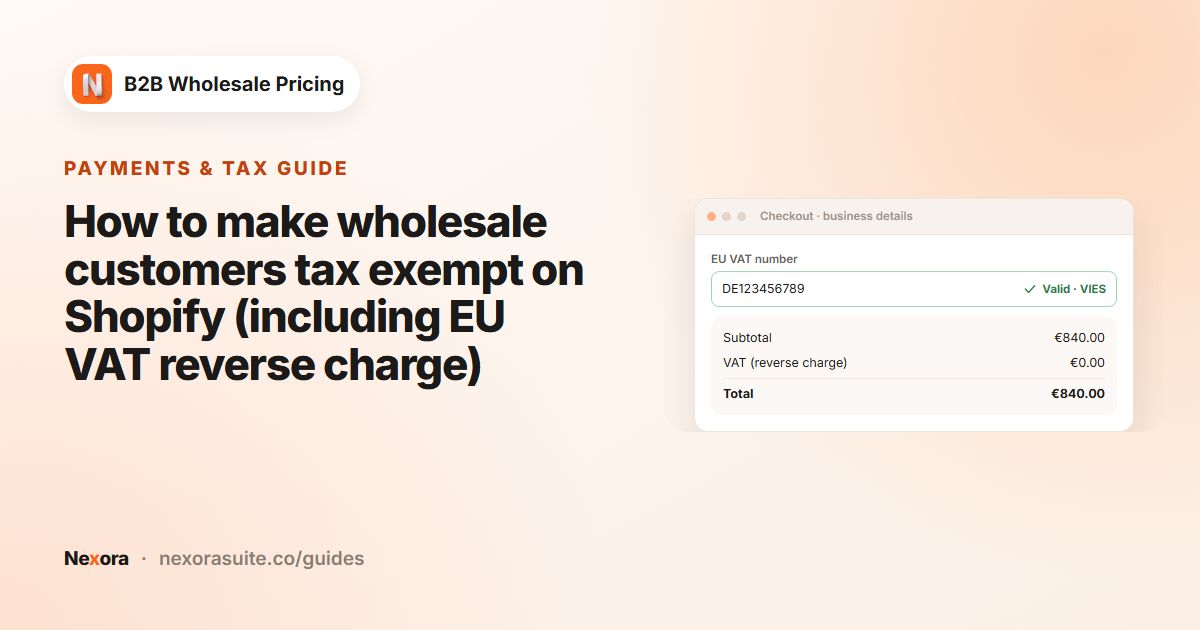
- Use a custom rate sparingly. A 0% custom rate is meant for exempt buyers. For actually removing VAT at checkout, set up tax exemption.
Showing prices excluding VAT is a display choice. Make sure your checkout and invoices show the tax correctly for your country, and ask your accountant if you're unsure.
Frequently asked questions
Can consumers keep seeing prices including VAT?
Yes. Target the rule at your trade tag. Customers without the tag, and guests, see your normal prices.
Can I show both incl. and excl. VAT prices?
Yes. Choose Both — side by side or Both — stacked, or Incl. VAT + tooltip to show the second figure on hover or tap.
Where do the tax rates come from?
With Auto from Shopify Tax settings (recommended), the app uses the rates synced from your Shopify tax settings. Click Sync tax rates on the Tax display page to refresh them.
Does this change the tax charged at checkout?
No. It changes how prices are shown. Shopify still calculates tax at checkout. To remove VAT for exempt buyers, use a tax exempt rule.
Can I use a different format on the cart than on product pages?
Yes. In Apply to surfaces, each page type can inherit the main format or use its own Display format.