What a minimum order quantity is, and why wholesale stores use one
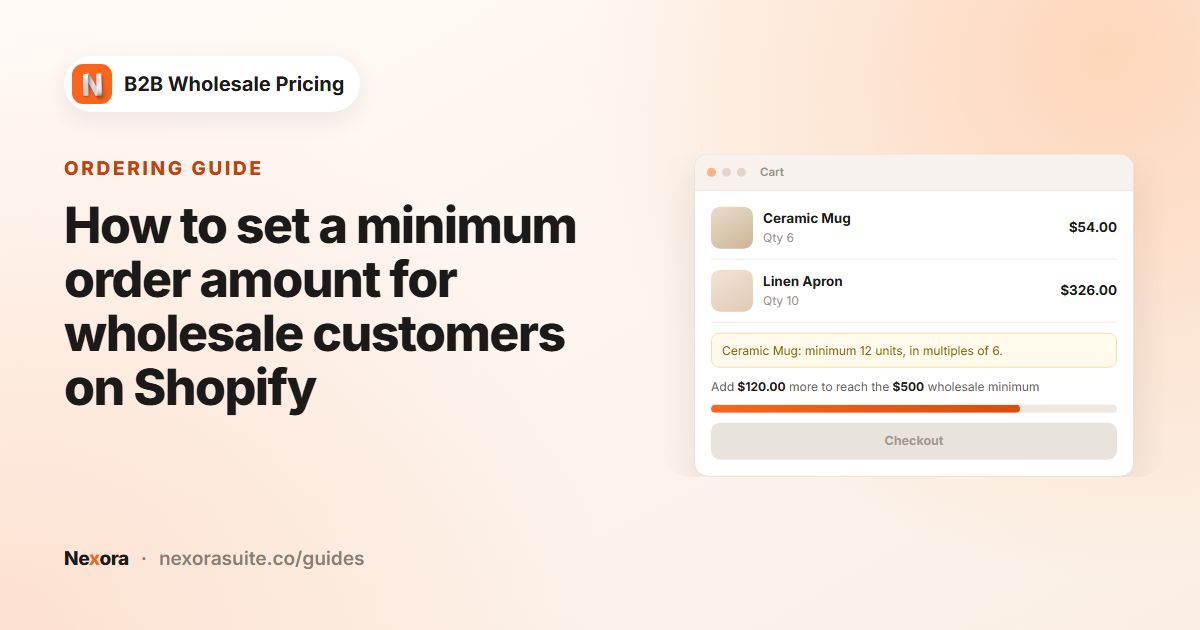
A minimum order quantity (MOQ) is the smallest number of units a buyer can order of one product. Wholesale suppliers use it because small orders often cost more to pick, pack and ship than they earn at a wholesale margin. A tea supplier might sell single tins to consumers but require trade accounts to order at least 12 tins of each blend.
Most wholesale MOQs come with two companions:
- A step (case-pack multiple). Products ship in cartons of 6, 12 or 24, so you want orders of 12, 24, 36 rather than 13 or 17.
- A maximum. You may want to cap how many units of one product a single order can take, for example for limited stock, allocation of a new release, or to stop a typo of 1000 instead of 100.
The important part is that the rule applies only to wholesale buyers. Retail shoppers on the same store should still be able to buy one unit.
Your options on Shopify
Shopify's own B2B features include quantity rules with a minimum, maximum and increment per variant. According to the Shopify Help Center plan features page, quantity rules are available on Basic, Grow, Advanced and Plus. They are set on B2B catalogs, so they apply to buyers who belong to a B2B company with that catalog, and on Basic, Grow and Advanced the catalog features require new Shopify Markets. See Shopify's quantity rules guide for details.
If you sell wholesale with regular customer accounts and tags rather than B2B companies, or you want one rule to cover a whole set of products at once, an app is the simpler route. Nexora B2B Wholesale Pricing sets quantity limits by customer tag, logged-in status or specific customers, and enforces them in the cart and at checkout with Shopify's checkout validation.
| Shopify B2B quantity rules | Nexora MOQ limit | |
|---|---|---|
| Who it applies to | B2B companies through catalogs | Customers by tag, logged in, specific customers or everyone |
| Where you set it | Per variant in a catalog | One rule for all products, specific products, collections, tags, vendor or type, with per-product overrides |
| Min / max / increment | Yes | Yes (Minimum quantity, Maximum quantity (optional), Step (optional)) |
| Product page message | Depends on your theme | MOQ Badge block with your own text |
| Cost | Included in your Shopify plan | Free |
How to set up a minimum order quantity with Nexora B2B Wholesale Pricing
- Create the limit
In the app, go to Restrictions → Order limits and click Create limit. In Basics, give it a Name and set Type to MOQ — Order quantity (per product). You can't change the type later, so pick it first.
- Enter the quantities
Set Minimum quantity (for example 12). Add Maximum quantity (optional) if you want a cap, and Step (optional) if the product ships in cases. Leave the step at 1 for any quantity above the minimum.
- Choose the products
In Scope, choose All products, Specific products, Collections, Product tags, Vendor or Product type. Use Override for specific products to give individual products their own min, step and max.
- Choose the customers
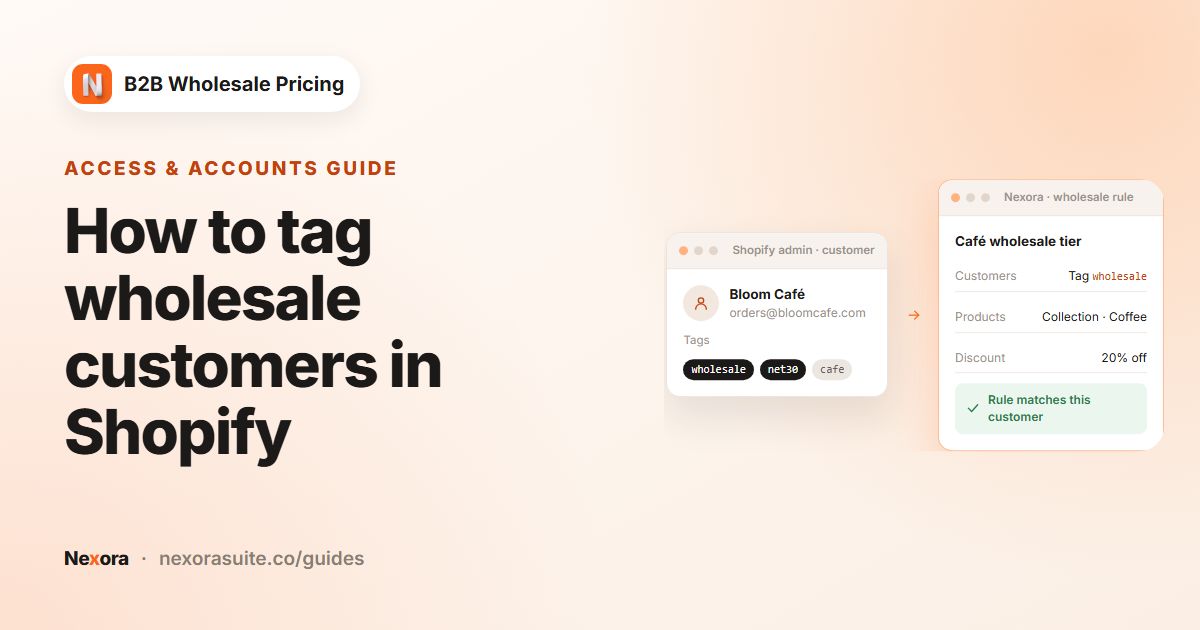
In Customers, choose By customer tags and add your wholesale tag, for example
wholesale. Retail shoppers without the tag are not affected. - Block or warn
Under Enforcement & messages, choose Block checkout (buyers can't check out until the minimum is met) or Warn only (the message shows, checkout still works).
- Add the theme blocks
In the theme editor, add MOQ Badge to the product template so buyers see the rule before adding to cart, and MOQ Cart Enforce to the cart template. Then switch the limit to Active and save.
MOQ settings explained
| Setting | What it does |
|---|---|
| Minimum quantity | The fewest units of a matching product a buyer can order. Checked per cart line, so each variant in the cart is checked on its own. |
| Maximum quantity (optional) | The most units of a matching product allowed in one order. Leave blank for no cap. |
| Step (optional) | Buyers add in multiples of this number, starting from the minimum. The product page badge and add-to-cart nudge buyers to a multiple, and the cart shows a hint when a quantity is off-step. |
| Scope | Which products the limit covers. Override for specific products sets a different min, step or max for chosen products. |
| Customers | By customer tags (recommended), Logged in only, Specific customers or All customers. |
| Block checkout / Warn only | Block stops checkout until the limit is met. Warn shows the message only, which is useful while you test. |
| PDP badge text | The product page message. Leave it blank and the app writes it for you from your min, max and step, for example Order 12–48 units, in multiples of 6. |
| Cart warning text / Cart warning text (wrong multiple / step) / Checkout block error text | Your own wording for each message. Tokens: {{min}}, {{max}}, {{step}}, {{current}}, {{title}}. |
| Design (optional) | Badge and banner colors, sizes and radius. Banner tone can be Critical, Warning, Info or Custom. |
The minimum and the maximum are enforced at checkout. The step is guidance: it shapes the badge, the add-to-cart quantity and a cart hint, but an off-step quantity does not block checkout. This keeps the theme's minus button from getting stuck in the cart.
Example setup: a coffee roaster selling to cafés
A roaster sells 1 kg bags to retail and to cafés. Cafés are tagged cafe-trade. Bags ship in cartons of 6. Seasonal single-origin coffees are scarce, so each café can take up to 24 bags per order.
| Field | Value |
|---|---|
| Type | MOQ — Order quantity (per product) |
| Minimum quantity | 6 |
| Step (optional) | 6 |
| Maximum quantity (optional) | Blank (no cap) |
| Scope | Specific products: the roaster's 1 kg coffee bags (chosen as products, so checkout re-checks the limit too) |
| Override for specific products | Seasonal Ethiopia Guji: min 6, step 6, max 24 |
| Customers | By customer tags: cafe-trade |
| Enforcement | Block checkout |
| Cart warning text | Cafés order "{{title}}" in cartons of {{step}}. You have {{current}}. |
A café that adds 4 bags sees the cart warning and can't check out. At 6, 12 or 18 bags the order goes through. A retail shopper without the tag can still buy one bag.
Tips and common mistakes
- Test with Warn only first. Sign in as a tagged test customer, check the badge and cart messages, then switch to Block checkout.
- Keep the minimum a multiple of the step. A minimum of 10 with a step of 6 gives 10, 16, 22, which rarely matches a real carton.
- Show the rule before the cart. Without the MOQ Badge block, buyers only find out at the cart, which feels like an error.
- Leave PDP badge text blank unless you need special wording. The automatic text stays correct when you later change the max or step.
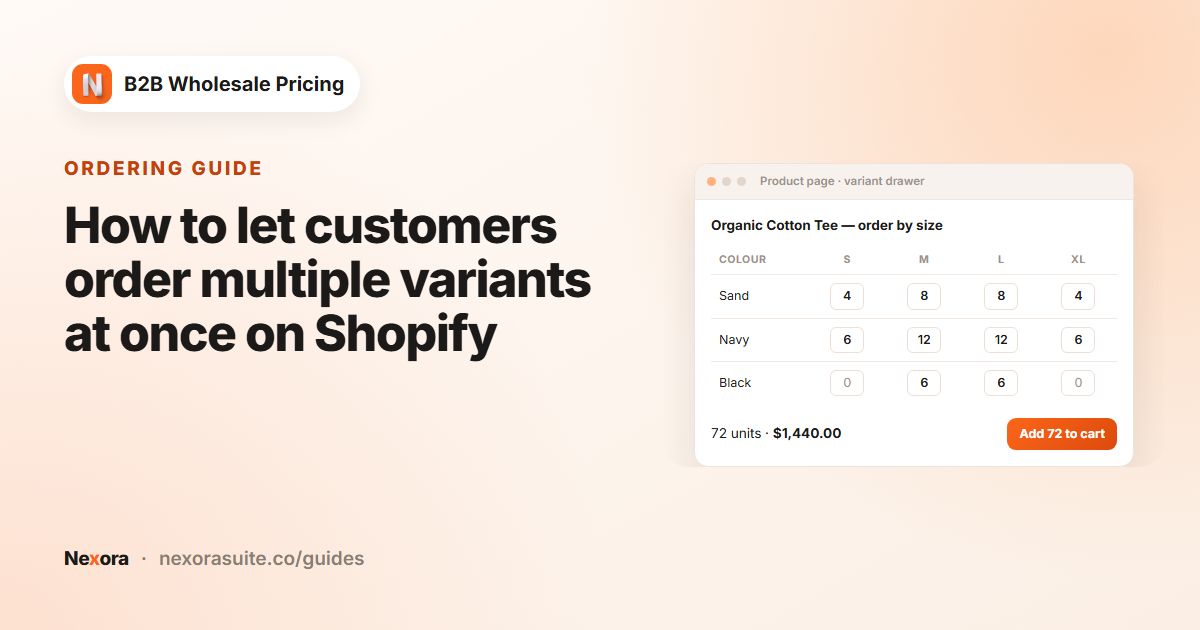
- Remember it counts per line. If a buyer splits 12 units across two sizes, each size line is checked against the minimum. For mixed-variant ordering on one product, see the Variant Drawer guide.
Checkout validation re-checks quantity limits scoped to All products or Specific products, for customers targeted by tag, logged-in status or all customers. Limits scoped by collection, product tag, vendor or product type, or aimed at Specific customers, are shown and checked in the storefront cart. If checkout itself must block, use All products or Specific products and target by customer tags.
Need a cart-total minimum instead of a per-product one? See minimum order value. Full settings are in the app docs.
Frequently asked questions
Can I set a different minimum for each product?
Yes. Set a master Minimum quantity on the limit, then open Override for specific products to give individual products their own min, step and max.
Will retail customers be forced to buy the minimum too?
Only if you target All customers. Choose By customer tags with a tag such as wholesale, and shoppers without the tag can buy any quantity.
Does the step (case pack) block checkout?
No. The step guides buyers through the product page badge, the add-to-cart quantity and a cart hint. The minimum and maximum are what checkout enforces.
Can I just show a message without blocking checkout?
Yes. Choose Warn only under Enforcement & messages. The badge and cart warning still show, but buyers can check out.
Do I need Shopify Plus for this?
No. The app works on any Shopify plan and uses regular customer accounts and tags. It is free.