What Net 30 means, and why wholesale buyers ask for it
Net 30 means the buyer has 30 days from the invoice or order date to pay. A shop that orders stock on 1 March pays by 31 March, often after it has sold some of that stock. For many retailers and trade buyers, terms like this are a normal condition of opening an account.
For you, terms are a credit decision. Most suppliers offer them only to approved accounts, often after a first prepaid order, and keep everyone else on card payment. That is why the setup needs three things:
- A way to check out without paying now, only for approved buyers.
- A due date recorded on each order, so you know who owes what and when.
- Invoices and reminders, so payment actually arrives on time.
Your options on Shopify
Shopify has its own payment terms: net 7, 15, 30, 45, 60 and 90, due on fulfillment, and a fixed date for draft orders. You can add terms to draft orders you create and send as invoices. For online checkout, Shopify's terms belong to its B2B features, where terms are set for B2B companies. Since April 2026 the Shopify Help Center lists net terms on Basic, Grow, Advanced and Plus, while deposits and partial payments stay on Plus. See Shopify's payment terms page for how they behave.
If you run wholesale with regular customer accounts and tags rather than B2B companies, Nexora B2B Wholesale Pricing gives tagged customers a pay-later checkout. It hides card and wallet payments for them, records Shopify payment terms on the order, emails an invoice and sends a reminder before the due date. It is free.
How to set up Net 30 with Nexora B2B Wholesale Pricing
- Create the pay-later method in Shopify
Shopify doesn't let apps create payment methods, so do this once yourself. In Shopify, go to Settings → Payments, and under Manual payment methods choose Create custom payment method. Name it, for example NET 30 — Pay later, add payment instructions and click Activate. See Shopify's manual payments guide.
- Create the payment term
In the app, go to Add-ons → Payment terms and click Create payment term. In the Payment term card, set Term type to Net days and Net days to Net 30.
- Choose who gets it
In Customers, choose By customer tags and add your terms tag, for example
net30. Only approved accounts should carry this tag. - Set an order value range (optional)
In Order value, enter a Minimum order value (optional) or Maximum order value (optional). Orders outside the range pay immediately.
- Enforce it at checkout
In Checkout enforcement, tick Enforce this payment term at checkout. Under Hide these payment methods at checkout, tick the instant-pay methods (for example Shopify Payments, PayPal, Apple Pay, Google Pay). Leave your NET 30 method unticked.
- Turn on the reminder and activate
In the sidebar's Invoice reminder, keep Email the customer before the due date on and choose a Lead time. Activate the term and save, then place a test order as a tagged customer.
Payment term settings explained
| Setting | Options and notes |
|---|---|
| Term type | Net days, Due on receipt, Due on fulfillment or Fixed date. |
| Net days | Net 7, Net 15, Net 30, Net 45, Net 60 or Net 90. Counted from the order date: Net 60 on an order placed 30 June is due 29 August. |
| Fixed due date | With Fixed date, every matching order is due on the same calendar date, for example the end of a season. |
| Minimum order value (optional) / Maximum order value (optional) | Only offer the term when the order subtotal is in this range. Orders outside it pay immediately. Partial payment isn't supported. |
| Enforce this payment term at checkout | Matching customers check out on the term instead of paying immediately. |
| Hide these payment methods at checkout | Shopify Payments, PayPal, Apple Pay, Google Pay, Amazon Pay, or any method name you add with Add another method. |
| Customers | All customers, logged in, by tags or specific customers. Tags are the usual choice. |
| Email the customer before the due date / Lead time | A reminder 3, 7 or 14 days before the due date. Edit the wording under Settings → Payment reminders. |
Checkout enforcement targets customers only, not Shopify Markets. A tagged customer gets the term in every market they buy from.
Example setup: terms after the first order
A gift wholesaler asks new stockists to prepay their first order by card. After that, the account manager adds the net30 tag. Orders on terms must be at least $250, and anything above $10,000 is handled by the sales team.
| Setting | Value |
|---|---|
| Shopify manual payment method | NET 30 — Pay later (instructions: bank transfer details and your invoice number as the reference) |
| Term type | Net days, Net 30 |
| Customers | By customer tags: net30 |
| Minimum order value (optional) | 250 |
| Maximum order value (optional) | 10000 |
| Hide these payment methods at checkout | Shopify Payments, PayPal, Apple Pay, Google Pay |
| Lead time | 7 days before |
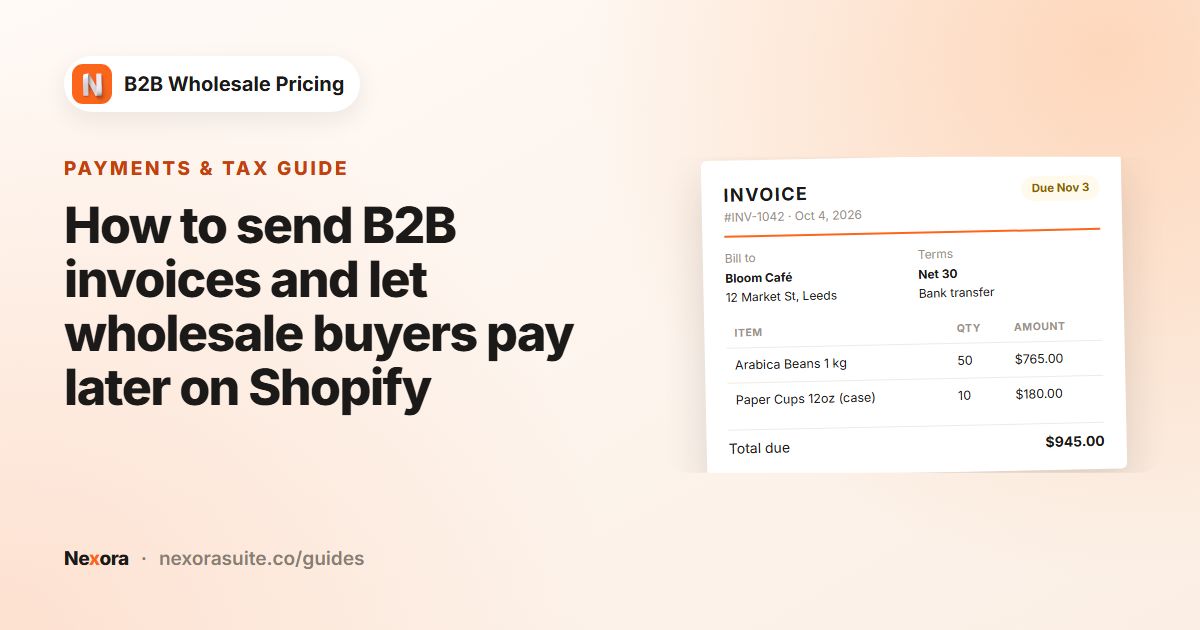
A stockist tagged net30 orders $1,200 on 1 March. At checkout they only see NET 30 — Pay later. The order gets Net 30 payment terms due 31 March, the invoice is emailed with the PDF attached, and a reminder goes out on 24 March. A $180 order from the same stockist is below the minimum, so it pays by card as usual.
After the order: invoices, draft orders and getting paid
- Invoices. When a term is applied at checkout, the app creates an invoice and emails it. Track it under Order forms → Invoices (Sent, Overdue, Paid). See the wholesale invoices guide.
- Marking paid. Click Mark as paid on the invoice when the money arrives. If you mark the order as paid in Shopify, the linked invoice updates too.
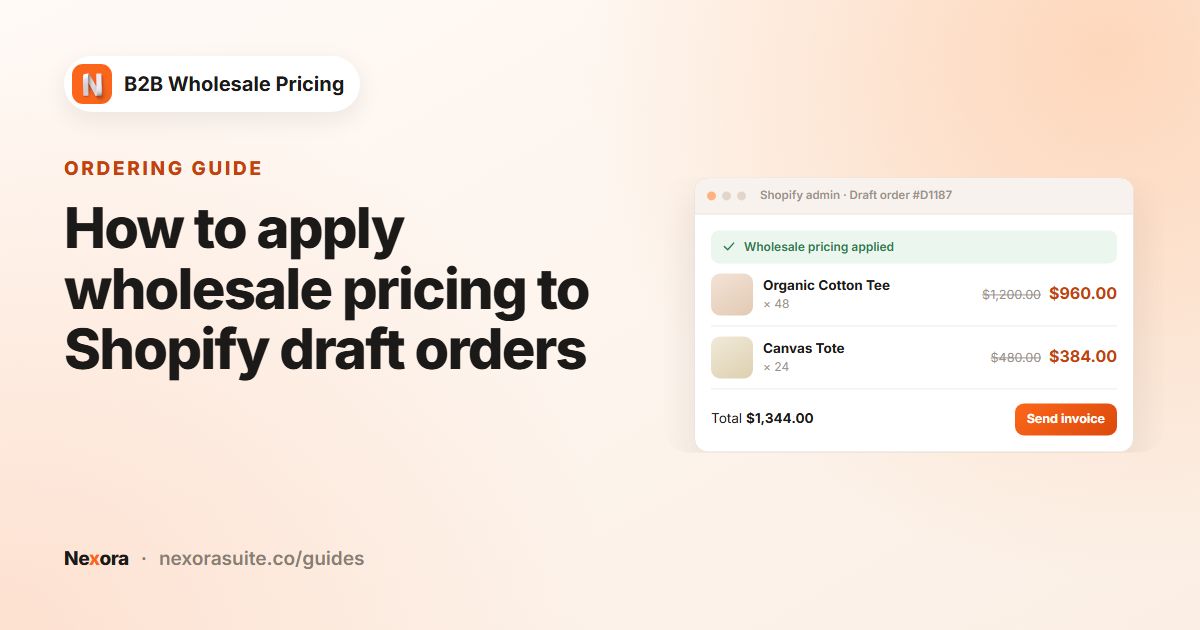
- Phone and email orders. Under Order forms → Draft orders, open a draft, click Apply wholesale pricing, then Apply payment terms when a term matches the customer, and Send proforma invoice.
Tips and common mistakes
- Never hide your own pay-later method. If it's ticked in the hide list, tagged buyers may have no way to pay.
- Check express buttons. Some themes still show express-pay buttons such as Shop Pay above checkout. Test the full flow on your theme.
- Use a separate tag for terms. A
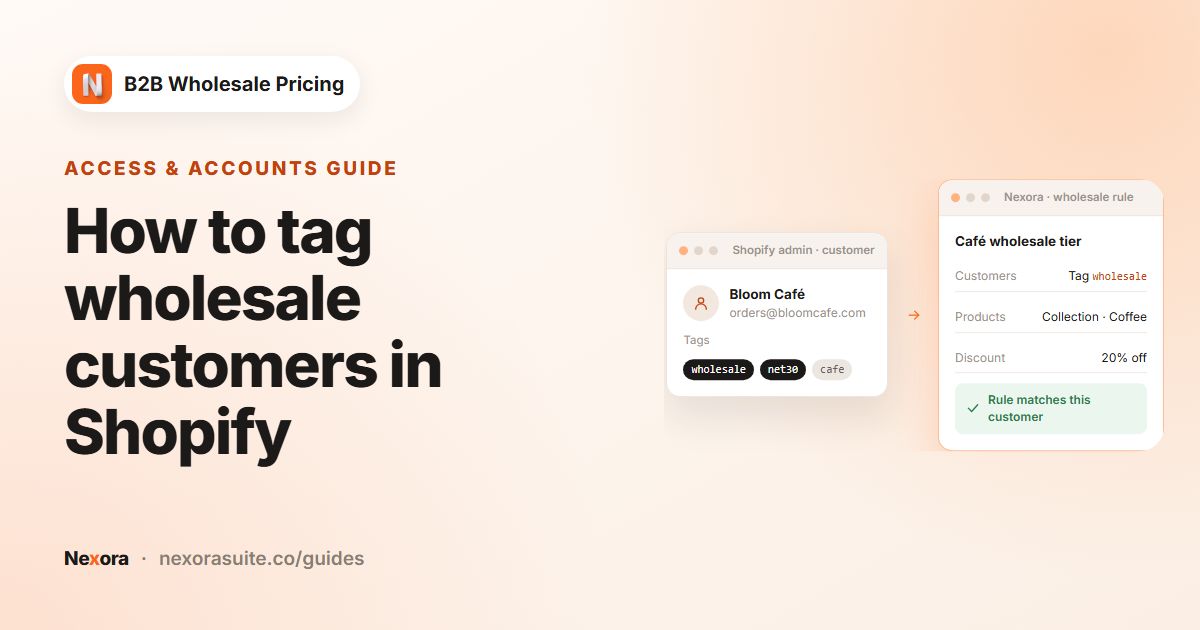
wholesaletag for prices and anet30tag for credit keeps the two decisions apart. - Write clear payment instructions on the Shopify manual method and under Settings → Invoices → Payment instructions (bank details, reference format).
- Decide your credit policy first. The app records terms and reminds buyers. Who deserves terms, and what happens when someone pays late, is a business decision.
Frequently asked questions
Do I need Shopify Plus to offer Net 30?
No. The app works on any plan with regular customer accounts and tags. Shopify's own net terms for B2B companies are also listed on all plans since April 2026, with deposits and partial payments on Plus.
Why do I have to create the payment method myself?
Shopify doesn't let apps create payment methods. Create a manual method once under Settings → Payments → Manual payment methods, and the app does the rest.
Can I offer Net 60 or Net 90 instead?
Yes. Net days offers Net 7, 15, 30, 45, 60 and 90. You can also use Due on receipt, Due on fulfillment or a Fixed date.
Can Net 30 apply only above a certain order value?
Yes. Set a Minimum order value (optional). Orders below it pay immediately with the usual methods.
Do payment terms work per market?
No. Checkout enforcement targets customers, not Shopify Markets, so a matching customer gets the term in every market.
Will customers get a reminder before payment is due?
Yes, when Email the customer before the due date is on. Choose 3, 7 or 14 days, and edit the email under Settings → Payment reminders.