
How the app works
Nexora Product Labels & Badges adds labels such as SALE, NEW or Low stock to your products. Labels are shown by a theme app embed called Product Labels, so you don't need to edit any theme code.
There are two kinds of labels:
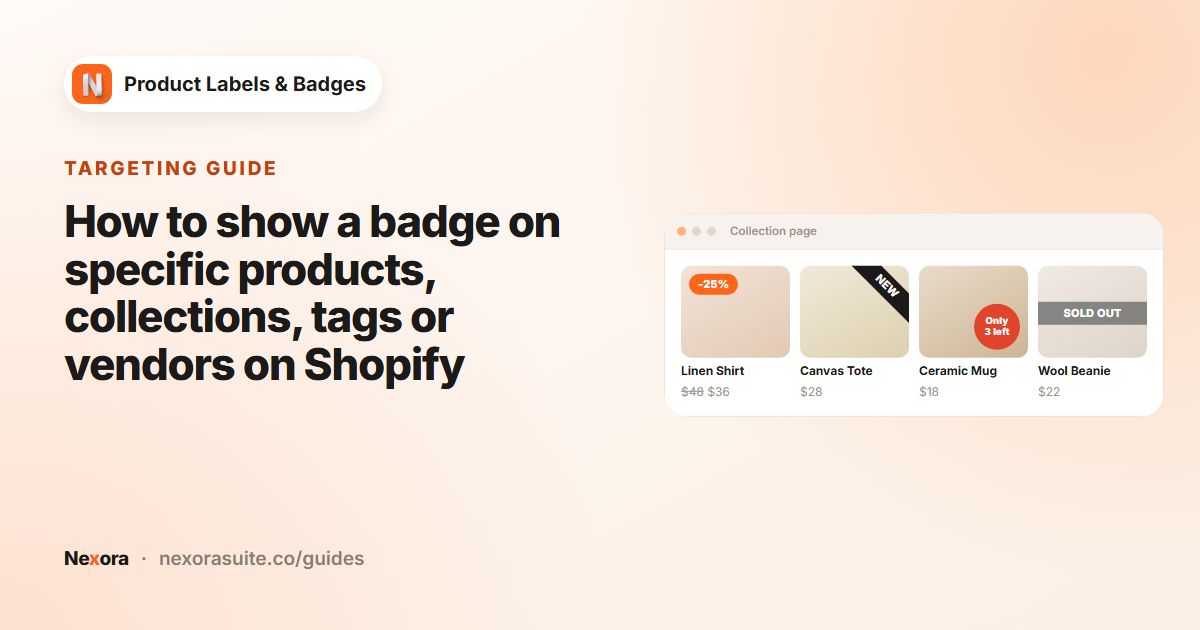
- Manual labels: you choose which products show the label (all products, specific products, collections, product tags or vendors).
- Automation labels: the label shows on any product that meets a condition (New arrival, On sale, Low stock or Out stock). The list updates by itself as your products change.
The app has three pages in the Shopify admin menu: Product Labels, Settings and Documents. The app's home page shows your setup checklist, the status of the app embed and your most recent labels.
The app is completely free. You can create as many manual and automation labels as you need.
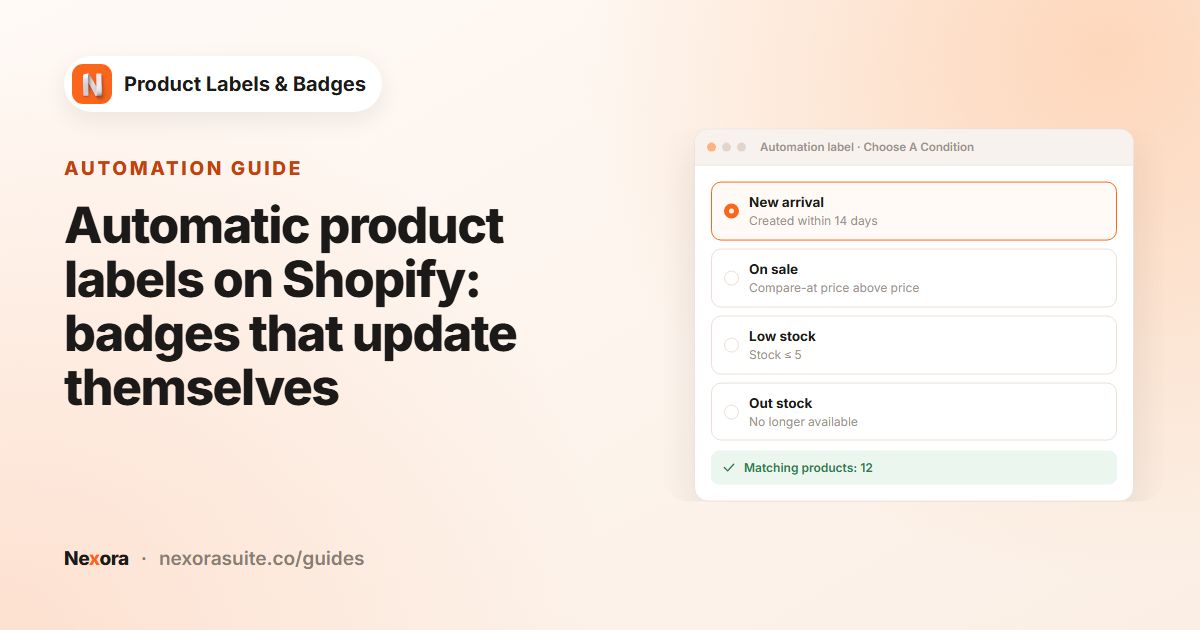 Related guideAutomatic product labels on Shopify: badges that update themselves→
Home page and the app embed
Labels only appear on your storefront when the Product Labels app embed is turned on in your theme. The home page helps you check this.
| Card | What it shows |
|---|---|
| Get started with Product Labels | A two-step checklist: Enable the Product Labels app embed and Create your first label. Steps tick themselves off when they are done. You can hide the card with Skip onboarding or, once finished, Dismiss. |
| Storefront status | Shows whether the Product Labels app embed is On or Off on your live theme. Use Enable on theme (or Open theme editor once it's on) to jump straight to the theme editor. |
| Live support | Opens live chat with our team via Chat with us. |
| Your product labels | Your most recent labels. Use Manage product labels to open the full list. |
After turning the embed on in the theme editor and saving, come back and click I've enabled it in the checklist so the app checks again right away.
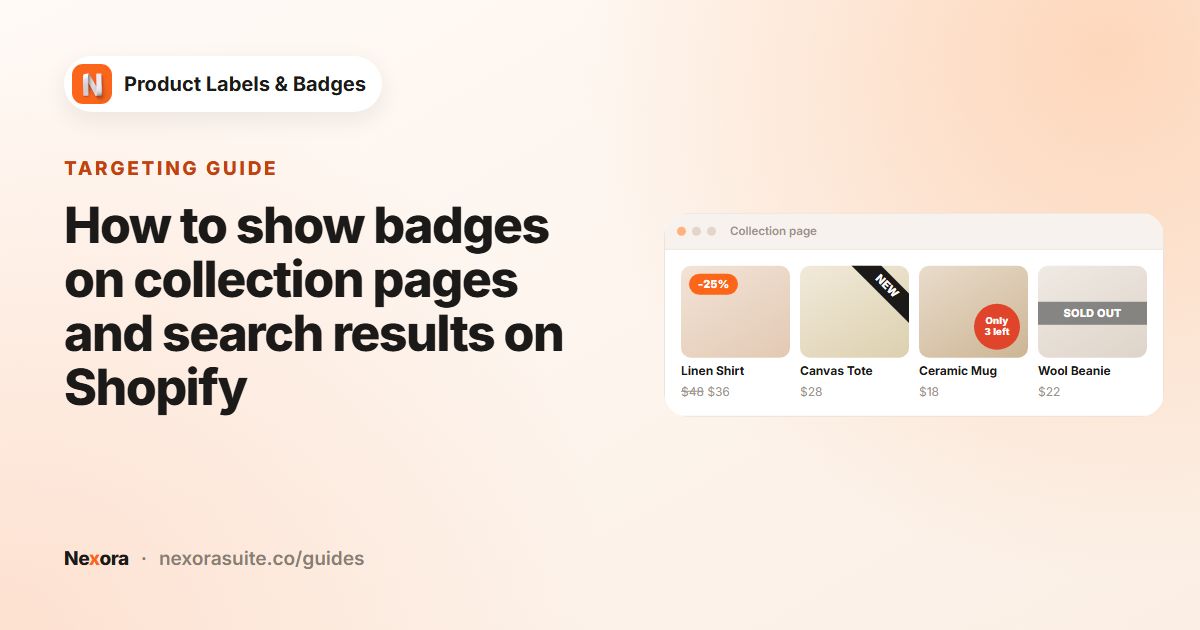 Related guideHow to show badges on collection pages and search results on Shopify→
The Product Labels list
The Product Labels page lists all your labels, both manual and automation, in a single table. Use + Add Label to create a manual label or + Add Automation Label to create an automation label.
| Column | What it means |
|---|---|
| Arrows (up/down) | Change the label's order. Labels higher in the list come first when several labels share the same spot on a product. |
| Name | The label name you chose (only visible to you). |
| Preview | A small preview of the label as it's designed. |
| Type | Manual, or the automation condition, for example New arrival · within 7 days. |
| Status | Active labels show on your storefront. Inactive labels are saved but hidden. |
| Date created | When the label was created. |
| Edit / Delete | Open the label editor, or delete the label. Deleting asks you to confirm, removes the label from your storefront and can't be undone. |
The label editor
A manual label has three tabs: General, Design and Display condition. An automation label has one more tab first: Choose A Condition. You can move between tabs at any time. A Label Preview on the right updates as you edit, and you can switch it between Desktop and Mobile.
- New labels start as Inactive. Use Activate at the top of the editor (or in the yellow This label is inactive banner) to publish it. Use Deactivate to hide it again without deleting it.
- Press Save in the save bar to keep your changes, or Discard to undo them. While you have unsaved changes, the app keeps you on the page until you save or discard.
- If something needs fixing, a Couldn't save this label banner appears and the field in question is highlighted.
General tab
| Setting | What it does |
|---|---|
| Label name | An internal name to help you find the label in your list. Shoppers never see it. |
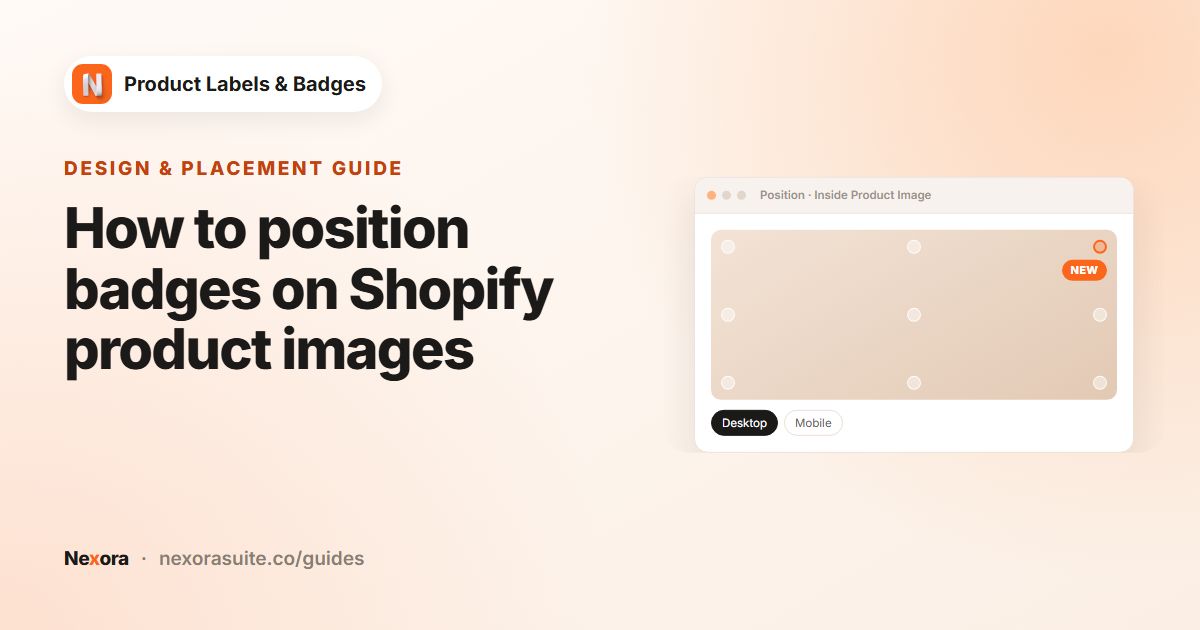
| Display Position | Inside Product Image puts the label on top of the product image, like a corner badge or ribbon. In Product Info Area shows the label next to the product title and price. |
| Type | Text, Image or Upload (see below). |
Label types
- Text: choose one of 21 shapes (ribbons, corner triangles, banners, tags, circles, pills, rectangles and more), then write your text on the Design tab. Text labels can include dynamic data such as the discount percentage.
- Image: choose a ready-made image from the built-in library. You can search it and filter by Category and Color.
- Upload: upload your own image (PNG, JPEG, GIF, WebP or SVG, up to 2 MB). Use Change image to replace it or the x on the image to remove it.
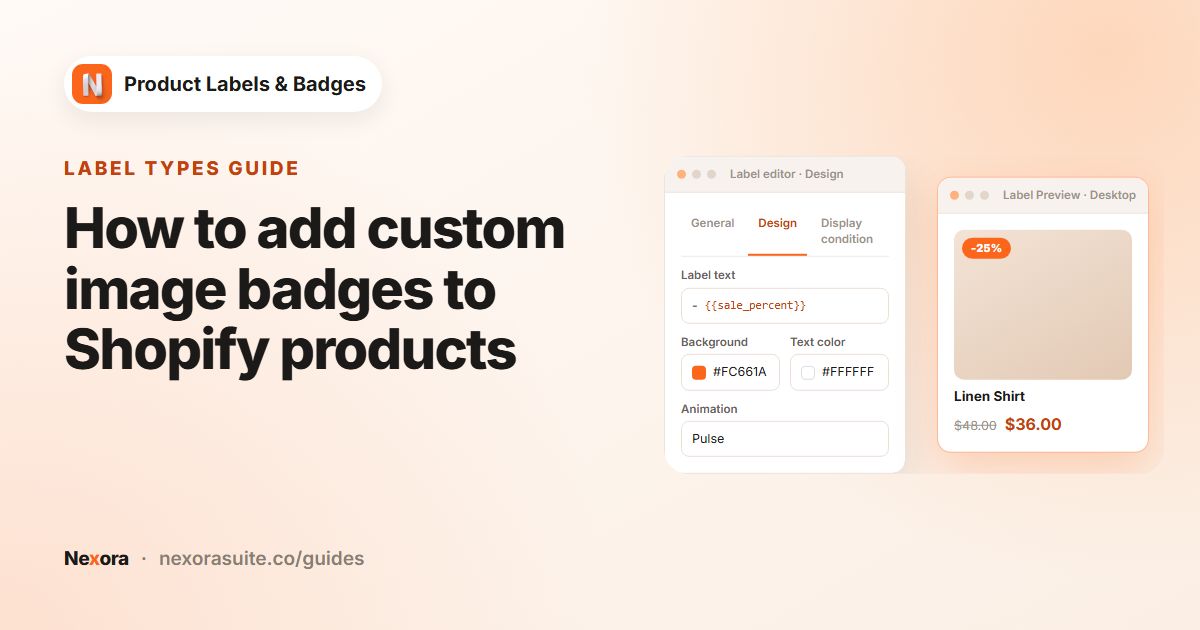 Related guideHow to add custom image badges to Shopify products→
Design tab
Settings marked with the desktop and mobile icons can have a different value for each device. Click an icon to choose which device you are editing. Mobile settings apply to screens 749 px wide or narrower.
| Setting | What it does |
|---|---|
| Label Text | The text on the label. Use the language button inside the field to write a separate translation for each language your store publishes. Click Dynamic Data to see the variables you can use. |
| Label link | Optional. When shoppers click the label, they go to this web address. |
| Background Color / Text Color | Colors of a Text label. Pick from the color picker or type a value. |
| Position | For Inside Product Image: Top-Left, Top-Center, Top-Right, Center-Left, Center-Center, Center-Right, Bottom-Left, Bottom-Center, Bottom-Right or Custom. |
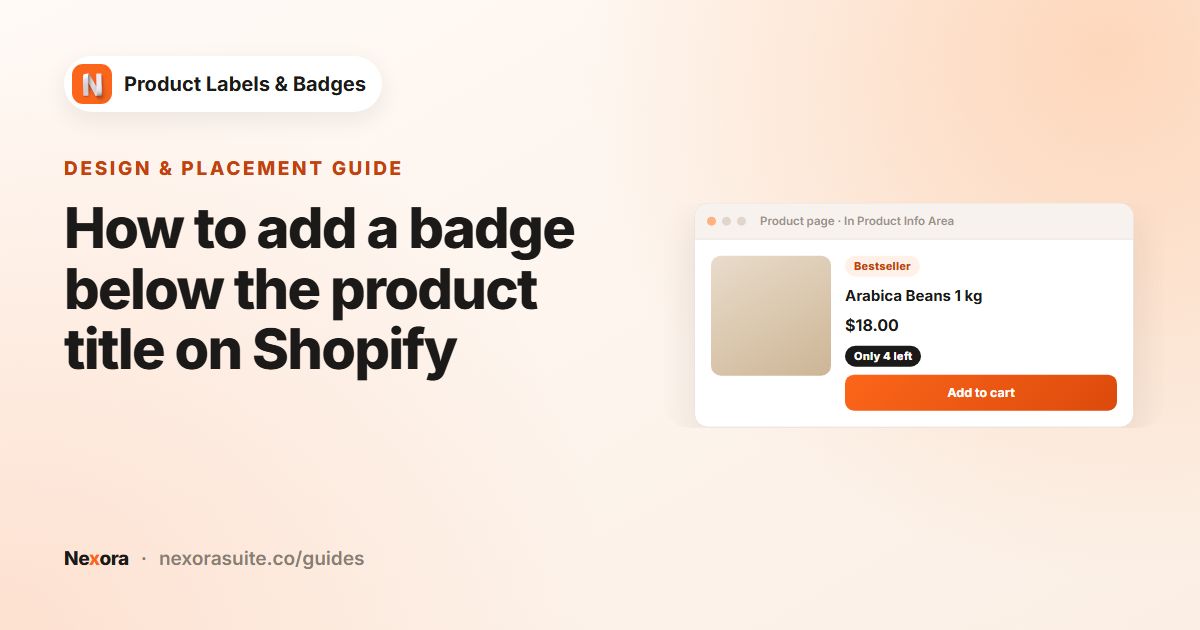
| Info Placement / Info Alignment | For In Product Info Area: Above title, Below title, Above price or Below price, aligned Left, Center or Right. |
| Label Size | Scales the label, per device (up to 500%). |
| Animation | None, or one of 19 effects: Fly, Slide in, Pop, Groove, Swerve, Header Beat, Jello, Wobble, Tada, Swing, Head Shake, Shake Y, Shake X, Rubber Band, Pulse, Flash, Fade In, Fade In Down and Fade In Left. |
| Rotation | Rotates the label from -180° to 180°, per device. |
| Font Family | Text labels only: Inherit theme (use your theme's font), Arial, Helvetica, Georgia, Times New Roman, Courier or Verdana. |
| Font Size / Line Height | Text labels only, per device. |
| Font style | Text labels only: bold, underline, italic and strikethrough. |
| Margin | For In Product Info Area: space above and below the label, per device. |
| Padding | Text labels only: space inside the label (top, bottom, left, right), per device. |
Custom position
Choose Custom under Position to place the label exactly. Pick an Anchor corner (Top-left, Top-right, Bottom-left or Bottom-right), then enter the distance from the two edges in px or %. You can set different values for desktop and mobile.
Product page images are usually much bigger than the images on collection pages. Tick Use different position on product detail page to set a separate corner and offset for product pages only.
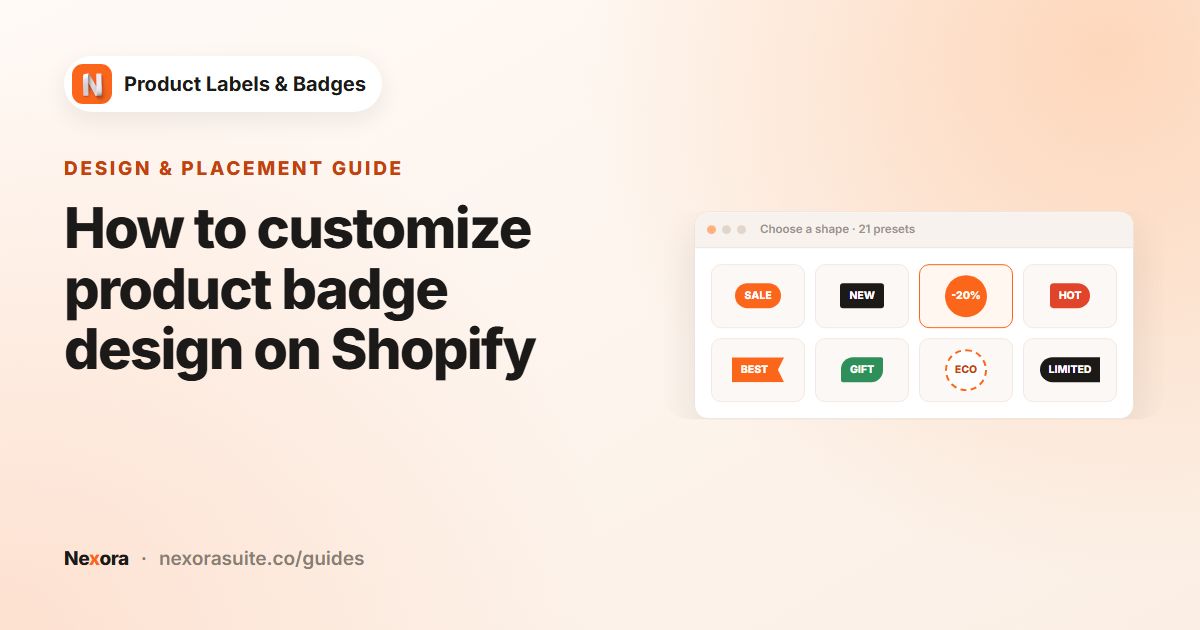 Related guideHow to customize product badge design on Shopify→
Dynamic data in label text
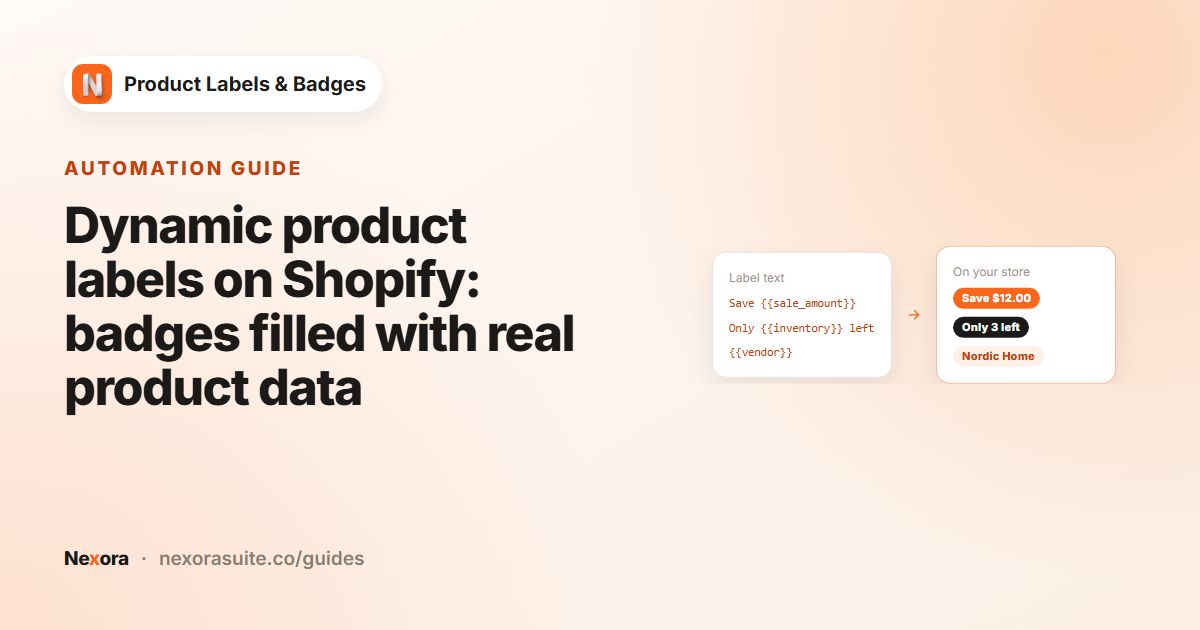
Text labels can include variables that are replaced with each product's real data on your storefront. Open Dynamic Data on the Design tab, click Copy next to a variable and paste it into Label Text, for example -{{sale_percent}} OFF.
| Variable | Shows |
|---|---|
{{sale_amount}} | How much the shopper saves (compare-at price minus price), in your currency |
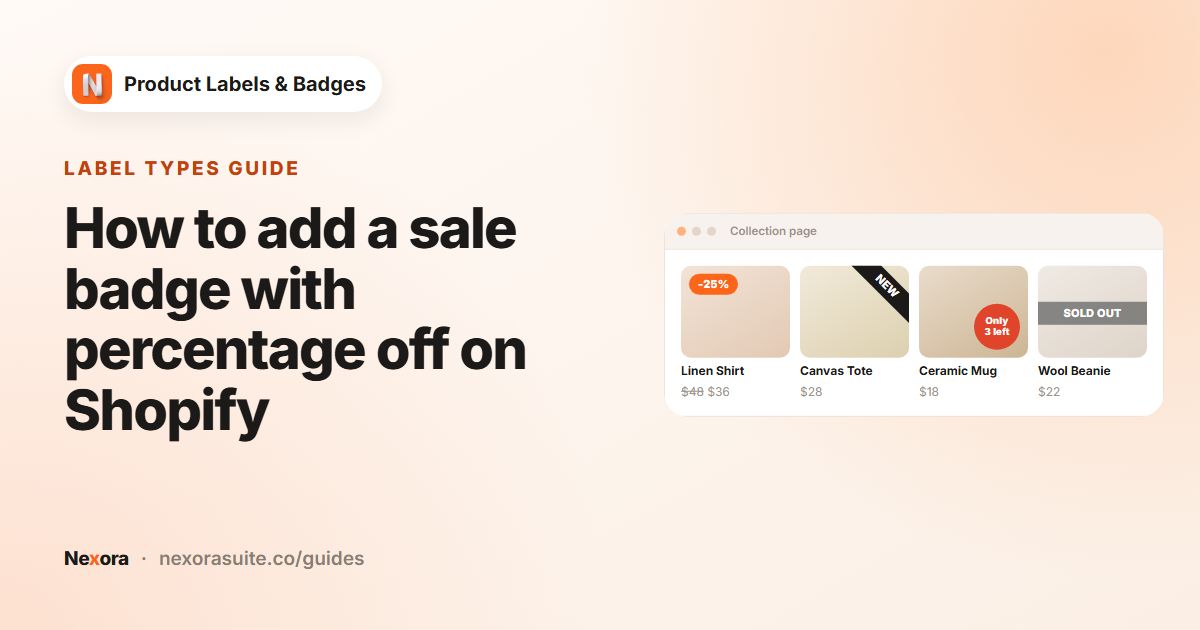
{{sale_percent}} | Discount percentage, for example 25% |
{{discount_amount}} | Same as the sale amount |
{{compare_at_price}} | The compare-at price |
{{inventory}} | Inventory count |
{{stock_status}} | in_stock or out_of_stock |
{{sku}} | Product SKU |
{{tag}} | The product's first tag |
{{vendor}} | Product vendor |
{{type}} | Product type |
{{variant_count}} | Number of variants |
{{mtf.KEY}} | The value of a product metafield in the custom namespace, for example {{mtf.warranty}} for custom.warranty |
On product pages, labels that use price, inventory, SKU or stock variables update when the shopper picks a different variant. If a product has no discount, the sale variables are left empty.
 Related guideDynamic product labels on Shopify: badges filled with real product data→
Display condition tab
This tab controls where and when a label appears.
| Setting | What it does |
|---|---|
| Show On Pages | The page types where the label may appear: Home Page, Product Page, Collection Page, Cart Page, Collection List Page, Search Page and Other Pages. All are selected by default. This is about the page the shopper is viewing. For example, untick Home Page to hide the label on product cards on your home page. |
| Products | Manual labels only. All products, Specific products (pick with Select products), Collections (pick with Select collections), Product tags or Vendor. A product matches if it has at least one of the selected tags (not case-sensitive) or vendors. |
| Visibility Date | Immediately shows the label as soon as it's active. Custom Date lets you set a Start date and/or End date. Leave either one empty for no limit, and use the clear button to remove a date. |
| Show On Locations | Include or Exclude shoppers from the countries you choose. The default is All Countries. The country is worked out from the visitor's IP address. |
If you choose Specific products, Collections, Product tags or Vendor, you need to select at least one item before you can save.
Dates use midnight UTC on the day you pick.
 Related guideHow to show a badge on specific products, collections, tags or vendors on Shopify→
Automation labels
Click + Add Automation Label on the Product Labels page. On the Choose A Condition tab, pick one condition. The Matching products panel on the right lists the products in your store that match it right now.
| Condition | Shows on |
|---|---|
| New arrival | Products created within the number of days you enter in Within X days (1–100, default 7). |
| On sale | Products whose compare-at price is higher than their price. |
| Low stock | Products that are still in stock but have no more than the number in When stock ≤ X (1–100, default 5). |
| Out stock | Products that can't be bought because they are sold out. Products set to keep selling when out of stock count as in stock. |
The General, Design and Display condition tabs work the same as for manual labels. The only difference is that Display condition has no product picker, because the condition decides which products get the label.
 Related guideHow to add a sale badge with percentage off on Shopify→
Settings page
Settings applies to all your labels.
| Setting | What it does |
|---|---|
| Store Theme | Tells the app which theme you use, so labels sit on the right image, title and price. The default, Auto-detect (use the live theme), uses your published theme. You can also search for your theme on the Shopify themes or Themeforest themes tab. |
| Stack direction | When several labels share the same position on a product: Horizontal — side by side or Vertical — stacked. The first label always sits closest to the corner. |
| Stack gap | Space between stacked labels, 0–40 px (default 6 px). |
To choose which label comes first in a stack, use the up/down arrows on the Product Labels page.
If you change to a different theme, open Settings, check Store Theme and press Save so the app updates for the new theme.
 Related guideHow to position badges on Shopify product images→
Storefront display and theme compatibility
Once the app embed is on and a label is Active, labels appear on product images and product cards on product, collection, search and home pages. They also work in product recommendation sections and quick-view windows that many themes have.
The app comes with settings for a large catalog of Shopify Theme Store and Themeforest themes, including Shopify's free themes such as Dawn, Horizon and Trade. If your theme isn't listed or a label sits in the wrong place, contact us on live chat and we'll help set it up.
Changes you save in the app usually show on your storefront within a few seconds. Refresh the page to see them.
 Related guideHow to add a badge below the product title on Shopify→
Help and support
- Live chat: click Chat with us on the home page, or Live chat with us at the bottom of the label editor or Settings page.
- Documents: the Documents page in the app menu has a quick reference.
- Email: [email protected]