When a badge belongs next to the title
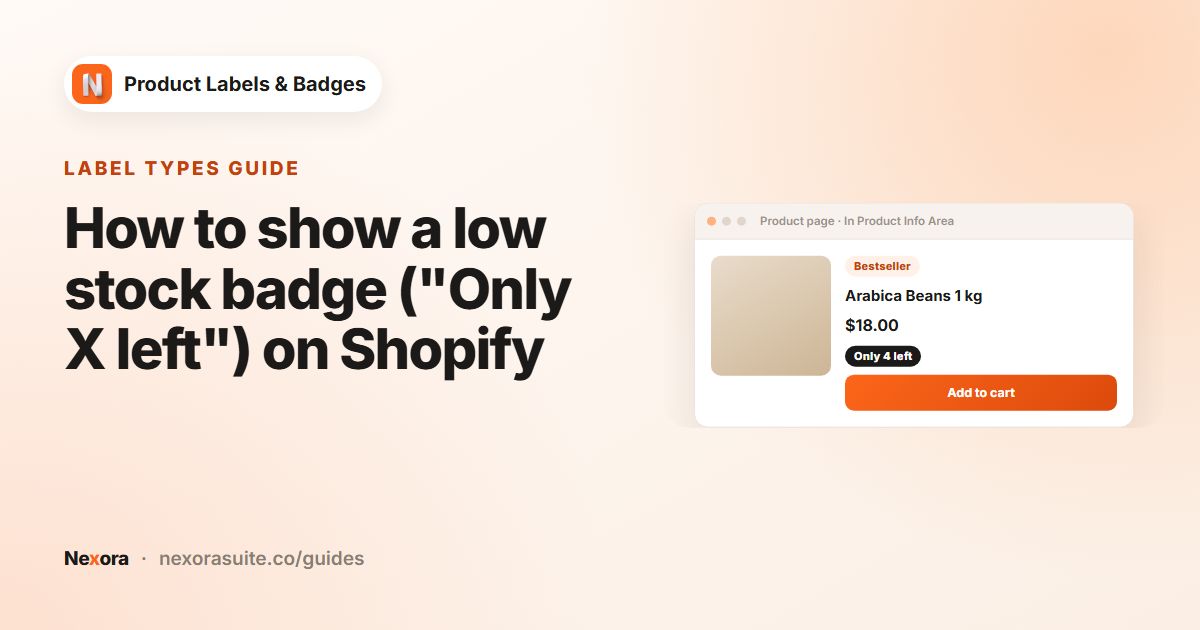
Not every message works as a sticker on the product photo. Longer notes such as "Only 3 left", "Free engraving" or "Ships in 24 hours" are easier to read as a line of text near the title or price, and they don't cover the image. Shoppers also read the title and price before deciding to click, so a short note there is hard to miss.
- Below title: product attributes, such as
VeganorHandmade in Portugal. - Above title: a short eyebrow such as
BestsellerorNew season. - Above price / Below price: price-related notes such as
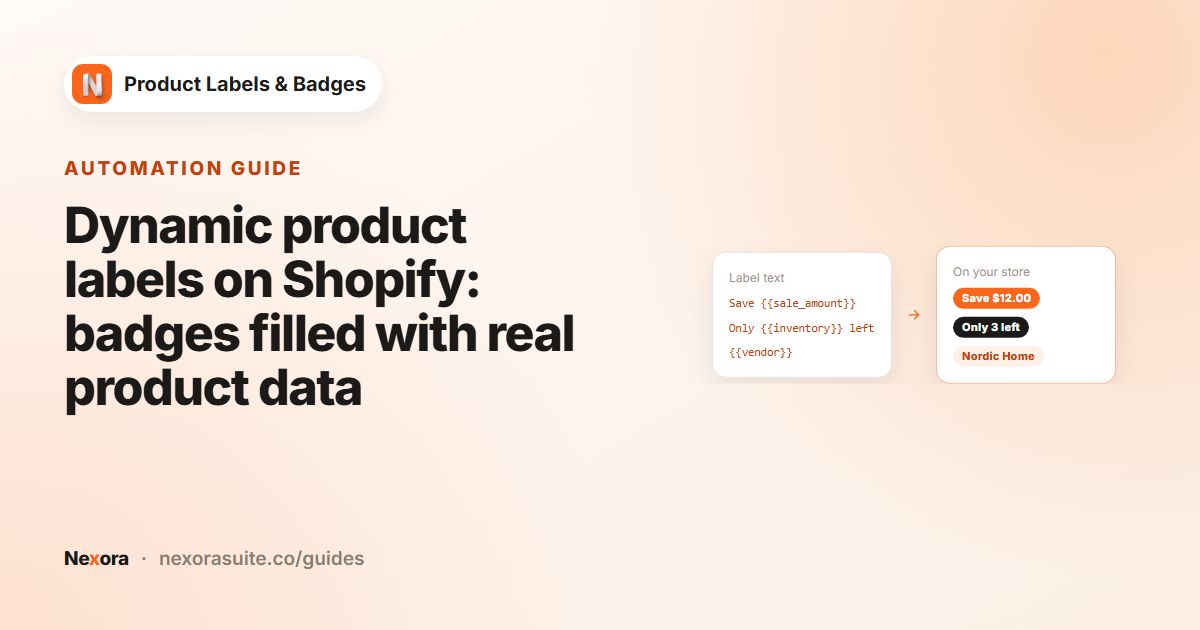
Save {{sale_amount}}or a low-stock message.
Your options on Shopify
In many Shopify themes you can add a text or custom Liquid block to the product page in the theme editor, which lets you place static text near the title. That works for one message on every product page, but it doesn't change per product, and it usually doesn't reach the product cards on collection and search pages.
Showing different text on different products, or on product cards, usually means editing the theme's product card snippet. An app label in the product info area does this without code and can include dynamic data such as the discount or stock count.
It is also worth checking where your theme puts the title and price on cards. Some themes show the price above the title, or only show some details on hover. Choosing Above price or Below price rather than a title placement can give a more predictable result on those themes.
Step by step: add a badge below the title
- Create the label
On Product Labels, click + Add Label for chosen products, or + Add Automation Label for a condition such as Low stock.
- Choose In Product Info Area
On the General tab, enter a Label name and set Display Position to In Product Info Area. Choose the Text type and a shape, such as a pill or rectangle.
- Write the text
On the Design tab, type the Label Text. Click Dynamic Data to copy a variable such as
{{inventory}}or{{vendor}}. - Set placement and alignment
Set Info Placement to Below title and Info Alignment to Left, Center or Right, to match how your theme aligns product text.
- Adjust spacing
Use Margin (Margin Top and Margin Bottom) to control the space above and below the badge. Set desktop and mobile values separately with the device icons.
- Choose products and pages
On the Display condition tab, choose which products get the label (manual labels) and keep the pages you want under Show On Pages.
- Activate and save
Click Activate, then Save. Refresh a product page and a collection page to check it.
Product info area settings
| Setting | Options | Notes |
|---|---|---|
| Info Placement | Above title, Below title, Above price, Below price | Where the badge sits relative to the product text. |
| Info Alignment | Left, Center, Right | Match your theme's text alignment on cards and product pages. |
| Margin | Top and bottom, per device | Space between the badge and the title or price. |
| Padding | Top, bottom, left, right, per device | Text labels only. Space inside the badge. |
| Font Family | Inherit theme or one of 6 fonts | Inherit theme keeps the badge consistent with your product titles. |
| Font Size / Line Height | Per device | Smaller sizes usually look better below a title. |
Example: a stock note below the price
A home-goods store wants a quiet stock note on cards and product pages, without a sticker on the photo:
- Automation label, condition Low stock, When stock ≤ X = 5.
- Display Position: In Product Info Area, rectangle shape.
- Label Text:
Only {{inventory}} left. - Info Placement: Below price, Info Alignment: Left.
- Background Color: a pale tint, Text Color: dark red, Font Family: Inherit theme.
- Margin Top 4 px, Margin Bottom 4 px on desktop; 2 px each on mobile.
On product pages, the stock count updates when the shopper picks a different variant.
A second label in the same area
The same store adds a manual label for handmade items: text Handmade in Portugal, Products set to Product tags with handmade, Info Placement Below title. Because the two labels use different placements, the attribute sits under the title and the stock note under the price, and each card stays easy to read.
Tips and common mistakes
- Keep it short. One line under the title reads best. Long text can wrap awkwardly on narrow mobile cards.
- Wrong spot? The app needs to know where your theme puts the title and price. Open Settings and check Store Theme; if it still looks off, contact us on live chat.
- Match alignment. If your theme centres product titles on cards, set Info Alignment to Center, or the badge will look out of place.
- Remember to activate. New labels start as Inactive and don't show until you click Activate and Save.
Frequently asked questions
Can I show a badge below the title on collection pages too?
Yes. Info-area labels show on product cards as well as product pages. Use Show On Pages to limit where each label appears.
What placements are available in the product info area?
Above title, Below title, Above price and Below price, each aligned Left, Center or Right.
Can the badge use the same font as my theme?
Yes. Set Font Family to Inherit theme.
Can I control the spacing on mobile separately?
Yes. Margin, Padding, Font Size and Line Height can each have a mobile value, used on screens 749 px wide or narrower.
Can I use an image instead of text?
Yes. Choose the Image or Upload type on the General tab. Font and padding settings only apply to Text labels.