What dynamic labels are
A static label shows the same text on every product: SALE. A dynamic label uses placeholders that the app fills in per product: -{{sale_percent}} becomes -25% on a jacket and -10% on a scarf. You write the label once, and it stays correct as prices, stock and product details change.
Variables work in Text labels, in any of the 21 shapes, and in both Inside Product Image and In Product Info Area positions. They don't apply to Image or Upload labels, because those show a picture rather than text.
Every variable you can use
| Variable | Shows | Example text | Example result |
|---|---|---|---|
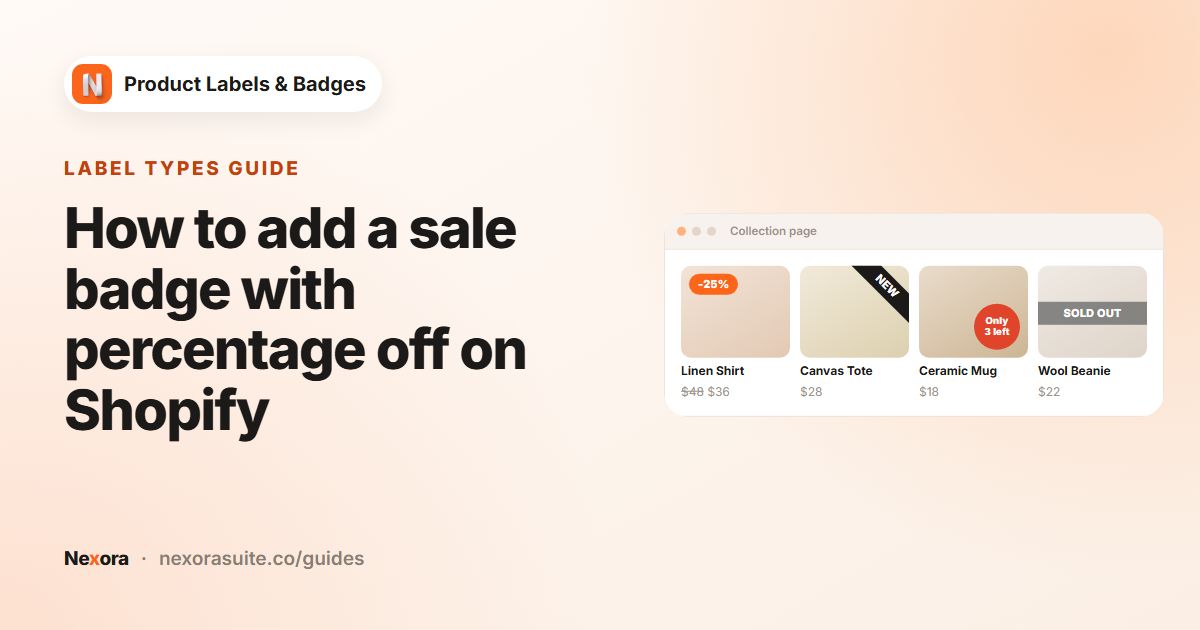
{{sale_percent}} | Discount percentage, rounded, with % | -{{sale_percent}} | -25% |
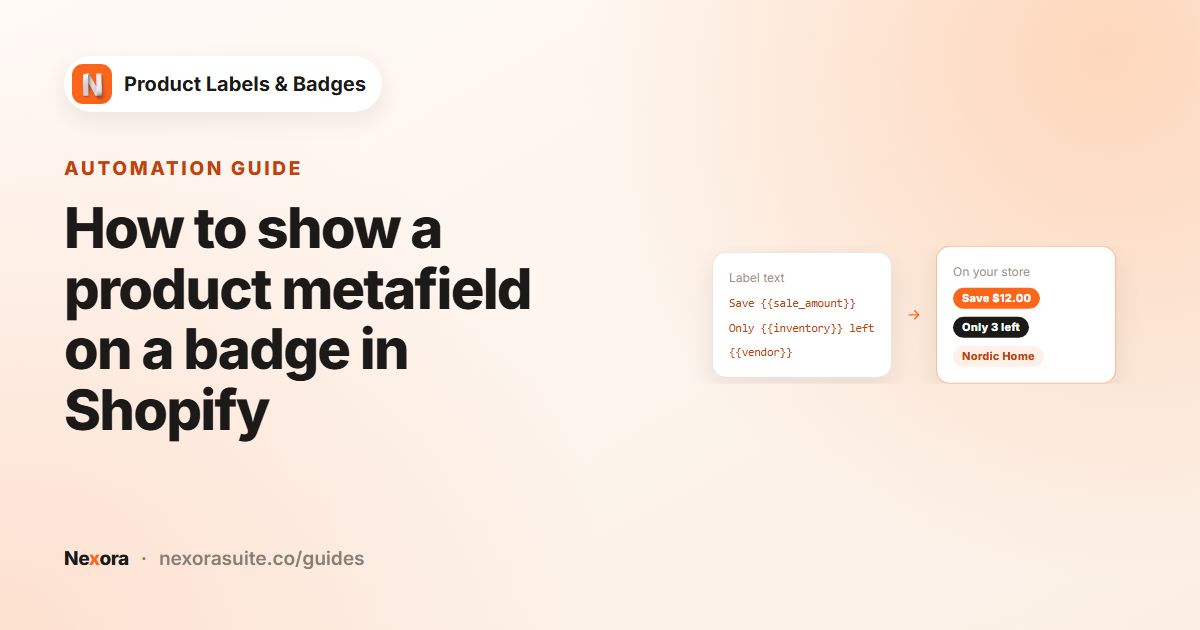
{{sale_amount}} | Compare-at price minus price, in your currency | Save {{sale_amount}} | Save $10.00 |
{{discount_amount}} | Same as the sale amount | {{discount_amount}} off | $10.00 off |
{{compare_at_price}} | The compare-at price | Was {{compare_at_price}} | Was $40.00 |
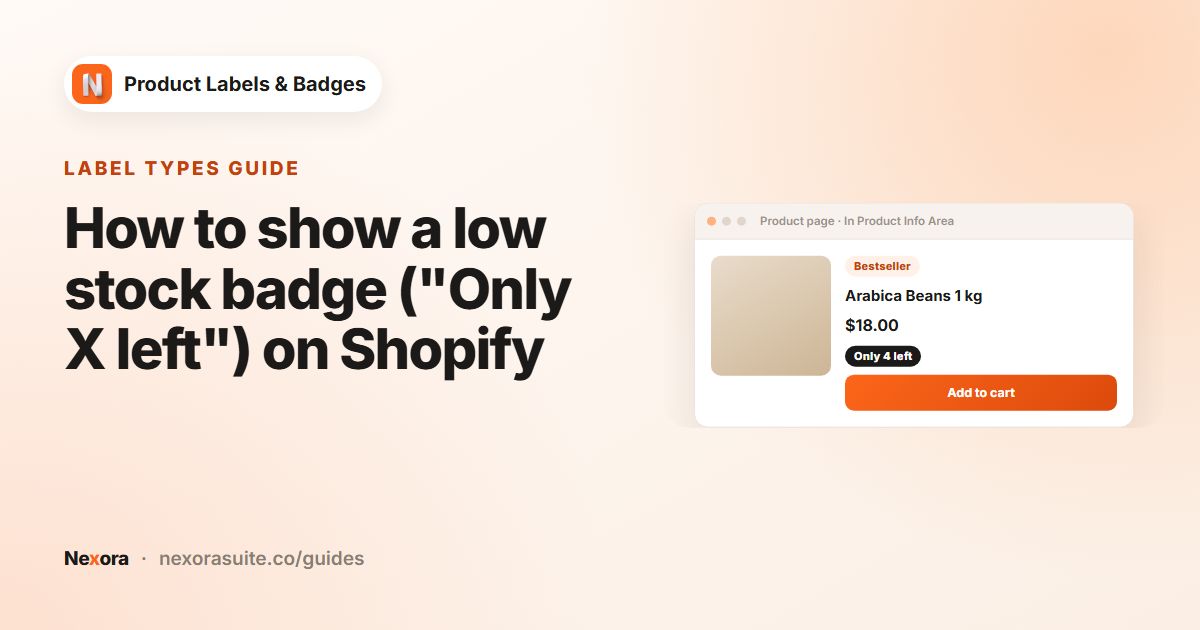
{{inventory}} | Inventory count | Only {{inventory}} left | Only 3 left |
{{stock_status}} | in_stock or out_of_stock | {{stock_status}} | in_stock |
{{sku}} | Product SKU | SKU {{sku}} | SKU TS-001 |
{{tag}} | The product's first tag | {{tag}} | organic |
{{vendor}} | Product vendor | By {{vendor}} | By Acme |
{{type}} | Product type | {{type}} | Hoodie |
{{variant_count}} | Number of variants | {{variant_count}} colours | 6 colours |
{{mtf.KEY}} | A product metafield in the custom namespace | {{mtf.warranty}} warranty | 2-year warranty |
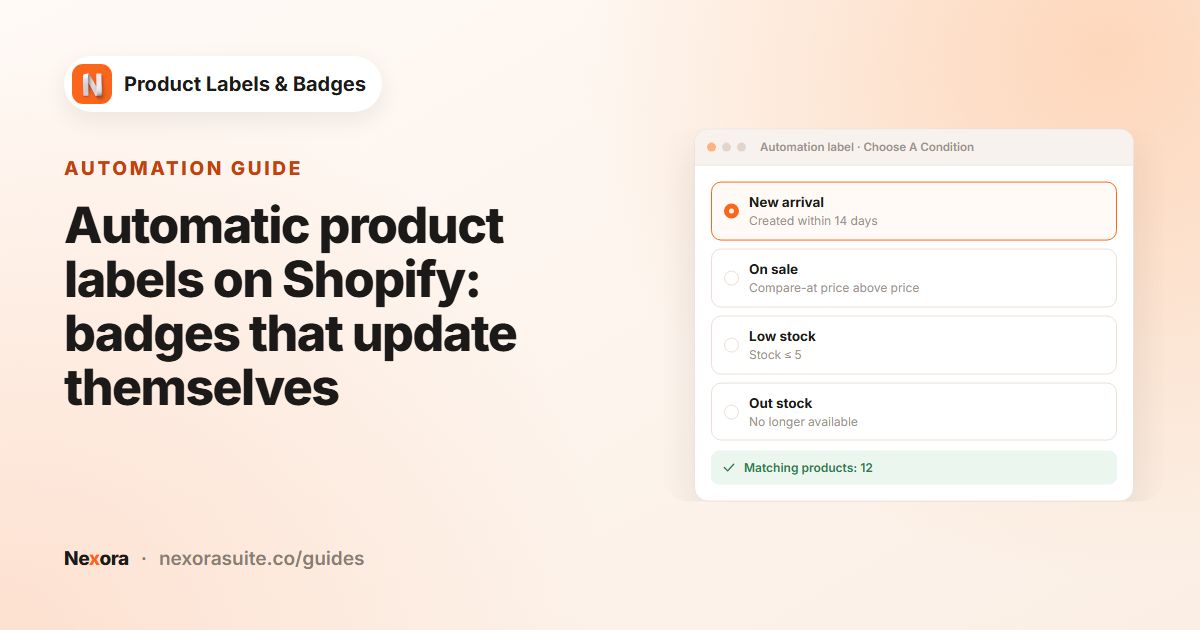
If a product has no discount, the sale variables are left empty. That's why {{sale_percent}} and {{sale_amount}} work best on a label that uses the On sale automation rule, which only shows on discounted products.
Doing this without an app
Shopify themes are built with Liquid, which can read all of this product data, so a developer can code a dynamic badge into your theme. The trade-off is upkeep: the code has to be added to each place products appear (product cards, product pages, recommendation sections), and it may need redoing when you update or change themes. A label app keeps the logic outside your theme code.
Where dynamic labels show
Once the Product Labels app embed is on, dynamic labels appear on product images and product cards on product, collection, search and home pages, and in the recommendation sections and quick-view windows many themes have. Use Show On Pages on the Display condition tab to limit a label to certain page types. For example, a By {{vendor}} line might be useful on collection pages but repeat information already on the product page.
Each label's variables are filled in from that product's own data, so a collection page with 24 products shows 24 correct values from one label.
Step by step: add a variable to a label
- Create or open a label
Click + Add Label or + Add Automation Label on the Product Labels page, or Edit an existing label.
- Use a Text label
On General, make sure Type is Text, and pick a shape. Wider shapes such as pills and rectangles suit longer text like
By {{vendor}}. - Open Dynamic Data
On Design, click Dynamic Data to see the variable list.
- Copy and paste
Click Copy next to the variable and paste it into Label Text, adding your own words around it.
- Check the preview
Look at the Label Preview on Desktop and Mobile, and adjust Font Size and Padding so the longest likely value still fits.
- Activate and save
Click Activate, then Save, and check several products on your storefront.
Example labels
- Discount badge: On sale rule,
-{{sale_percent}}in a circle at Top-Left. - Was-price line: On sale rule, In Product Info Area, Above price,
Was {{compare_at_price}}. - Stock line: Low stock rule,
Only {{inventory}} left, Below price. - Brand line: manual label on All products, In Product Info Area, Above title,
{{vendor}}, small grey text. - Choice line: manual label on a collection of multi-colour products, Below title,
Available in {{variant_count}} colours. - Warranty line: manual label,
{{mtf.warranty}} warranty. See metafield labels.
Plan for the longest value. A vendor name such as The Northern Candle Company needs a wider shape, or the In Product Info Area position, where text has more room than on a small image badge.
Tips and common mistakes
- Variants on product pages. Labels that use price, inventory, SKU or stock variables update when the shopper picks a different variant.
- Don't add an extra %.
{{sale_percent}}already includes the % sign. {{tag}}is the first tag only. If your tags are internal (likesupplier-batch-7), don't show them to shoppers.{{stock_status}}shows raw values. It printsin_stockorout_of_stock, which is useful for testing but not very friendly. For shopper-facing text, use the Low stock or Out stock rules with your own wording.- Translations. Each language's Label Text can use the same variables, for example
Nur noch {{inventory}} dain German.
Frequently asked questions
Which label types support variables?
Only Text labels. Image and Upload labels show a picture, so they can't contain variables.
What happens if a product has no value for a variable?
The variable is left empty. For example, a product without a discount shows nothing for {{sale_percent}}.
Can I use more than one variable in a label?
Yes. You can mix text and several variables, for example Save {{sale_amount}} (-{{sale_percent}}).
Do variables update when a shopper picks a variant?
On product pages, yes for price, inventory, SKU and stock variables.
Can I show my own custom field?
Yes, with {{mtf.KEY}} for product metafields in the custom namespace.