What automatic labels are and why they save time
A manual label shows on products you pick. An automatic (automation) label shows on products that meet a condition, and the list changes as your products change. Put an item on sale and it gets the sale badge; restock it and the sold-out badge goes away.
That matters because stale badges are worse than none. A NEW badge on something from last year, or Only 2 left on a product with 200 in stock, makes shoppers trust every other badge less. Rules keep the message tied to the real product data.
The four automation rules
| Rule | Shows on | Setting | Typical text |
|---|---|---|---|
| New arrival | Products created within the last X days | Within X days: 1–100, default 7 | NEW, Just in |
| On sale | Products whose compare-at price is higher than their price | None | -{{sale_percent}}, SALE |
| Low stock | Products still in stock with X or fewer left | When stock ≤ X: 1–100, default 5 | Only {{inventory}} left |
| Out stock | Products that can't be bought because they are sold out | None | Sold out, Back soon |
These rules use standard Shopify product data: creation date, Price and Compare-at price, and inventory. Products set to Continue selling when out of stock count as in stock. See Shopify's notes on selling when out of stock.
Each automation label uses one rule. To cover several situations, create one label per rule. Labels are unlimited and the app is free.
What Shopify and themes do on their own
Many themes show a basic Sale badge for products with a compare-at price, and a Sold out badge when a product can't be bought. Some themes also offer a low-stock message on the product page. These are useful, but you usually can't change their wording, shape or position much, and there's no built-in New badge in most themes. Automatic labels fill those gaps while still following your Shopify data.
Manual or automatic: which to use
| Situation | Better choice | Why |
|---|---|---|
| Every discounted product should show its discount | Automatic, On sale | Follows compare-at prices without a product list |
| Only one collection gets a badge | Manual, Products → Collections | Automation labels apply to every product that meets the rule |
| Products should be marked as new for two weeks | Automatic, New arrival | Drops off by itself after the day count |
| A badge for a supplier's products | Manual, Products → Vendor | Vendor isn't an automation rule |
| A campaign badge for a fixed weekend | Either, with Visibility Date | Both label kinds can be scheduled |
Many stores use both: automatic labels for the always-on states (new, sale, low stock, sold out) and a few manual labels for campaigns and product groups. See labels by collection, tag or vendor.
Step by step: create an automatic label
- Start an automation label
On the Product Labels page, click + Add Automation Label.
- Choose a rule
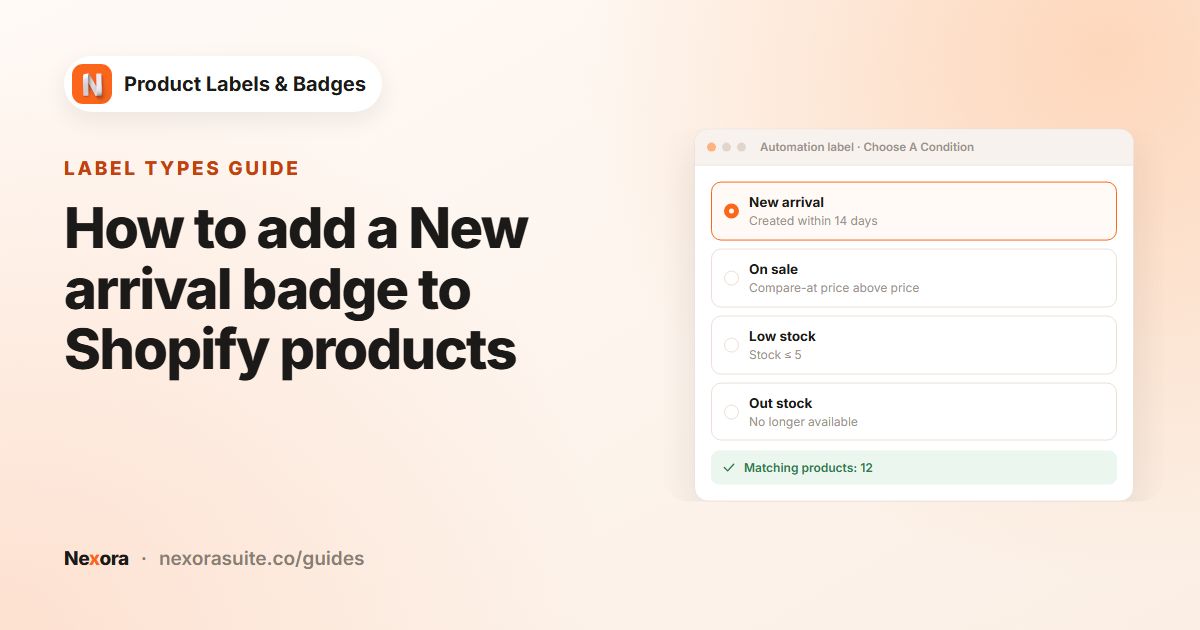
On Choose A Condition, pick New arrival, On sale, Low stock or Out stock. For New arrival and Low stock, enter your number.
- Check Matching products
The Matching products panel on the right lists the products that match right now. If it's empty, check your product data, for example that sale items have a compare-at price.
- Design the label
On General, choose Inside Product Image or In Product Info Area and the Text, Image or Upload type. On Design, write your Label Text and add variables from Dynamic Data if you like.
- Set display conditions
On Display condition, choose Show On Pages, Visibility Date and Show On Locations. There's no product picker, because the rule decides which products get the label.
- Activate and save
Click Activate (new labels start Inactive), then Save.
Example: a full set of automatic labels
A fashion store sets up four labels once and leaves them running:
| Label | Rule | Design | Position |
|---|---|---|---|
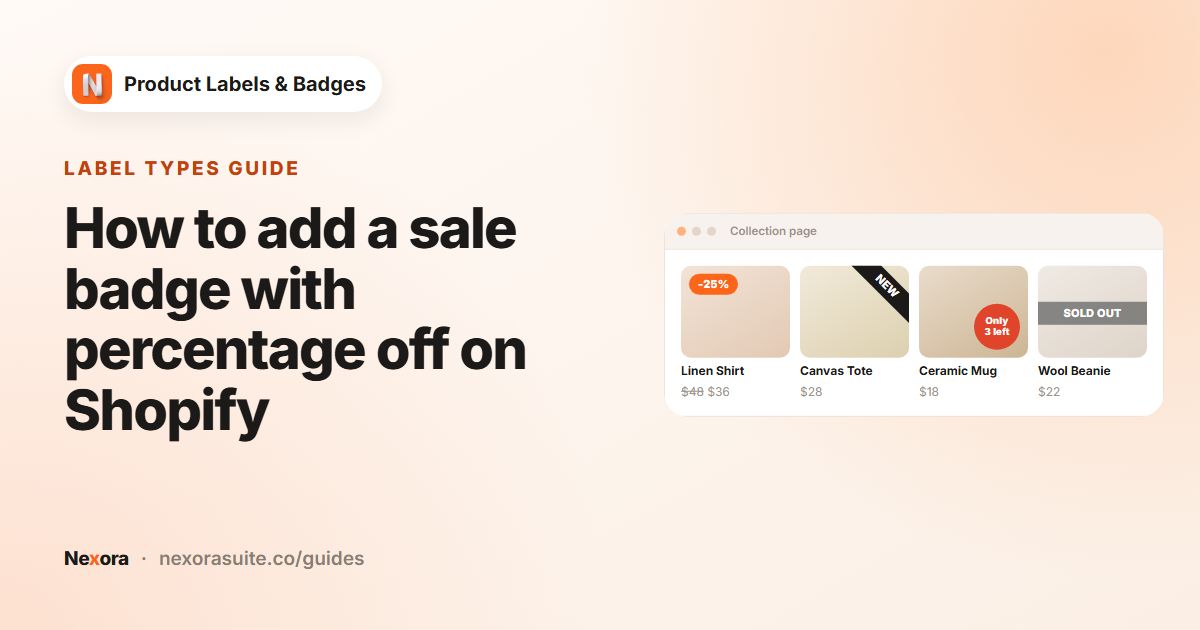
| Sale percent | On sale | Red circle, -{{sale_percent}} | Top-Left |
| New in | New arrival, 14 days | Black pill, NEW | Top-Right |
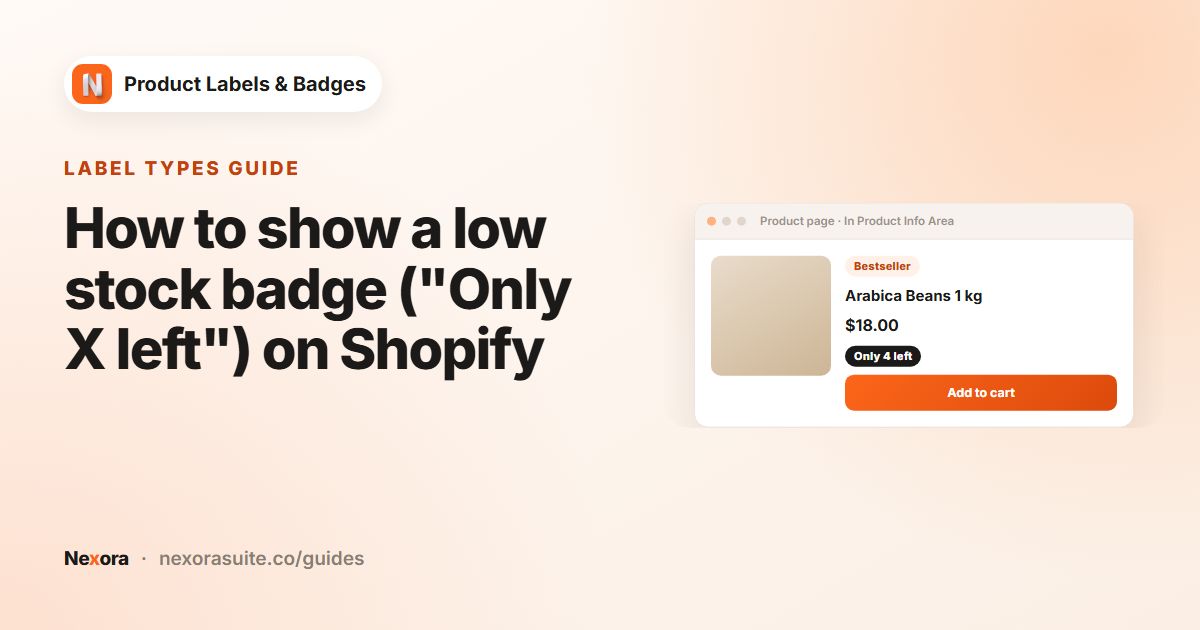
| Low stock | Low stock, 3 | Orange text, Only {{inventory}} left | In Product Info Area, Below price |
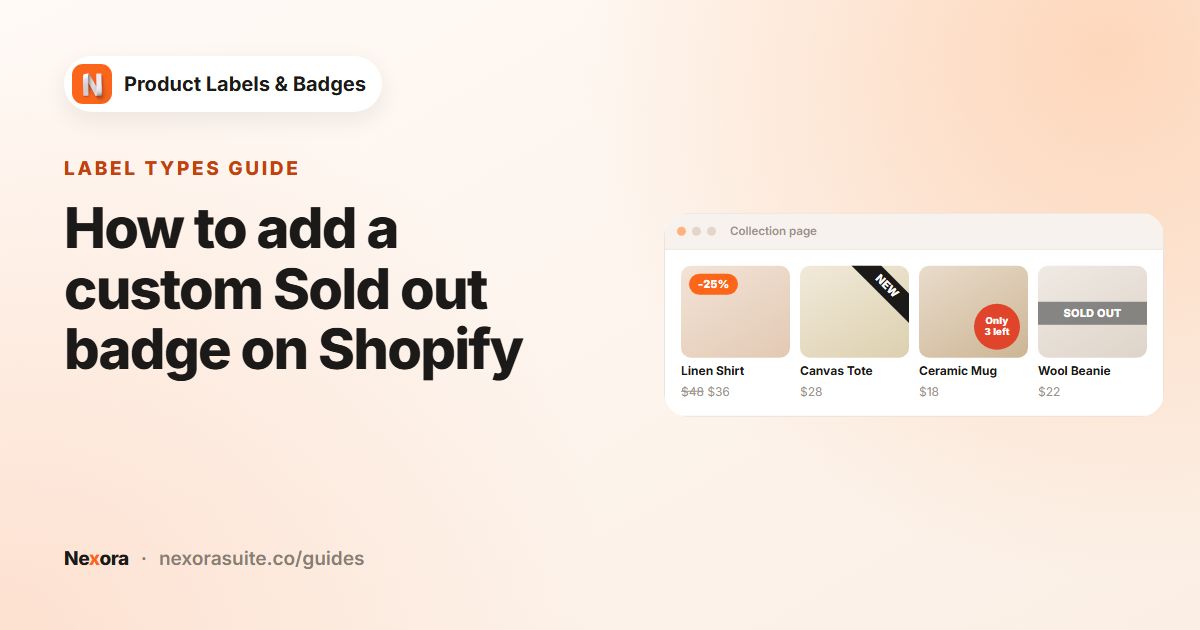
| Sold out | Out stock | Grey banner, SOLD OUT | Center-Center |
If a product is both new and on sale, both labels show in their own corners. If two labels share a corner, they stack. Choose the order with the arrows on the Product Labels page and set Stack direction and Stack gap in Settings.
Tips and common mistakes
- Out stock is the label name in the app for sold-out products.
- Sale badges and discount codes. On sale follows the compare-at price. Discount codes and automatic discounts applied at checkout don't trigger it.
- Low stock needs tracked inventory. Products that don't track quantity have no count to compare.
- Limit by page, date or country. Even automatic labels can be hidden on chosen page types, scheduled with Visibility Date, or shown only in some countries.
- Want a rule for one collection only? Automation labels apply store-wide. For collection-specific badges, use a manual label with Products set to Collections.
Frequently asked questions
Which automatic rules are available?
New arrival, On sale, Low stock and Out stock. Each automation label uses one rule.
Do automatic labels update by themselves?
Yes. Products start and stop showing the label as their dates, prices and stock change.
Can I see which products a rule will match?
Yes. The Matching products panel on the Choose A Condition tab lists the products that match right now.
Can I limit an automatic label to one collection?
No, automation labels have no product picker. Use a manual label with Products set to Collections for that.
Are automatic labels a paid feature?
No. The app is completely free and you can create as many automation labels as you need.