Why a clear sold out badge matters
Sold-out products are frustrating when shoppers only find out after opening the product page. A visible badge on the collection card saves them the click and keeps them browsing what is available.
Sold-out products still have value on the page. They show what you carry, build anticipation for restocks and can hint at popular items. A badge that says Back soon or Restocking in May turns a dead end into useful information.
Wording ideas
| Situation | Example text |
|---|---|
| Will restock soon | Back soon |
| Seasonal or limited item | Sold out for this season |
| Handmade or small batch | Next batch coming |
| Won't be restocked | Sold out |
Only promise a restock if one is planned. If you're not sure, a plain Sold out is the honest choice.
Your options on Shopify
Many themes, including Shopify's free themes, already show a basic Sold out badge and disable the buy button when a product can't be bought. Whether that's enough depends on what you need:
| Need | Theme badge | Out stock label |
|---|---|---|
| Basic sold-out message | Usually yes | Yes |
Your own wording, like Back soon | Often only by editing theme language files | Yes, in Label Text, with a translation per language |
| Custom shape, colour or image | Limited to theme settings | 21 text shapes, an image library or your own upload |
| Choose the corner or a custom offset | Fixed by the theme | Nine positions plus Custom |
| Different design on mobile | Rarely | Size, rotation, font size and padding per device |
A product counts as sold out when it can no longer be bought. If you use Continue selling when out of stock, Shopify lets customers keep buying, so the product isn't sold out and the label won't show. See Shopify's guide to selling when out of stock.
Step by step: a custom sold out badge
- Start an automation label
In the app, open Product Labels and click + Add Automation Label.
- Choose Out stock
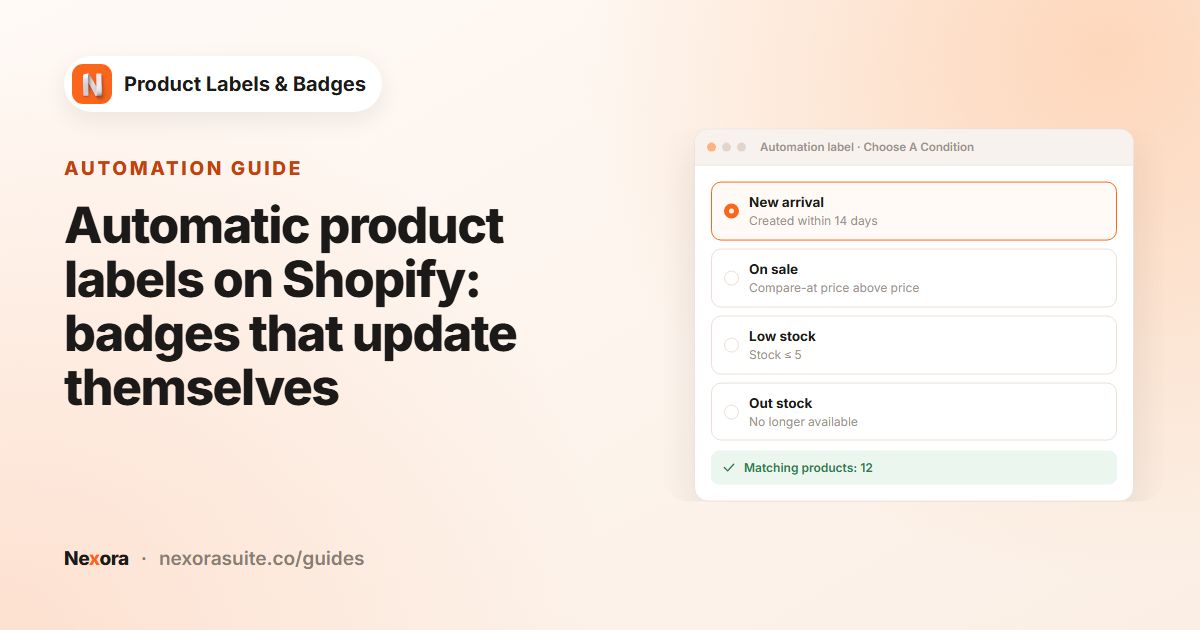
On Choose A Condition, pick Out stock. The Matching products panel shows your currently sold-out products.
- Pick the type
On General, enter a Label name, choose Inside Product Image and pick Text (for a shape with your words) or Image (to choose a ready-made sold-out graphic from the library).
- Design it
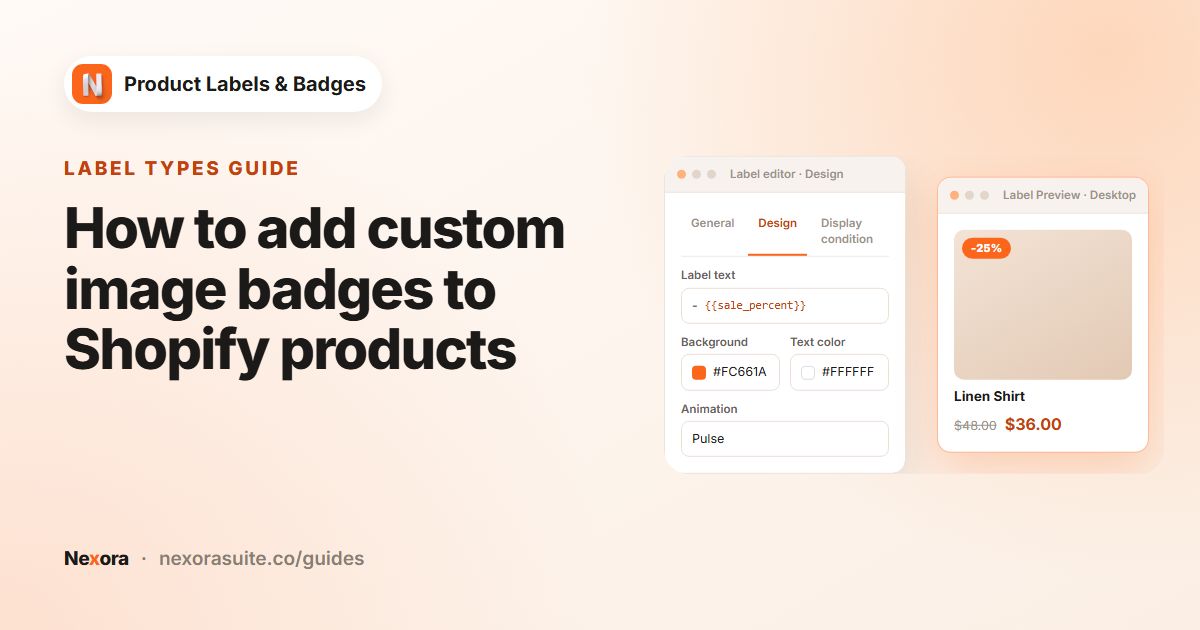
On Design, write your Label Text, for example
Sold out. A grey or black Background Color with white Text Color reads clearly without shouting. - Place it
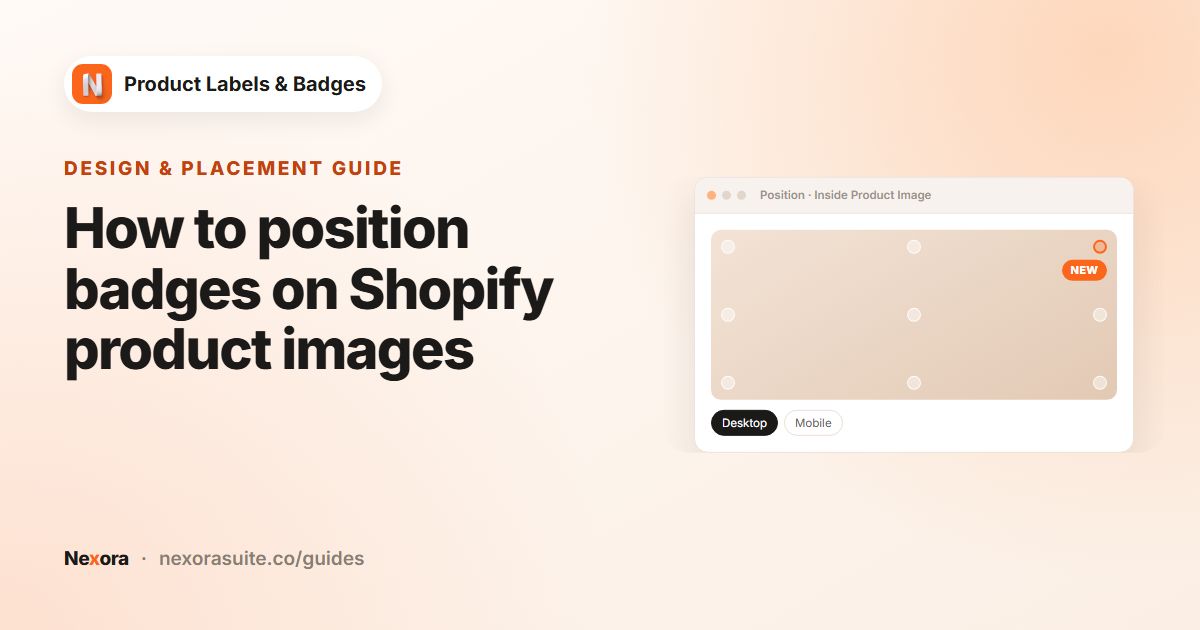
Choose a Position. Center-Center with a wide banner shape makes the state obvious, while Top-Left is subtler.
- Activate and save
Click Activate, then Save, and check a sold-out product on a collection page.
Settings for a sold out badge
| Setting | Suggested value | Why |
|---|---|---|
| Condition | Out stock | Follows Shopify's own availability |
| Type | Text or Image | Text is easiest to translate. Images give more style |
| Position | Center-Center or Top-Left | Keep it away from your theme's own badge |
| Rotation | 0°, or -15° for a stamp look | Set per device |
| Animation | None | A sold-out product doesn't need to draw extra attention |
| Label link | Optional, for example your restock page | Shoppers who click the badge go there |
Example: a sneaker store with limited drops
A sneaker store keeps sold-out pairs visible to show its range. It wants an obvious overlay on cards and a calmer note on product pages.
- Label 1: Out stock, a wide banner shape, text
SOLD OUT, Position Center-Center, Rotation -10°, shown on Collection Page, Search Page and Home Page only. - Label 2: Out stock, In Product Info Area, Info Placement Above price, text
This pair is sold out. Check back after our next drop., shown on Product Page only. - When the store restocks, both labels disappear without any change in the app.
Tips and common mistakes
- Two sold-out badges. If your theme shows its own Sold out badge too, look in your theme settings for an option to hide it, or put your label in a different spot.
- Pre-order items. Products with Continue selling when out of stock count as in stock, so they won't get the badge. Use a manual label with text such as
Pre-orderinstead. - Untracked inventory. Products that don't track inventory stay available, so they don't count as sold out.
- Combine with low stock. A Low stock label shows while stock is still above zero, then the Out stock label takes over. See low stock badges.
Frequently asked questions
How does the app decide a product is sold out?
A product counts as sold out when it can no longer be bought. Products set to keep selling when out of stock count as in stock.
Will the badge go away when I restock?
Yes. Once the product can be bought again, the Out stock label stops showing.
Can I use an image instead of text?
Yes. Choose Image on the General tab to pick from the built-in library, or Upload to use your own PNG, JPEG, GIF, WebP or SVG up to 2 MB.
Can I write 'Back soon' in different languages?
Yes. Use the language button in Label Text to write a translation for each language your store publishes.
Can I hide the badge on the product page?
Yes. On Display condition, untick Product Page under Show On Pages.