When an image badge beats a text badge
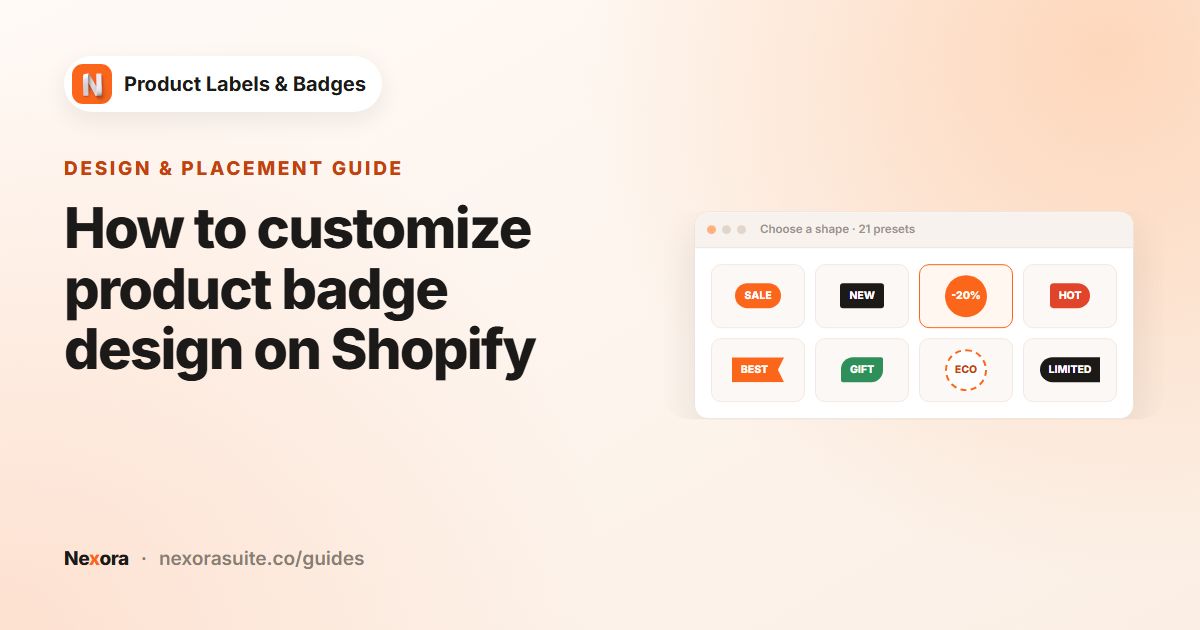
Text badges are quick and easy to translate. Image badges are better when the badge is part of your brand or carries a mark shoppers recognise:
- Certification-style marks you're entitled to use, such as a vegan or organic logo from your certifier.
- Brand stickers with your own illustration, like a hand-drawn
Staff pickseal. - Seasonal artwork, for example a snowflake sale sticker for winter.
- Badges with detailed shapes that a plain shape and text can't reproduce.
You can mix both kinds on the same product. For example, an uploaded brand seal in one corner and a text badge with the live discount in another. Each label has its own Position, so they don't have to compete for space.
Image or Upload?
| Type | Best for | You need |
|---|---|---|
| Image | Common badges such as sale, new, hot or eco styles, ready to use | Nothing. Search the library and click an image |
| Upload | Your own brand artwork, certification marks or seasonal stickers | A PNG, JPEG, GIF, WebP or SVG file up to 2 MB |
| Text | Badges with words that change per product or per language | Just your text, plus variables if you like |
Your options on Shopify
Shopify themes don't usually let you lay an image badge over product images. You could add the image to the product photo itself, but then it appears everywhere the photo is used, including in Google Shopping feeds and social catalogs, and you have to edit and re-upload photos to remove it.
| Approach | Pros | Cons |
|---|---|---|
| Edit the product photo | No app needed | Badge is stuck in the photo, hard to change, and may break feed image rules |
| Theme code | Full control | Needs a developer and upkeep when the theme changes |
| An image label | Sits on top of the photo, can be scheduled, targeted and removed any time | One app to install. Nexora Product Labels & Badges is free |
Step by step: library image or your own upload
- Create a label
Go to Product Labels and click + Add Label (or + Add Automation Label if the badge should follow a condition such as On sale).
- Choose the type
On General, enter a Label name, choose Inside Product Image, then set Type to Image or Upload.
- Pick from the library
With Image, type a word such as
saleorecoin the search box, and narrow the list with the Category and Color filters. More images load as you scroll. Click one to select it. - Or upload your own
With Upload, choose a PNG, JPEG, GIF, WebP or SVG file up to 2 MB. Use Change image to replace it or the x on the image to remove it.
- Size and place it
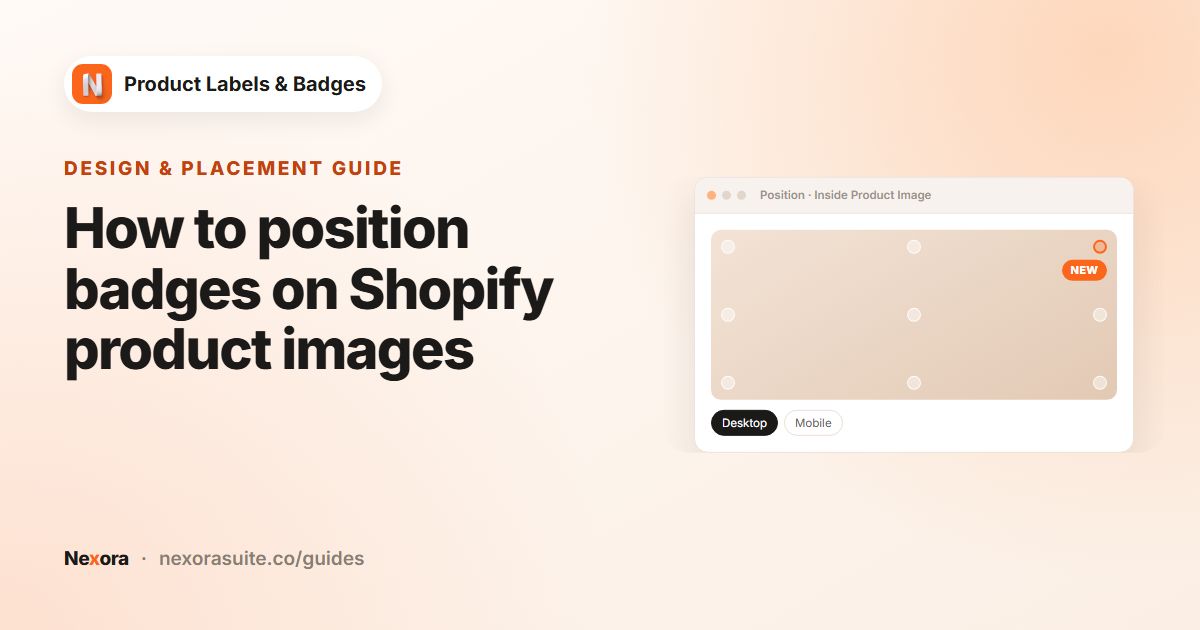
On Design, set Position, Label Size and Rotation. Use the Desktop and Mobile icons to give each device its own size.
- Pick products
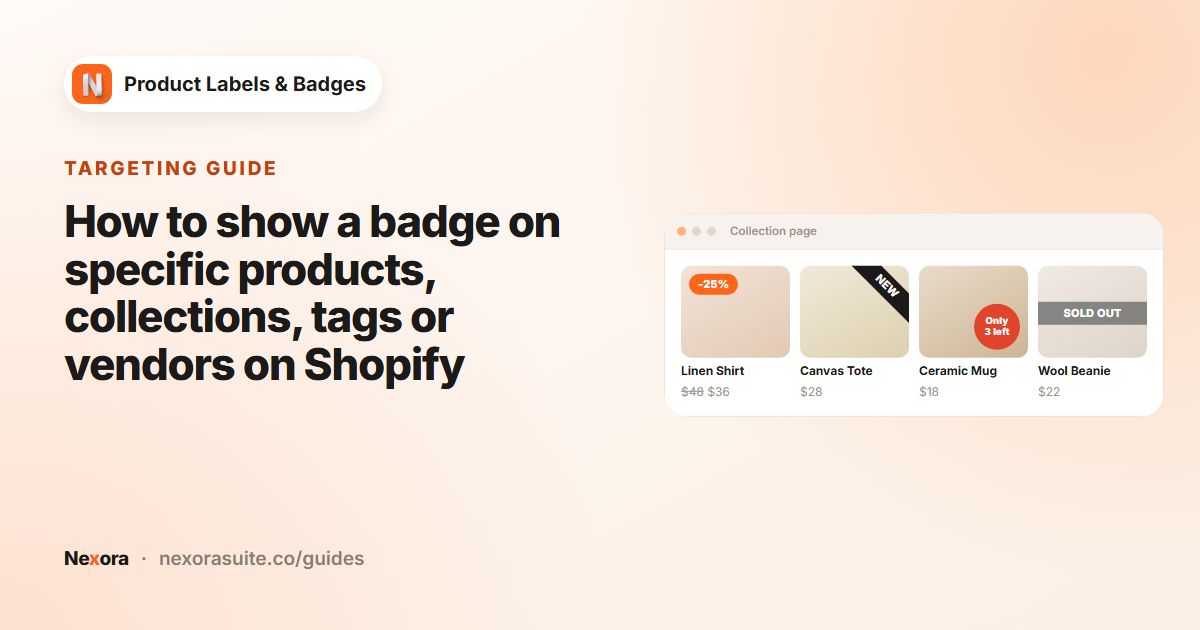
On Display condition, set Products to the products, collections, tags or vendors that should show the badge. Then click Activate and Save.
Image badge settings and file tips
| Setting | What to know |
|---|---|
| File formats | PNG, JPEG, GIF, WebP or SVG, up to 2 MB |
| Transparency | Use PNG, WebP or SVG with a transparent background so the badge doesn't show a white box |
| Label Size | Scales the image per device, up to 500% |
| Position | Nine preset positions, or Custom with an Anchor corner and offsets in px or % |
| Rotation | -180° to 180°, per device |
| Animation | None or one of 19 effects |
| Label link | Optional. Links work on image labels too |
Save your artwork at about twice the size it will appear, so it stays sharp on high-resolution screens, but keep the file small. A badge rarely needs to be more than a few hundred kilobytes. SVG stays sharp at any size.
Example: an eco badge for a refill range
A home-care store sells a refill range tagged refill. It wants a round green leaf sticker on those products only.
- Type Upload, with a 400 × 400 px transparent PNG of the leaf sticker.
- Position Top-Right, Label Size 100% on desktop and 80% on mobile.
- Products set to Product tags with the tag
refill. Tags are not case-sensitive. - A Label link to the store's refill programme page, so curious shoppers can read more.
Tips and common mistakes
- Text inside images isn't translated. If your store sells in several languages, a text label lets you write a translation per language. For image badges, use artwork without words, or create one label per language and target it with Show On Locations.
- Upload fails. Check the file type and that it's 2 MB or smaller.
- Badge covers the product. Reduce Label Size on Mobile, where cards are small.
- Only use marks you are allowed to. Certification logos usually come with usage rules from the issuer.
Frequently asked questions
Which file types can I upload?
PNG, JPEG, GIF, WebP and SVG, up to 2 MB per file.
Can I search the image library?
Yes. Choose the Image type, then use the search box and the Category and Color filters.
Can an image badge show the discount percentage?
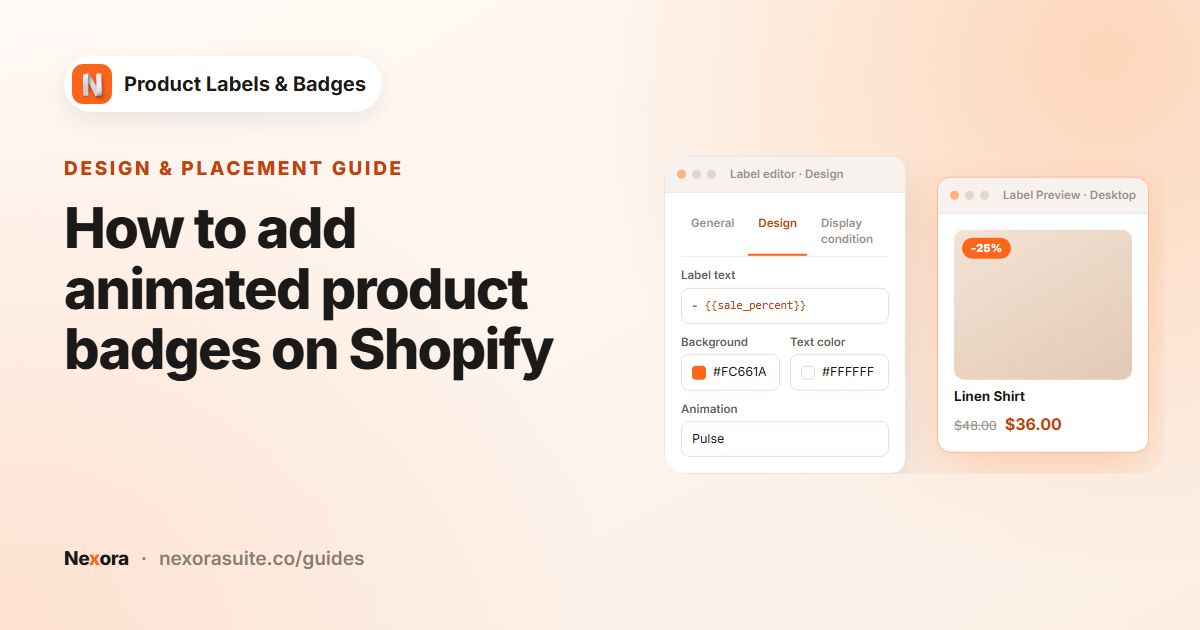
No. Dynamic data such as {{sale_percent}} only works in text labels. Use a text label for the number, and an image label beside it if you want artwork too.
Can I replace an uploaded image later?
Yes. Open the label, click Change image on the General tab, then Save.
Do animated GIFs work?
GIF is a supported upload format. Keep animated files small so pages load quickly.