Why target badges to certain products
A badge that appears on everything stops meaning anything. The value of a label like Bestseller, Organic or Exclusive comes from it being on some products and not others. Targeting lets you match the badge to the products it actually describes.
- Specific products: a handful of hand-picked items, such as staff picks.
- Collections: everything in a curated group, such as a gift guide or a summer sale.
- Product tags: attributes you already tag, such as
vegan,handmadeorlimited. - Vendor: every product from a brand, useful for multi-brand stores.
Targeting also keeps your store easy to maintain. If a badge depends on a tag or collection you already manage, you only update products in Shopify and the badge follows. You don't need to come back to the app each time your range changes.
Your options on Shopify
Shopify themes don't usually offer a setting to show a custom badge on chosen products. The common workarounds are editing theme code to check for a tag, or using product metafields and a custom theme block. Both work but take some technical setup per badge.
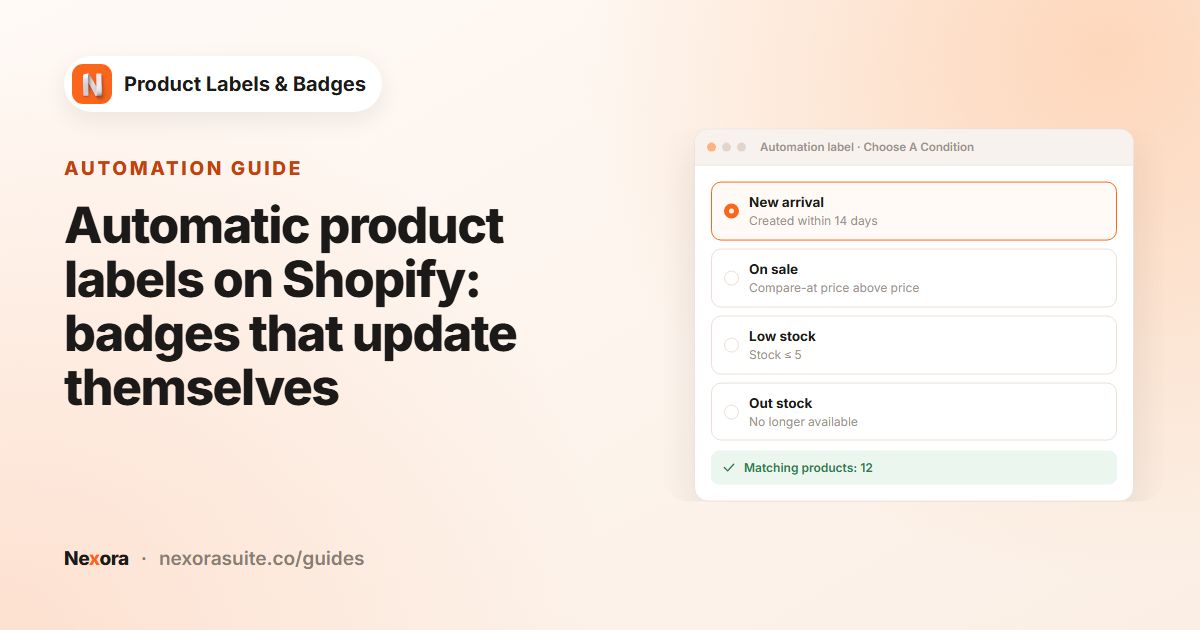
A label app lets you pick the products in a form instead. If your rules depend on store data that changes on its own, such as a discount or stock level, an automation label may fit better; see automatic product labels.
Step by step: target a label
- Create a manual label
On Product Labels, click + Add Label. Product targeting is only available on manual labels; automation labels use their condition instead.
- Design it
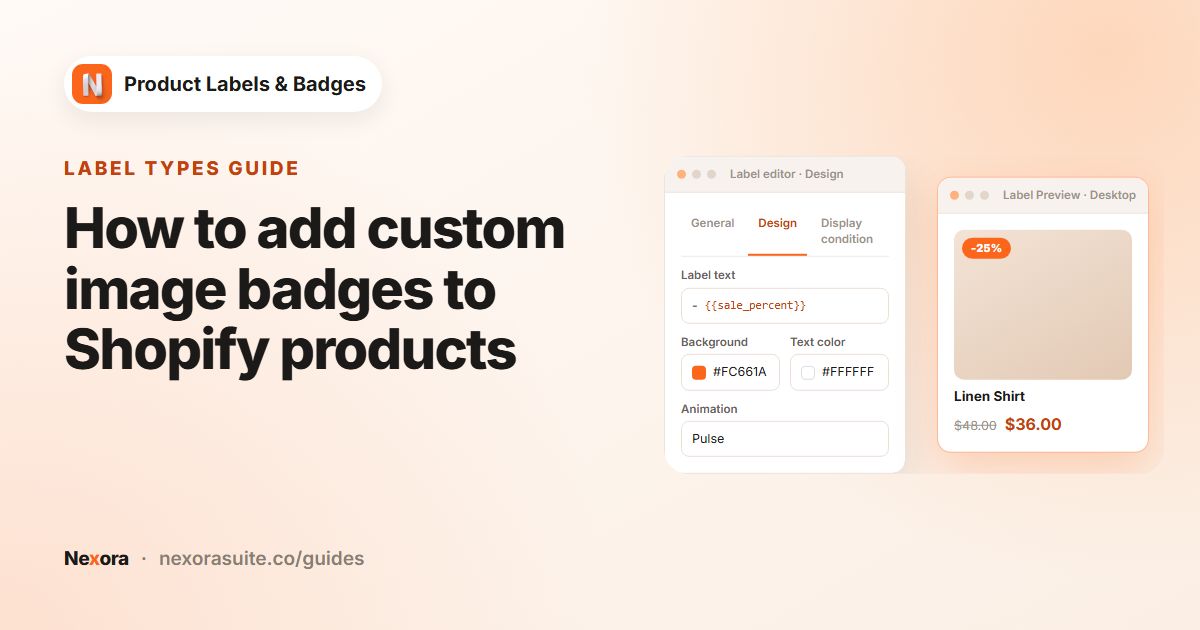
Set up the General and Design tabs: type, shape, text, colours and position.
- Open Display condition
Under Products, change All products to the option you need.
- Select the items
For Specific products, click Select products. For Collections, click Select collections. Both open Shopify's picker. For Product tags or Vendor, search and pick from the tags or vendors in your store.
- Check the rest of the tab
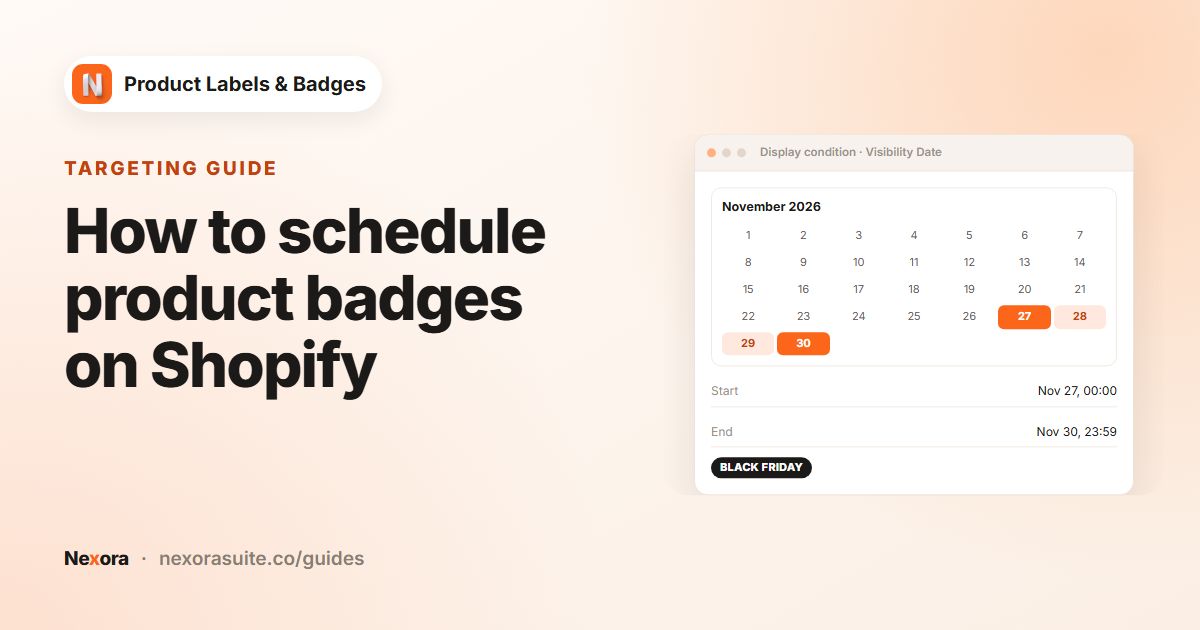
Leave Show On Pages, Visibility Date and Show On Locations at their defaults, or narrow them further.
- Activate and save
Click Activate, then Save. If nothing is selected, the app highlights the empty field and asks you to pick at least one item.
How each option matches products
| Products option | How you choose | A product matches when |
|---|---|---|
| All products | Nothing to select | Always |
| Specific products | Select products | It is one of the selected products |
| Collections | Select collections | It belongs to at least one selected collection |
| Product tags | Search product tags | It has at least one selected tag (not case-sensitive) |
| Vendor | Search vendors | Its vendor is one of the selected vendors |
Collections work with both manual and automated (smart) collections, because the app checks which collections the product belongs to on your storefront. When a product joins or leaves the collection, the label follows.
Which option should you choose?
| Situation | Best option |
|---|---|
| A few fixed products that rarely change | Specific products |
| A curated group you already maintain, or a smart collection based on rules | Collections |
An attribute that cuts across collections, such as vegan | Product tags |
| Everything from one brand or supplier | Vendor |
| A discount, stock level or product age | An automation label instead |
Example: badges for a multi-brand outdoor store
- Brand badge: an Upload label with a partner brand's logo, Products = Vendor with that brand, Position Bottom-Left.
- Eco badge: Text label
Recycled materials, In Product Info Area, Below title, Products = Product tags withrecycledandeco. A product tagged with either one shows the badge. - Gift guide badge: Text label
Gift idea, Products = Collections with the gift guide collection, and Visibility Date set to the holiday season. - Staff pick: Specific products with five hand-picked items.
Tips and common mistakes
- Use tags for rules that grow. New products pick up the badge as soon as you tag them, without editing the label.
- Tags are matched with OR, not AND. Selecting
veganandorganicshows the label on products with either tag. For products that need both, create a dedicated tag such asvegan-organic. - One option per label. A label uses one Products option. To target a collection and a vendor, create two labels with the same design.
- Label not showing on a product? Check that the label is Active, the product matches, the page is ticked under Show On Pages, and today is inside its Visibility Date.
- Order overlapping labels with the arrows on the Product Labels page.
Frequently asked questions
Can I show a badge only on one collection?
Yes. On Display condition, set Products to Collections, click Select collections and choose it.
Are product tags case-sensitive?
No. A product with the tag Vegan matches a label set to vegan.
If I pick several tags, does a product need all of them?
No. A product matches if it has at least one of the selected tags.
Can automation labels be limited to a collection?
Automation labels don't have a product picker; the condition decides which products get the label. For a collection-specific badge, use a manual label.
Why can't I save my label?
With Specific products, Collections, Product tags or Vendor, you need to select at least one item before saving.