Why put metafield data on a badge
Metafields hold the product facts that Shopify has no standard field for: warranty length, country of origin, material, roast level, battery life, pages, ABV. Shoppers often care about these details more than the product description, but they are usually buried far down the product page.
A badge brings one key fact up to the product image or right next to the title, on collection pages as well as product pages. Because the value comes from the metafield, you edit it in one place and every badge follows.
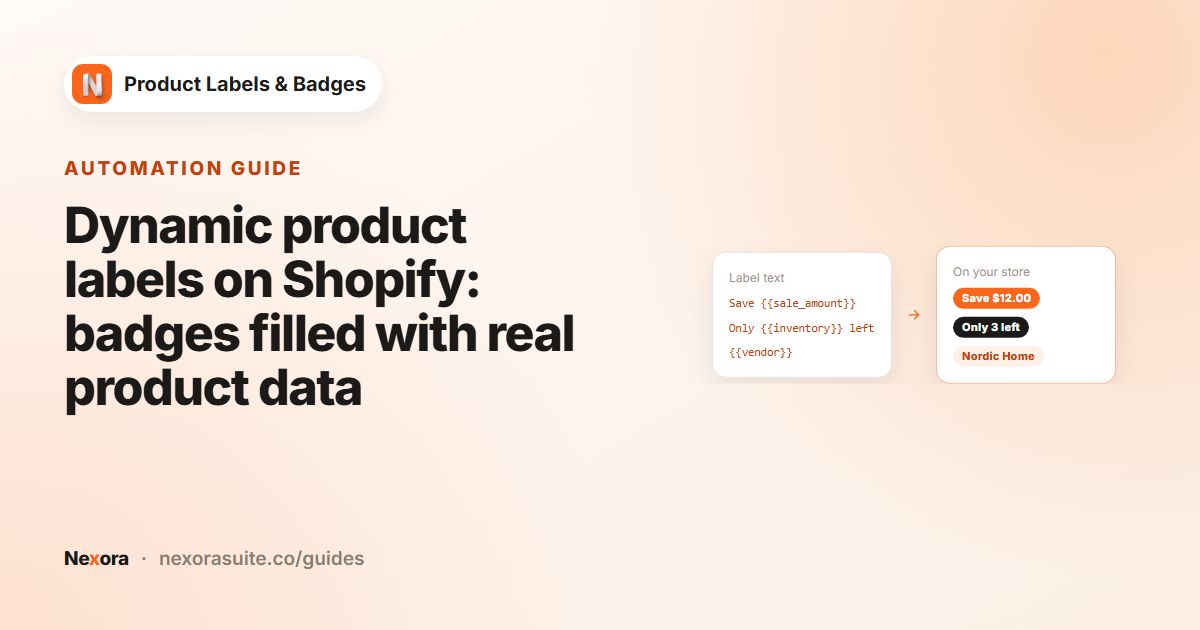
{{mtf.warranty}} warranty→ 2-year warrantyMade in {{mtf.origin}}→ Made in Portugal{{mtf.roast}} roast→ Medium roast{{mtf.material}}→ 100% linen
Metafield badges also suit facts that differ between products but follow one pattern. Instead of writing ten labels (1-year warranty, 2-year warranty and so on), you write one label with {{mtf.warranty}} warranty and let each product fill in its own value. Changing a warranty later is a single edit on the product.
Your options on Shopify
In Online Store 2.0 themes you can connect a metafield to a theme block through dynamic sources in the theme editor. That's great for product pages, but most themes don't offer a block on product cards in collection grids, and the styling depends on the block. See Shopify's guide to creating custom metafield definitions.
| Option | Product page | Collection cards | Effort |
|---|---|---|---|
| Theme block with a dynamic source | Yes, if your theme has a suitable block | Rarely | Low |
| Custom Liquid code | Yes | Yes | Needs a developer |
A text label with {{mtf.KEY}} | Yes | Yes | Low |
Step by step: a metafield badge
- Create the metafield definition
In your Shopify admin, go to Settings > Metafields and metaobjects > Products and add a definition. Use the
customnamespace, a key with letters, numbers and underscores (for examplewarranty), and a simple type such as single line text or a number. - Allow storefront access
In the definition's access options, make sure Storefronts is selected. The app reads the value on your storefront, so it needs this access.
- Fill in the values
Open each product and enter the value in the Metafields section, for example
2-year. - Create a text label
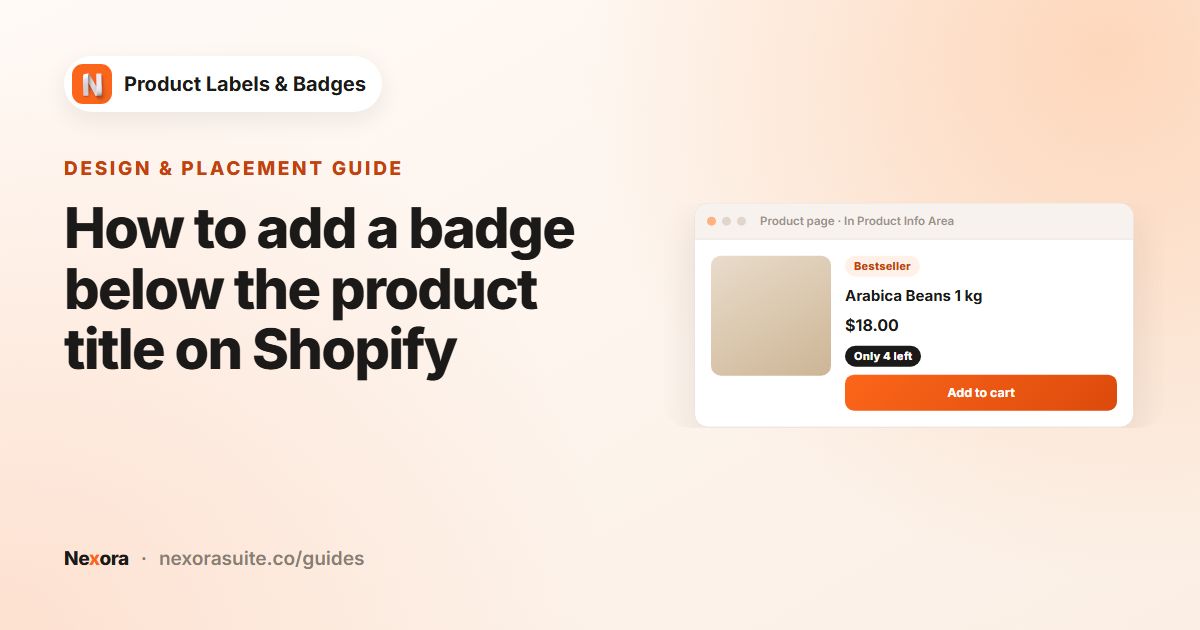
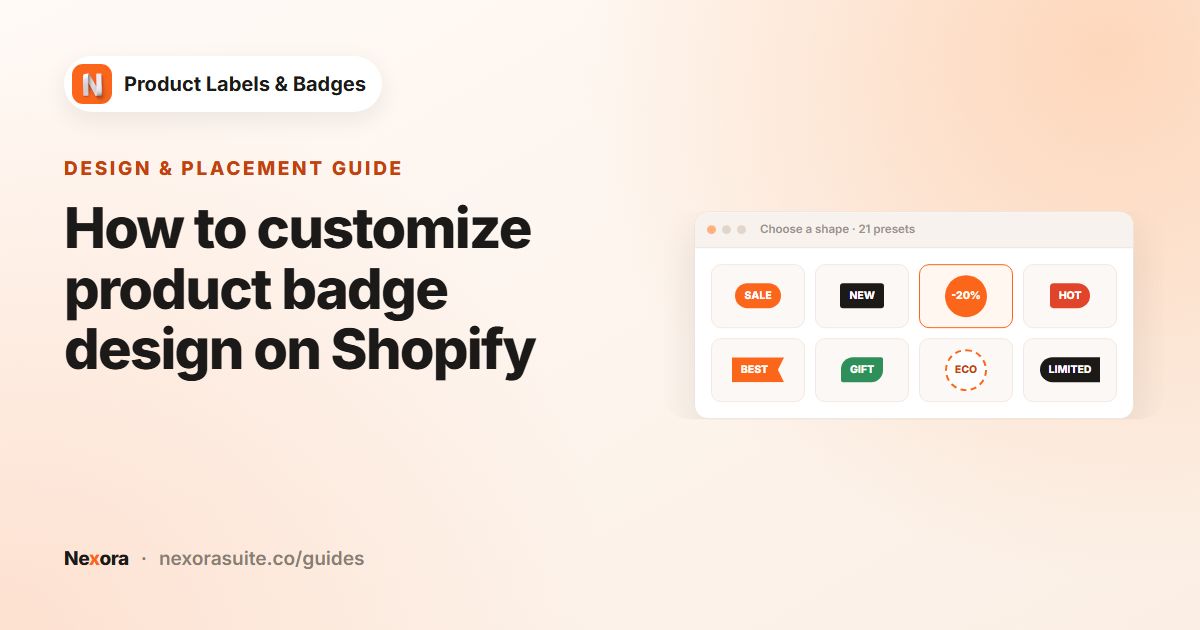
In the app, click + Add Label. On General, choose the Text type and a shape, and pick Inside Product Image or In Product Info Area.
- Add the variable
On Design, set Label Text to
{{mtf.warranty}} warranty. The part aftermtf.must match your metafield key exactly. - Choose products, activate and save
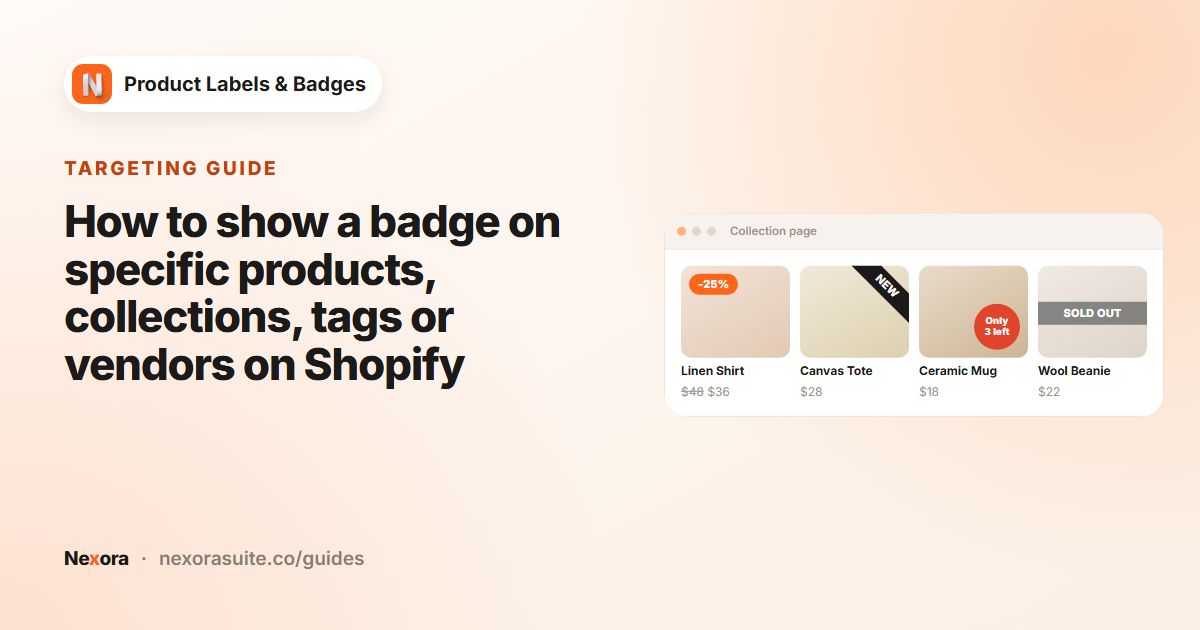
On Display condition, set Products to the products, collections, tags or vendors that have the metafield. Click Activate, then Save.
What works and what to watch
| Detail | What to know |
|---|---|
| Namespace | Only custom. {{mtf.warranty}} reads custom.warranty |
| Key format | Letters, numbers and underscores, matching the key exactly |
| Best types | Single line text, integer and decimal show cleanly |
| Other types | Lists, references and measurement types are shown as their raw stored value, which may not read well |
| Empty value | The variable is left empty, so the rest of your text still shows |
| Where it shows | Product images and cards on product, collection, search and home pages |
Because an empty metafield leaves the rest of the text behind, {{mtf.warranty}} warranty would read just warranty on a product without a value. Limit the label to products that have the metafield, for example with a tag such as has-warranty under Products > Product tags.
Choosing the right metafield type
The badge shows the stored value exactly, so pick a type whose value already reads well on its own:
| Product fact | Metafield type | Label Text | Shows |
|---|---|---|---|
| Warranty length | Integer, key warranty_years | {{mtf.warranty_years}}-year warranty | 2-year warranty |
| Material | Single line text, key material | {{mtf.material}} | Organic cotton |
| Battery life | Integer, key battery_hours | {{mtf.battery_hours}}h battery | 30h battery |
| Alcohol content | Decimal, key abv | {{mtf.abv}}% ABV | 5.5% ABV |
| A yes/no fact, such as vegan | Better as a product tag | Vegan as static text, with Products > Product tags = vegan | Vegan |
A true or false metafield would show the word true on the badge, which is why yes/no facts work better as a tag with fixed text. Lists, measurements and references also show their raw stored value, so use single line text when you want full control over the wording.
Example: origin and roast for a coffee shop
A coffee roaster stores custom.origin (single line text) and custom.roast (single line text) on every bag.
- Label 1: In Product Info Area, Above title,
{{mtf.origin}}, small uppercase grey text. ShowsETHIOPIA,COLOMBIAand so on above each product name. - Label 2: Inside Product Image, Bottom-Left, a pill shape with
{{mtf.roast}} roast, background colour matched to the brand. - Both labels use Products → Collections →
Coffee, so merchandise like mugs never shows an empty badge.
Second example: two specs on one electronics badge
A headphone store keeps custom.battery_hours and custom.warranty_years (both integers) on every pair. One text label can use both variables:
- Label Text:
{{mtf.battery_hours}}h battery · {{mtf.warranty_years}}-yr warranty, which shows30h battery · 2-yr warranty - In Product Info Area, Below price, aligned Left, so the specs sit under the price on cards and product pages
- Products > Collections =
Headphones, so cables and cases without these metafields never show a half-empty badge
The values come from the product, not the variant, so the badge stays the same when a shopper picks a different colour.
Troubleshooting metafield badges
- Badge shows only the static text. Check the key spelling, that the namespace is
custom, that the product has a value, and that the definition allows Storefronts access. - Value looks like code. You're probably using a list or reference type. Use a single line text metafield for the badge.
- Key has a hyphen. The variable only reads keys made of letters, numbers and underscores. A key like
care-guidewon't be picked up; create the metafield ascare_guideinstead. - Spaces and case.
{{ mtf.origin }}with spaces inside the braces works, but the key must match the metafield key exactly, including upper and lower case. - Different language stores. You can write a translation of the surrounding text per language, for example
Garantie {{mtf.warranty}}in French. - Need help? Message us on live chat in the app, or email [email protected].
Frequently asked questions
Which metafields can a badge show?
Product metafields in the custom namespace, using {{mtf.KEY}}. For example, {{mtf.material}} shows custom.material.
Can I use a metafield from another app's namespace?
No. Only the custom namespace is supported. You can copy the value into a custom metafield if you need it on a badge.
Why is my metafield badge blank?
Usually the product has no value, the key doesn't match exactly, or the definition doesn't allow Storefronts access.
Can I use a metafield in an image label?
No. Variables only work in Text labels.
Can a badge show a variant metafield?
No. {{mtf.KEY}} reads product metafields only, so the value stays the same for every variant of the product.
Does it work on collection pages?
Yes. Metafield badges show on product cards as well as product pages.