Why badge design matters
A badge is part of your store's look. One that uses your brand colours and font feels like it belongs; a generic red sticker can feel out of place on a calm, minimal theme. Design also affects readability: the right size, contrast and spacing make the message clear at a glance, especially on small mobile cards.
- Colour: match your brand, and keep enough contrast between text and background.
- Shape: ribbons and corner triangles feel promotional; pills and rectangles feel quieter.
- Size: big enough to read on a phone, small enough not to hide the product.
It also helps to think of your badges as a small system rather than one-off designs. Decide on two or three colours, one font and a couple of shapes, and reuse them. Shoppers then learn that, for example, a green pill always means a product attribute and a red circle always means a discount.
Your options on Shopify
Themes that include sale or sold-out badges usually let you change a few colours in the theme settings, and the badge follows the theme's typography. Changing the shape, size, rotation or adding a link normally means editing theme CSS and Liquid.
A label app keeps those design choices per label. You can have a bold sale ribbon and a quiet "Organic" pill at the same time, each with its own look, and change them later without code.
Step by step: design a badge
- Choose the type and shape
On the General tab, pick Text and choose one of 21 shapes (ribbons, corner triangles, banners, tags, circles, pills, rectangles and more). Or choose Image for a ready-made design from the library, or Upload for your own PNG, JPEG, GIF, WebP or SVG up to 2 MB.
- Write the text
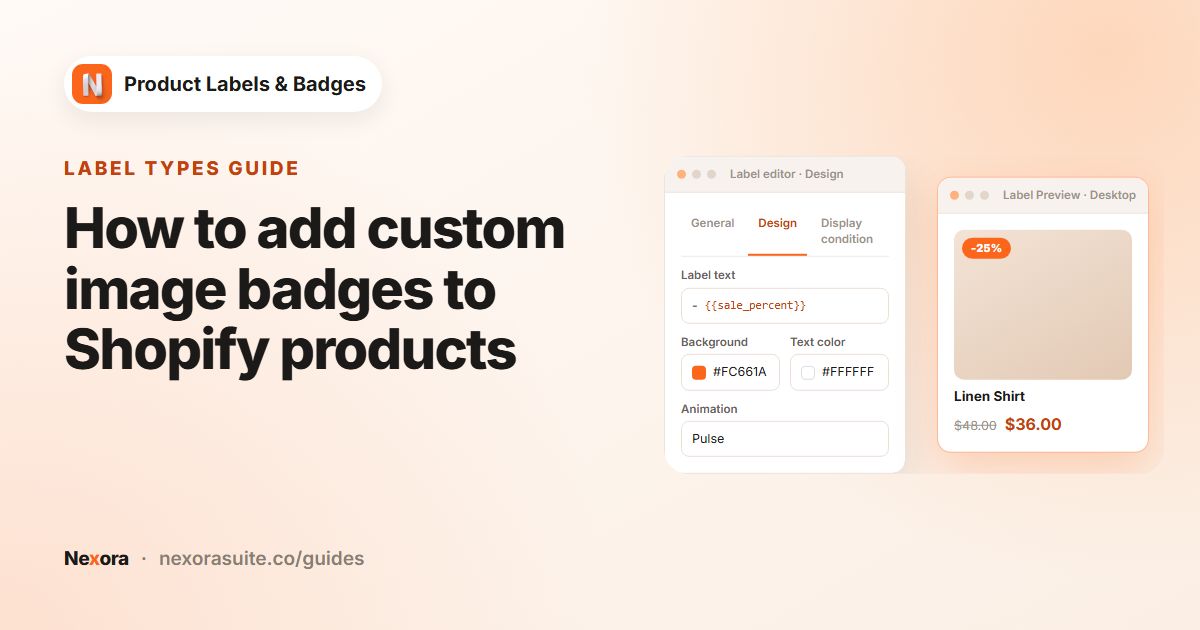
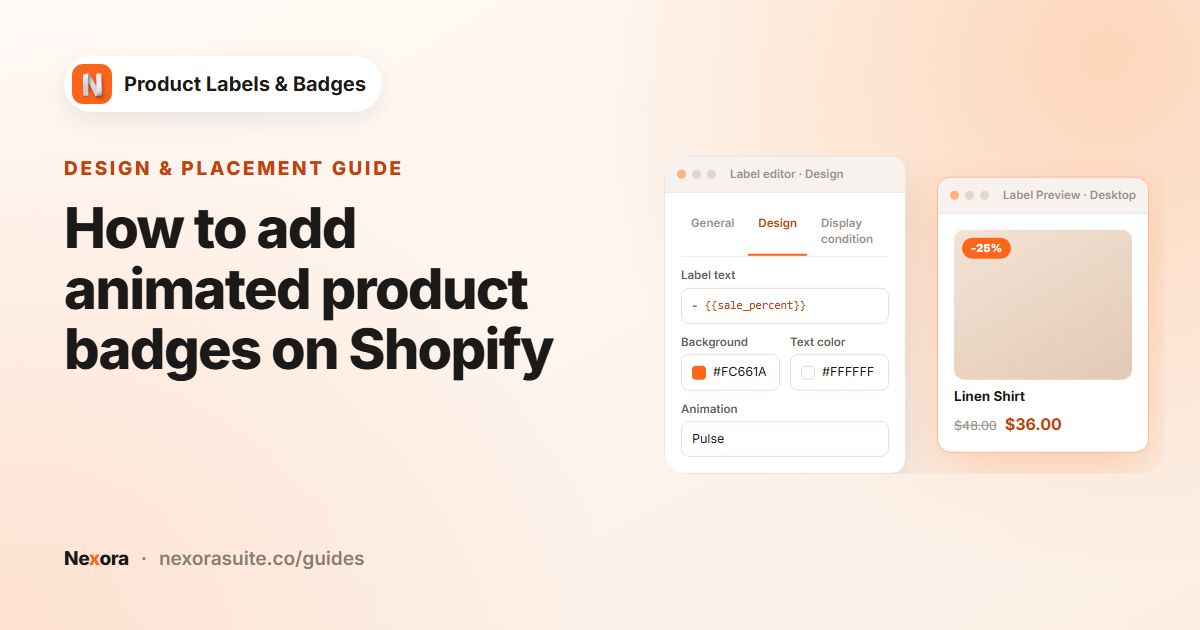
On the Design tab, enter Label Text. Use Dynamic Data for values such as
{{sale_percent}}. - Set colours
For Text labels, set Background Color and Text Color with the colour picker or by typing a value.
- Set size and rotation
Use Label Size (up to 500%) and Rotation (-180° to 180°). Click the desktop or mobile icon to set each device separately.
- Choose typography
Pick a Font Family: Inherit theme, Arial, Helvetica, Georgia, Times New Roman, Courier or Verdana. Then set Font Size, Line Height and Font style (bold, underline, italic, strikethrough).
- Adjust padding
Use Padding (top, bottom, left, right) to give the text room inside the shape, per device.
- Add a link (optional)
Enter a web address in Label link if clicking the badge should open a page, such as your sale collection or size guide.
- Preview, activate, save
Check the Label Preview on Desktop and Mobile, then click Activate and Save.
Design settings reference
| Setting | Label types | Per device? |
|---|---|---|
| Background Color / Text Color | Text | No |
| Label Size (up to 500%) | All | Yes |
| Rotation (-180° to 180°) | All | Yes |
| Animation (None + 19 effects) | All | No |
| Font Family (Inherit theme + 6) | Text | No |
| Font Size / Line Height | Text | Yes |
| Font style | Text | No |
| Padding | Text | Yes |
| Margin (In Product Info Area) | All | Yes |
| Label link | All | No |
Mobile values apply on screens 749 px wide or narrower. If you never switch to the mobile icon, the badge uses the same look on every screen.
Text, image or upload?
Text labels give you the most control: every colour, font and spacing setting applies, and the text can be translated and include dynamic data. Image labels are quickest when you want a ready-made design; use the library search and the Category and Color filters to find one. Upload suits brand marks, certification logos or artwork from your designer. Size, rotation, position and animation work for all three types.
Example: a branded badge set
A skincare brand with a soft, minimal theme sets up three badges that share the same font and palette:
| Badge | Shape | Colours | Other settings |
|---|---|---|---|
-{{sale_percent}} | Circle | Deep green on cream text | Label Size 110% desktop, 90% mobile |
NEW | Pill | Cream background, green text | Font style bold, Padding 4/4/10/10 px |
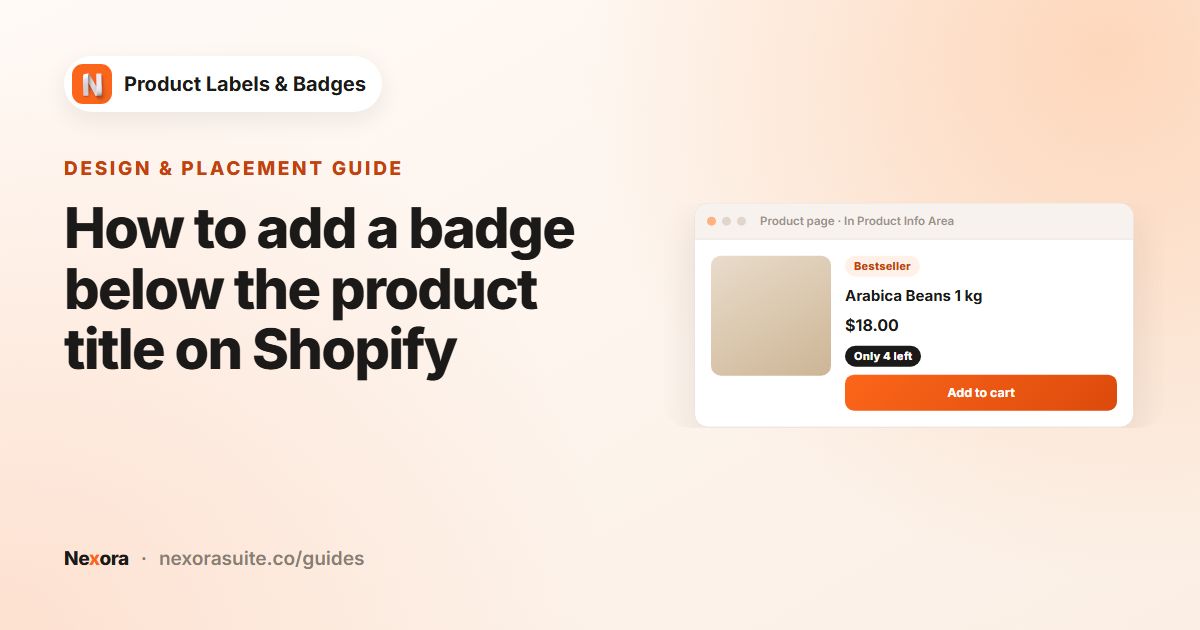
Vegan | Rectangle, In Product Info Area | Pale green, dark text | Info Placement Below title, Label link to the ingredients page |
All three use Font Family Inherit theme, so they match the product titles. A slight Rotation of -8° on the sale circle adds energy without changing the palette.
Tips and common mistakes
- Check contrast. Light text on a pale background is hard to read on phones and in bright light.
- Shrink for mobile. A badge at 100% on desktop often looks better at 80–90% on mobile. Set Label Size with the mobile icon.
- Use Inherit theme for a native feel. It keeps badge text in your theme's font.
- Image labels skip text settings. Colours, fonts and padding only apply to Text labels. For an image, edit the image itself or pick another one.
- Links on small badges. A Label link makes the badge clickable. Keep the badge large enough to tap easily on mobile.
- Show live data. Combine design with dynamic text, see dynamic product labels.
Frequently asked questions
How many badge shapes are there?
21 text shapes, including ribbons, corner triangles, banners, tags, circles, pills and rectangles. You can also use library images or upload your own.
Which fonts can I use?
Inherit theme (your theme's font), Arial, Helvetica, Georgia, Times New Roman, Courier or Verdana.
Can the badge look different on mobile?
Yes. Size, rotation, font size, line height, padding, margin and custom offsets can each be set for mobile, used on screens 749 px wide or narrower.
Can a badge link to another page?
Yes. Enter a web address in Label link on the Design tab. It works for text and image labels.
Can I use my own badge artwork?
Yes. Choose Upload on the General tab and upload a PNG, JPEG, GIF, WebP or SVG up to 2 MB.