Why badge placement matters
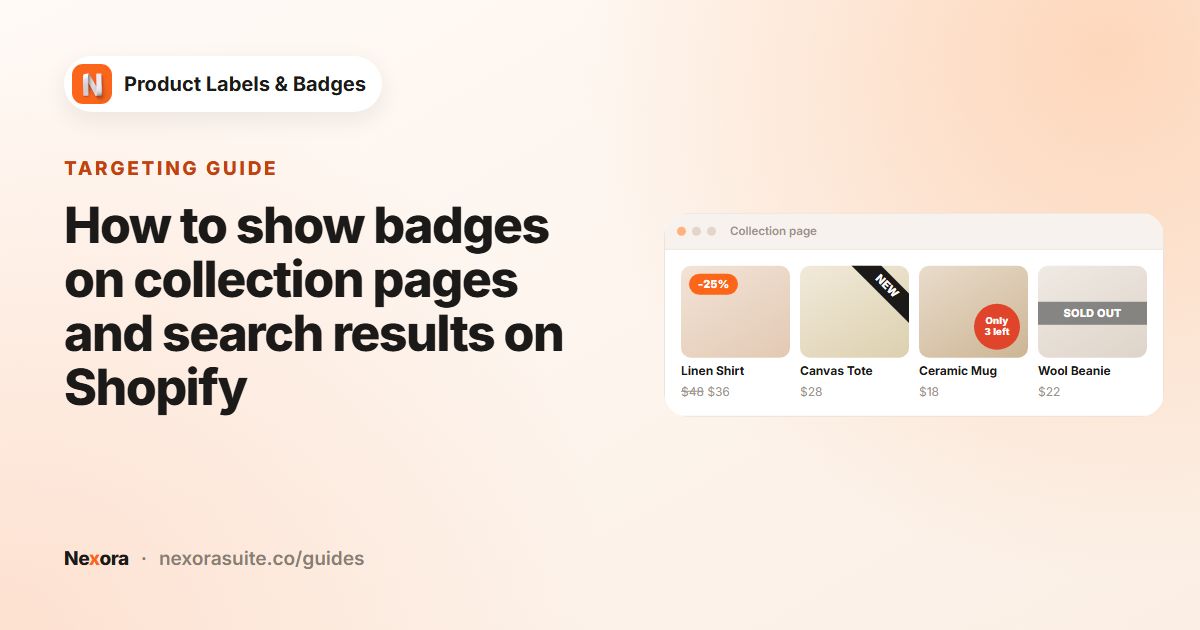
A badge is only useful if shoppers notice it without it covering the product. A SALE ribbon in the top-left corner is easy to scan across a collection grid, while the same badge in the centre of the image can hide the very detail people want to see. Placement also has to work with whatever your theme already puts on the image, such as a wishlist heart, a quick-view button or the theme's own sale tag.
Good placement usually follows a few simple rules:
- Keep the same kind of badge in the same corner across the store, so shoppers learn where to look.
- Avoid corners your theme already uses for icons or buttons.
- Check mobile separately. Product cards are much smaller on phones, so a badge that looks fine on desktop can cover half the image.
- Product page images are usually larger than collection thumbnails, so a fixed pixel offset can look different on each.
Your options on Shopify
Many Shopify themes show their own Sale or Sold out badge on product cards, and some let you choose a corner for it in the theme settings. These built-in badges are a good start, but they are usually limited to a few fixed messages and one position for every product.
To place a badge anywhere else you would normally need to edit your theme's product card and product page code, which is fiddly to maintain when the theme updates. A label app that runs as a theme app embed avoids that: it adds the badge on top of the image without changing your theme files. You can read how app embeds work in the Shopify Help Center.
If you keep your theme's own sale badge turned on, place your app labels in a different corner so the two don't overlap, or turn the theme badge off in your theme settings if your theme offers that option.
Step by step: place a badge on product images
- Make sure the app embed is on
On the app's home page, the Storefront status card should show On. If not, click Enable on theme, switch on Product Labels under App embeds in the theme editor and click Save.
- Create a label
Go to Product Labels and click + Add Label (or + Add Automation Label for a label that follows a condition such as On sale).
- Choose Inside Product Image
On the General tab, enter a Label name, set Display Position to Inside Product Image and choose the Type: Text, Image or Upload.
- Pick a position
On the Design tab, choose a Position: Top-Left, Top-Center, Top-Right, Center-Left, Center-Center, Center-Right, Bottom-Left, Bottom-Center or Bottom-Right. The Label Preview on the right shows the result.
- Or set an exact custom position
Choose Custom, pick an Anchor corner (Top-left, Top-right, Bottom-left or Bottom-right) and enter the distance from the two edges in px or %.
- Adjust for mobile
Click the mobile icon next to the setting and enter separate values for phones. Switch the Label Preview to Mobile to check it.
- Activate and save
New labels start as Inactive. Click Activate, then Save, and refresh a collection page and a product page in your store.
Placement settings at a glance
| Setting | Where | What it does |
|---|---|---|
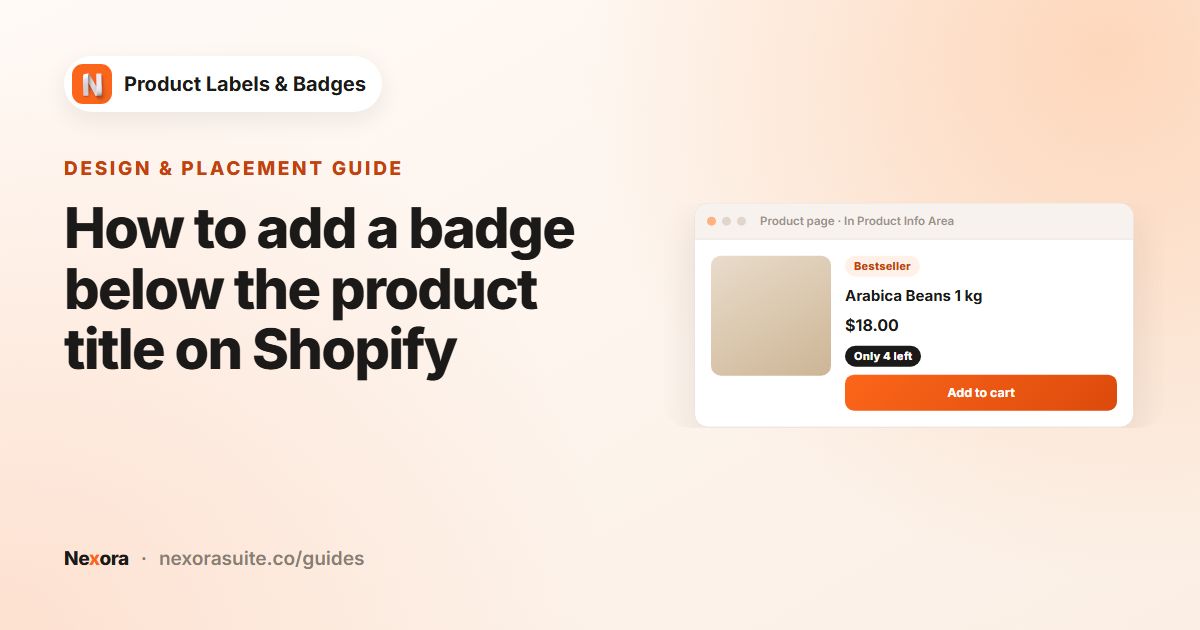
| Display Position | General tab | Inside Product Image places the label over the image. In Product Info Area places it near the title and price instead. |
| Position | Design tab | Nine preset spots, or Custom for exact offsets. |
| Anchor corner | Design tab (Custom) | The corner the offsets are measured from. |
| Offsets (px or %) | Design tab (Custom) | Distance from the two edges of that corner, per device. |
| Use different position on product detail page | Design tab (Custom) | Lets product pages use their own corner and offsets, because their images are usually bigger. |
| Label Size / Rotation | Design tab | Scale (up to 500%) and angle (-180° to 180°), per device. |
| Stack direction / Stack gap | Settings page | How several labels in the same preset position line up: Horizontal — side by side or Vertical — stacked, with a 0–40 px gap. |
Mobile values apply to screens 749 px wide or narrower. Wider screens use the desktop values.
Example: three badges that don't fight for space
Here is an example setup for a fashion store that wants a sale badge, a new-arrival badge and a low-stock note on the same product cards:
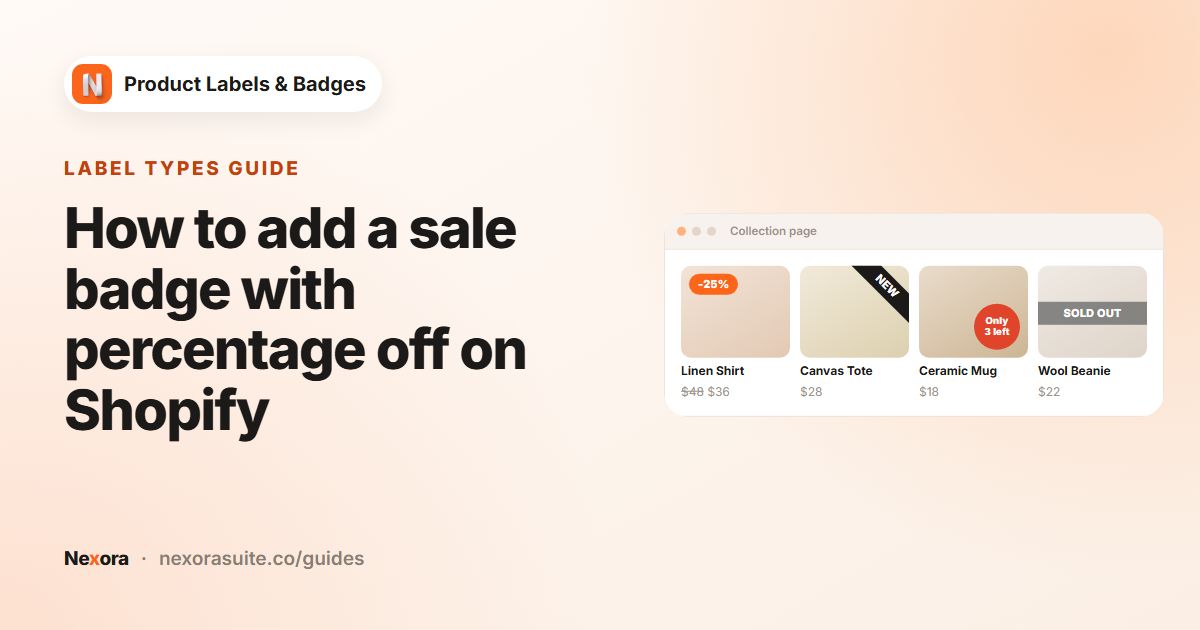
- Sale: automation label with On sale, a circle shape, text
-{{sale_percent}}, Position Top-Left. - New: automation label with New arrival (Within X days = 14), a small pill shape, Position also Top-Left. Because both share a spot, they stack. In Settings, choose Vertical — stacked with a 6 px Stack gap, and use the arrows on the Product Labels page so the sale badge comes first.
- Low stock: automation label with Low stock, an image from the Image library, Position Custom anchored Bottom-right at 8 px / 8 px on desktop and 4 px / 4 px on mobile.
With Use different position on product detail page ticked on the low-stock label, you could set 16 px offsets for the larger product page image while keeping 8 px on collection cards.
Tips and common mistakes
- Custom-position labels don't stack. Stacking only applies to labels that share a preset position. If two custom labels use the same corner and offsets, they will sit on top of each other, so give each one different offsets.
- Use % for responsive offsets. A percentage offset scales with the image, which helps when the same label shows on small cards and large product images.
- Check Center positions carefully. Center-Center is eye-catching but covers the product. It suits short campaigns more than permanent badges.
- Label in the wrong place? Open Settings and check that Store Theme matches your theme. The default, Auto-detect (use the live theme), uses your published theme; you can also pick it on the Shopify themes or Themeforest themes tab.
- Still off? Message us on live chat in the app and we'll look at your theme with you.
Frequently asked questions
How many positions can a badge use on the product image?
Nine preset positions, from Top-Left to Bottom-Right, plus Custom for exact px or % offsets from any corner.
Can a badge sit in a different spot on mobile?
Yes. Offsets, size and rotation can be set separately for mobile. Mobile values apply to screens 749 px wide or narrower.
Why does my badge look further from the corner on product pages?
Product page images are usually bigger than collection thumbnails. With Custom position, tick Use different position on product detail page and set separate offsets.
What happens when two badges use the same position?
Labels in the same preset position stack. Set Stack direction and Stack gap in Settings and choose the order with the arrows on the Product Labels page. Custom-position labels don't stack.
Do I need to edit my theme code?
No. Labels are added by the Product Labels app embed, so your theme files stay unchanged.