Why badges matter on collection and search pages
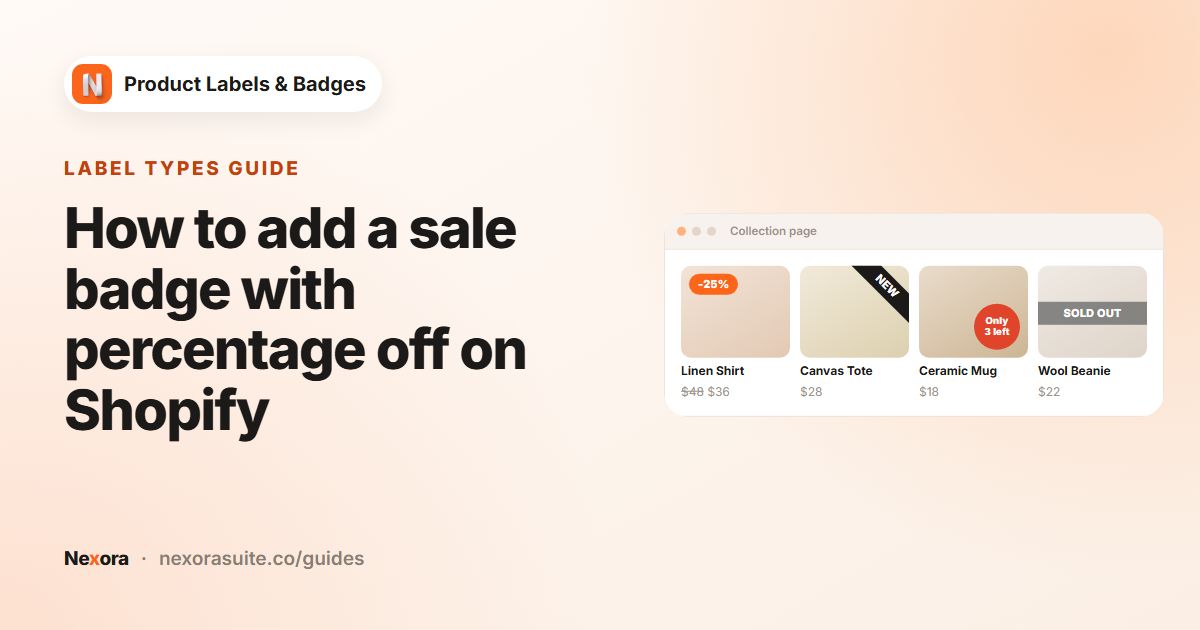
Most shoppers decide what to click while scanning a grid of products. A badge on the product card, such as a discount, a "New" tag or a low-stock note, helps the right products stand out before anyone reaches the product page. Search results work the same way: shoppers who search are often ready to buy, and a badge can help them choose.
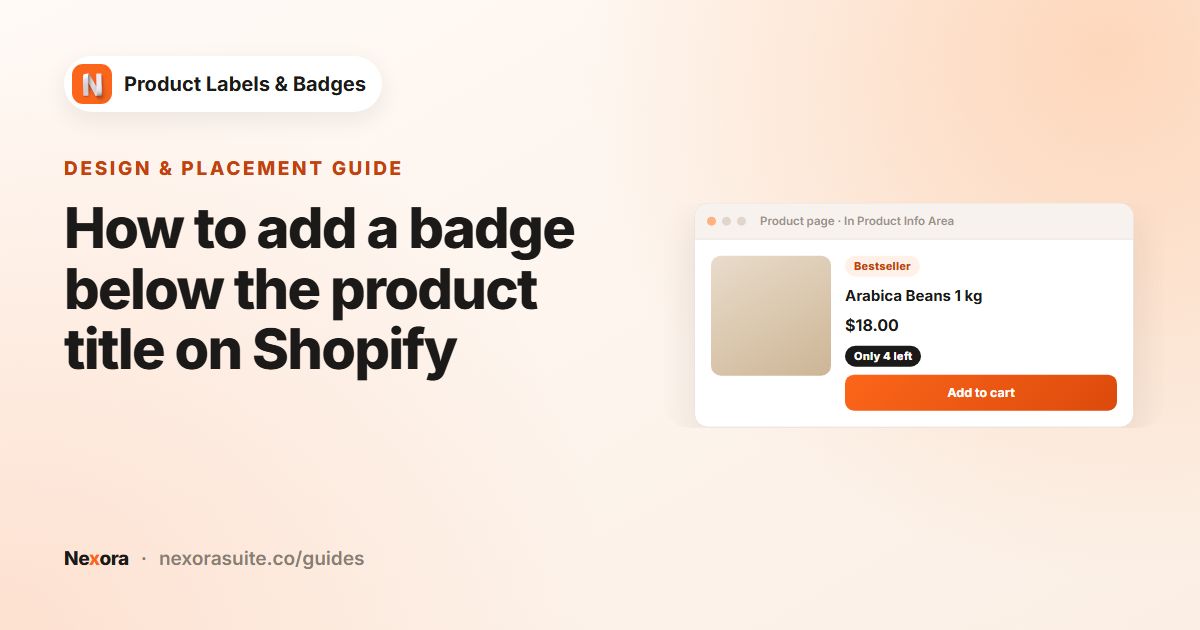
At the same time, you may not want every badge everywhere. A detailed note like Free engraving on this item may belong on the product page only, while a short -20% works best on cards.
Your options on Shopify
Many themes already show a Sale or Sold out badge on product cards. Adding other badges to cards usually means editing the theme's product card snippet, which is shared by collection, search and home page sections. Theme updates can overwrite those edits.
Nexora Product Labels & Badges adds labels through a theme app embed, so your theme files stay unchanged. See apps in your theme in the Shopify Help Center for how app embeds are turned on.
Step by step: show a label on collection and search pages
- Turn on the app embed
On the app's home page, check that Storefront status shows On. If it's Off, click Enable on theme, switch on Product Labels under App embeds and click Save in the theme editor. Back in the app, click I've enabled it.
- Check your theme
In Settings, Store Theme is set to Auto-detect (use the live theme) by default. If your labels sit in the wrong place, search for your theme on the Shopify themes or Themeforest themes tab and click Save.
- Create the label
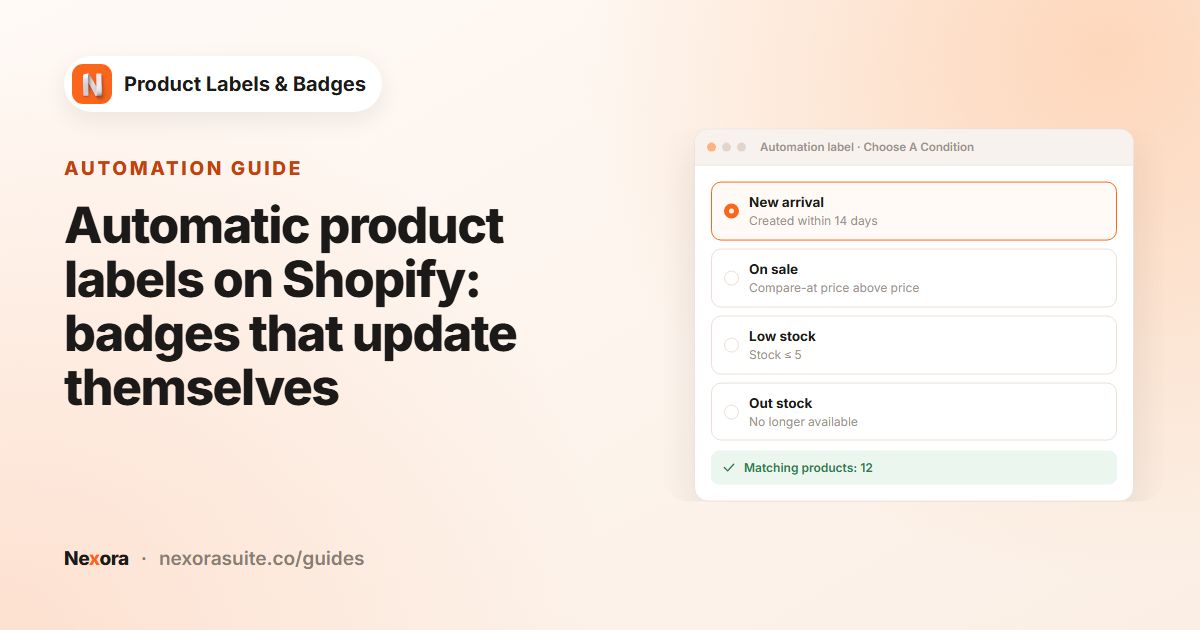
Click + Add Label or + Add Automation Label and set up the General and Design tabs.
- Choose the pages
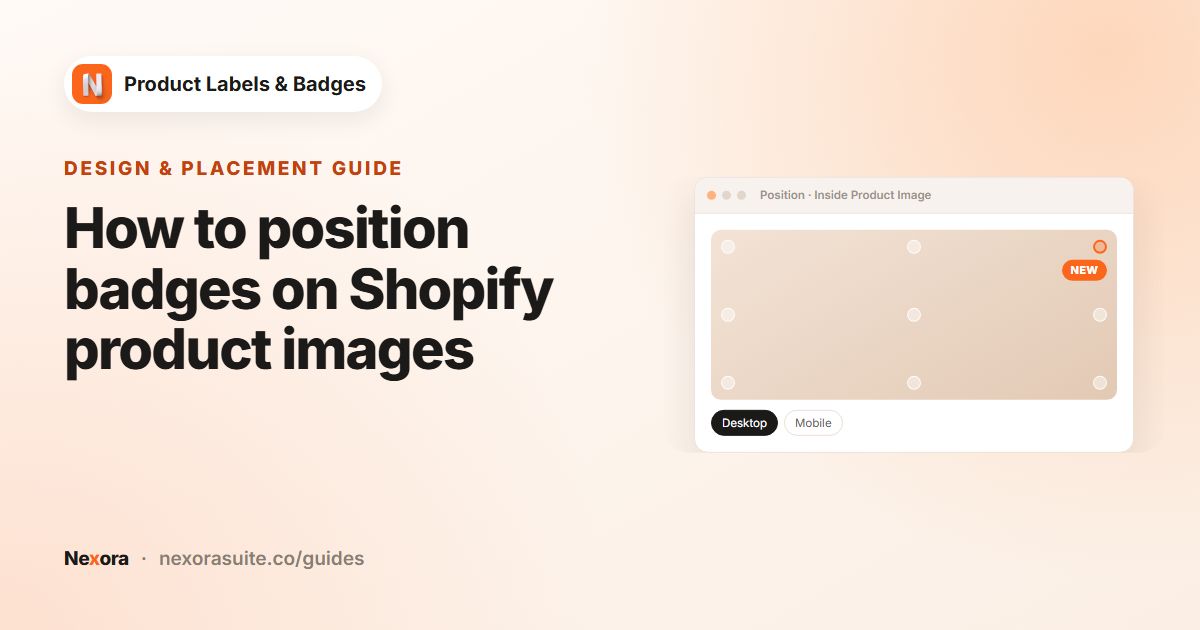
On Display condition, look at Show On Pages. All pages are ticked by default. Untick the ones where this label shouldn't appear.
- Activate and save
Click Activate and Save, then refresh a collection page and a search results page.
How Show On Pages works
Show On Pages is based on the page the shopper is viewing, not on where a product card comes from. For example, unticking Home Page hides the label on all product cards on your home page, including featured collection sections.
| Option | Covers |
|---|---|
| Home Page | Your storefront's home page, including featured product and collection sections. |
| Product Page | The product page itself, plus any product cards on it, such as recommendations. |
| Collection Page | Product grids on collection pages, including filtered and sorted views. |
| Cart Page | The cart page, for example product cards in a section your theme shows there. |
| Collection List Page | The page that lists all your collections. |
| Search Page | Search results pages. |
| Other Pages | Any other page type, such as custom pages that include product sections. |
To show a label only on product pages, untick everything except Product Page. To show it only on cards, untick Product Page and keep the rest.
Quick view, filters, infinite scroll and recommendations
Many themes load products after the page has opened: when a shopper applies a filter, sorts the grid, scrolls to load more products, opens a quick-view window or reaches a recommendations section. The app watches for these new product cards and adds labels to them as they appear, so you don't need any extra setup.
- Filters and sorting: labels are added to the refreshed grid.
- Infinite scroll and "Load more": newly loaded cards get their labels too.
- Quick view and quick shop: labels appear in the pop-up windows that open from collection pages.
- Recommendations: related-products and recommendation sections show labels.
Troubleshooting: labels not showing on collection pages
- Check the app embed
Storefront status on the app's home page must show On. If you recently switched themes, turn the embed on in the new theme too.
- Check the label
The label must be Active. The page type must be ticked under Show On Pages, the product must match the label's products or condition, and today must be inside the Visibility Date.
- Check the country
If Show On Locations is limited, you only see the label from an included country.
- Check Store Theme
If labels show on product pages but not on cards, or in the wrong place, open Settings, confirm Store Theme matches your theme and click Save.
- Refresh
Changes usually show within a few seconds. Refresh the storefront page.
- Ask us
If it still doesn't look right, contact us on live chat in the app or at [email protected] and we'll check your theme.
The app includes settings for a catalog of more than 200 Shopify Theme Store and Themeforest themes, including Shopify's free themes such as Dawn, Horizon and Trade, and detects your live theme automatically.
Frequently asked questions
Do labels show on search results?
Yes. Labels appear on product cards on search results pages. Untick Search Page under Show On Pages to hide a label there.
Can I show a label only on the product page?
Yes. Under Show On Pages, keep only Product Page ticked.
Do labels work with filters and infinite scroll?
Yes. The app adds labels to product cards loaded after the page opens, such as filtered results, infinite scroll and quick-view windows.
Why does unticking Home Page hide my label in a featured collection?
Show On Pages is based on the page being viewed. A featured collection section on the home page counts as the Home Page.
My theme isn't detected correctly. What can I do?
Open Settings and pick your theme on the Shopify themes or Themeforest themes tab. If it isn't listed, contact us on live chat.