Why a percentage-off badge works better than a plain SALE badge
A plain SALE tag tells shoppers that something is cheaper, but not how much. A badge such as -30% answers the question at a glance on a busy collection page, before anyone opens the product. Shoppers comparing similar items can quickly see which discount is bigger.
The catch is maintenance. If you type -30% by hand, you have to remember to change the badge every time a price changes. A dynamic badge reads the real numbers from each product, so the text is always correct and you only manage prices in one place: your Shopify product admin.
- Collection pages: the badge sits on the product image, so discounts stand out while scrolling.
- Product pages: the badge repeats on the main image and reassures shoppers that the sale is real.
- Search results and home page sections: discounted items are easy to spot wherever they appear.
Your options on Shopify
Shopify's own sale pricing is based on the Compare-at price field. When it is higher than Price, many themes show both prices and a sale badge. See Shopify's guide to sale pricing.
| Option | What you get | Limits |
|---|---|---|
| Your theme's built-in sale badge | Many themes, including Shopify's free themes, show a simple Sale badge on discounted products | Usually fixed text, and most themes don't show the percentage. Design options depend on the theme |
| Editing theme code | A custom badge calculated in Liquid | Needs a developer, and the change can be lost when you switch or update themes |
| A label app | A badge with the real discount, your own design and placement | One more app to install. Nexora Product Labels & Badges is free |
Sale badges and the {{sale_percent}} variable rely on the compare-at price. Shopify discount codes and automatic discounts are applied in the cart and at checkout and don't change the compare-at price, so on their own they won't trigger a sale badge. Shopify explains the difference in Sales.
Step by step: a percentage-off badge with Nexora Product Labels & Badges
- Set compare-at prices
In your Shopify admin, open each sale product and enter the original price in Compare-at price and the reduced price in Price.
- Turn on the app embed
In the app, check that the Storefront status card shows On. If not, click Enable on theme, switch on Product Labels under App embeds and save the theme.
- Create an automation label
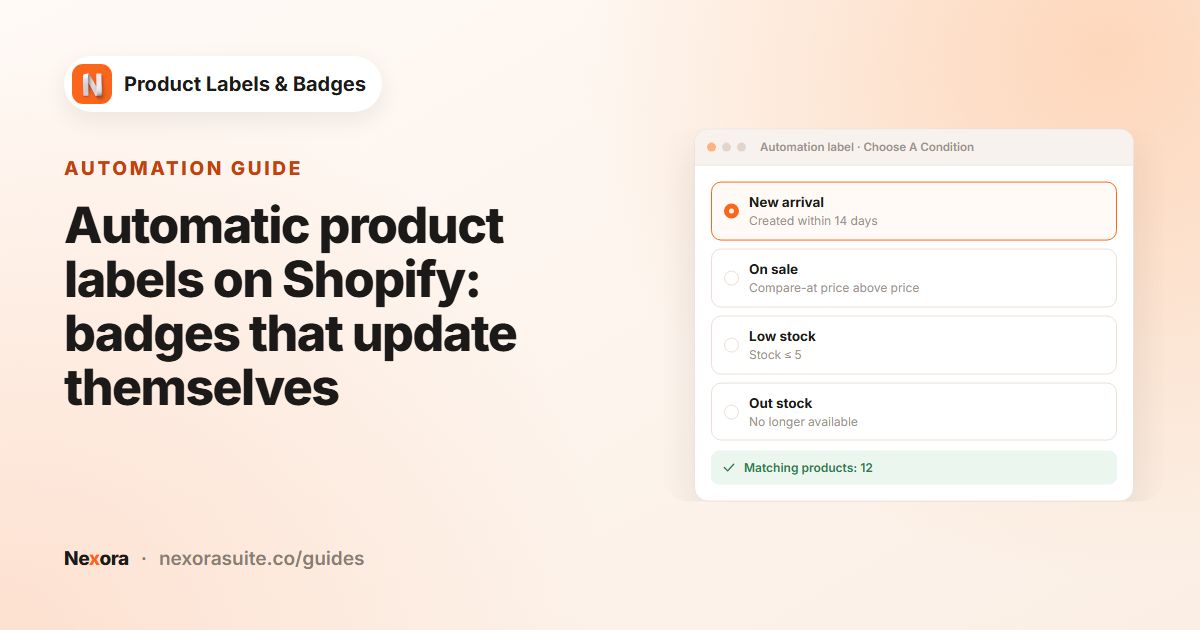
Go to Product Labels and click + Add Automation Label. On Choose A Condition, pick On sale. The Matching products panel lists the products that currently have a compare-at price above their price.
- Pick a shape
On the General tab, enter a Label name such as
Sale percent, choose Inside Product Image and the Text type, then pick one of the 21 shapes. Circles and corner ribbons suit short numbers. - Add the variable
On the Design tab, open Dynamic Data, click Copy next to
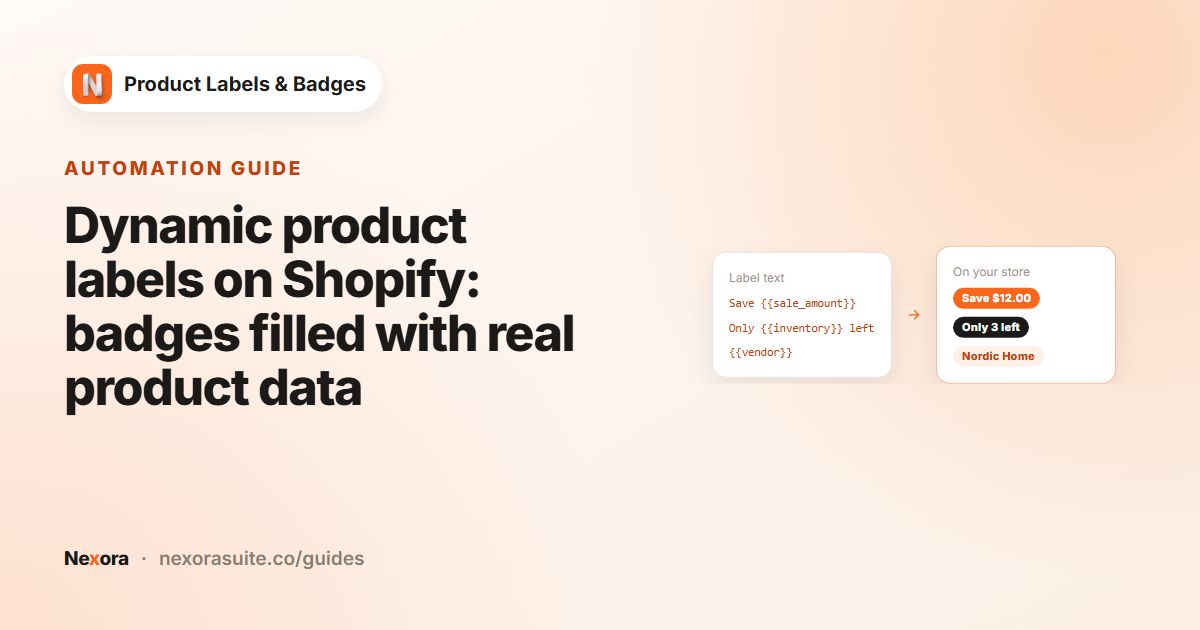
{{sale_percent}}and paste it into Label Text. For example:-{{sale_percent}} OFF. - Style and place it
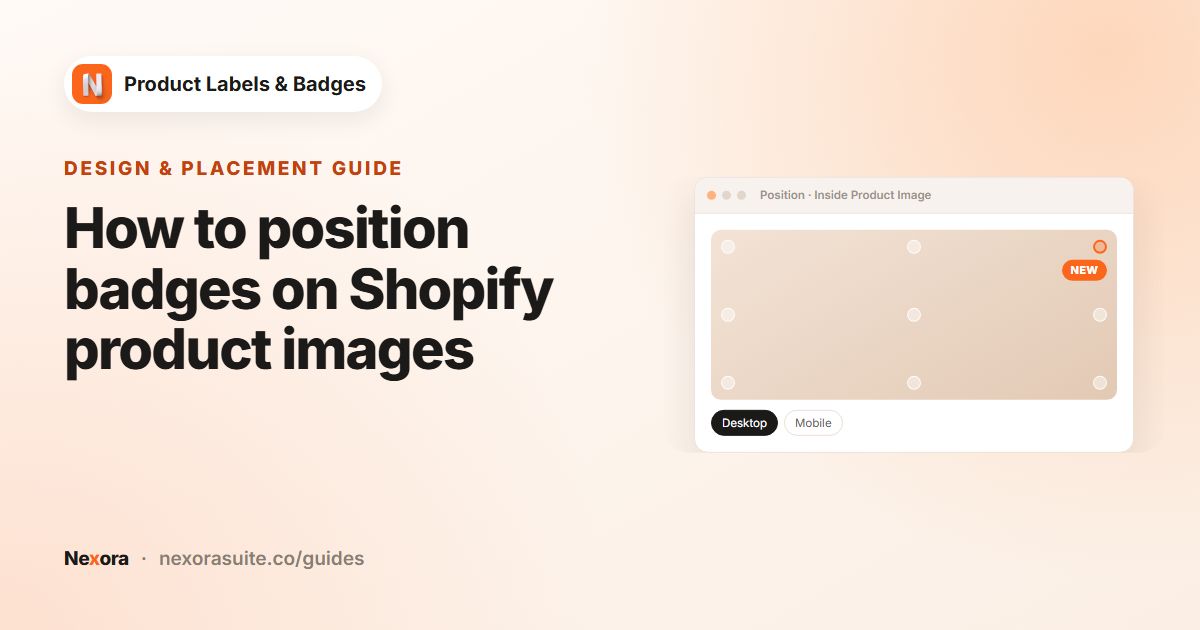
Choose a Background Color and Text Color, set Position (for example Top-Left) and check the Label Preview on Desktop and Mobile.
- Activate and save
New labels start as Inactive. Click Activate, then Save, and refresh a sale collection on your storefront.
Settings that matter for sale badges
| Setting | Where | Suggested value |
|---|---|---|
| Condition | Choose A Condition | On sale |
| Display Position | General | Inside Product Image for a corner badge, or In Product Info Area to sit next to the price |
| Label Text | Design | -{{sale_percent}}, {{sale_percent}} OFF or Save {{sale_amount}} |
| Position | Design | Top-Left or Top-Right, away from your theme's own badges |
| Label Size | Design | Slightly smaller on mobile so it doesn't cover the product |
| Show On Pages | Display condition | Keep all pages, or untick Home Page if your home page is busy |
{{sale_percent}} is rounded to a whole number and includes the % sign, so write -{{sale_percent}} rather than -{{sale_percent}}%. If you prefer showing money saved, {{sale_amount}} shows the compare-at price minus the price in your store currency.
Example setup: a clearance rail
Say you run a clothing store with a summer clearance. A t-shirt has a compare-at price of $40 and a price of $30, and a jacket goes from $120 to $84.
- One On sale automation label with the text
-{{sale_percent}}in a red circle at Top-Left. - The t-shirt shows -25% and the jacket shows -30%, from the same label.
- A second, manual label with the text
Final sale, set to In Product Info Area with Info Placement set to Below price, limited to your clearance collection with Products set to Collections. - When the sale ends and you clear the compare-at prices, the percentage badge disappears by itself.
Tips and common mistakes
- No badge showing? Check that the label is Active, the app embed is on, and the product's compare-at price is higher than its price.
- Double badges. If your theme also shows its own Sale badge, place yours in a different corner, or check your theme settings for an option to hide the theme badge.
- Products with several variants. On product pages, the percentage updates when the shopper picks a different variant. On cards, it follows the product's lowest price and compare-at price.
- Keep it short.
-25%reads better on a small mobile card thanYou save 25% today. - Stacking with other labels. If a product is both new and on sale, use the arrows on the Product Labels page to choose which comes first, and set Stack direction in Settings.
For a fixed sale period, set Visibility Date to Custom Date on the Display condition tab. Dates use midnight UTC on the day you pick. See scheduling product labels.
Frequently asked questions
Does the sale badge work with Shopify discount codes?
Not on its own. The On sale condition and {{sale_percent}} use the compare-at price, while discount codes and automatic discounts are applied in the cart and at checkout.
How is the percentage calculated?
It is (compare-at price minus price) divided by the compare-at price, rounded to a whole number. A $40 item sold for $30 shows 25%.
Can I show the amount saved instead of a percentage?
Yes. Use {{sale_amount}} in Label Text, for example Save {{sale_amount}}. It is shown in your store currency.
What happens if a product has no discount?
An On sale label doesn't show on it. If you use {{sale_percent}} on a manual label, the variable is left empty for products without a discount, so it's best to use it with the On sale condition.
Is there a limit on sale labels?
No. The app is completely free and labels are unlimited, so you can create separate sale badges for different collections or seasons.