Why schedule badges
Campaign badges tend to go up late and come down later. A "Weekend sale" badge still showing on Tuesday makes the store look neglected, and can confuse shoppers if the discount has already ended. Scheduling lets you prepare the badge in advance and have it start and stop on its own.
- Prepare seasonal campaigns days or weeks ahead.
- Avoid outdated promotional messages after an event ends.
- Run several campaigns back to back, each with its own badge.
- Show a "Coming soon" or launch badge only during the launch week.
Scheduling also reduces mistakes in busy weeks. When several promotions overlap, it is easy to forget one badge. Setting the dates while you plan the campaign means the storefront follows the plan even on days you are not at your desk.
Your options on Shopify
Shopify lets you schedule some things natively, for example discounts with a start and end date. Product badges added by a theme don't usually have their own schedule: a theme sale badge appears whenever a product has a compare-at price, and custom badges added with code stay until you remove them.
If you schedule a discount in Shopify, scheduling the matching badge on the same dates keeps your store consistent. See Shopify's guide to discounts for the discount side.
Step by step: schedule a badge
- Create or open the label
Use + Add Label or + Add Automation Label, or click Edit on an existing label. Scheduling works for both kinds.
- Design it
Finish the General and Design tabs as usual.
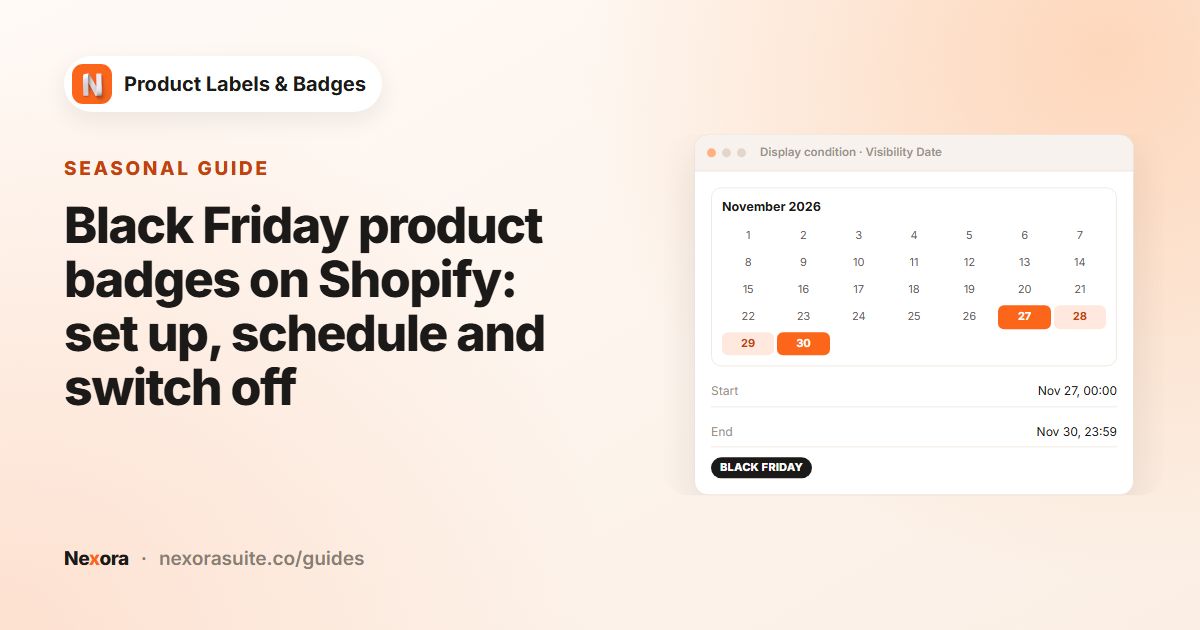
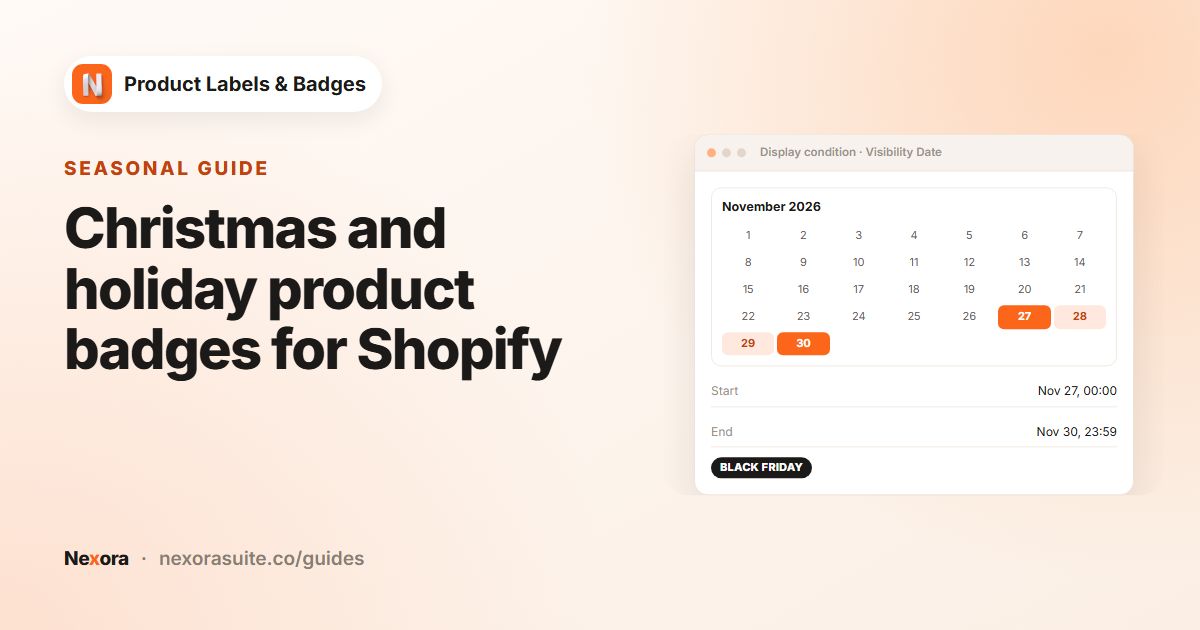
- Set Custom Date
On Display condition, change Visibility Date from Immediately to Custom Date.
- Pick the dates
Choose a Start date and/or an End date. Leave one empty for no limit on that side. Use the clear button next to a date to remove it.
- Activate and save now
Click Activate, then Save. The label is active but stays hidden until the start date, so you can set it up well in advance.
- Check the list
On Product Labels, the label shows as Active. It appears on your storefront only inside its date range.
Visibility Date settings and timing
| Setting | Effect |
|---|---|
| Immediately | The label shows as soon as it's active. |
| Custom Date with Start date only | Hidden until the start date, then shows with no end. |
| Custom Date with End date only | Shows now and disappears from the end date. |
| Custom Date with both | Shows only between the two dates. The start date can't be after the end date. |
How midnight UTC affects your dates
Each date means midnight UTC at the start of the day you pick. The label appears from midnight UTC on the Start date and is hidden from midnight UTC on the End date. In practice:
- To show a badge through the whole of 25 December, set the End date to 26 December.
- Stores west of UTC (for example the Americas) see the switch the previous evening local time. Midnight UTC is 7 pm the day before in New York during winter.
- Stores east of UTC (for example Asia and Australia) see the switch in the morning local time.
If the exact hour matters, for example for a sale that starts at 9 am local time, set the Start date a day early and keep the badge text general, or activate the label manually at the right time.
Example: a back-to-back campaign calendar
A homeware store plans November and December in one sitting:
| Label | Products | Start date | End date |
|---|---|---|---|
Early access | Collection: Winter launch | 3 Nov | 10 Nov |
-{{sale_percent}} (automation, On sale) | Condition decides | 27 Nov | 2 Dec |
Gift idea | Tag: gift | 1 Dec | 26 Dec |
Order by 18 Dec for Christmas | All products | 1 Dec | 19 Dec |
Each label is activated and saved in early November. The store owner doesn't need to remember to switch anything on or off.
Notice that the automation sale label is scheduled too. The On sale condition decides which products get it, and Visibility Date decides when it is allowed to show, so the discount badge only appears during the sale even if some products keep a compare-at price afterwards.
Tips and common mistakes
- Activate scheduled labels. A label must be Active for its dates to work. An inactive label never shows, even inside its date range.
- Add a day to the end date if you want the badge to last through the final day.
- Combine with targeting. Dates work alongside Products, Show On Pages and Show On Locations. A label shows only when all of them match.
- Don't delete finished campaigns straight away. Expired labels stay hidden. You can edit the dates next year and reuse the design.
- Not showing? Check that today, in UTC, is between the dates, then refresh your storefront.
Frequently asked questions
Can I set a start date without an end date?
Yes. Leave End date empty and the label keeps showing from the start date onwards.
What time do scheduled labels switch on and off?
At midnight UTC on the dates you pick. The label shows from the start of the Start date and hides from the start of the End date, in UTC.
Can automation labels be scheduled?
Yes. Automation labels have the same Display condition tab with Visibility Date.
Do I need to keep the app open for the schedule to work?
No. The dates are checked on your storefront, so the label appears and disappears on its own once it's active and saved.
Can I choose a time of day?
No. Visibility Date works with whole days, switching at midnight UTC.