What holiday shoppers need from your badges
The weeks before Christmas are different from a one-weekend sale. Shoppers aren't only looking for discounts; they are looking for gifts, often for people whose tastes they don't share, and they are worried about whether things will arrive in time. Your badges can answer those questions directly on the product card.
- Help people find gifts: point out products that make good presents, gift sets and items under a price point.
- Answer the delivery question: a clear "Order by" date removes the biggest reason to hesitate.
- Add some seasonal feel: a festive image badge on a few products, without turning every card into a decoration.
- Stop on time: delivery promises must disappear once they are no longer true.
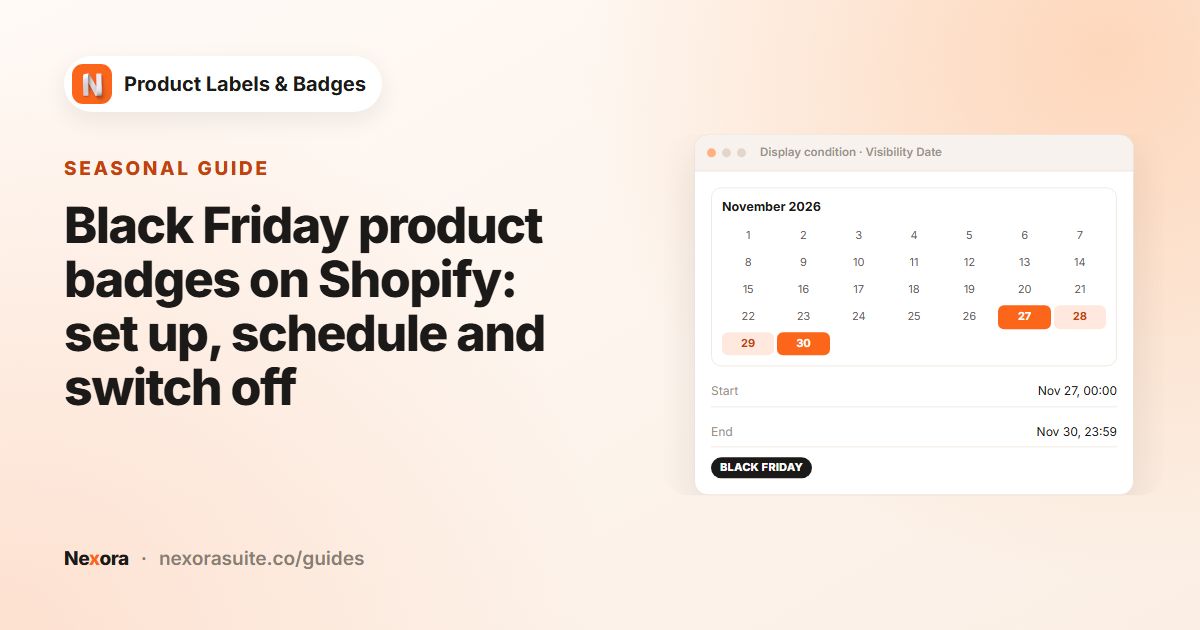
This guide is about the gifting season. For a discount-led weekend, see the Black Friday badges guide.
Holiday traffic often includes people who don't know your store well. Clear, honest badges help them find suitable gifts quickly and trust that the order will arrive, which matters more in December than at any other time of year.
Recommended setup
| Label | Type & placement | Products | Visibility Date (example) |
|---|---|---|---|
Gift idea | Text, pill shape, Inside Product Image, Top-Left | Product tags: gift | Start 24 Nov, End 26 Dec |
Gifts under $50 | Text, In Product Info Area, Below title | Collections: Gifts under $50 | Start 24 Nov, End 26 Dec |
Order by Dec 18 for Christmas delivery | Text, In Product Info Area, Below price | All products (or your shippable items) | Start 1 Dec, End 19 Dec |
| Festive image | Image from the library, Bottom-Right | Collections: Holiday edit | Start 1 Dec, End 26 Dec |
Last chance for Christmas | Text, ribbon shape, Animation Pulse | Collections: Express-ready items | Start 19 Dec, End 23 Dec |
The dates and the price point above are examples. Use your own carriers' cut-off dates and your own shipping times.
Keep the gift labels and the delivery message in different places: gift badges on the image, the cut-off message next to the price. That way a product can carry both without the card looking crowded, and the delivery date sits right where shoppers look before adding to cart.
Steps
- Tag or collect your gift products
In Shopify, add a tag such as
giftto suitable products, or build a gift collection. The labels will follow those products. - Create the gift label
Click + Add Label, choose Text and a pill shape, type
Gift idea, then on Display condition set Products to Product tags and pickgift. - Create the "Order by" message
Click + Add Label, choose In Product Info Area, then on the Design tab type your cut-off text and set Info Placement to Below price.
- Find a seasonal image
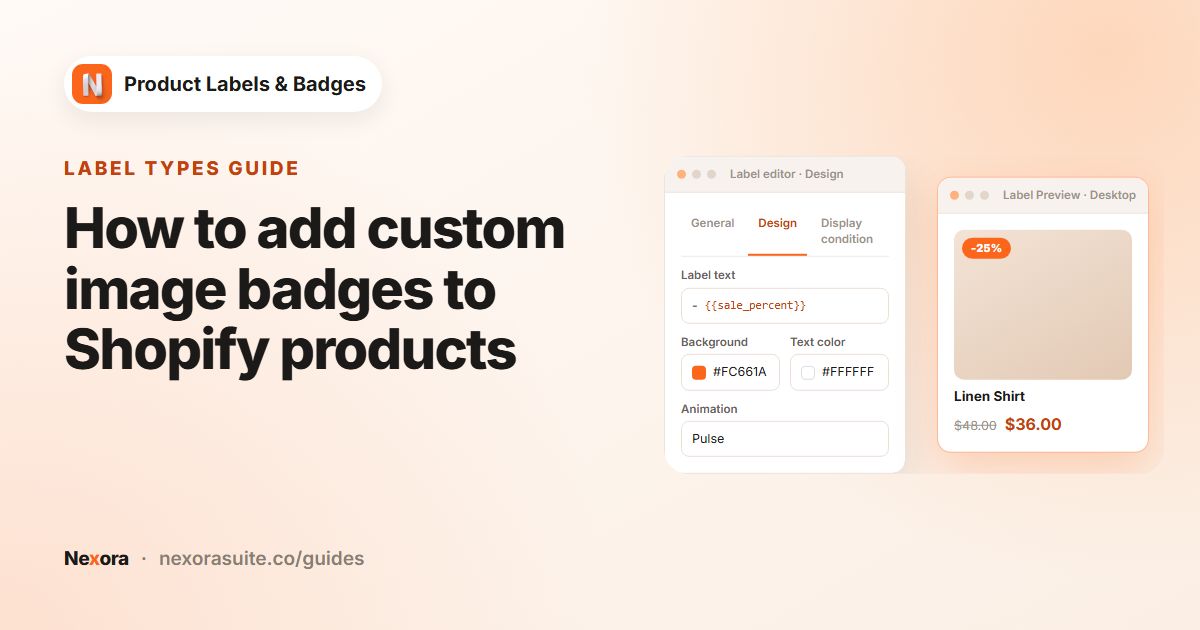
For a festive badge, create a label with the Image type. Search the library for words like
christmas,giftorwinter, and use the Category and Color filters to narrow the results. Or choose Upload to use your own artwork. - Schedule each label
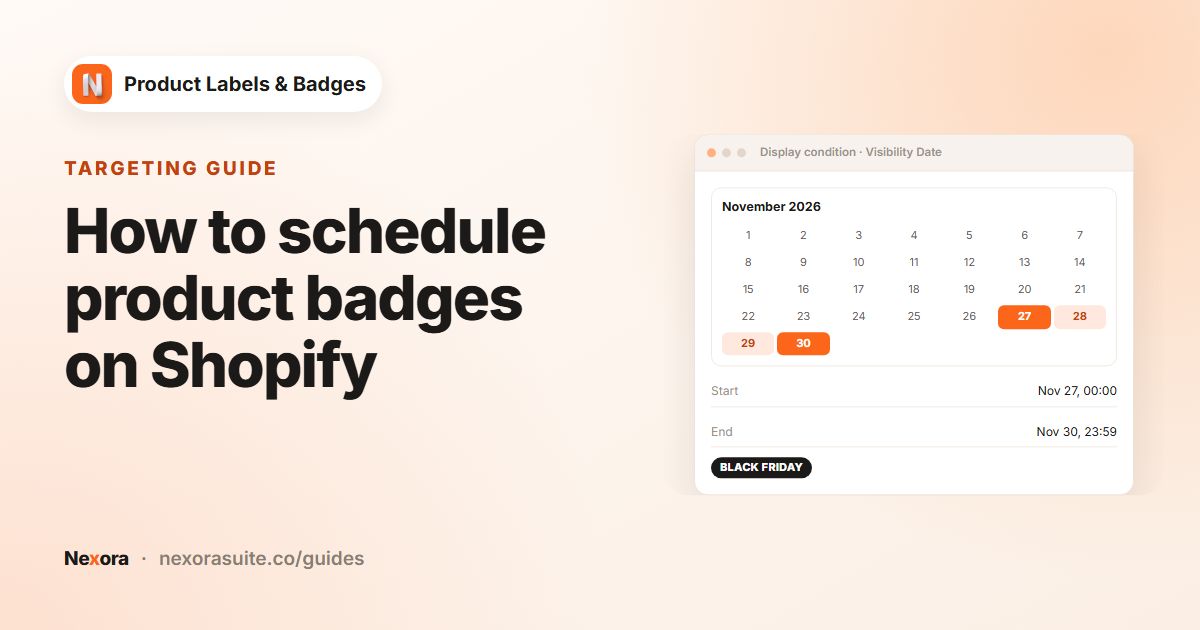
On Display condition, set Visibility Date to Custom Date and enter the Start date and End date. Remember the end date is when the label disappears, at midnight UTC.
- Translate if needed
If your store has several languages, use the language button in Label Text to add each translation.
- Activate everything early
Click Activate and Save on each label in November. Scheduled labels stay hidden until their start date.
Example: a small gift shop's December
A small shop selling candles and stationery ships within its own country, with a standard-delivery cut-off of 18 December and an express cut-off of 22 December.
- From 24 November, products tagged
giftshow a creamGift ideapill, and the "Gifts under $30" collection shows a line below the title. - From 1 December, every shippable product shows
Order by Dec 18 for standard Christmas deliverybelow the price. Its End date is 19 December, so it disappears once standard delivery can no longer arrive in time. - From 19 December, express-eligible products show a
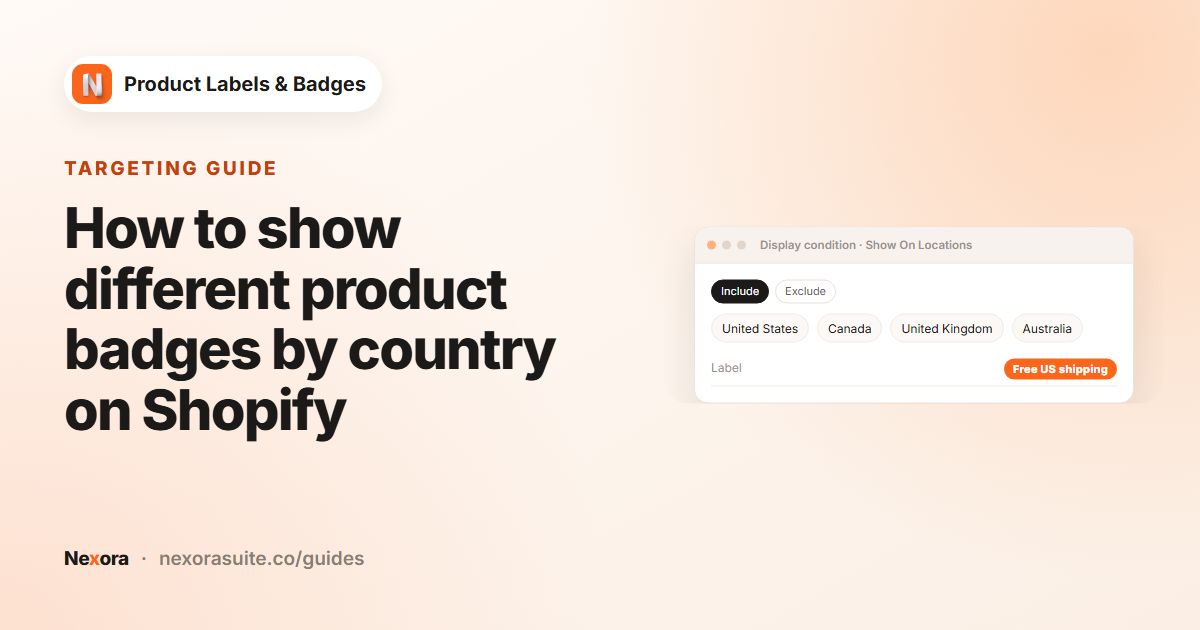
Last chance: express by Dec 22ribbon with Pulse, ending on 23 December. - The Show On Locations setting on the cut-off labels is Include with the shop's home country only, because overseas orders have earlier dates.
Tips
- Plan around midnight UTC. Labels switch at midnight UTC on the dates you choose. Stores in the Americas see the switch the evening before; stores in Asia or Australia see it the next morning. Set the End date to the day after your last valid day.
- Be honest with cut-off dates. Only promise what your carrier supports. If dates change, edit the text and the End date straight away.
- Don't decorate everything. One gift badge and one delivery note per card is usually enough. Too many badges make cards harder to read on mobile.
- Use stacking for shared corners. If the gift badge and a sale badge share Top-Left, set Stack direction in Settings and order them with the arrows on Product Labels.
- Reuse next year. After the season, the scheduled labels simply stay hidden. Next November, update the dates and text instead of starting from scratch.
Frequently asked questions
How do I show an "Order by" date for Christmas delivery?
Create a Text label with In Product Info Area and Info Placement set to Below price, type your cut-off message and set its End date to the day after the cut-off.
Are there Christmas images in the image library?
Choose the Image type and search the library or use the Category and Color filters to find seasonal designs. You can also upload your own artwork.
Can I prepare holiday badges in advance?
Yes. Set Visibility Date to Custom Date, then activate and save. The labels stay hidden until their start date.
Can delivery messages differ by country?
Yes. Create one label per country group and use Show On Locations to include only those countries.
Do holiday badges cost anything?
No. The app is completely free, with unlimited labels.