What your badges need to do over Black Friday
Black Friday weekend is when many shoppers compare offers quickly, often across several stores. Your badges have three jobs:
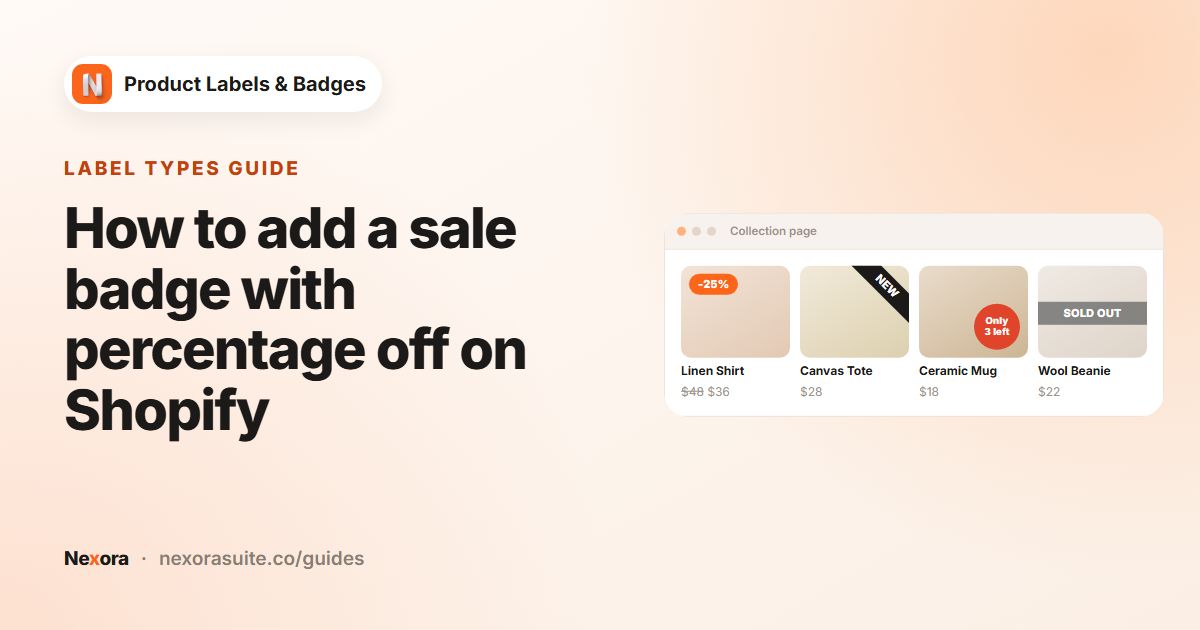
- Make the deal obvious at a glance, ideally with the real discount, on collection pages and in search results.
- Be correct the whole time. A badge that promises 30% off on a product that isn't discounted, or that's still up on Wednesday, costs trust and creates support tickets.
- Need no work during the rush. You'll be busy with orders and customer questions, so the badges should switch on and off by themselves.
Black Friday 2026 falls on Friday 27 November, and Cyber Monday on 30 November. Many stores run the offer from Friday to Monday, or for the whole week.
Recommended setup
Which labels you need depends on how you run the sale in Shopify. Lower prices with a Compare-at price are shown on product pages and collection pages. Discount codes and automatic discounts are applied in the cart and at checkout instead. Shopify explains the difference in Sales.
| How you discount | Label to use | Example text |
|---|---|---|
| Compare-at prices on sale products | Automation label, On sale rule | -{{sale_percent}} or BLACK FRIDAY -{{sale_percent}} |
| Automatic discount on a collection | Manual label, Products → Collections | 20% off at checkout |
| Discount code | Manual label on the qualifying products | Use code BF20 at checkout |
| Store-wide campaign look | Manual label on All products | An uploaded Black Friday sticker |
The On sale rule and {{sale_percent}} only see compare-at prices. If your Black Friday price comes from a discount code or an automatic discount, an On sale label won't show it, so use a manual label with fixed text instead.
Steps: build and schedule your Black Friday labels
- Create the sale label early
A week or two before, click + Add Automation Label, choose On sale, and check the Matching products panel. Products you've already discounted will show up here.
- Design for urgency, not noise
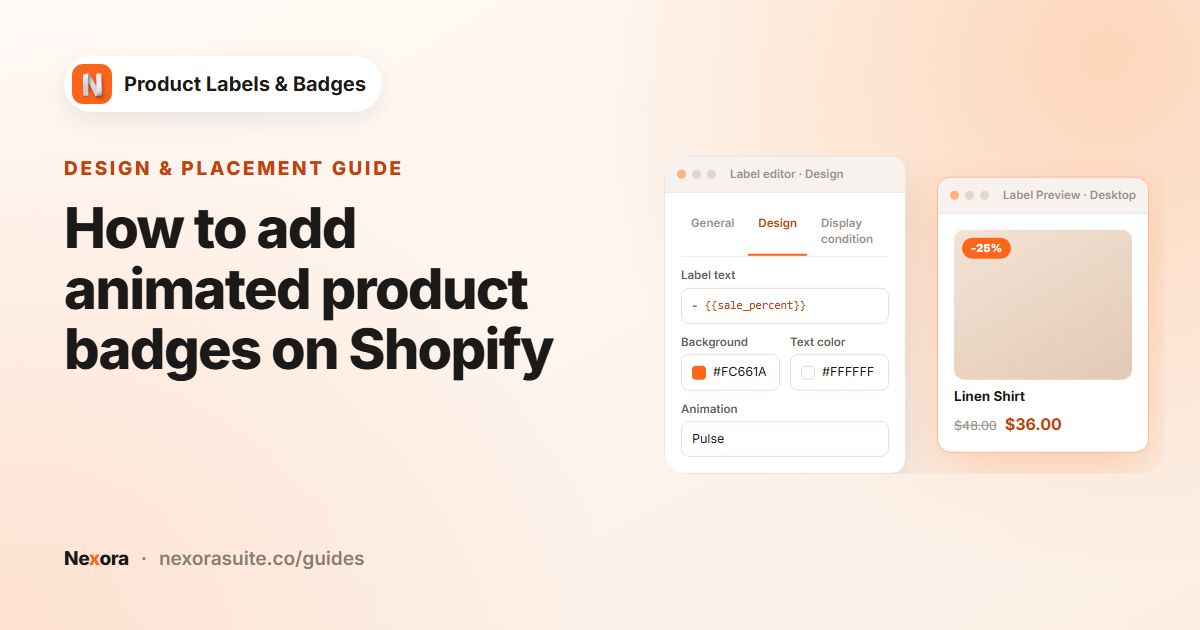
On General, choose Inside Product Image, Text and a bold shape such as a corner ribbon or burst. On Design, use black and a bright accent colour, and set Label Text to
BLACK FRIDAY -{{sale_percent}}. - Add a light animation
Set Animation to an effect such as Pulse or Pop. Keep it to one animated label per product card.
- Schedule it
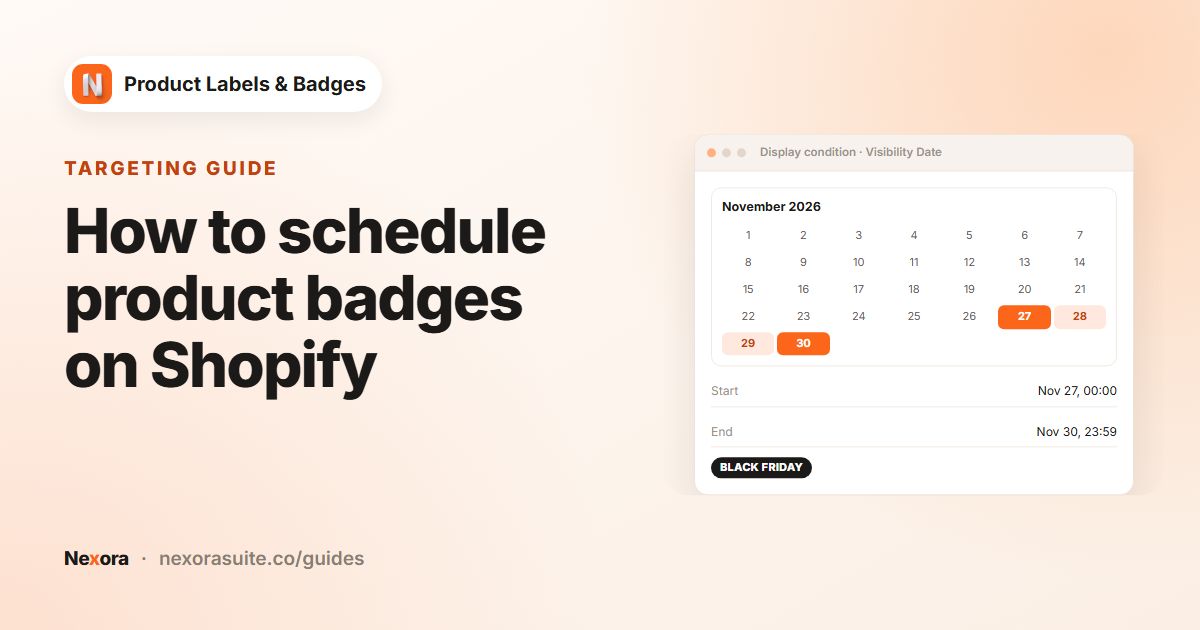
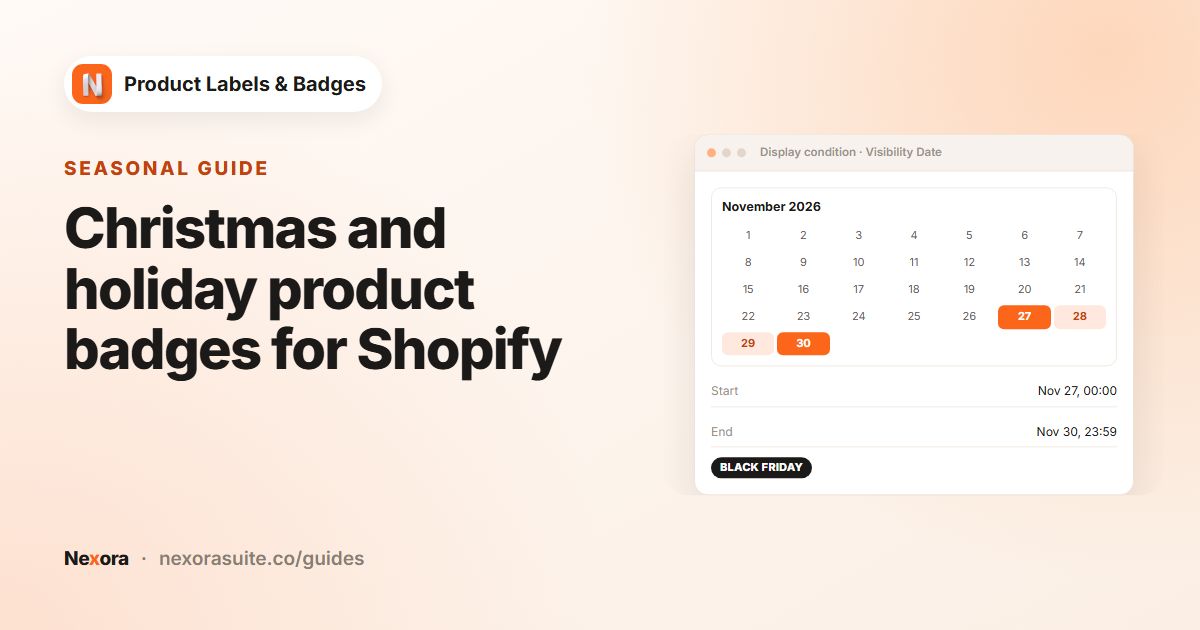
On Display condition, set Visibility Date to Custom Date. Pick a Start date and an End date.
- Add labels for checkout offers
For collections with an automatic discount, click + Add Label, set Products to Collections, write
20% off at checkout, and give it the same dates. - Activate before the weekend
Click Activate and Save on each label. Because of the dates, they stay hidden until the start date even though they're active.
Visibility Date uses midnight UTC on the day you pick, for both dates. A label stops showing at the start of its End date, so to keep it up all of Monday 30 November, choose 1 December. For US stores, midnight UTC is the evening before in local time, for example 7 pm Eastern.
Example: a four-day Black Friday to Cyber Monday campaign
A home-and-gift store discounts its bestsellers with compare-at prices, gives 20% off its candles collection with an automatic discount, and sells internationally but only runs the offer for the US and Canada.
| Label | Setup | Dates |
|---|---|---|
| BF percent | On sale rule, BLACK FRIDAY -{{sale_percent}}, black ribbon at Top-Left, Animation Pulse | Start date 27 Nov, End date 1 Dec |
| Candles offer | Manual, Collections → Candles, 20% off at checkout, In Product Info Area, Below price | 27 Nov to 1 Dec |
| Cyber Monday | Manual, All products, uploaded Cyber Monday sticker at Top-Right | Start date 30 Nov, End date 1 Dec |
| Country limit | On all three labels: Show On Locations → Include → United States, Canada | - |
When the sale ends, the store removes its compare-at prices as usual. The scheduled labels are already gone by then, and any sale label still running only shows on products that are still discounted.
Tips for the busiest weekend of the year
- Test early. Temporarily set the Start date to today on one label to check its look on mobile, then set it back.
- Mind your everyday sale badge. If you already run an On sale label all year, either deactivate it for the weekend or place the Black Friday label in a different corner so they don't stack awkwardly.
- Stacking order. If several labels share a corner, use the arrows on the Product Labels page to put the Black Friday label first, and set Stack direction in Settings.
- Translate. If your store publishes several languages, add a translation in Label Text, for example
BLACK FRIDAY -{{sale_percent}}stays the same but20% off at checkoutbecomes20 % de réduction au paiement. - Keep claims honest. Only show a discount that the product really has. Badges built on compare-at prices and real offers help with that.
Reuse the setup for other campaigns. See Christmas and holiday badges and scheduling product labels.
Frequently asked questions
Can I prepare Black Friday badges in advance?
Yes. Create and activate the labels early, and set Visibility Date to Custom Date with your start and end dates. They stay hidden until the start date.
What time do scheduled labels switch on?
At midnight UTC on the Start date, and they stop at midnight UTC at the start of the End date.
Will the percentage badge show my discount code offer?
No. {{sale_percent}} uses the compare-at price. For code or automatic discounts, use a manual label with fixed text.
Which animations can I use?
None or one of 19 effects, including Pulse, Pop, Tada, Swing, Shake X and Fade In.
Can I run the badge only in some countries?
Yes. Use Show On Locations with Include and pick the countries. The country comes from the visitor's IP address.
Does this cost extra for a big campaign?
No. The app is completely free and labels are unlimited.