Why show low stock at all
If a shopper is unsure about a product, knowing that only a few are left is useful information. It helps them decide now rather than come back to an empty shelf. It is also a courtesy: nobody likes adding something to the cart and finding it sold out a day later.
The badge only helps if the number is true. Fake scarcity can damage trust and, in some regions, may raise consumer-protection concerns. A label that reads your real Shopify inventory keeps the message honest.
Your options on Shopify
Some themes, including Shopify's free themes, have an inventory block for the product page that can show a low stock message below a threshold you set. That is a good start, but it usually only appears on the product page, not on collection cards, and the design follows the theme.
| Option | Where it shows | Notes |
|---|---|---|
| Theme inventory block | Product page only, in most themes | Check your theme editor for an inventory or stock block |
| Custom theme code | Wherever the developer adds it | Needs maintenance when you update or change themes |
| A Low stock label | Product images and cards on collection, search and home pages, plus product pages | Uses your real inventory and keeps updating |
Stock counts only exist for products with inventory tracking turned on. See Shopify's guide to setting up inventory tracking.
Step by step: an "Only X left" badge
- Start an automation label
Go to Product Labels and click + Add Automation Label.
- Pick Low stock
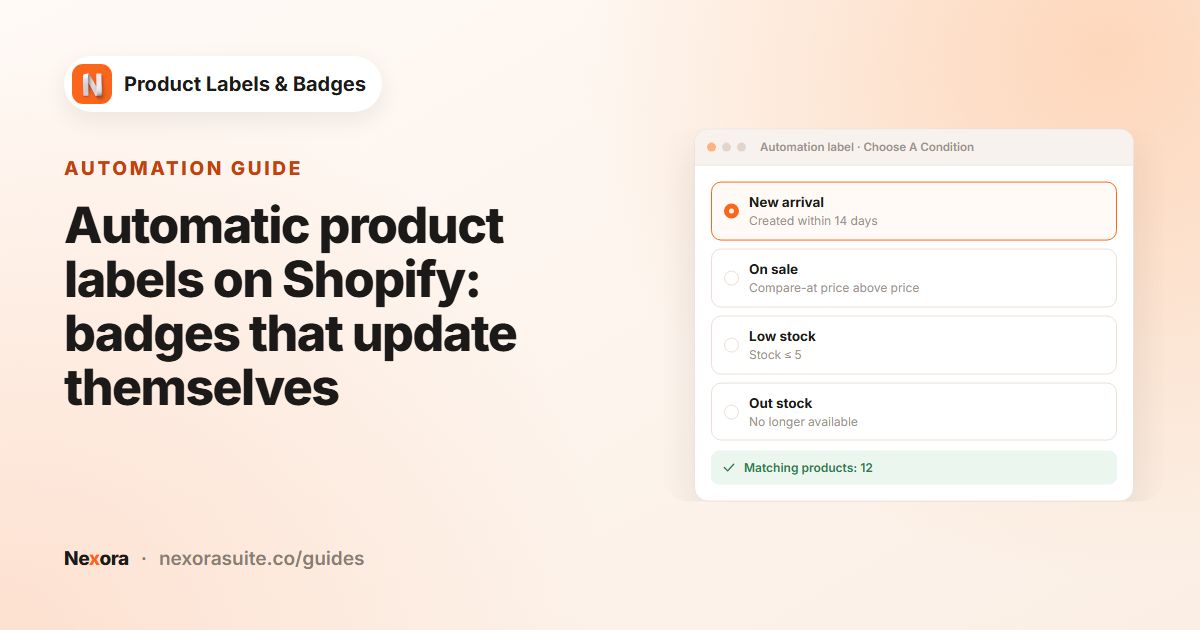
On Choose A Condition, choose Low stock and enter your threshold in When stock ≤ X, for example 5. Check the Matching products panel to see which products qualify today.
- Choose the placement
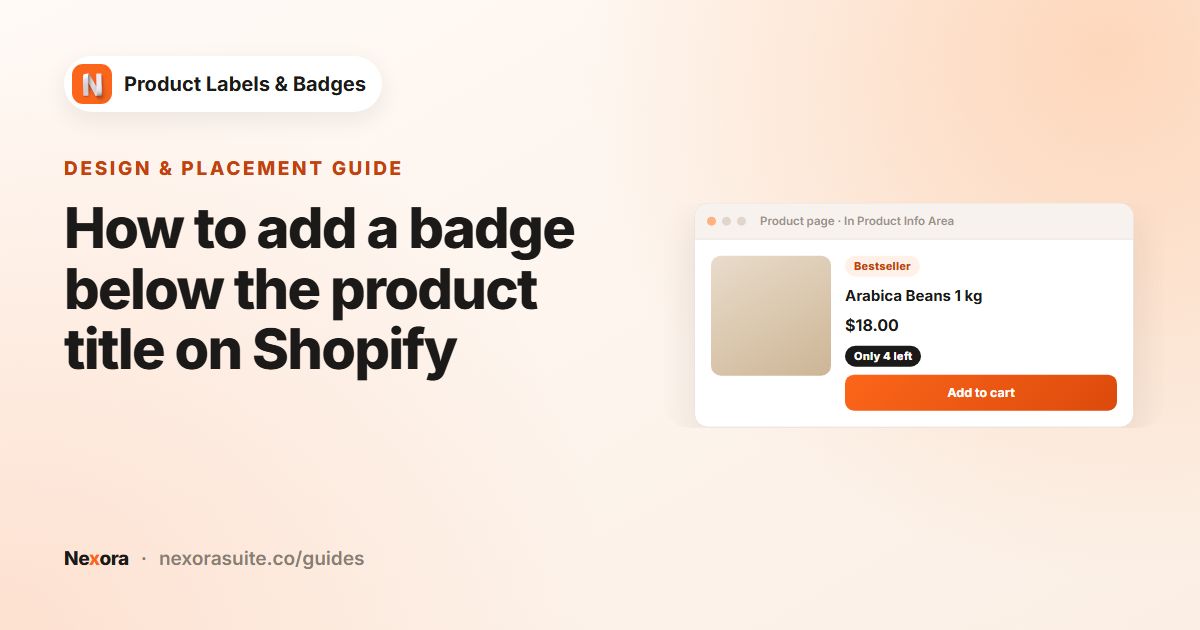
On General, enter a Label name and choose In Product Info Area for a line of text near the price, or Inside Product Image for a badge on the image. Keep the Text type.
- Add the stock count
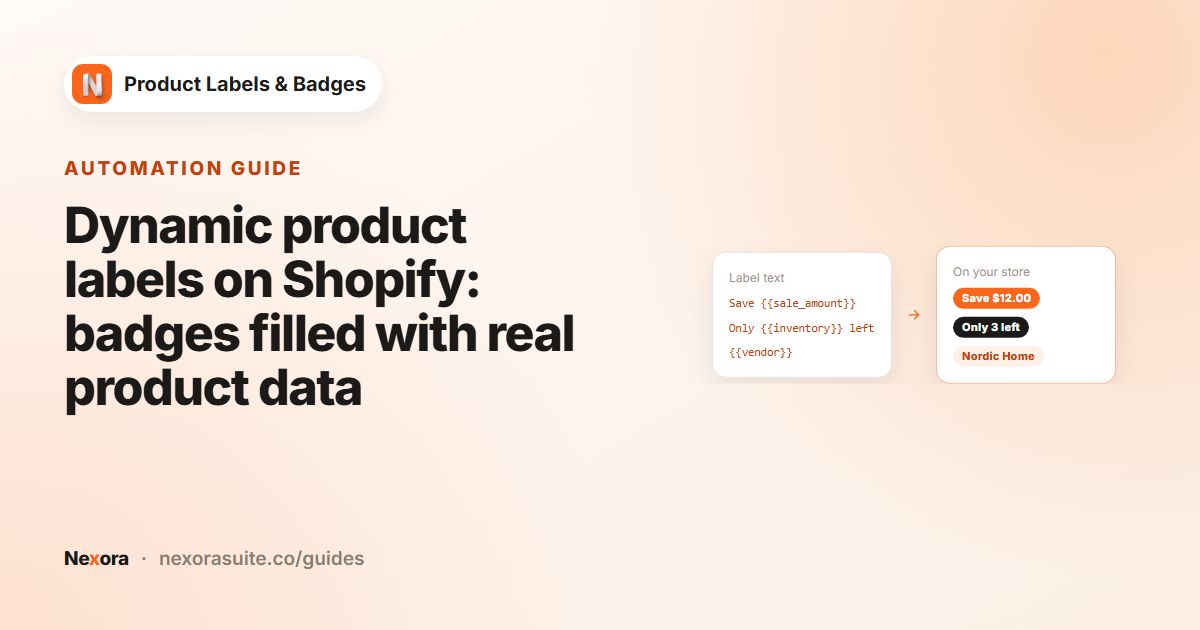
On Design, open Dynamic Data, copy
{{inventory}}and set Label Text toOnly {{inventory}} left. For In Product Info Area, set Info Placement to Below price and Info Alignment to Left. - Style it
Pick a warm Text Color such as dark orange, a light Background Color and a Font Size a little smaller than your price.
- Activate and save
Click Activate, then Save, and open a low-stock product to check it.
Settings for a low stock badge
| Setting | Example | Notes |
|---|---|---|
| When stock ≤ X | 5 | Between 1 and 100. Products with 0 stock are not included |
| Label Text | Only {{inventory}} left | Or a fixed message such as Almost gone |
| Display Position | In Product Info Area | Reads like a stock message rather than a promo badge |
| Info Placement | Below price | Also Above title, Below title or Above price |
| Margin | 4 px top, 4 px bottom | Per device, so you can tighten it on mobile |
| Show On Pages | Product Page and Collection Page | Untick pages where it adds clutter |
On product pages, {{inventory}} updates when the shopper picks another variant, so a size with two left shows Only 2 left while a size with four shows Only 4 left. On collection cards, the count and the condition use the product's total stock across variants.
Example: a candle shop with small batches
A candle maker pours 20 of each scent per batch. They want a nudge when stock gets low, and a clear sold-out state when it runs out.
- Low stock label: When stock ≤ X set to 4, text
Only {{inventory}} left, In Product Info Area, Below price. - A second label for sold-out scents using the Out stock condition, text
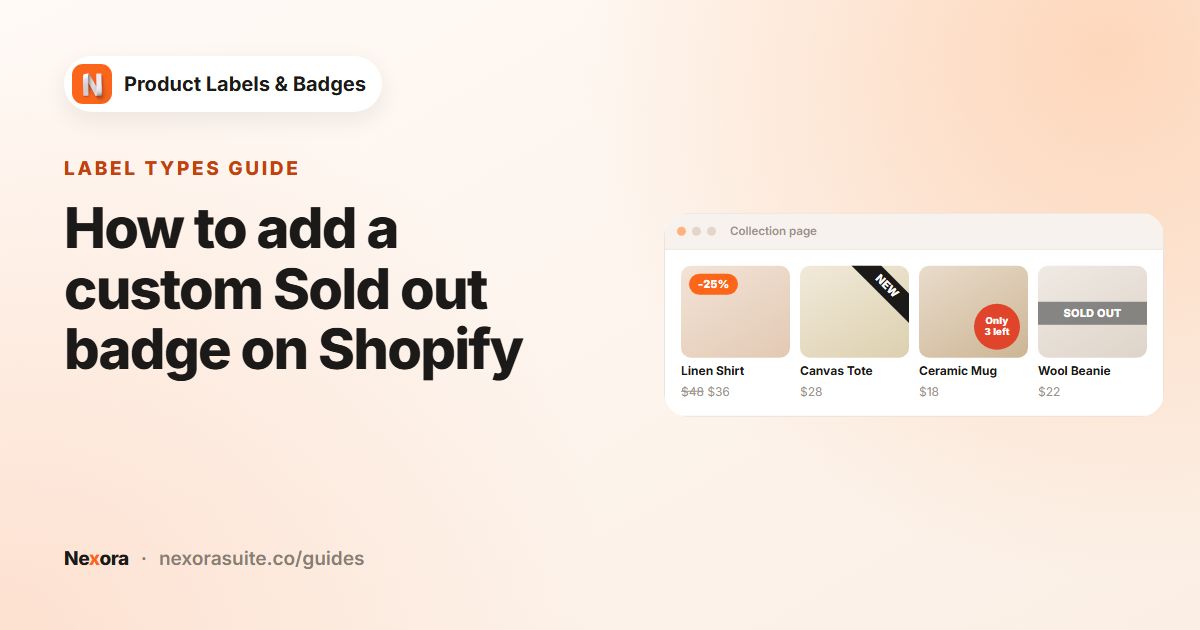
Back soon, on the image at Top-Left. See sold out badges. - When a new batch arrives and stock goes back above 4, the low stock message disappears on its own.
Tips and common mistakes
- Pick a threshold that fits your volume. For a product that sells 50 a day, 5 left is gone within hours. For a slow seller, 5 might last a month and the badge stays up too long.
- Untracked products never match. If a product doesn't track inventory, it has no count, so Low stock won't apply.
- Continue selling when out of stock. Products set to keep selling at zero don't show the low stock badge once they reach 0, because they are no longer above zero.
- Don't stack too many messages. A sale badge, a NEW badge and a stock message on one small card can crowd the image. Use In Product Info Area for the stock line.
Prefer not to reveal exact numbers? Leave out {{inventory}} and use fixed text such as Low stock or Selling fast. The condition still decides which products show it.
Frequently asked questions
What's the highest threshold I can set?
When stock ≤ X accepts 1 to 100. The default is 5.
Does the badge show when stock is zero?
No. Low stock only matches products that are still in stock. Use an Out stock label for sold-out products.
Does the number change for each variant?
On product pages, yes: {{inventory}} updates when the shopper picks a different variant. On collection cards, it shows the product's total stock.
Is the stock number live?
It reads your current Shopify inventory when the page loads, so refreshing the page shows the latest count.
Can I show the badge only on product pages?
Yes. On Display condition, tick only Product Page under Show On Pages.