Why a New badge is worth adding
Returning shoppers often want to know one thing: what's new since my last visit? A small NEW badge on the product image answers that on every collection page, without making them hunt through a separate collection.
It also helps new products get noticed. A fresh item has no reviews and no sales history yet, so a visual cue can earn it a first look. The badge is most useful when it is honest, which means it has to come off again once the product is no longer new.
Your options on Shopify
Most themes don't add a New badge on their own. The common workarounds all need upkeep:
| Option | How it works | Upkeep |
|---|---|---|
| A New arrivals collection | A collection page sorted by date, linked from your menu | Easy to set up, but it doesn't mark the products on other pages |
| A product tag plus theme code | Tag products new and have a developer show a badge for that tag | You must remove the tag by hand later, and theme updates can undo the code |
| An automatic label | A label that checks each product's creation date | None. Products drop the badge after the number of days you choose |
If you already tag products, you can still use a manual label with Products set to Product tags. The automatic option is simply less work to keep accurate.
Step by step: an automatic NEW badge
- Start an automation label
In the app, go to Product Labels and click + Add Automation Label.
- Choose New arrival
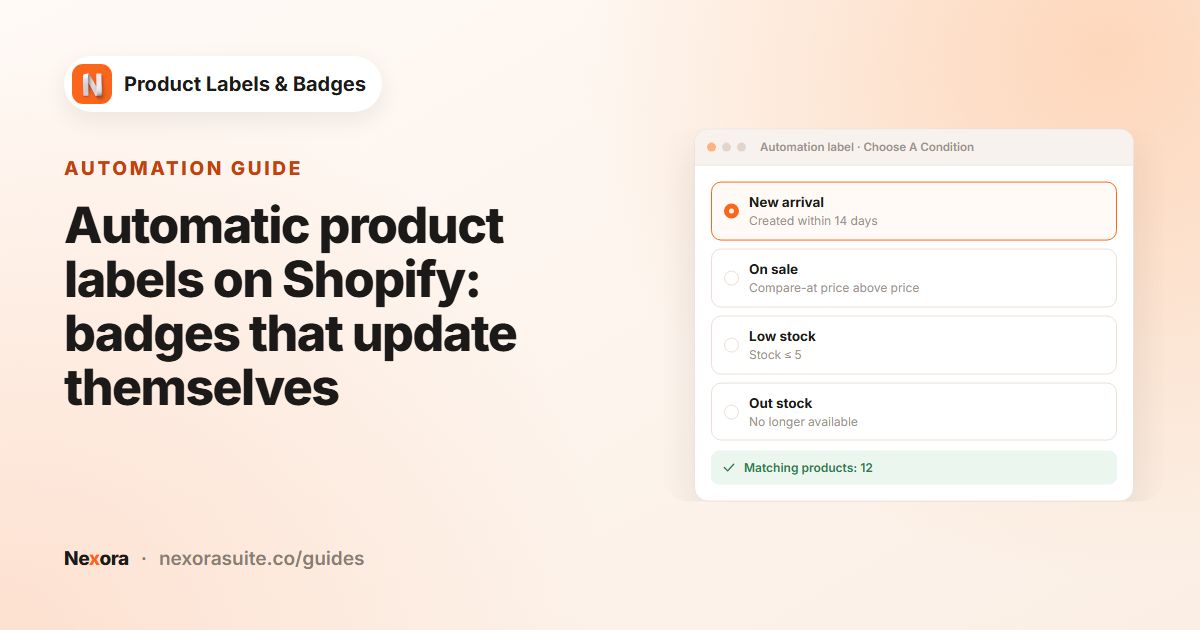
On Choose A Condition, pick New arrival and enter a number in Within X days, for example 14. The Matching products panel shows which products are new right now.
- Set up the look
On General, enter a Label name such as
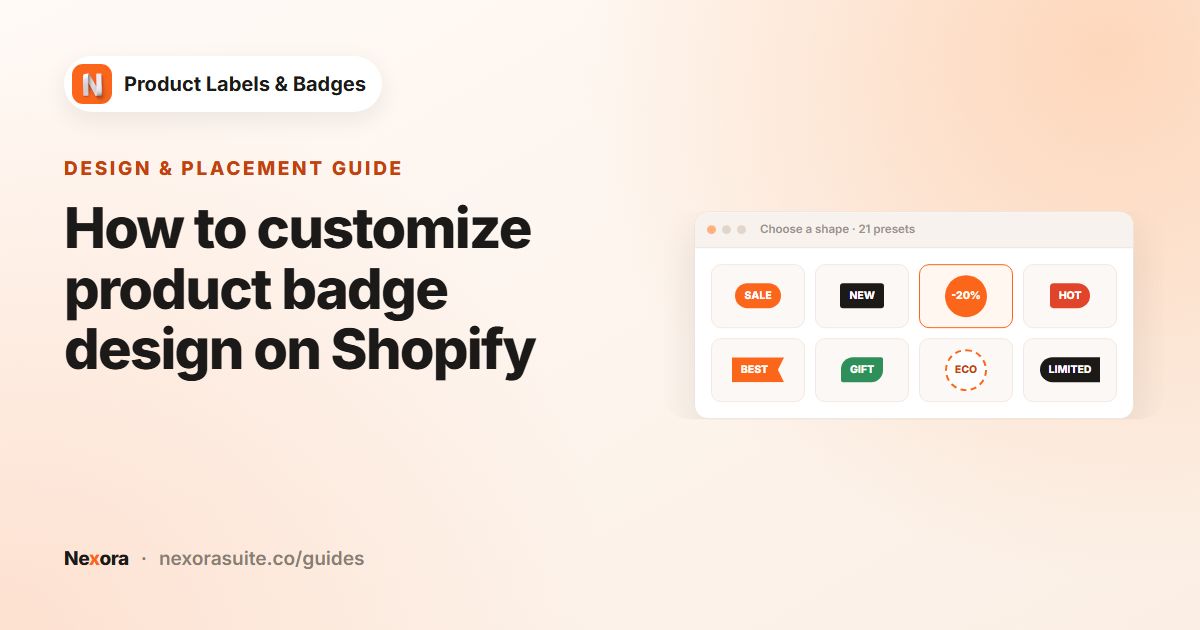
New - 14 days, choose Inside Product Image and the Text type, and pick a shape such as a pill or corner ribbon. - Write the text
On Design, type
NEWorJust inin Label Text. Choose a Background Color and Text Color that fit your brand, and set Position to Top-Right if your sale badge sits top-left. - Choose where it shows
On Display condition, keep all Show On Pages ticked, or untick Product Page if you only want the badge on product cards.
- Activate and save
Click Activate, then Save. Open a collection with recent products to check it.
Settings for a New arrival badge
| Setting | What to choose | Why |
|---|---|---|
| Within X days | 7 for fast-moving stores, 30 for monthly drops | Matches how often you add products |
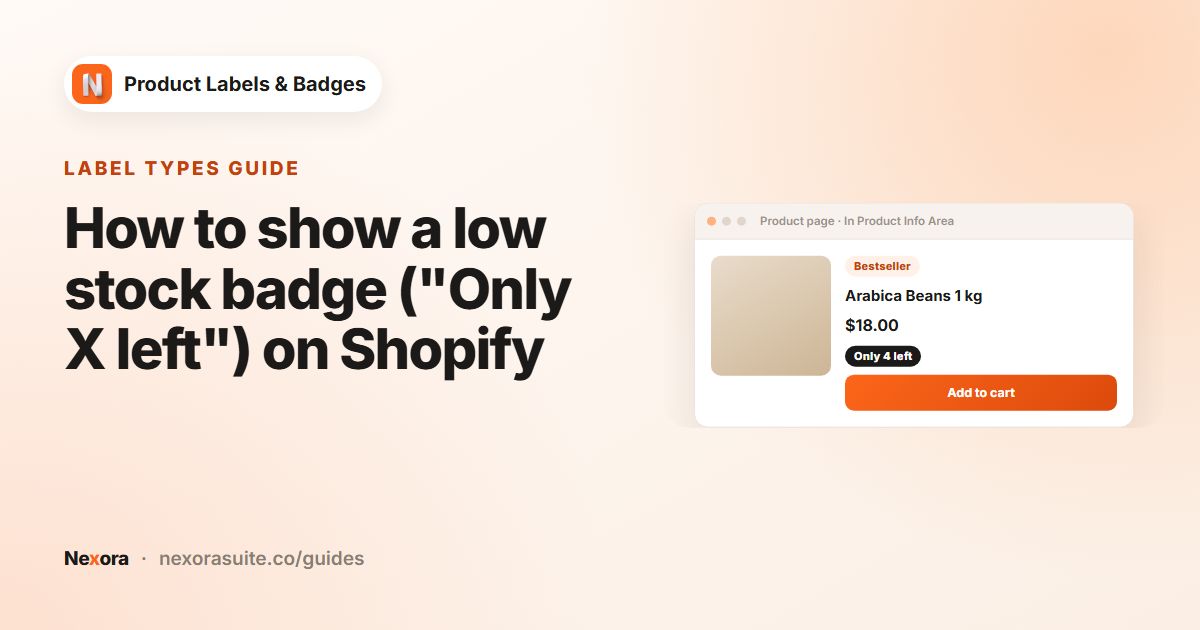
| Display Position | Inside Product Image or In Product Info Area | Image badges are more visible. A small text badge above the title is quieter |
| Animation | None, or a gentle effect such as Fade In | Movement draws the eye, so use it sparingly |
| Font Family | Inherit theme | The badge matches the rest of your store |
| Show On Pages | All, or untick Search Page | Decide where newness matters to your shoppers |
The day count is based on when the product was created in Shopify. If you create a product weeks before you publish it, it may already be past your window on launch day. In that case, use a manual label for the launch and switch to the automatic one later.
Example: weekly drops at a jewellery store
A jewellery store adds 10 to 20 pieces every Friday. It wants new pieces marked for two weeks, and a quieter text tag next to the title on product pages.
- Label 1: New arrival, Within X days set to 14, text
NEW, a small black pill at Top-Right, Product Page unticked under Show On Pages. - Label 2: New arrival, Within X days set to 14, In Product Info Area with Info Placement set to Above title, text
New this week, shown only on Product Page. - After 14 days both labels drop off with no clean-up needed.
Tips and common mistakes
- Don't set the window too long. If half your catalog says NEW, the badge stops meaning anything.
- Label still inactive. New labels start as Inactive. If nothing appears, open the label and click Activate.
- Clashing with sale badges. Give each label its own corner, or let them stack and choose the order with the arrows on the Product Labels page.
- Translate the text. If your store publishes more than one language, use the language button in Label Text to write
NEU,NOUVEAUand so on. See multilingual labels.
Frequently asked questions
How long does a product keep the New badge?
As many days as you enter in Within X days, from 1 to 100. The default is 7.
Do I need to remove the badge by hand?
No. A New arrival automation label stops showing on a product once it is older than your day count.
Does it count from the publish date?
It counts from when the product was created in Shopify. Products created long before they go live may already be past the window.
Can I show NEW only on certain collections?
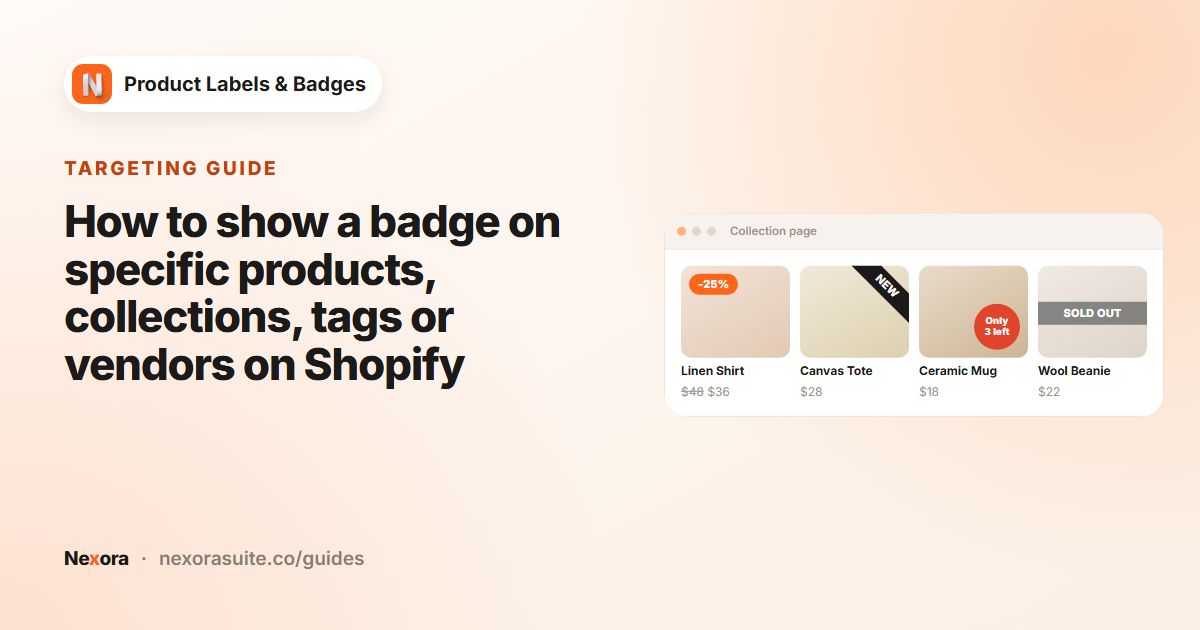
Automation labels pick products by their condition, so they have no product picker. To limit a NEW badge to one collection, create a manual label with Products set to Collections instead.
Can I see which products will get the badge?
Yes. The Matching products panel on the Choose A Condition tab lists the products that match right now.