Why translate your badges
If your store is translated but your badges aren't, a French shopper sees a French product page with an English SALE or Only 3 left on top. Short as they are, badges carry important information about price, stock and delivery, so they should be in the same language as the rest of the page.
- Keep the shopping experience consistent in every language.
- Make urgency and stock messages clear to everyone.
- Use wording that suits each market, not only a literal translation, such as
Soldesin French.
Translation is also a chance to adapt the message. A literal translation of a playful English phrase can sound odd, and conventions differ: some languages put the percent sign after a space, others write the discount first. Writing each language yourself, or with a native speaker, gives you control over how the badge reads.
Your options on Shopify
Shopify lets you add and publish languages, then translate your store content with the Translate & Adapt app, CSV files or a compatible third-party app. See localization and translation in the Help Center. Theme badges such as Sale or Sold out are usually part of the theme's own text, which you can translate with your theme's language settings.
Badge text you create in Nexora Product Labels & Badges is stored in the app, so you translate it in the label editor, right next to the original text. You'll need the languages published in Shopify first; the app reads that list from your store.
Step by step: translate a badge
- Publish your languages in Shopify
Make sure each language is added and published in your Shopify admin. Only published languages appear in the app.
- Open a Text label
On Product Labels, click Edit on a label with the Text type, or create a new one.
- Write the main text
On the Design tab, type the Label Text in your store's primary language. The primary language is marked with a dot in the language list.
- Switch language
Click the language button at the start of the Label Text field and pick another language. The Label Preview switches to that language too.
- Type the translation
Enter the text for that language. Repeat for each published language.
- Save
Click Save (and Activate if the label is new). Visit your store in each language to check.
Translate one label first and check it in each language on your storefront. Once you are happy with the length and tone, translate the rest of your labels the same way.
What can and can't be translated
| Item | Translated per language? | Notes |
|---|---|---|
| Label Text (Text labels) | Yes | One text per published language. |
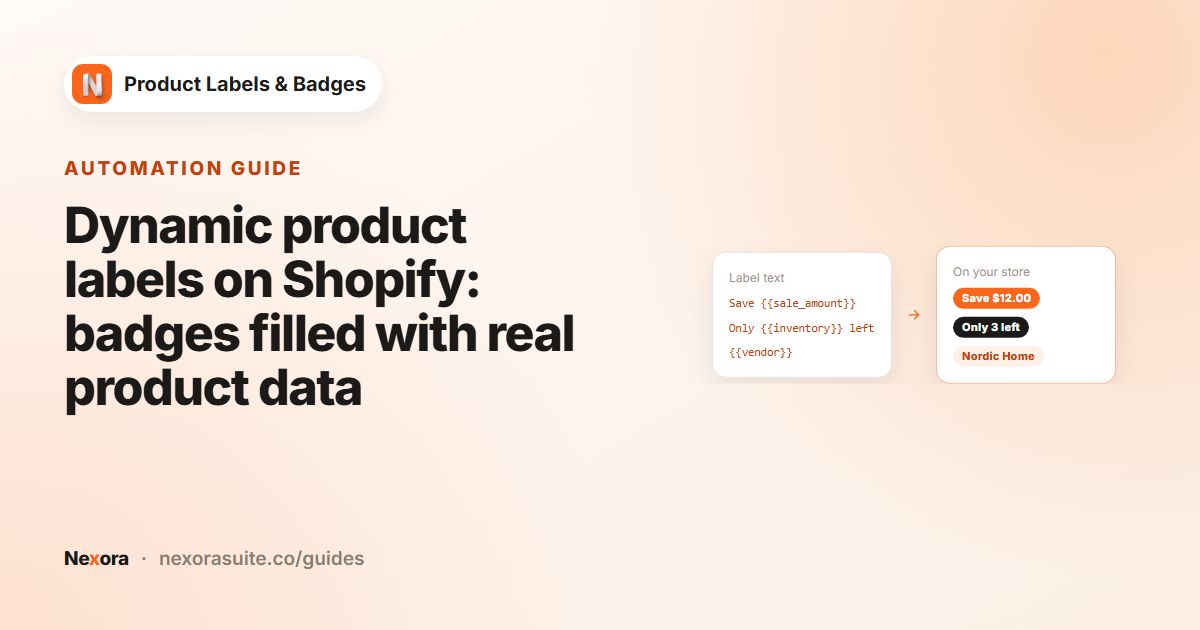
| Dynamic data variables | Values come from the product | {{sale_percent}} shows a number; {{vendor}} and {{type}} show the product's values. Write the words around them per language. |
| Image and Upload labels | No | An image is the same in every language. For translated image badges, create one label per language image, or use a Text label. |
| Label name | No | Internal only; shoppers never see it. |
| Label link | No | One link per label. |
Example: a sale badge in four languages
A store published in English, French, German and Spanish sets up an On sale automation label:
| Language | Label Text |
|---|---|
| English (primary) | Save {{sale_percent}} |
| French | -{{sale_percent}} Soldes |
| German | {{sale_percent}} sparen |
| Spanish | Ahorra {{sale_percent}} |
Each product shows its own discount, wrapped in the right words for the shopper's language.
The French text puts the discount first, while the German text keeps the number before the verb. Because the variable is the same in every language, each product still shows its own percentage, whatever language the shopper uses.
Tips and common mistakes
- Fill in every published language. Check each language in the list before saving, so no shopper sees an empty or untranslated badge.
- Watch the length. German and French text is often longer than English. Check the Label Preview in each language, and adjust Label Size or Padding if the text doesn't fit the shape.
- Added a new language later? Open your labels and add text for it. The new language appears in the list once it's published in Shopify.
- Language is not country. Translations follow the language the shopper browses in. To show a badge only in some countries, use Show On Locations; see badges by country.
- Translated URLs are supported. Labels appear on collection and product pages in other languages even when product URLs are translated.
Frequently asked questions
Which languages can I translate badges into?
Any language that is published on your Shopify store. The app reads the list from your store.
How does the badge know which language to show?
It uses the language the shopper is browsing your store in, the same one your theme uses for the rest of the page.
Can I translate image badges?
Images are the same in every language. Use a Text label for translated wording, or create separate image labels if needed.
Do dynamic data variables work in translations?
Yes. Use variables such as {{sale_percent}} or {{inventory}} in each language's text.
Do I need Translate & Adapt for badge text?
No. Badge text is translated in the label editor. You still need the languages published in Shopify.