
How the app works
Nexora Order Bumps & Upsell shows extra product offers to customers while they shop. You create campaigns. Each campaign decides which products to offer, what discount to give, and on which pages the offers appear.
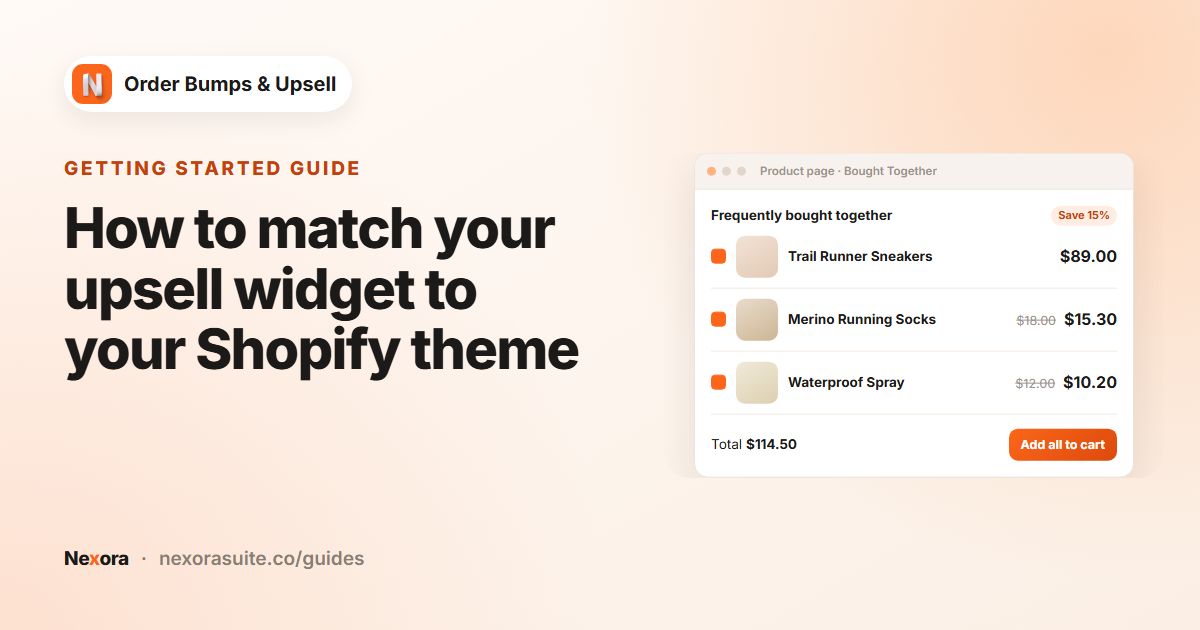
- Product page: the Nexora - Bought Together theme block shows offers next to the product the customer is viewing.
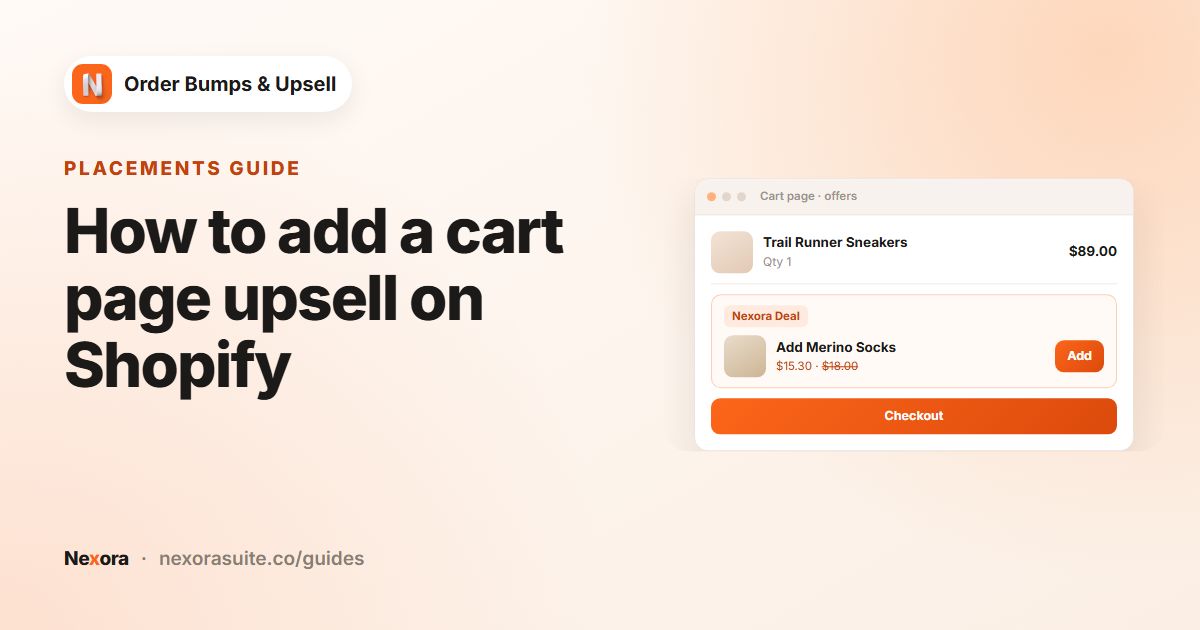
- Cart page: the Nexora - Cart Offers theme block shows offers based on what is already in the cart.
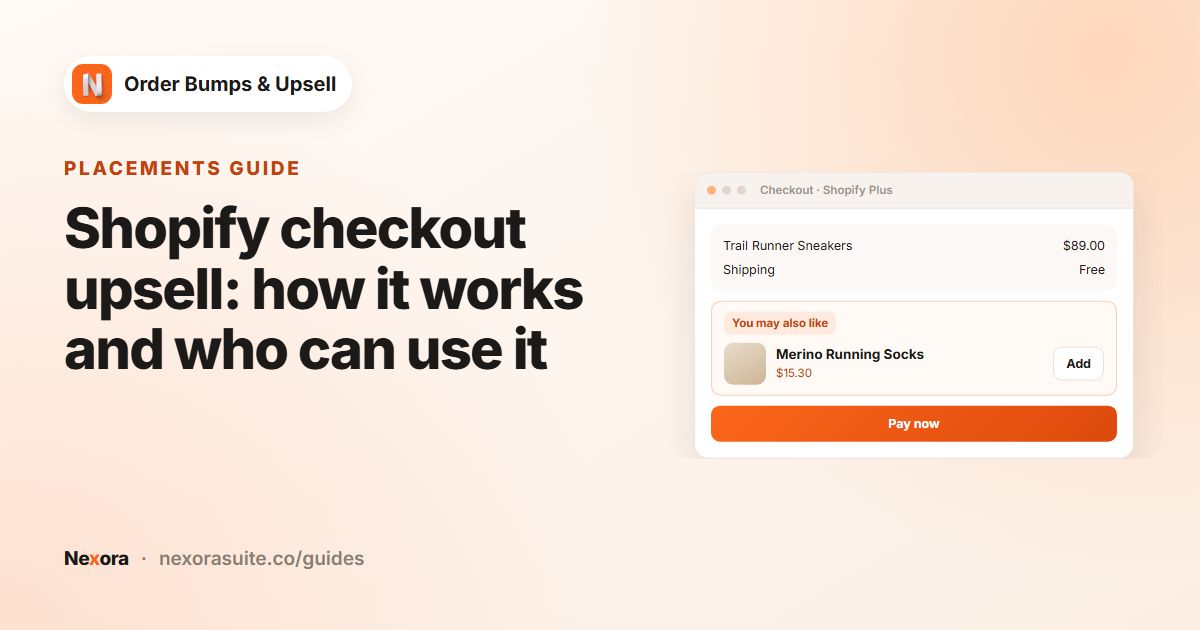
- Checkout (Shopify Plus stores only): the Nexora - Checkout Offers block shows offers inside checkout, and customers can add them without leaving the page.
- Thank you page (all plans except Shopify Starter): the same Nexora - Checkout Offers block shows a follow-up offer after the order is placed.
Discounts on offers are applied automatically at checkout by a Shopify automatic discount called Nexora Order Bump, which the app creates for you. Customers do not need a discount code.
The admin has four areas in the app menu: Campaigns, Design Settings, Settings (the Compatible page for theme setup) and Document (in-app help articles). The app home page shows a setup guide, live support and your campaigns.
The app is free to use, with no limits on campaigns or offers.
 Related guideHow to add upsells to Shopify, step by step→
Adding the app blocks
Offers only appear on pages where you have added a Nexora block. The Complete your setup card on the app home page has a button for each placement that opens the right editor.
| Placement | Block name | Where to add it |
|---|---|---|
| Product page | Nexora - Bought Together | Theme editor, product template: click a section, Add block, choose the block. |
| Cart page | Nexora - Cart Offers | Theme editor, cart template: click a section, Add block, choose the block. |
| Checkout | Nexora - Checkout Offers | Checkout editor: Add app block. Shopify Plus only. |
| Thank you page | Nexora - Checkout Offers | Checkout editor: switch to the Thank you page, then add the block. |
Shopify allows app blocks on the checkout steps (information, shipping and payment) only for stores on Shopify Plus. On other plans, use the Thank you page instead. See Shopify's checkout extensibility guide for details.
The theme blocks have no settings of their own. Everything the block shows comes from your campaigns and Design Settings, so you can move the block inside the section without losing any setup.
 Related guideHow to add Frequently Bought Together to Shopify product pages→
Campaigns list
Open Campaigns to see all your campaigns, split into Active and Inactive groups. Click Create campaign to add a new one.
| Control | What it does |
|---|---|
| Search campaigns... | Filters the list by campaign name. |
| Type filter | Show All types, only Manual or only AI campaigns. |
| Up / down arrows | Change the campaign's priority. Campaigns higher in the list are checked first. |
| Switch | Turns the campaign on or off without opening it. |
| Edit | Opens the campaign editor. |
| Delete | Deletes the campaign after you confirm. This cannot be undone. |
How priority works
On the product page and in checkout, the first active campaign (from the top of the list) whose triggers match is shown. On the cart page, offers from all matching campaigns are shown together, using the layout settings of the highest-priority one. Put your most important campaign at the top.
Campaign editor: Content tab
The campaign editor has a Campaign name field, an on/off switch next to the page title (Activated / Disabled), and two tabs: Content and Display Rules. A live preview on the right shows how the widget will look. Click Save in the bar at the top to save changes, or Discard to undo them.
Type
| Type | What it does |
|---|---|
| Manual | You choose the trigger products and the exact offer products and discounts. |
| AI Recommendation | Offers are filled in automatically using Shopify's own product recommendations. You choose the Algorithm (Related or Complementary), a Discount % and a Discount label. |
Widget Content
| Field | What it does |
|---|---|
| Title | Heading shown above the offers. Default: "Frequently Bought Together". |
| Description | Short text under the title. Default: "Add these items to your order and save!". |
| Button text | Label on the add button. Default: "Add to order". |
| Success message | Text shown after an offer is added. Default: "Added!". |
Display Options
| Option | What it does |
|---|---|
| Show compare-at price | Shows the original price crossed out next to the offer price. |
| Show quantity selector | Lets customers choose how many of the offer to add. |
All text fields accept any language, so you can write titles and buttons in the language your customers use.
Items, triggers and offers (Manual campaigns)
A Manual campaign is made of one or more Items. Each item has a trigger (When customer buys) and a list of Offers. Click Add item to start, then Add offer inside the item. You can reorder items and offers with the arrow buttons and remove them with the trash icon.
When customer buys
| Trigger | When the offers show |
|---|---|
| All products | On any product page, and whenever the cart or checkout has at least one product. |
| Specific products | Only when the customer views, or has in the cart, one of the products you pick. |
| Specific collections | On product pages of products in the collections you pick. This trigger works on the product page only. |
If several items in the same campaign match, their offers are combined into one widget.
Offer settings
| Field | What it does |
|---|---|
| Product | Click Select product to choose one or more products. Every selected product uses this offer's discount. |
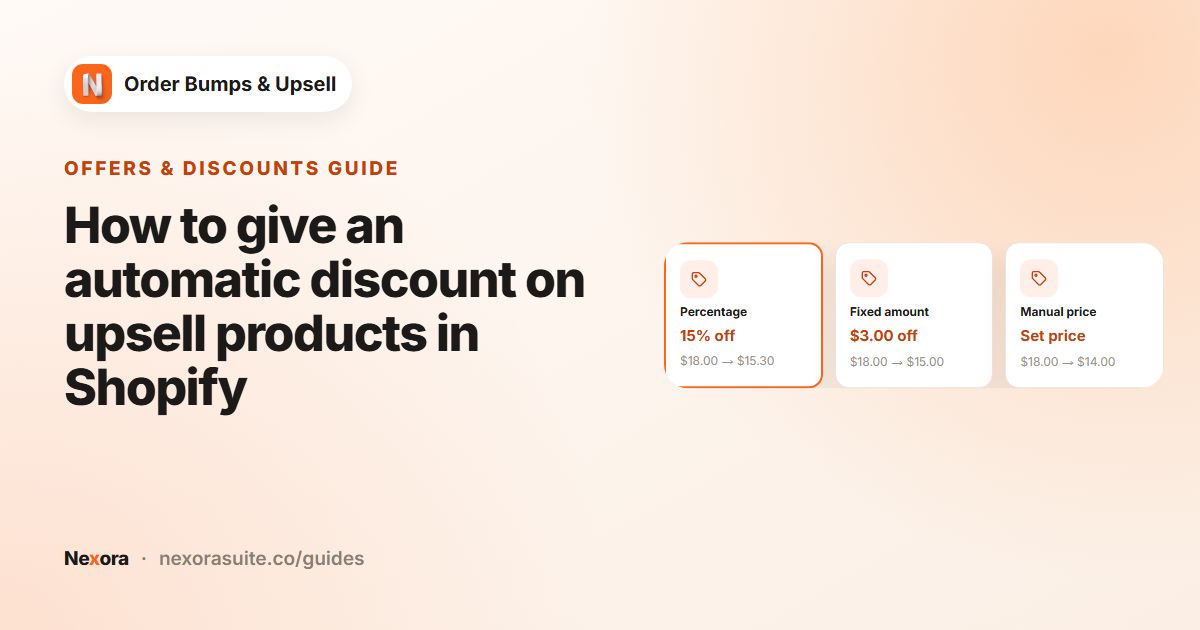
| Discount type | Percentage, Fixed amount or Manual price. |
| Discount value / Sale price | The percentage or amount off, or the price you want to charge when Manual price is chosen. |
| Discount label | Short text shown on the offer and on the discounted line, for example "Nexora Deal". |
| Show variant dropdown | Lets customers pick a variant. Sold-out variants are marked and cannot be chosen. |
| Use custom image | Replace the product image with an image you upload. |
Each item needs at least one offer, each offer needs a product, and a Specific products or Specific collections trigger needs at least one selection. The editor highlights anything missing when you save.
 Related guideShopify bundle offer with one "add all" button and a discount→
AI Recommendation campaigns
AI Recommendation campaigns use Shopify's product recommendations, the same data your theme uses for "You may also like" sections. You do not pick products yourself.
| Setting | What it does |
|---|---|
| Algorithm: Related | Products similar to the one being viewed or bought. |
| Algorithm: Complementary | Products that go well with it. Shopify shows these only if you have set up complementary products, for example in the Shopify Search & Discovery app. |
| Discount % | Percentage taken off every recommended product added from this campaign. Default: 10. |
| Discount label | Text shown with the discount. Default: "AI Deal". |
- On the product page, recommendations are based on the product being viewed.
- On the cart page, they are based on the highest-priced item in the cart, and products already in the cart are left out.
- In checkout and on the Thank you page, they are based on the products being bought.
Shopify needs some store activity to build recommendations. On a brand-new store the list can be empty for a while; a Manual campaign is a good fallback.
 Related guideHow to use Shopify product recommendations for upsells→
Campaign editor: Display Rules tab
Appearance
| Setting | What it does |
|---|---|
| Layout | Stack lists offers one under another. Carousel shows them in a slider. |
| Selection mode | Individual gives each offer its own add button. Bundle adds a checkbox to each offer and one shared button that adds all checked items at once. Bundle works with the Stack layout only. |
| Max offers to show | How many offers are visible at once (1 to 10). Default: 5. |
| Show badge / Badge text | Adds a small badge, such as "Best deal", to the widget. |
Target Pages
Tick the pages this campaign appears on: Product Page, Cart Page, Checkout (Shopify Plus only) and Thank You. All are ticked for a new campaign. Remember to also add the matching block for each page.
Cart Value
Show the campaign only when the cart total is within a range. Set a Minimum, and either a Maximum or tick No maximum limit. Use 0 and no maximum to show it for every cart. This condition applies on the cart page, in checkout and on the Thank you page; it does not affect the product page.
When customer adds an offer
| Option | What happens |
|---|---|
| Hide and show next offer (recommended) | The added offer disappears and the next offer in the list takes its place. |
| Keep visible with '✓ In cart' badge | The offer stays with an "In cart" badge. Customers can change the quantity and add more. |
| Stay fully interactive | The offer stays as it is; clicking add again increases the quantity. Good for quantity upsells. |
Product page behavior
These options appear when Product Page is ticked.
| Option | What it does |
|---|---|
| Combine with Add to Cart button | When the customer clicks your theme's own Add to cart button, the visible offer items are added to the cart together with the main product in one step. Works with most modern themes that use a standard product form. |
| Show per-item Add to order only after main product is in cart | The add buttons inside the offer widget stay hidden until the main product is in the cart. Your theme's Add to cart button works as normal. |
 Related guideHow to add a cart page upsell on Shopify→
How discounts are applied
When you save a campaign, the app makes sure an automatic discount named Nexora Order Bump exists in Discounts in your Shopify admin. It only discounts cart lines that were added from a Nexora offer, using that offer's discount type and value.
| Discount type | Result |
|---|---|
| Percentage | The offer line is reduced by the percentage you set. |
| Fixed amount | The amount you set is taken off the offer line. |
| Manual price | The offer is charged at the Sale price you set instead of its normal price. If the sale price is not lower than the normal price, no discount is applied. |
- The discount combines with order, product and shipping discounts, so your other promotions keep working.
- The Discount label is the text customers see next to the discounted line.
- Products customers add on their own (not from an offer) are never discounted by the app.
Fixed amount and Manual price discounts are worked out per cart line, so the saving does not grow when the customer raises the quantity. Use Percentage if you want the discount to scale with quantity.
Do not delete or deactivate the Nexora Order Bump discount in Shopify. Without it, offers still appear but are charged at full price. Saving any campaign recreates it if it is missing.
 Related guideHow to give an automatic discount on upsell products in Shopify→
Checkout and Thank you page offers
Both placements use the Nexora - Checkout Offers block and show campaigns that have Checkout or Thank You ticked.
Checkout (Shopify Plus)
Offers appear inside checkout. When the customer clicks the add button, the product is added to the current order with the discount, and the customer completes checkout as usual.
Thank you page
After an order is placed, Shopify no longer lets apps change it, so the Thank you page offer works as a follow-up offer. Clicking the button opens your store's cart with the offer product added (with its discount), and the customer checks out again as a separate order. It does not add the item to the order that was just placed.
The Thank you page block is available on all Shopify plans except Shopify Starter.
 Related guideShopify checkout upsell: how it works and who can use it→
Design Settings
Design Settings controls how the widgets look across all campaigns. It has three tabs: Product Page, Cart Page and Checkout & Thank You. A preview updates as you change values. Click Save to publish.
On the Product Page and Cart Page tabs, Sync settings from Cart Page / Sync settings from Product Page copies every style from the other tab, so both widgets match. You can still edit values after syncing.
Product Page and Cart Page tabs
| Group | Settings |
|---|---|
| General | Alignment, Item Gap. |
| Main Container | Width, Alignment, Background, Border Style, Border Color, Border Width, Border Radius, Padding Left — Right, Padding Top — Bottom, Margin Top, Margin Bottom. |
| Header & Badge | Badge background, text color, font size and weight; Title Color, Title Font Size, Title Font Weight; Description Color and Font Size. |
| Product Item Card | Card Background, Border Color, Border Width, Border Radius, Padding, Image Border Radius; product title Color, Font Size, Font Weight. |
| Pricing & Selectors | Sale Price Color, Font Size and Weight; Compare Price Color and Font Size; input (variant and quantity) Background, Border Color, Text Color, Font Size, Border Radius. |
| Call-to-Action Button | Background, Text Color, Font Size, Font Weight, Border Radius, Button Position (Right side (default) or Below quantity input). |
| Carousel Options | Show Arrows (with arrow background, icon color and radius) and Show Dots (active and inactive dot colors). |
Checkout & Thank You tab
Shopify controls the look of checkout, so this tab offers Shopify's built-in style choices rather than free colors.
| Group | Settings |
|---|---|
| General Layout | Spacing (None, Tight, Base, Loose), Alignment (Start, Center). |
| Container | Background (Transparent, Subdued), Border, Corner Radius, Padding. |
| Typography | Description Color, Description Size, Price Tone. |
| Product Item Detail | Image Aspect Ratio (Square or Hidden), Product Title Style, Show Variant Selector, Show Quantity Stepper, Card Background, Card Border, Card Corner Radius, Card Padding. |
| Call-to-Action Button | Variant (Auto, Primary, Secondary), Button Loading State. |
 Related guideHow to match your upsell widget to your Shopify theme→
Theme compatibility (Settings)
When a customer adds an offer on the product or cart page, the app updates your theme's cart count and cart drawer. Open Settings (the Compatible page) to tell the app which theme you use.
- Choose your theme
Pick it in Your theme. Ready-made settings are included for 26 popular themes, including Dawn, Sense, Refresh, Craft, Studio, Ride, Taste, Colorblock, Crave, Origin, Publisher, Spotlight, Horizon, Impulse, Motion, Streamline, Turbo, Symmetry, Broadcast, Warehouse, Prestige, Empire, Flex, Canopy, Expression and Pipeline.
- Save
Click Save. The correct settings are applied automatically.
- Not listed?
Choose Custom and fill in Advanced overrides (click Show).
| Advanced override | What it does |
|---|---|
| Open drawer | A CSS selector to click, such as #cart-drawer-open, or event:name to send an event, such as event:cart-drawer:open. Leave empty to use the defaults. |
| Cart count selector | The element that shows the number of items in the cart, such as .cart-count-bubble span. It is updated after each add. |
| After-add hooks | Comma-separated list. Entries containing : are sent as events; other entries are treated as theme section IDs to refresh, such as cart-drawer, cart-icon-bubble, cart:refresh. |
Not sure which theme you have? Go to Online Store → Themes in Shopify admin; the theme name is shown on your current theme. If your theme is heavily customized, contact us through live chat and we can help fill in the overrides.