What a Frequently Bought Together widget does
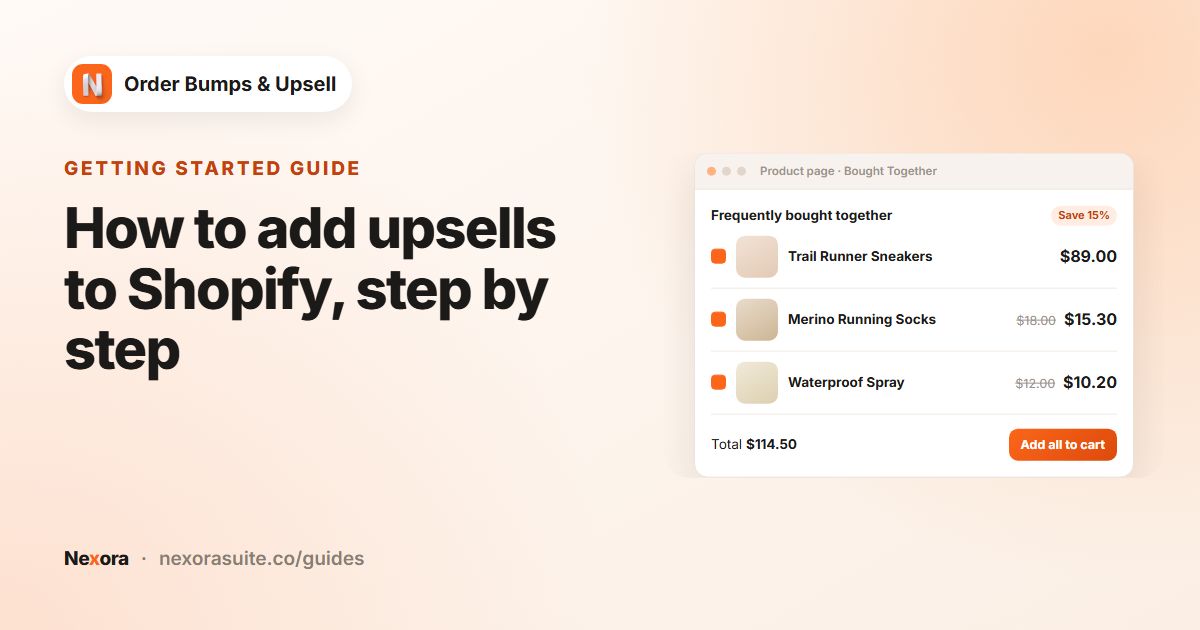
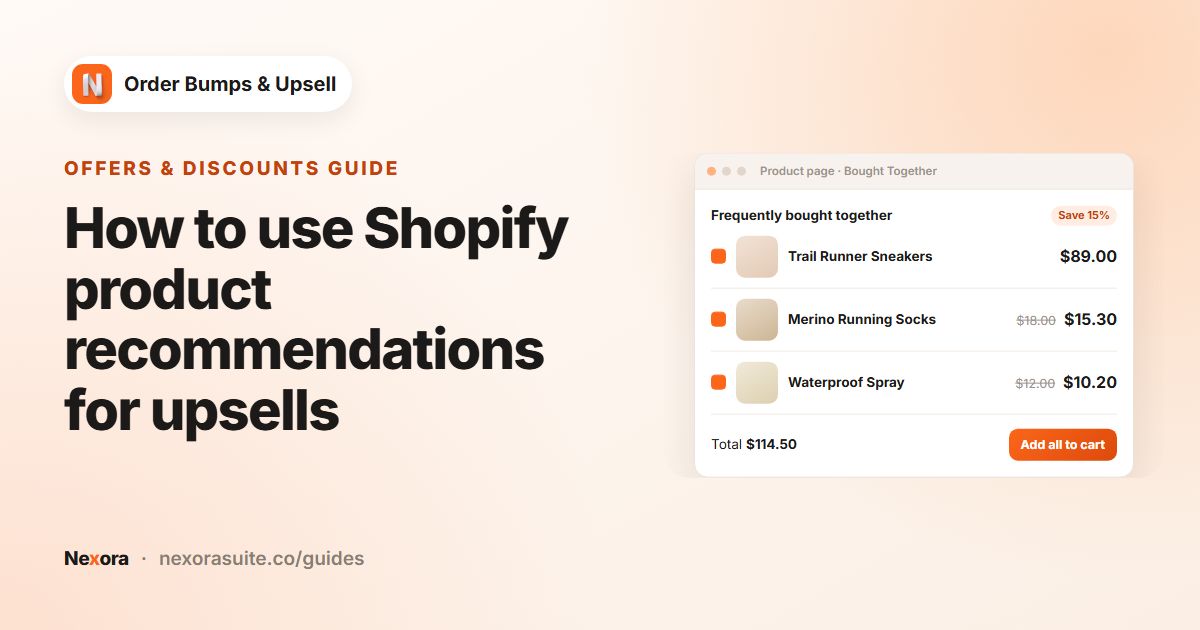
A Frequently Bought Together widget sits on the product page and shows a few items that go well with the product being viewed: a strap for a watch, a cleaning kit for sneakers, batteries for a toy. Each item has its price and an add button, so customers can build a fuller order before they reach the cart.
It works best on the product page because that is where customers compare and decide. A suggestion that solves the next question ("what do I need with this?") saves them a search and can make the main purchase easier.
Your options on Shopify
Many Shopify themes include a product recommendations section, and some free themes have a complementary products block on the product page. With Shopify's Search & Discovery app you can choose up to 10 complementary products per product. See also Shopify's guide to adding product recommendations to your theme.
Those sections are a good free option if you only want to show links. They usually open the other product page rather than adding the item directly, and they don't attach a discount to the suggested item. An app widget adds both.
| Theme recommendations | Nexora - Bought Together | |
|---|---|---|
| Chooses products | Shopify's recommendations, or your Search & Discovery picks | Your own picks (Manual) or Shopify's recommendations (AI Recommendation) |
| Add without leaving the page | Usually no | Yes |
| Variant and quantity choice | On the other product page | Optional Show variant dropdown and Show quantity selector |
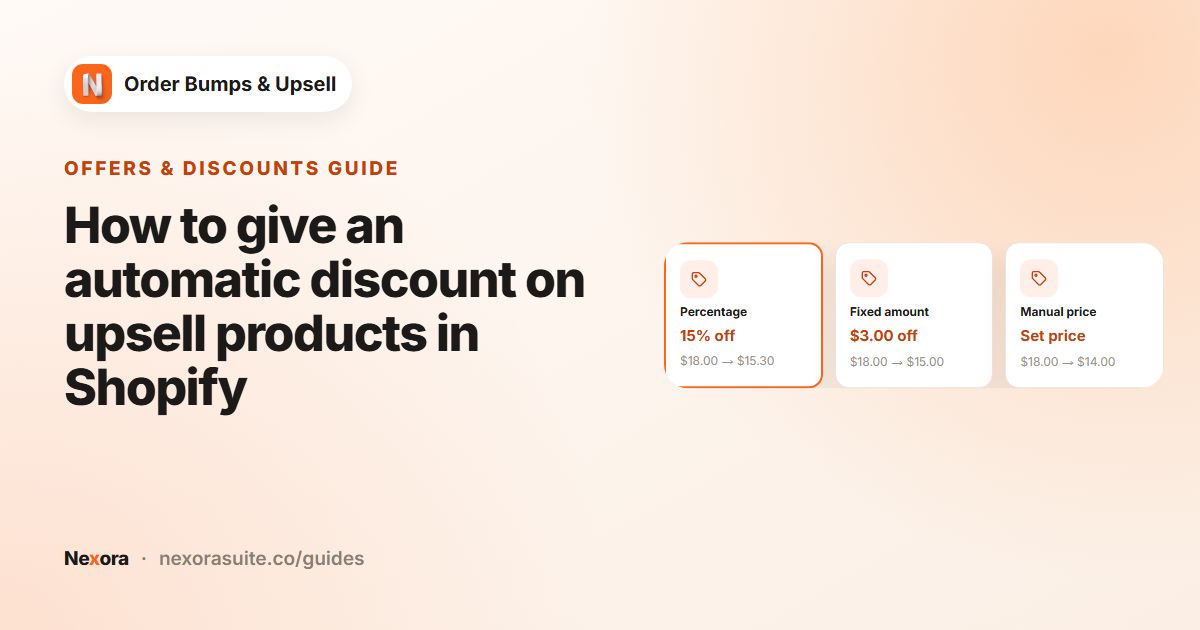
| Discount on the suggested item | No | Percentage, Fixed amount or Manual price |
| Add everything at once | No | Bundle selection mode |
Step by step: set up Frequently Bought Together
- Add the block
In the app's Complete your setup card, click Open theme editor next to Add to Product Page. On the product template, click a section (often the product information section), choose Add block and select Nexora - Bought Together. Drag it under the buy buttons and save.
- Create a campaign
Go to Campaigns and click Create campaign. Keep Manual as the type.
- Write the widget text
Under Widget Content, keep the default Title "Frequently Bought Together" or write your own, and adjust Description and Button text.
- Link products
Click Add item, set When customer buys to Specific products and select the main products. Click Add offer and select the items to suggest. Add one item per product family if different products need different suggestions.
- Set the discount
For each offer, choose a Discount type and value, or enter 0 to offer the item at its normal price.
- Choose layout and behavior
On Display Rules, pick Stack or Carousel, set Max offers to show, and under Product page behavior decide whether to turn on Combine with Add to Cart button.
- Save and check
Make sure Product Page is ticked under Target Pages, click Save, and open one of the trigger products on your store.
Product page settings explained
| Setting | What it does | When to use it |
|---|---|---|
| Layout: Stack | Offers listed one under another | One to four offers, or when you want Bundle mode |
| Layout: Carousel | Offers in a slider | Many offers in a small space |
| Selection mode: Individual | Each offer has its own add button | Unrelated add-ons customers pick one by one |
| Selection mode: Bundle | Checkboxes and one shared button | A set that belongs together (Stack only) |
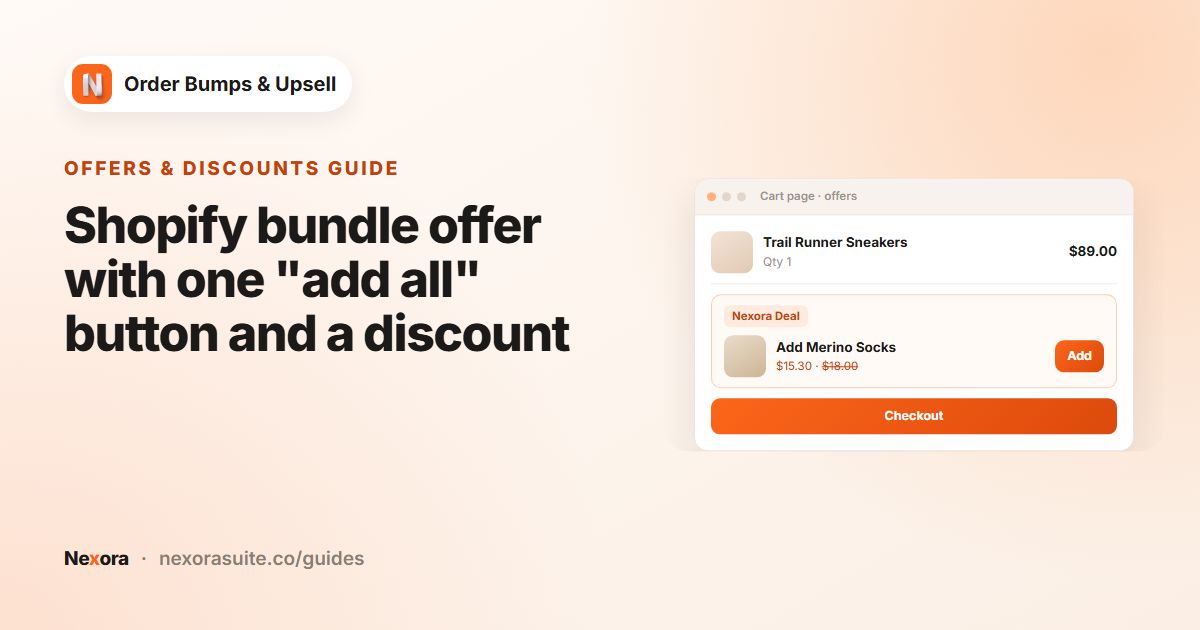
| Combine with Add to Cart button | Visible offer items are added with the main product when the theme's Add to cart is clicked | Add-ons most customers want anyway |
| Show per-item Add to order only after main product is in cart | Offer buttons stay hidden until the main product is in the cart | When an add-on only makes sense with the main item |
| Show compare-at price | Shows the original price crossed out | When you give a discount on the offer |
Combine with Add to Cart button works with most modern themes that use a standard product form. Test it on your own theme after saving.
Example: a camera store
A store selling cameras wants to suggest a memory card and a spare battery on every camera page.
- When customer buys: Specific products, all cameras
- Offers: a 64 GB memory card at Percentage 10, a spare battery at Percentage 10
- Title:
Complete your kit; Button text:Add to order - Layout: Stack; Selection mode: Bundle, so customers can tick both and add them together
- Show variant dropdown on for the memory card, so customers can choose the size
Tips and common mistakes
- Keep it to two or three offers. A long list pushes the buy button down and slows the decision.
- Match the offer to the product. One campaign with several items, each with its own Specific products trigger, lets every product family get its own suggestions.
- Place the block close to the buy button. Customers are most likely to see it there.
- Remember priority. On the product page only the first matching campaign from the top of the Campaigns list is shown. Move your most specific campaign above a general All products campaign.
- Check sold-out items. Sold-out variants are marked and cannot be chosen; if all variants are sold out the offer shows Sold out.
Frequently asked questions
Can Shopify pick the products for me?
Yes. Create an AI Recommendation campaign and choose the Related or Complementary algorithm. The app then uses Shopify's own product recommendations.
Can customers add all suggested items at once?
Yes. Set Selection mode to Bundle with the Stack layout. Customers tick the items they want and add them with one button.
Does the widget work with my theme's Add to cart button?
Turn on Combine with Add to Cart button and the visible offer items are added together with the main product when the customer uses your theme's button.
Can I show different suggestions for different products?
Yes. Add several items to one campaign, each with its own Specific products trigger and offers, or create separate campaigns.
Do I have to give a discount?
No. Set the discount value to 0 to offer the item at its normal price.