What recommendation-based upsells are
Picking upsell products by hand works well for a small catalogue, but it gets slow with hundreds of products. Shopify already works out which products are related to each other, and many themes use that for a "You may also like" section. A recommendation-based upsell takes the same suggestions and shows them as offers with a price, a discount and an add button.
In the Nexora app this campaign type is called AI Recommendation. The recommendations themselves come from Shopify, not from a separate model run by the app.
Step by step: an AI Recommendation campaign
- Create the campaign
In Campaigns, click Create campaign and enter a Campaign name.
- Choose the type
Set Type to AI Recommendation.
- Pick the algorithm
Choose Related or Complementary under Algorithm.
- Set the discount
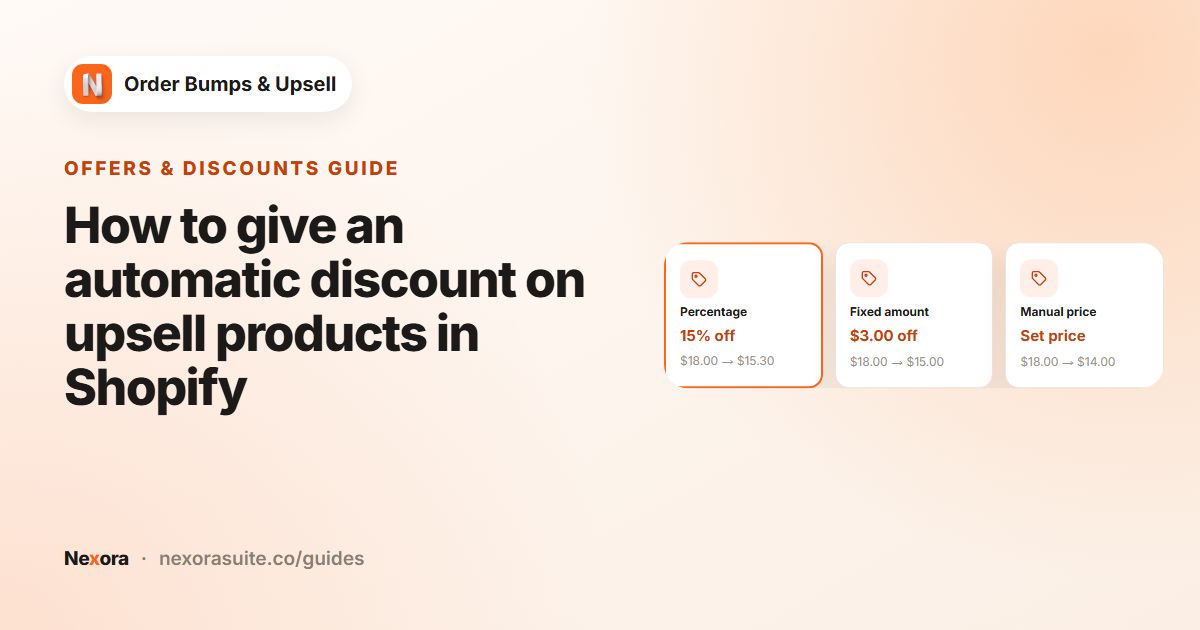
Enter a Discount % (default 10) and a Discount label (default
AI Deal). The same percentage applies to every recommended product added from this campaign. - Write the widget text
Adjust Title, Description and Button text, for example
You might also like. - Choose pages
On Display Rules, tick the Target Pages you want and set Max offers to show.
- Save and check
Click Save and open a product page. If nothing appears, check whether Shopify has recommendations for that product yet.
How recommendations are chosen on each page
| Page | Recommendations are based on |
|---|---|
| Product page | The product being viewed |
| Cart page | The highest-priced item in the cart; products already in the cart are left out |
| Checkout (Shopify Plus) | The highest-priced item in the order; products already in the order are left out |
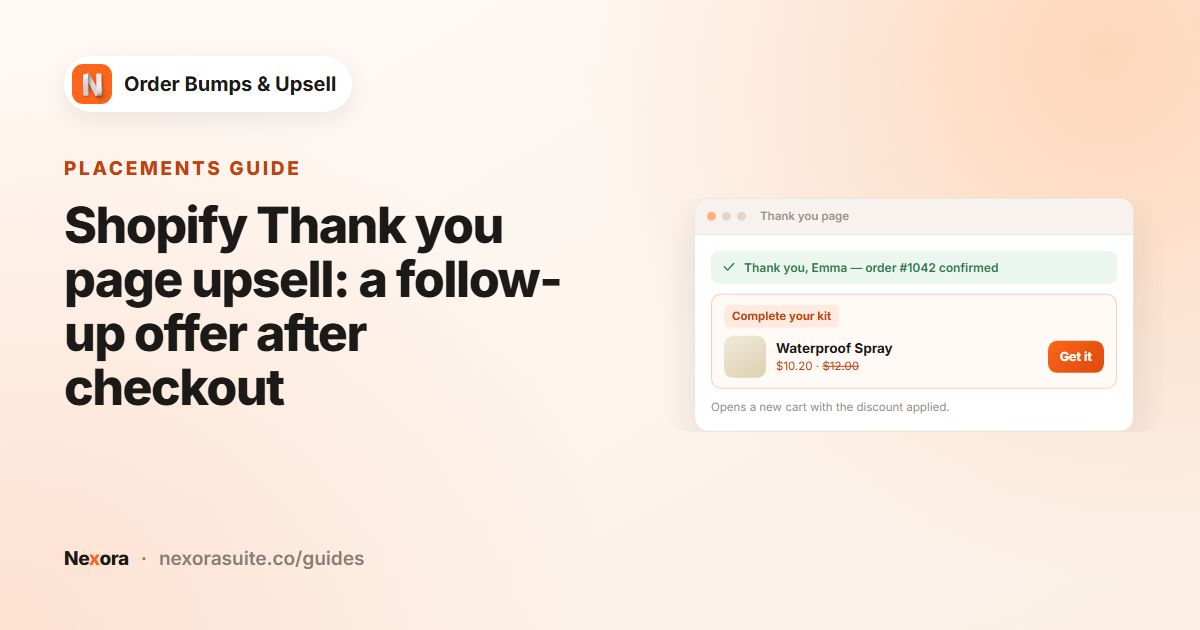
| Thank you page | The products just bought |
Example: a large catalogue with a few hand-picked exceptions
A home goods store has 600 products. It wants automatic suggestions for most of them, but a specific add-on for its best-selling kettle.
- Campaign 1 (top of the list): Manual, Specific products = the kettle, offer = descaling tablets at Manual price 4.00
- Campaign 2: AI Recommendation, Algorithm Related, Discount % 10, Discount label
10% off when added - Both campaigns target Product Page and Cart Page
On the product page the first matching campaign is shown, so the kettle page shows the hand-picked offer and every other product page shows recommendations. On the cart page, offers from both campaigns can show together.
Example 2: complementary accessories in the cart
A clothing store with 250 products has set up complementary products in Search & Discovery for its 20 best-selling jackets: scarves, gloves and a waterproofing spray.
- Type: AI Recommendation; Algorithm: Complementary
- Discount %: 15; Discount label:
Pairs well, 15% off - Title:
Complete the look; Button text:Add - Target Pages: Cart Page; Max offers to show: 3
On the cart page, suggestions come from the highest-priced item, which for this store is usually the jacket, so its accessories appear. If a cart only holds products without complementary products set up, the widget simply doesn't show.
Troubleshooting
| What you see | Why | What to do |
|---|---|---|
| Nothing shows on a product page | Shopify returned no recommendations for that product | Try Related, add complementary products, or add a Manual campaign |
| Fewer suggestions than expected | Max offers to show sets how many are requested, and on the cart page products already in the cart are skipped | Raise Max offers to show |
| Recommended products are added at full price | Discount % is 0, or the Nexora Order Bump discount is off in Shopify Discounts | Set a Discount % above 0 and keep the discount active |
| A second AI campaign never appears | Product and cart pages use one AI Recommendation campaign, so extra AI campaigns add nothing | Keep one AI campaign and use Manual campaigns for exceptions |
Tips and common mistakes
- New stores may see empty results. Shopify needs some store activity to build related recommendations. Start with a Manual campaign.
- Complementary needs setup. Add complementary products in Search & Discovery for your key products first.
- Keep the discount modest. One Discount % applies to everything recommended, including higher-priced items.
- Use priority for exceptions. Put specific Manual campaigns above a general AI campaign in Campaigns.
- Filter the list. The Type filter on Campaigns shows only Manual or only AI campaigns.
Frequently asked questions
Does the app run its own AI model?
No. AI Recommendation campaigns use Shopify's own product recommendations, the same data many themes use for "You may also like" sections.
Why does my Complementary campaign show nothing?
Shopify only returns complementary products you have set up, for example in the Shopify Search & Discovery app. Try Related or add complementary products.
Can I choose different discounts for different recommended products?
No. One Discount % applies to all products in an AI campaign. For per-product discounts, use a Manual campaign.
Will a product already in the cart be recommended on the cart page?
No. On the cart page, products already in the cart are left out.
Do recommendations work on the Thank you page?
Yes. On the Thank you page and in checkout they are based on the products being bought.
How many recommended products are shown?
Up to the number set in Max offers to show on Display Rules, if Shopify has that many recommendations.
Can customers pick a size or colour for a recommended product?
On product and cart pages, products with several variants can show a variant selector. In checkout and on the Thank you page, the first variant is offered.