What a Thank you page offer is
The Thank you page is the page customers see right after paying. They have just trusted you with an order, and they are paying attention to the confirmation. A short, well-chosen offer here can turn a single purchase into a second one.
With Nexora, this is a follow-up offer. It does not change the order that was just placed. When the customer clicks the button, your store's cart opens with the offered product already in it, with its discount, and the customer checks out again as a new order.
How Shopify handles the Thank you page
After an order is placed, Shopify doesn't let apps add items to it from the Thank you page. That is why the offer starts a new cart rather than editing the completed order.
Shopify's checkout apps guide explains that apps for the Thank you and Order status pages are available on more plans than apps for the checkout steps, which need Shopify Plus. The Nexora - Checkout Offers block can be added to the Thank you page on all Shopify plans except Shopify Starter.
| Checkout offer | Thank you page offer | |
|---|---|---|
| Shopify plan | Shopify Plus only | All plans except Shopify Starter |
| When it shows | Before payment | After the order is placed |
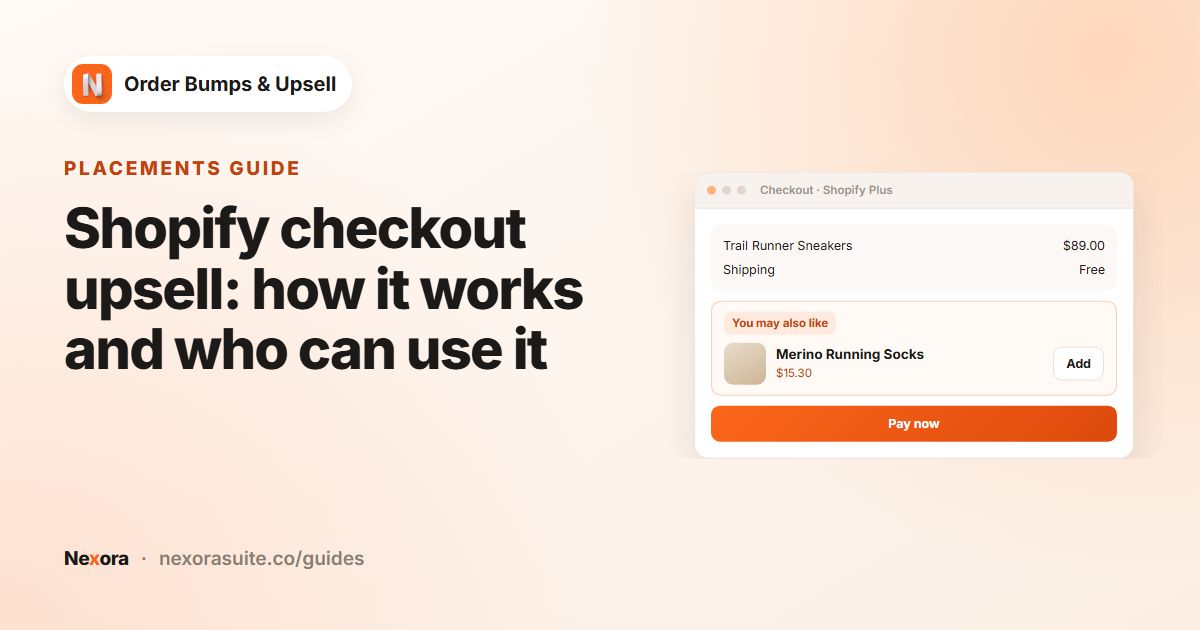
| What the button does | Adds the item to the current order | Opens the cart with the item for a new order |
| Discount | Applied automatically | Applied automatically in the new cart |
Step by step: set up a Thank you page offer
- Open the checkout editor
On the app home page, in Complete your setup, click Open checkout editor.
- Switch to the Thank you page
Use the page selector at the top of the checkout editor to switch to the Thank you page.
- Add the block
Add the Nexora - Checkout Offers app block, place it and save.
- Create a campaign
In Campaigns, click Create campaign. Use Manual to choose the product yourself, or AI Recommendation to let Shopify's recommendations choose.
- Set the offer
For Manual, add an item with When customer buys set to All products or Specific products, then add an offer and its discount.
- Tick Thank You
On Display Rules, tick Thank You under Target Pages. Untick other pages if you want this campaign to appear only after purchase.
- Save and place a test order
Save, place a test order, and click the offer on the Thank you page. Check that the cart opens with the product and its discount.
Settings for a follow-up offer
| Setting | Suggested value | Why |
|---|---|---|
| Title | For example A thank-you deal | Make it clear this is a new, optional offer |
| Button text | For example Shop this deal | Customers know they will go to the cart |
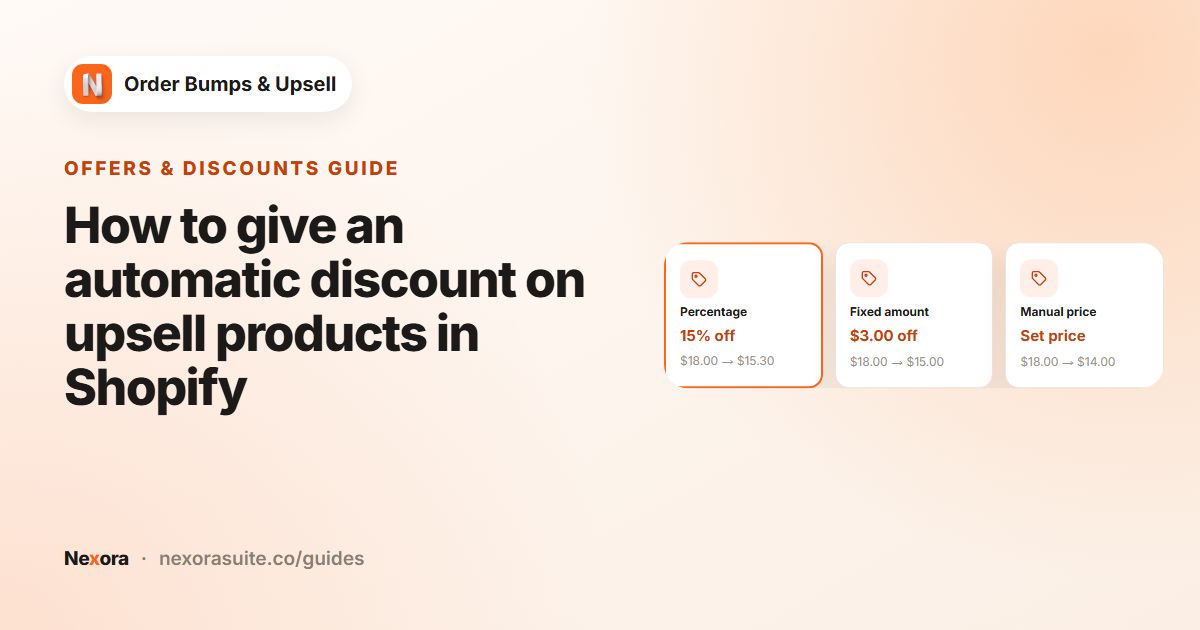
| Discount type | Percentage, for example 15 | A clear reason to come back now |
| Discount label | For example Thank-you deal | Shown on the discounted line in the new cart |
| Max offers to show | 1 or 2 | Keep the confirmation page calm |
| Cart Value | Optional minimum | Show the offer only after larger orders |
Example: a refill offer after the first order
A store selling a reusable cleaning spray bottle wants customers to stock up on refills while they remember.
- Type: Manual
- When customer buys: Specific products, the spray bottle starter kit
- Offer: refill pack, Percentage 15, Discount label
Thank-you deal - Target Pages: Thank You only
- Title:
Stock up on refills; Description:15% off if you order today
For a hands-off version, create an AI Recommendation campaign with Algorithm set to Related and a Discount % of 15. On the Thank you page, recommendations are based on the products just bought.
Second example: an add-on after larger orders
A clothing store offers socks to anyone who has just spent 60 or more, whatever they bought.
- When customer buys: All products
- Offer: a sock 3-pack, Discount type Manual price, Sale price 9.00, with Show variant dropdown on so customers pick a size
- Cart Value: Minimum 60, No maximum limit ticked
- Max offers to show: 1; Show quantity selector: off
- Title:
One more thing?; Button text:Get the socks
The quantity selector is off because a Manual price discount is worked out per cart line, so the saving doesn't grow with quantity. Use Percentage if you want it to scale.
Manual or AI Recommendation after purchase?
| Your situation | Better fit |
|---|---|
| You know what people need next (refills, spare parts, accessories) | Manual |
| You want a fixed price such as 9.00, or a fixed amount off | Manual (AI campaigns use a Discount % only) |
| A large catalogue where hand-picking pairs would take too long | AI Recommendation |
| A brand-new store with little order history | Manual, since Shopify may not have recommendations yet |
Troubleshooting a Thank you page offer
- Nothing appears after the test order. Check that the Nexora - Checkout Offers block is on the Thank you page itself, that the campaign is Activated, and that Thank You is ticked under Target Pages.
- A different campaign shows. The block shows one campaign: the first active one from the top of Campaigns that has Checkout or Thank You ticked and matches the order. Use the arrows to move your follow-up campaign up.
- The offer shows for some orders only. With Specific products, the order must contain a trigger product, and with Cart Value the total must be in range. With Hide and show next offer, a product the customer just bought is skipped, so add a second offer as a backup.
- An AI campaign shows nothing. After purchase, recommendations are based on the highest-priced item in the order, and products already in the order are left out.
- The item is full price in the new cart. Make sure the Nexora Order Bump automatic discount is still active in Discounts; saving any campaign recreates it. With Manual price, the sale price must be lower than the normal price.
- The cart opens in a new tab. That's expected: the order confirmation stays open in the original tab.
Tips and common mistakes
- Be clear that it's a new order. Wording like
Shop this dealsets the right expectation; avoidAdd to your order. - Offer something useful soon after the first purchase. Refills, spare parts and matching items make sense.
- Give a real reason. A modest discount gives customers a reason to act now rather than later.
- Check your plan. Shopify Starter can't use the Thank you page block.
- Style it on the Checkout & Thank You tab of Design Settings, which uses Shopify's built-in style choices.
Using Shopify Plus? You can show offers inside checkout too. See the checkout upsell guide.
Frequently asked questions
Does the offer add the item to the order the customer just placed?
No. Shopify doesn't let apps change a completed order. The offer opens your store's cart with the item and its discount, and the customer checks out again as a new order.
Which Shopify plans can use the Thank you page offer?
All Shopify plans except Shopify Starter.
Do I need Shopify Plus?
No. Shopify Plus is only needed for offers inside the checkout steps. The Thank you page works on other plans too.
Is the discount kept in the new cart?
Yes. The product is added with its offer discount, applied automatically at checkout.
Can Shopify choose the product for the Thank you offer?
Yes. Use an AI Recommendation campaign; on the Thank you page it recommends products based on what was just bought.
Can I show the Thank you offer only after larger orders?
Yes. On Display Rules, set a Cart Value Minimum. On the Thank you page it is checked against the order the customer just placed.