What a checkout upsell is
A checkout upsell is an offer shown inside checkout itself, usually beside the order summary. The customer clicks add, the item joins the current order with its discount, and they finish paying as usual. It is the last chance to add something before the order is placed.
Because the customer is about to pay, checkout offers work best when they are small, quick to understand and clearly related to the order: gift wrap for a present, a spare part for a device, an extra pack of the same consumable.
Plan requirements: Shopify Plus for checkout steps
Shopify decides which plans can add apps to checkout. According to Shopify's checkout apps guide, apps that customize the information, shipping and payment pages of checkout are available only on Shopify Plus. Apps for the Thank you and Order status pages are available on more plans.
| Placement | Shopify plan needed | Nexora block |
|---|---|---|
| Checkout (information, shipping, payment) | Shopify Plus only | Nexora - Checkout Offers |
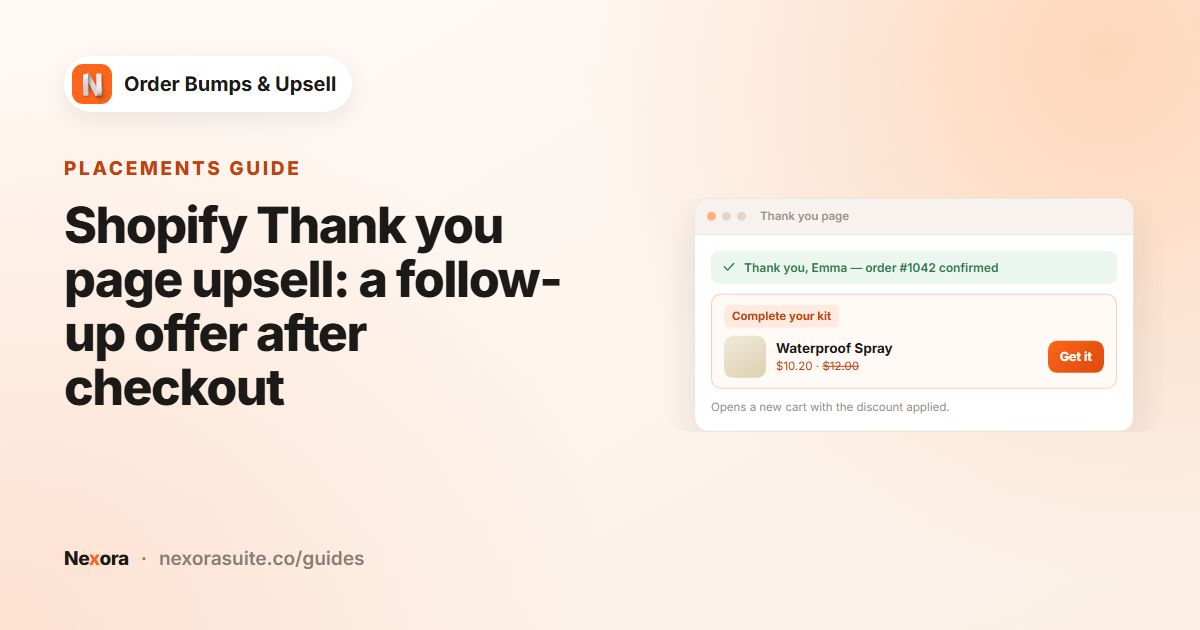
| Thank you page | All plans except Shopify Starter | Nexora - Checkout Offers |
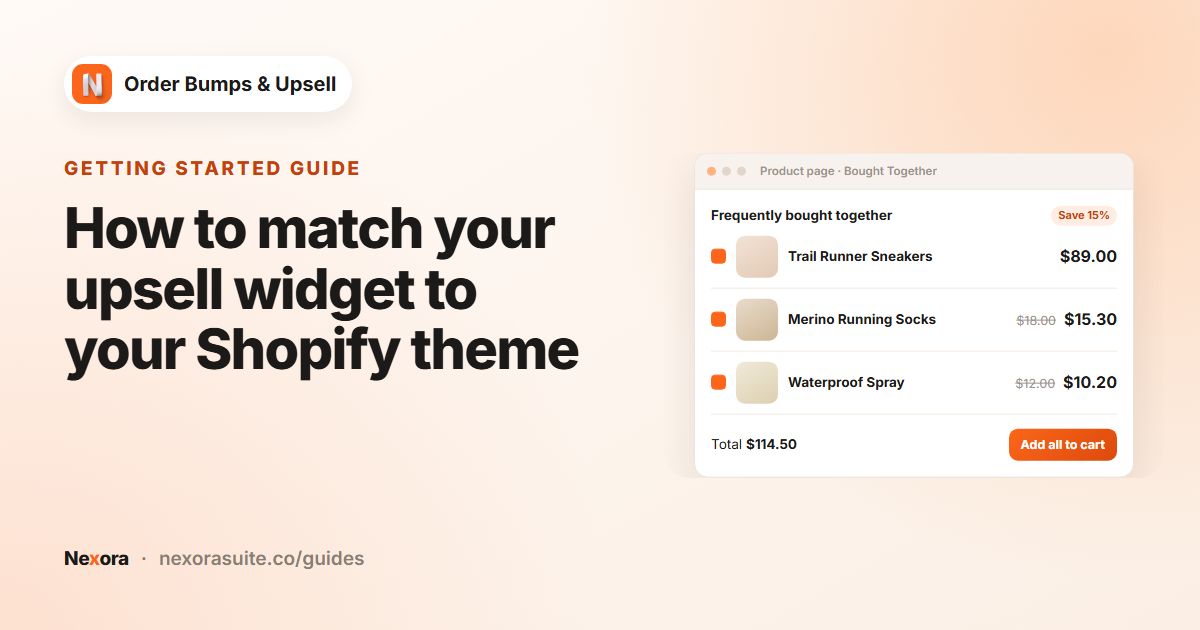
| Product page and cart page | Any plan with an Online Store 2.0 theme | Nexora - Bought Together / Nexora - Cart Offers |
If your store is not on Shopify Plus, the Checkout (Shopify Plus only) option under Target Pages is greyed out, because Shopify does not let app blocks run on the checkout steps. Use the Thank you page upsell or the cart page upsell instead.
More background is in Shopify's checkout extensibility overview.
Which placement fits the offer
| Placement | Where the offer goes | Best for |
|---|---|---|
| Checkout (Shopify Plus) | Into the current order | Small, related add-ons right before paying |
| Thank You | A new cart, so it becomes a separate order | Follow-up purchases once the order is placed |
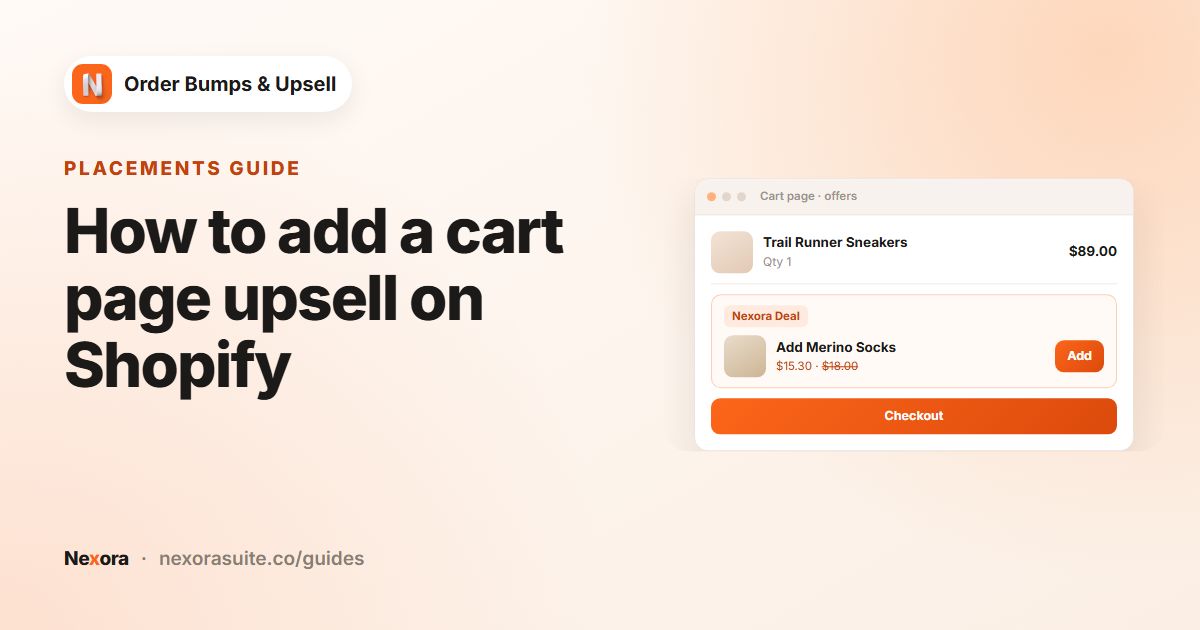
| Cart Page | Into the cart before checkout | Any plan; add-ons customers like to think about |
Step by step: add offers to checkout (Shopify Plus)
- Open the checkout editor
On the app home page, in Complete your setup, click Open checkout editor.
- Add the app block
Choose Add app block and select Nexora - Checkout Offers. Place it where you want, for example near the order summary, and save.
- Create a campaign
In Campaigns, click Create campaign. Keep Manual or choose AI Recommendation.
- Set trigger and offers
For Manual, click Add item, choose All products or Specific products under When customer buys, then Add offer and set the discount.
- Target checkout
On Display Rules, tick Checkout under Target Pages. Optionally set a Cart Value range.
- Style it
In Design Settings, open the Checkout & Thank You tab and choose spacing, container, typography and button Variant.
- Save and test
Save the campaign, add a trigger product to the cart and go to checkout.
Checkout settings and how they behave
| Setting | What happens in checkout |
|---|---|
| Add button | The product is added to the current order with its discount |
| Priority | The first active campaign from the top of Campaigns whose triggers match is shown |
| Cart Value | The campaign shows only when the order total is within the range |
| AI Recommendation | Recommendations are based on the products being bought |
| Checkout & Thank You design tab | Shopify's built-in style choices, such as Spacing, Border, Corner Radius and button Variant |
Shopify controls how checkout looks, so the checkout widget uses Shopify's own style options instead of free colors. This keeps it consistent with the rest of your checkout.
Example: gift wrap and a care kit
A Shopify Plus jewellery store offers gift wrap and a polishing cloth in checkout.
- When customer buys: All products
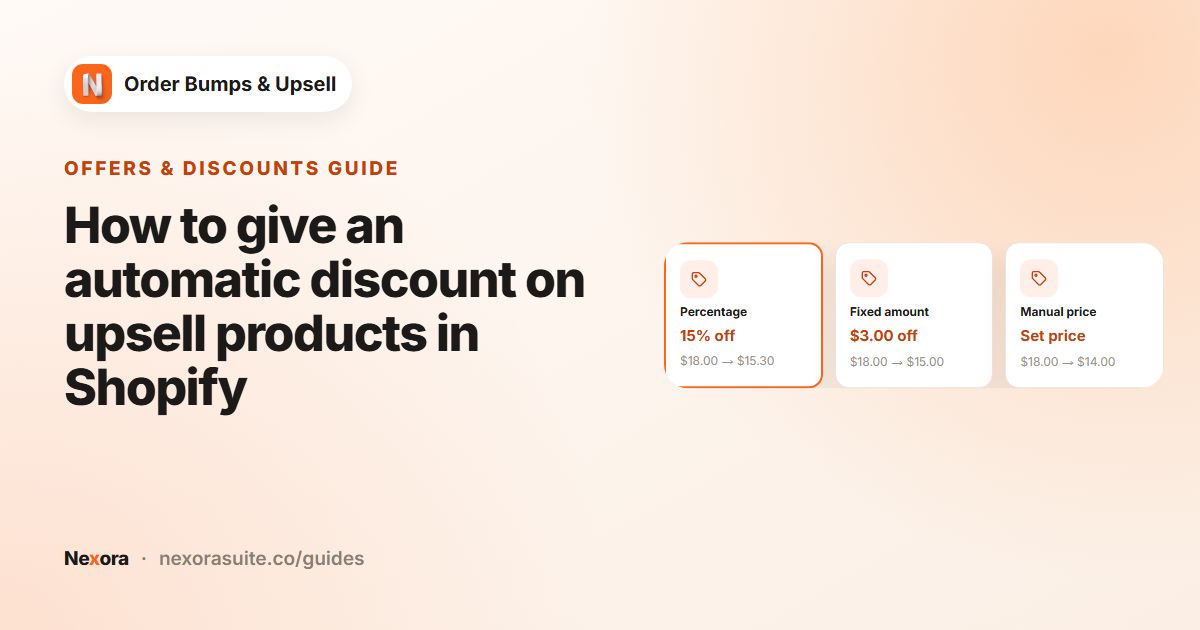
- Offers: gift wrap at its normal price (discount 0), polishing cloth at Percentage 20
- Title:
Before you go; Button text:Add - Target Pages: Checkout only
- Max offers to show: 2
The same store also ticks Thank You on a second campaign to invite a follow-up purchase after the order.
Example 2: a top-up offer for mid-sized orders
A Shopify Plus coffee store wants a small top-up in checkout only for orders between 30 and 80. Larger orders are already generous, so the campaign stays out of the way.
- When customer buys: Specific products, its three best-selling coffee bags
- Offers: the bag of the month at Fixed amount 3 off, and a filter paper pack at Manual price 2.50
- Cart Value: Minimum 30; untick No maximum limit and set Maximum 80
- Max offers to show: 2; When customer adds an offer: Hide and show next offer (recommended)
- Target Pages: Checkout only
The cart value is the total of the items in the order, so shipping doesn't count towards the range.
Troubleshooting checkout offers
| What you see | Why | What to do |
|---|---|---|
| Nothing shows in checkout | The Nexora - Checkout Offers block isn't added in the checkout editor, the campaign is off, or the order is outside the Cart Value range | Add the block, check the campaign is active, and check Minimum and Maximum |
| An offer disappears once added | With Hide and show next offer (recommended), items already in the order are hidden and the next offer takes their place | Choose Keep visible with '✓ In cart' badge to keep it on screen |
| Fewer offers than expected | Max offers to show is low, or some offer products are already in the order | Raise Max offers to show or add more offers |
| An offer is charged at full price | The Nexora Order Bump discount is off in Shopify Discounts, the discount value is 0, or a Manual price is at or above the product price | Keep the discount active and check the offer values |
| AI suggestions ignore a small item in the order | In checkout, recommendations are based on the highest-priced item, and products already in the order are left out | Use a Manual campaign for exact pairings |
Tips and common mistakes
- Check your plan first. Checkout steps need Shopify Plus. All other plans except Shopify Starter can use the Thank you page.
- Keep it to one or two offers. Checkout is about finishing; too many choices can distract.
- Don't repeat the cart offer. If a customer skipped it on the cart page, a different item in checkout makes more sense.
- Keep the Nexora Order Bump discount active in Shopify Discounts, or offers are charged at full price.
- Test with a real checkout after saving, including a variant product if you use Show Variant Selector.
Frequently asked questions
Can I add an upsell to checkout without Shopify Plus?
No. Shopify only allows app blocks on the information, shipping and payment steps for Shopify Plus stores. Use the Thank you page, cart page or product page instead.
Does the checkout offer add to the same order?
Yes. On Shopify Plus, the offer is added to the current order with its discount, and the customer finishes checkout as usual.
Can I change colors in the checkout widget?
Only within Shopify's built-in options. The Checkout & Thank You tab in Design Settings offers choices such as spacing, border, corner radius and button variant.
Can AI Recommendation campaigns show in checkout?
Yes. Recommendations in checkout are based on the products being bought.
Which block do I use for checkout?
Nexora - Checkout Offers, added with Add app block in the checkout editor.
Why is the Checkout option greyed out?
The app only lets you tick Checkout (Shopify Plus only) when your store is on Shopify Plus. On other plans, use Thank You, Cart Page or Product Page.
Does the Cart Value range include shipping?
No. It is based on the total of the items in the order.