Why the widget should look like part of your store
An offer that looks bolted on, with different colors, fonts or button shapes, can make customers hesitate. When it uses the same style as the rest of the page, it reads as a natural part of the product or cart, and customers judge the offer rather than the design.
Matching your theme is mostly about a few values: your main button color, text colors, corner radius, borders and spacing. Once those are set, every campaign uses them.
How styling works on Shopify
The Nexora blocks are app blocks inside your theme. They have no settings of their own in the theme editor; everything they show comes from your campaigns and Design Settings, so you can move a block within a section without losing setup.
| Area | Who controls the look | Where to change it |
|---|---|---|
| Product page widget | You, freely | Design Settings → Product Page tab |
| Cart page widget | You, freely | Design Settings → Cart Page tab |
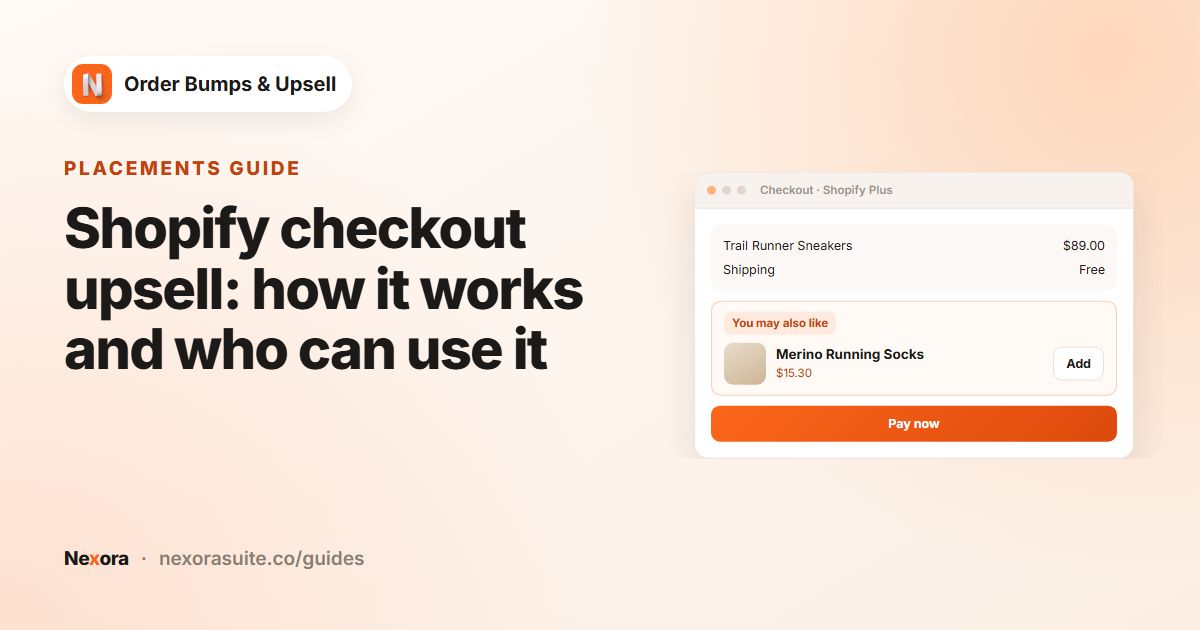
| Checkout and Thank you widget | Shopify, with built-in options | Design Settings → Checkout & Thank You tab, plus your checkout branding in Shopify |
Shopify controls checkout styling for all apps. You can adjust your checkout's overall look in Shopify; see checkout style.
Step by step: match the widget to your theme
- Note your theme's values
Open your store and note the main button color, text color, button corner radius and the font sizes of product titles and prices. Your theme editor's Theme settings usually lists colors.
- Open Design Settings
In the app, go to Design Settings and open the Product Page tab. The preview updates as you change values.
- Set the container
Under Main Container, set Background (often transparent or your page color), Border Style, Border Radius and padding to match your other sections.
- Set text
Under Header & Badge, set Title Color, Title Font Size and Title Font Weight to match your headings.
- Set cards and prices
Under Product Item Card and Pricing & Selectors, match card borders, Image Border Radius, Sale Price Color and Compare Price Color.
- Match the button
Under Call-to-Action Button, copy your theme's button Background, Text Color and Border Radius, and pick a Button Position.
- Sync the cart page
Open the Cart Page tab and click Sync settings from Product Page. Adjust anything that should differ, then click Save.
- Set your theme for cart updates
Go to Settings, choose your theme in Your theme and click Save.
Design settings reference
| Group | Settings to match first |
|---|---|
| General | Alignment, Item Gap |
| Main Container | Width, Background, Border Style, Border Color, Border Radius, padding, Margin Top, Margin Bottom |
| Header & Badge | Title Color, Title Font Size, Title Font Weight, badge colors |
| Product Item Card | Card Background, Border Color, Border Radius, Image Border Radius, product title Color and Font Size |
| Pricing & Selectors | Sale Price Color, Compare Price Color, input Border Color and Border Radius |
| Call-to-Action Button | Background, Text Color, Border Radius, Button Position |
| Carousel Options | Show Arrows, Show Dots and their colors (Carousel layout only) |
Checkout & Thank You tab
Here you choose from Shopify's options: Spacing (None, Tight, Base, Loose), Alignment, container Background (Transparent or Subdued), Border, Corner Radius, Image Aspect Ratio, and the button Variant (Auto, Primary, Secondary).
Theme presets and custom themes
When a customer adds an offer on the product or cart page, the app updates your theme's cart count, and its cart drawer if it has one. Settings includes ready-made setups for 26 popular themes, including Dawn, Horizon, Impulse, Prestige, Symmetry, Turbo and Warehouse.
| Advanced override | Use it when |
|---|---|
| Open drawer | Your theme opens its cart with a different button or event |
| Cart count selector | The cart count bubble doesn't update after adding |
| After-add hooks | Theme sections need refreshing, for example cart-icon-bubble |
If your theme isn't listed, choose Custom and click Show next to Advanced overrides. For heavily customized themes, contact us on live chat and we can help.
Tips and common mistakes
- Start with the button. Matching the button color and radius does most of the work.
- Keep the badge subtle. A loud badge can clash with your theme's own sale badges.
- Check mobile. Look at the product page on a phone after saving; Button Position set to Below quantity input can help on narrow screens.
- Not sure of your theme? In Shopify admin, go to Online Store → Themes; the name shows on your current theme.
- Write in your customers' language. All widget text is free text, so type it in any language.
Frequently asked questions
Can I style the product page and cart page widgets differently?
Yes. Each has its own tab in Design Settings. Use Sync settings only if you want them to match.
Why can't I pick any color for the checkout widget?
Shopify controls checkout styling, so the Checkout & Thank You tab offers Shopify's built-in options.
Do design changes apply to all campaigns?
Yes. Design Settings is shared by every campaign. Layout choices like Stack or Carousel are set per campaign on Display Rules.
My cart count doesn't update after adding an offer.
Choose your theme in Settings and save. If it isn't listed, choose Custom and fill in Advanced overrides, or contact us.
Do I need to edit theme code?
No. Styling is done in Design Settings, and theme compatibility in Settings.