Why the cart page is a good place for upsells
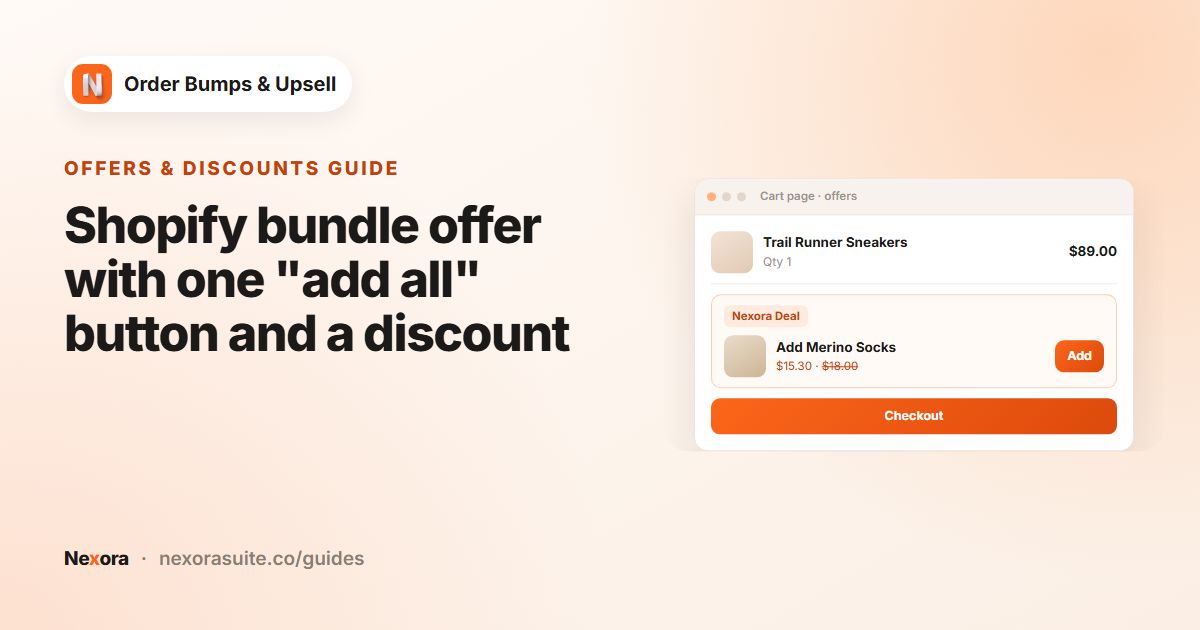
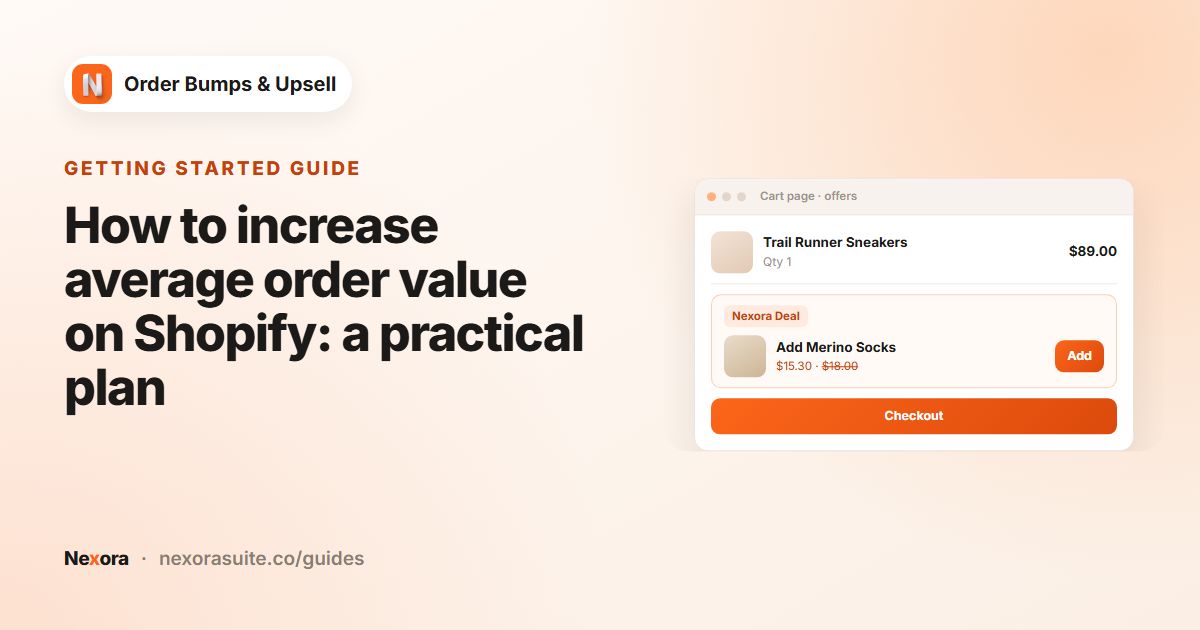
By the time customers open the cart, they have chosen what they want. That makes it a natural moment to suggest something that completes the order: the matching accessory, a refill, or a small item that brings the cart closer to your free-shipping threshold.
Because the cart page knows everything the customer has picked, offers can react to the whole order rather than a single product. A cart with a coffee machine can show descaling tablets; a cart with only beans can show a grinder.
Your options on Shopify
Shopify's themes don't usually include an upsell area on the cart page. Some themes let you add a product recommendations or featured collection section to the cart template, which shows products but doesn't react to the cart contents or give a discount on the added item.
You can also show a message about a free-shipping threshold or a discount you have set up, but customers still have to go back to the catalogue to add anything.
| Theme section on cart template | Nexora - Cart Offers | |
|---|---|---|
| Reacts to cart contents | No | Yes, through the campaign trigger |
| Add without leaving the cart | Usually no | Yes |
| Hide offers already in the cart | No | Yes, for AI Recommendation campaigns |
| Show only for certain cart values | No | Yes, with Cart Value |
| Discount on the added item | No | Yes, applied automatically |
Step by step: set up a cart page upsell
- Add the cart block
On the app home page, in Complete your setup, click Open theme editor next to Add to Cart Page. Click a section on the cart template, choose Add block, select Nexora - Cart Offers and save.
- Pick your theme
Open Settings, choose your theme in Your theme and click Save, so the cart refreshes correctly after an offer is added.
- Create or open a campaign
In Campaigns, click Create campaign (or edit an existing one) and keep Manual.
- Set the trigger
Click Add item. Choose All products to show the offer for any cart, or Specific products to show it only when one of the chosen products is in the cart.
- Add offers
Click Add offer, select the products to suggest and set the Discount type, value and Discount label.
- Target the cart page
On Display Rules, tick Cart Page under Target Pages. Untick other pages if this campaign is meant for the cart only.
- Set a cart value range (optional)
Under Cart Value, set a Minimum and either a Maximum or tick No maximum limit. Use 0 and no maximum to show it for every cart.
- Save and test
Click Save, add a trigger product to your cart and open the cart page.
How cart offers are chosen
| Situation | What the cart page shows |
|---|---|
| Several campaigns match the cart | Offers from all matching campaigns, shown together using the layout settings of the highest-priority campaign |
| Several items in one campaign match | Their offers are combined into one widget |
| AI Recommendation campaign | Recommendations based on the highest-priced item in the cart; products already in the cart are left out |
| Cart total outside the Cart Value range | The campaign is hidden until the cart total is within the range |
Triggers on the cart page use All products or Specific products. Collection triggers apply to the product page only.
Example: nudging carts toward free shipping
A store offers free shipping above 60. Carts between 40 and 60 are close, so the store shows low-priced extras there.
- When customer buys: All products
- Offers: three small items priced 8 to 15, each at Percentage 10
- Title:
Add a little extra; Description:Free shipping from 60 - Target Pages: Cart Page only
- Cart Value: Minimum 40, Maximum 60
- When customer adds an offer: Hide and show next offer (recommended)
Once the cart passes 60, the campaign hides itself, so customers who already qualify aren't shown it.
Tips and common mistakes
- Add the block to the cart template, not the product template. The cart uses Nexora - Cart Offers.
- Keep cart offers cheaper than the cart. Small extras are easier to accept at this stage.
- Check Cart Value first if an offer doesn't appear. A minimum that is too high hides the campaign.
- Use priority. The highest-priority matching campaign decides the cart widget's layout, so keep your main cart campaign at the top of Campaigns.
- Use Design Settings. On the Cart Page tab, click Sync settings from Product Page to make both widgets match.
Frequently asked questions
Which block do I add for the cart page?
Nexora - Cart Offers, added to a section of the cart template in the theme editor.
Can I show offers only for bigger carts?
Yes. Use Cart Value on the Display Rules tab to set a minimum and, if you like, a maximum cart total.
Why do I see offers from more than one campaign?
On the cart page, offers from all matching campaigns are shown together. Use the campaign switch or Target Pages to keep a campaign off the cart.
Can I use collection triggers on the cart page?
No. Collection triggers work on the product page only. On the cart page, use All products or Specific products.
Does the cart count update after a customer adds an offer?
Yes, when your theme is set in Settings. If your theme isn't listed, choose Custom and fill in Advanced overrides, or contact us on live chat.