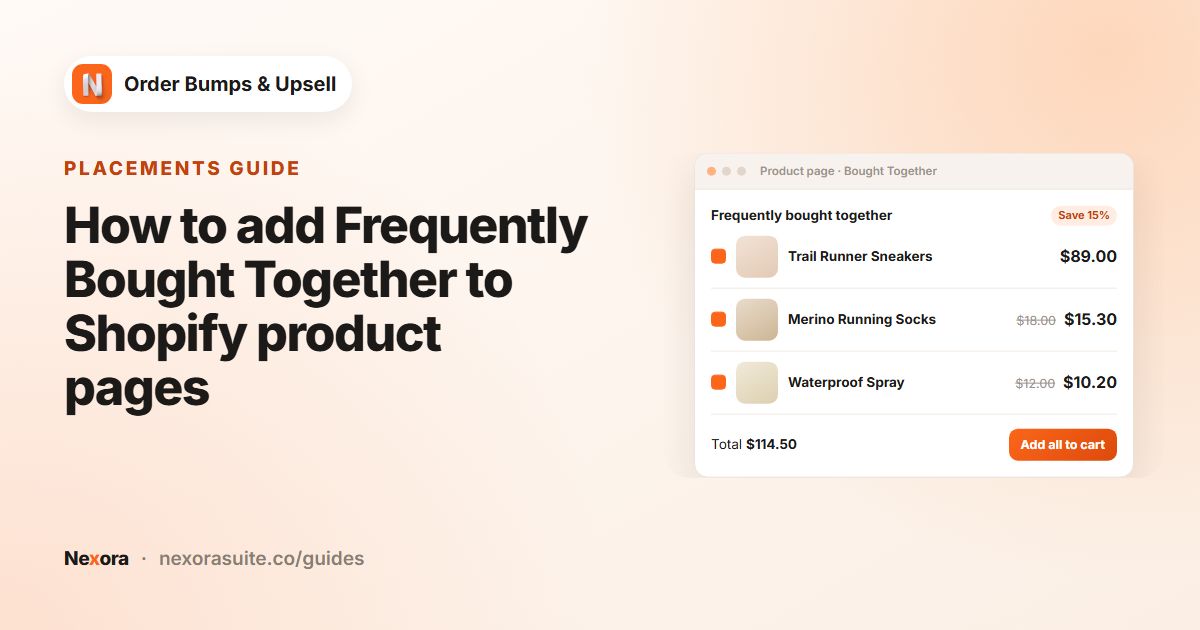
What an add-all bundle offer is
A bundle offer groups several add-ons that belong together, such as a shampoo, conditioner and hair mask, and lets the customer add all of them in one click. Customers can untick anything they don't want, so it never feels forced.
This is different from a fixed bundle product. The customer keeps buying the main product as usual, and the extras are separate cart lines, each at its own offer price. That keeps your inventory and product catalogue unchanged.
Your options on Shopify
Shopify offers a free Shopify Bundles app for creating fixed bundles and multipacks, which are sold as their own product. That is a good fit when the bundle is always the same set and you want it listed in your catalogue.
Native automatic discounts can also reward buying several products, but customers still have to find and add each one, and you need to explain the deal yourself.
| Approach | Good for | Limits |
|---|---|---|
| Shopify Bundles | Fixed sets sold as one product | Customers can't untick items; a new product to manage |
| Automatic discount only | Simple store-wide promotions | No add button; customers add items one by one |
| Nexora Bundle mode | Optional add-ons next to a product or in the cart | Extras stay separate lines; works with the Stack layout only |
Step by step: a bundle with one add button
- Create the campaign
Go to Campaigns, click Create campaign and keep Manual as the type.
- Set the trigger
Click Add item. In When customer buys, choose Specific products and select the main product, or All products for a store-wide bundle.
- Add each bundle item as an offer
Click Add offer for every item in the bundle, choose the product with Select product, and set a Discount type and value for each.
- Turn on Bundle mode
Open Display Rules. Set Layout to Stack and Selection mode to Bundle.
- Show all items
Set Max offers to show to at least the number of items in your bundle, so nothing is hidden.
- Choose pages
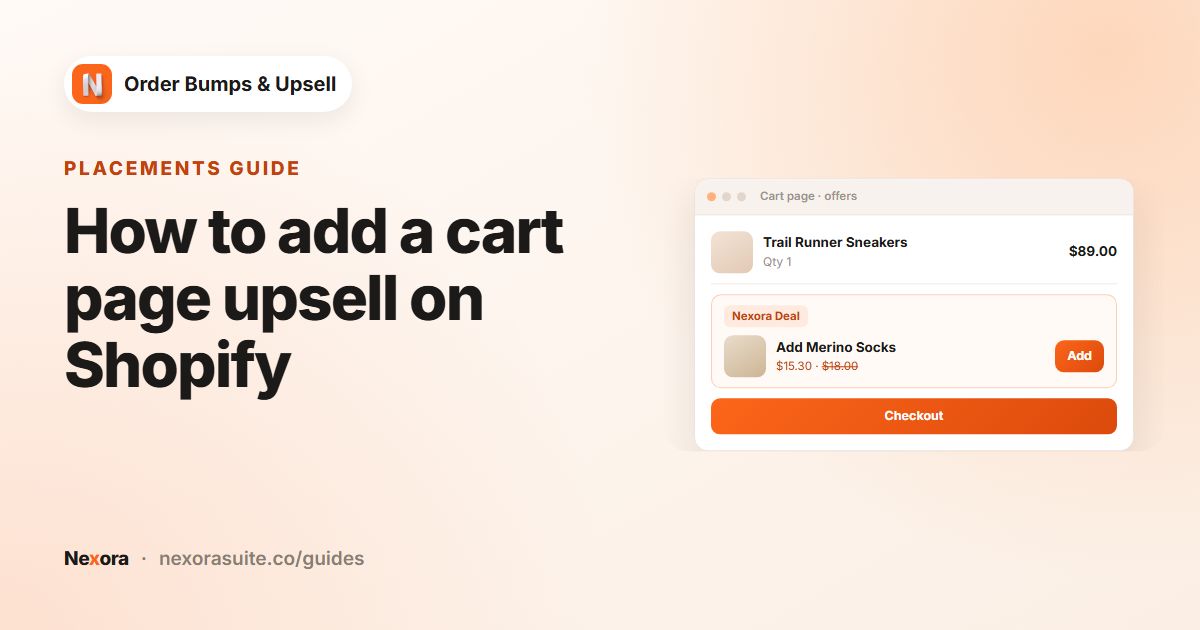
Under Target Pages, tick Product Page, Cart Page or both, and make sure the matching Nexora block is added to your theme.
- Save and test
Click Save, open the page, tick and untick a few items, and add them. Check the cart shows each item with its Discount label.
Bundle settings
| Setting | Value for a bundle | Why |
|---|---|---|
| Layout | Stack | Bundle mode works with Stack only |
| Selection mode | Bundle | Adds checkboxes and one shared button |
| Max offers to show | Number of bundle items (1 to 10) | So the full set is visible |
| Button text | For example Add selected to cart | Tells customers the button adds all ticked items |
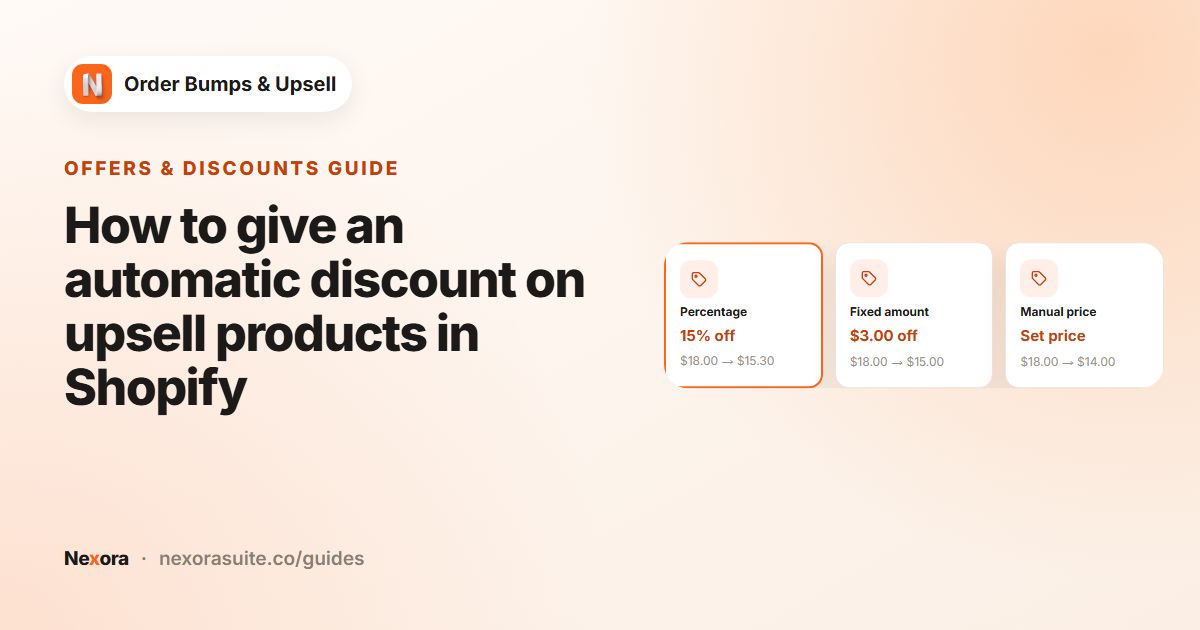
| Discount type | Same type on every offer | Easier to explain, for example 15% off each |
| Show compare-at price | On | Shows the saving on each item |
| Show badge / Badge text | For example Bundle deal | Draws attention to the set |
Shared button or the theme's Add to cart?
On the product page you can also turn on Combine with Add to Cart button under Product page behavior. The two set-ups behave differently:
| Shared bundle button | Combine with Add to Cart button | |
|---|---|---|
| Checkboxes start | Unticked | Ticked |
| How items are added | Customer clicks the bundle button | Together with the main product, when the customer clicks the theme's add to cart button |
| Pages | Product page and cart page | Product page only |
| Best for | Optional extras | Add-ons most buyers want with the product |
Example: a skincare routine bundle
A skincare store wants to offer the rest of a routine on the cleanser's product page and on the cart page.
- When customer buys: Specific products, the cleanser
- Offers: toner, serum and moisturiser, each at Percentage 15
- Discount label:
Routine deal - Title:
Complete the routine; Button text:Add selected - Layout: Stack; Selection mode: Bundle; Max offers to show: 3
- Target Pages: Product Page and Cart Page
To show the bundle on the cart page only for larger orders, untick Product Page and set a Minimum under Cart Value, for example 50. Cart value only applies on the cart page, checkout and Thank you page.
Example 2: a camera kit on the cart page
A camera store offers kit items in the cart once someone has a camera body worth 400 or more in it.
- When customer buys: Specific products, its two camera bodies
- Offers: memory card at Manual price 19.00, spare battery at Fixed amount 10, camera bag at Percentage 20, each with the Discount label
Kit price - Layout: Stack; Selection mode: Bundle; Max offers to show: 3; Button text:
Add kit items - Target Pages: Cart Page only; Cart Value Minimum 400; When customer adds an offer: Keep visible with '✓ In cart' badge
A customer who adds two spare batteries still saves 10 in total on that line, not 10 each, because Fixed amount applies per cart line. That suits a kit where most people want one of each; if extra quantities are common, use Percentage instead.
How the bundle widget behaves
| What you see | Why | What to do |
|---|---|---|
| The bundle button is greyed out | No item is ticked yet. Once items are ticked, the button shows how many, for example Add selected (2). | Tick at least one item |
| An item can't be ticked | The chosen variant is out of stock, so its checkbox is disabled | Pick another variant, or restock |
| The ticks clear after adding | The button briefly shows your Success message (default Added!), then the checkboxes reset | Expected |
| An item added from its own product page isn't discounted | Offer discounts apply only to items added through the Nexora widget | Point customers to the bundle, or use a separate Shopify discount |
| A Manual price item isn't discounted | The manual price is at or above the product's price | Set a lower price |
Tips and common mistakes
- Bundle needs Stack. The editor turns off Carousel while Bundle is selected, and the other way round. Switch to Stack first.
- Keep the set small. Three or four items are easier to understand than ten.
- Use Percentage if quantities may grow. Fixed amount and Manual price are worked out per cart line, so the saving doesn't increase with quantity.
- Write a clear button label.
Add selectedmakes it obvious that unticked items are left out. - Choose what happens after adding. Hide and show next offer (recommended) keeps the widget tidy; Keep visible with '✓ In cart' badge shows what was added.
Frequently asked questions
Can customers remove items from the bundle before adding?
Yes. In Bundle mode every offer has a checkbox, and only ticked items are added.
Does Bundle mode work with the Carousel layout?
No. Bundle works with the Stack layout only.
Is the bundle one product or several cart lines?
Several cart lines. Each item is added as its own line with its own offer discount.
Can each item in the bundle have a different discount?
Yes. Every offer has its own Discount type and value.
Will the bundle discount stack with my other promotions?
The Nexora Order Bump discount is set to combine with order, product and shipping discounts, so your other promotions can still apply.
Why is the bundle button greyed out?
Checkboxes start unticked, so the button stays disabled until the customer ticks at least one item.
Can bundle items be added with the theme's Add to cart button?
Yes, on the product page. Turn on Combine with Add to Cart button; items then start ticked and are added together with the main product.