Why the discount should apply only to the upsell
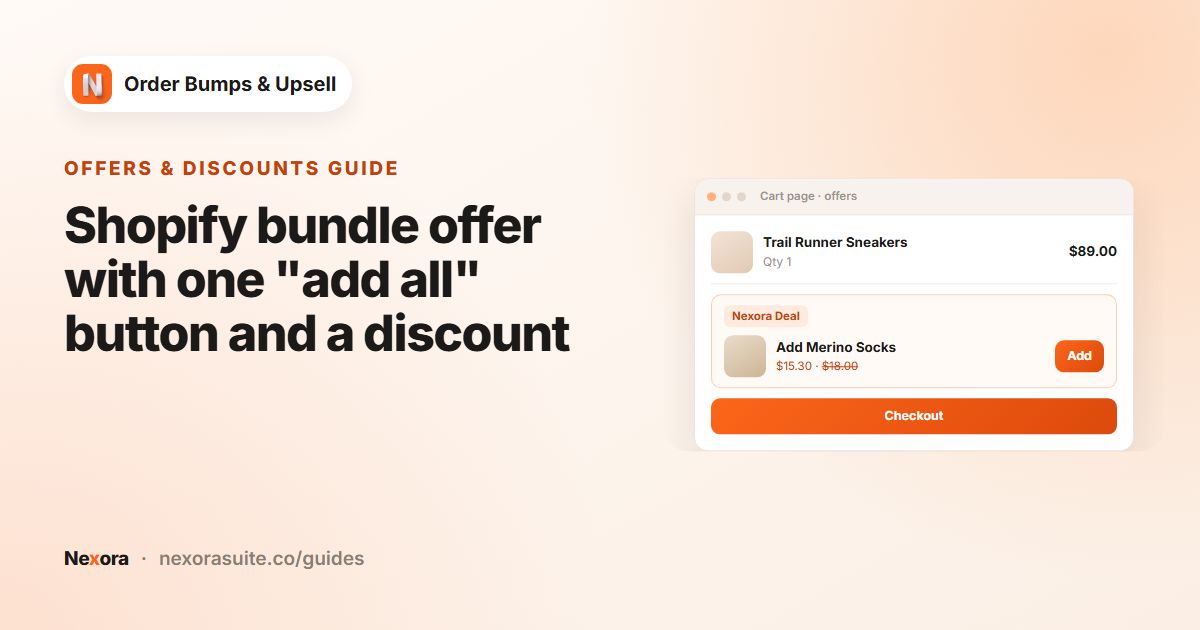
An upsell discount is a reward for accepting the offer. If the same product were cheaper for everyone, there would be no reason to add it from the offer, and you would give away margin on orders that would have happened anyway.
The ideal setup is: the customer sees a reduced price on the offer, adds it, and the reduced price appears in the cart and at checkout without any code. A customer who adds the same product from its own product page pays the normal price.
Your options on Shopify
Shopify's built-in discount types include amount off products, Buy X get Y, amount off order and free shipping. Buy X get Y comes closest to an upsell deal: buy one product, get another at a discount. It works well for simple, store-wide promotions.
The limit is that native discounts look at what is in the cart, not where an item was added from. Shopify also lets apps create their own discount logic; see discounts with apps. Nexora uses this to discount only items added from an offer.
| Buy X get Y | Nexora Order Bump discount | |
|---|---|---|
| Applies to | Any qualifying item in the cart | Only cart lines added from a Nexora offer |
| Needs a code | Optional (automatic or code) | No, it is automatic |
| Different discount per offer | One rule per discount | Each offer has its own type and value |
| Shown to customers | Discount title | Your Discount label on the offer and the cart line |
Step by step: set a discount on an offer
- Open a campaign
In Campaigns, click Create campaign or Edit on an existing Manual campaign.
- Add or open an offer
Inside an item, click Add offer and choose the product with Select product.
- Choose the discount type
Set Discount type to Percentage, Fixed amount or Manual price.
- Enter the value
Type the percentage or amount in Discount value, or the price to charge in Sale price for Manual price.
- Write a label
Enter a Discount label, such as
Bundle price. Customers see it on the offer and next to the discounted cart line. - Save
Click Save. The app checks that the Nexora Order Bump automatic discount exists in Discounts in your Shopify admin, and creates it if needed.
- Test
Add the offer on your store and check the reduced price and label in the cart and at checkout.
The three discount types compared
| Discount type | What the customer pays | Example | With quantity 2 |
|---|---|---|---|
| Percentage | Offer price minus the percentage | 20% off a 25.00 item = 20.00 | The saving scales: 10.00 off in total |
| Fixed amount | Offer price minus a set amount | 5.00 off a 25.00 item = 20.00 | 5.00 off the line in total, not per item |
| Manual price | The Sale price you set | Sale price 19.00 on a 25.00 item | Worked out per cart line, so the saving doesn't grow |
Fixed amount and Manual price are worked out per cart line. If you turn on Show quantity selector and want the saving to grow with quantity, use Percentage.
- With Manual price, if the sale price is not lower than the normal price, no discount is applied.
- Set the discount value to 0 to offer an item at its normal price.
- AI Recommendation campaigns use one Discount % for every recommended product, with its own Discount label.
Combining with your other discounts
The Nexora Order Bump discount is set to combine with order, product and shipping discounts. Shopify also checks the settings of your other discounts: they need to allow combining with product discounts for both to apply. See Shopify's guide to discount combinations.
Shopify limits how many automatic discounts can be active at once, and app discounts count toward that limit. Nexora uses a single automatic discount for all campaigns.
Example: three offers, three discount types
- Phone case on phone pages: Manual price, Sale price 9.99, label
Bundle price - Screen protector: Fixed amount 3.00, label
3 off with your phone - Charging cable: Percentage 15, label
15% off when added, with Show quantity selector on so the saving scales
Tips and common mistakes
- Don't delete or deactivate Nexora Order Bump. Offers still appear but are charged at full price. Saving any campaign recreates it.
- Turn on Show compare-at price so customers see the saving on the offer.
- Keep labels short. They appear next to the cart line.
- Products added on their own are never discounted. Only lines added from an offer get the price.
- Check combinations if another promotion stops working alongside an offer.
Frequently asked questions
Do customers need a discount code for upsell prices?
No. The Nexora Order Bump automatic discount applies the price at checkout without a code.
Will the discount apply if a customer adds the product normally?
No. Only cart lines added from a Nexora offer are discounted.
Why didn't my Fixed amount discount double with quantity 2?
Fixed amount and Manual price are worked out per cart line. Use Percentage if you want the saving to grow with quantity.
Does it work with my other discounts?
It is set to combine with order, product and shipping discounts. Your other discounts also need to allow combining for both to apply.
The offer was added but shows full price. What happened?
Check that Nexora Order Bump is active in Discounts and that the offer has a value above 0. Saving any campaign recreates the discount if it is missing.