What an upsell is and why it is worth setting up
An upsell is an extra offer shown to a customer who is already buying: a case for the phone, a refill for the bottle, a second pair at a lower price. The customer has already decided to buy from you, so a relevant suggestion at the right moment can feel helpful rather than pushy.
On Shopify, upsells usually appear in one of four places: on the product page next to the buy button, on the cart page, inside checkout, and on the Thank you page after the order is placed. Each place reaches the customer at a different moment, and each has different rules on Shopify.
- Product page: the customer is still deciding. Small, closely related add-ons work best.
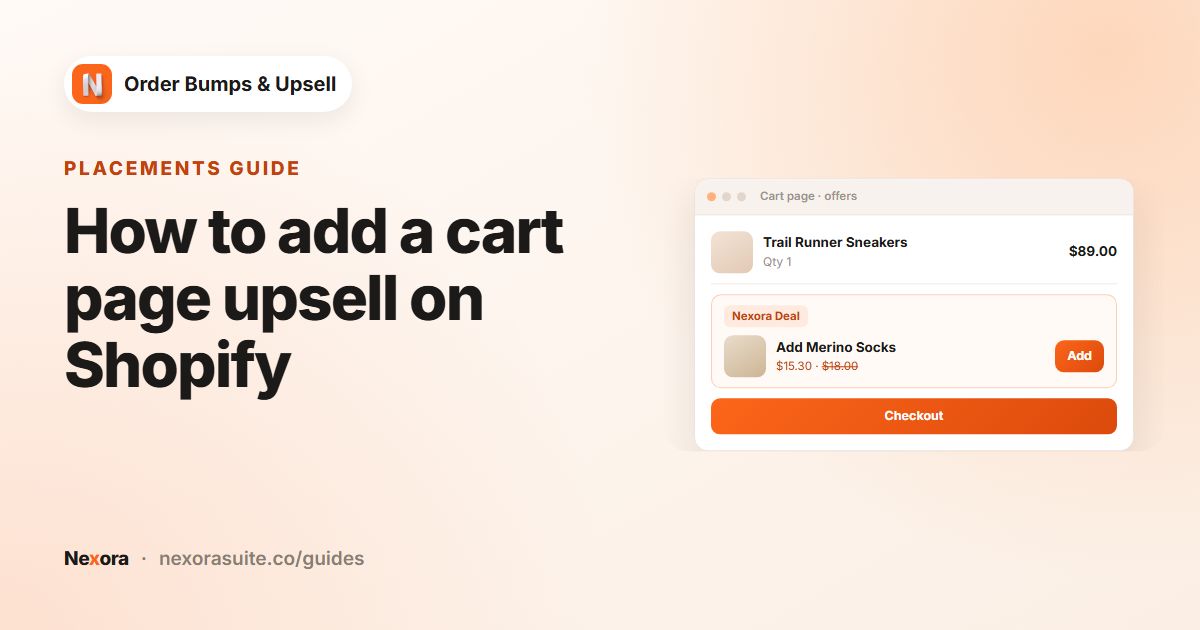
- Cart page: the customer has chosen. A useful accessory or a bundle of extras fits here.
- Checkout: the last moment before payment. Only available to apps on Shopify Plus.
- Thank you page: the order is done. A follow-up offer invites a second, separate purchase.
Your options on Shopify
Shopify has some built-in tools that come close to upsells. Many themes include a product recommendations section, and Shopify's Search & Discovery app lets you choose complementary products for it. Native discounts such as Buy X get Y can reward customers for adding a second product.
What these tools don't do is combine the two: a recommendation section links to other product pages, and a discount has to be explained somewhere else. An upsell app puts the offer, the price and an add button in one place, so the customer can add the item without leaving the page.
| Need | Built-in Shopify | Nexora Order Bumps & Upsell |
|---|---|---|
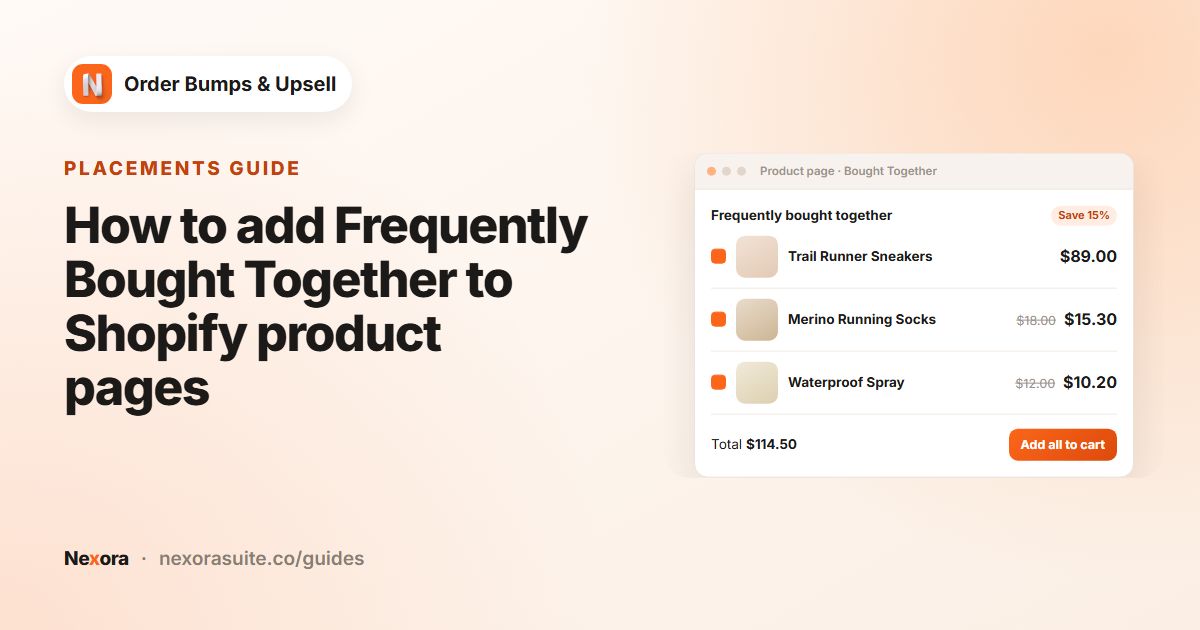
| Show related products on the product page | Theme recommendations section (depends on theme) | Nexora - Bought Together block |
| Add an extra item without leaving the page | No, customers open the other product | Yes, with an add button on each offer |
| Discount only on the offered item | Possible with a discount you set up and explain yourself | Applied automatically by the Nexora Order Bump discount |
| Offers on the cart page | Depends on theme | Nexora - Cart Offers block |
| Offers in checkout | Apps only, on Shopify Plus | Nexora - Checkout Offers block (Shopify Plus) |
Step by step: your first upsell with Nexora
Install the free app from the Shopify App Store. The whole setup takes about 10 to 15 minutes. You need an Online Store 2.0 theme to add app blocks in the theme editor.
- Add the product page block
On the app home page, in Complete your setup, click Open theme editor next to Add to Product Page. Click a section on the product template, choose Add block, select Nexora - Bought Together and save the theme.
- Add the cart page block (optional)
Click Open theme editor next to Add to Cart Page and add Nexora - Cart Offers to a section of the cart template.
- Pick your theme
Open Settings, choose your theme in Your theme and click Save, so the cart count updates after an offer is added.
- Create a campaign
Go to Campaigns, click Create campaign, enter a Campaign name and keep the type on Manual.
- Choose the trigger
Click Add item. In When customer buys, choose All products to show the offer everywhere, or Specific products to show it only for the products you pick.
- Add the offer
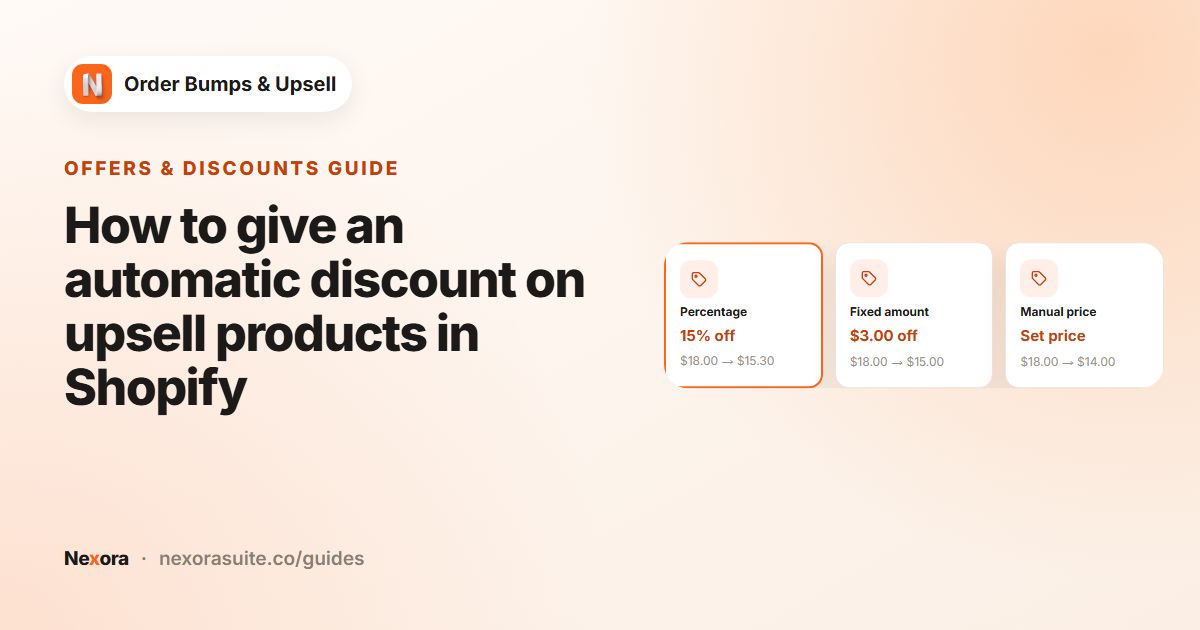
Click Add offer, then Select product and choose the product to offer. Set the Discount type, the Discount value and a Discount label.
- Choose where it appears
Open the Display Rules tab. Under Target Pages, tick the pages you want: Product Page, Cart Page, Checkout (Shopify Plus only) or Thank You.
- Activate and save
Check that the switch next to the title shows Activated, then click Save. Open a product page on your store to see the offer.
Settings that matter for a first upsell
| Setting | Where | Suggested start |
|---|---|---|
| Type | Content tab | Manual, so you control exactly what is offered |
| When customer buys | Item | Specific products for a precise add-on, All products for a store-wide offer |
| Discount type | Offer | Percentage, for example 10 |
| Discount label | Offer | Short and clear, such as 10% off when added |
| Layout | Display Rules | Stack for one to three offers |
| Max offers to show | Display Rules | 2 or 3, so the widget stays light |
| When customer adds an offer | Display Rules | Hide and show next offer (recommended) |
Example: a coffee shop's first upsell
A store selling coffee beans wants to offer a reusable filter with every bag. The setup looks like this:
- Campaign name:
Filter with beans - When customer buys: Specific products, all coffee bean products
- Offer: the reusable filter, Manual price with a Sale price of 6.00
- Discount label:
Bundle price - Target Pages: Product Page and Cart Page
- Product page behavior: Combine with Add to Cart button turned on, so the filter is added together with the beans when the customer uses the theme's own Add to cart button
Tips and common mistakes
- Offer something that completes the purchase. Accessories, refills and add-ons usually make more sense than a random bestseller.
- Keep the price of the add-on lower than the main product. A small extra is an easier yes.
- Add the block to the template your products actually use. If you have several product templates, add Nexora - Bought Together to each one.
- Check Target Pages. A campaign only shows on pages that are ticked and that have the matching block.
- Don't delete the Nexora Order Bump discount in Shopify Discounts. Without it, offers are charged at full price. Saving any campaign recreates it.
Want to go further? See the cart page upsell guide and the full tutorial.
Frequently asked questions
Do I need to edit theme code to add upsells?
No. You add the Nexora blocks in the theme editor and checkout editor, and everything else is set up in the app.
Is the app free?
Yes. Nexora Order Bumps & Upsell is free, with no limits on campaigns or offers.
Can I show upsells in checkout on any plan?
No. Shopify only allows apps on the checkout steps for Shopify Plus stores. On other plans, use the product page, cart page or Thank you page.
Do customers need a discount code?
No. The discount is applied automatically at checkout by the Nexora Order Bump automatic discount, and only to items added from an offer.
Why is my upsell not showing?
Check that the block is on the right template, the campaign is Activated, the page is ticked under Target Pages and the trigger matches the product.