
Before you start
- Install Nexora Order Bumps & Upsell from the Shopify App Store.
- Decide which products you want to offer and which products should trigger them.
- Use an Online Store 2.0 theme so you can add app blocks in the theme editor.
- Check your plan: checkout offers need Shopify Plus; the Thank you page works on all plans except Shopify Starter.
Getting started
- Add the product page block
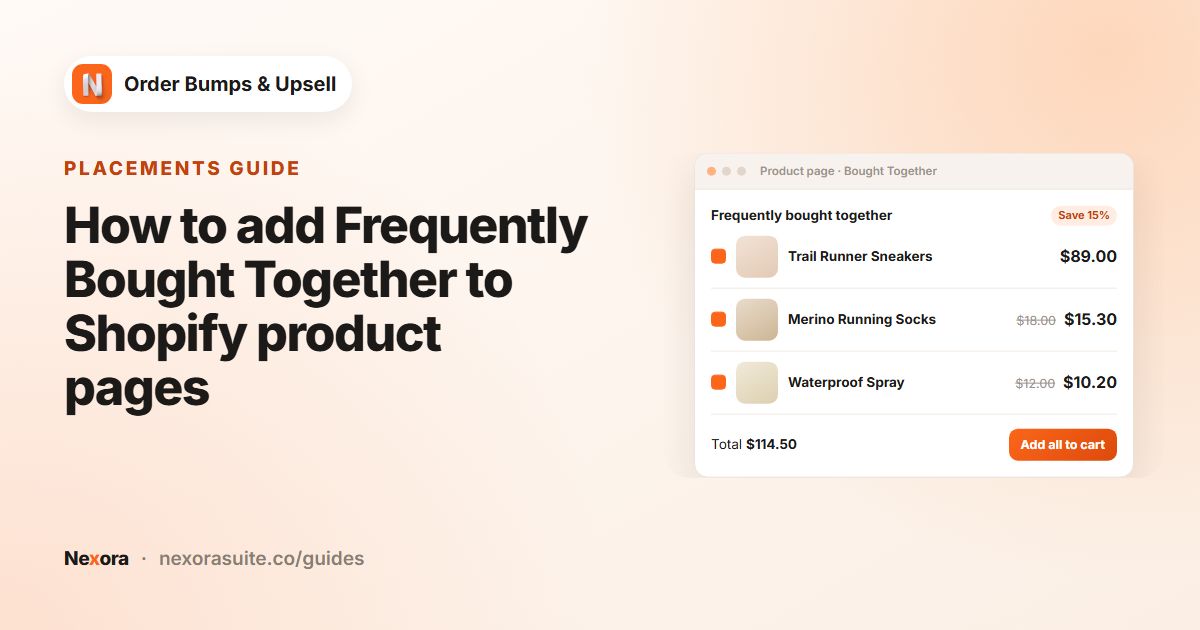
On the app home page, in Complete your setup, click Open theme editor next to Add to Product Page. Click a section on the product template, choose Add block, select Nexora - Bought Together, and save the theme.
- Add the cart page block
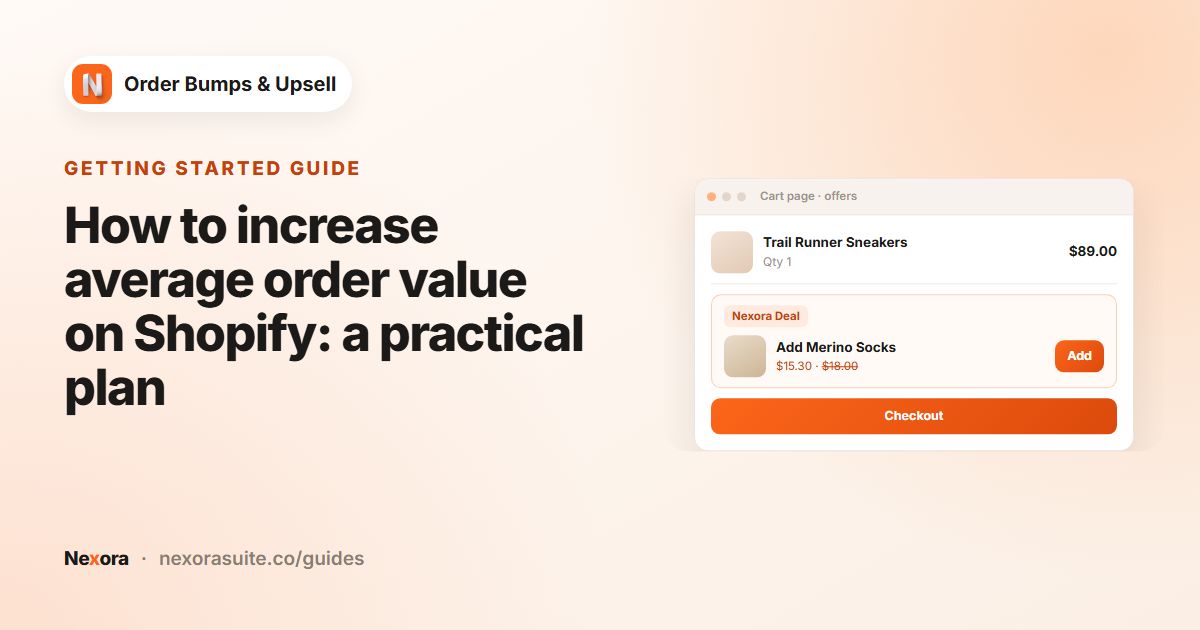
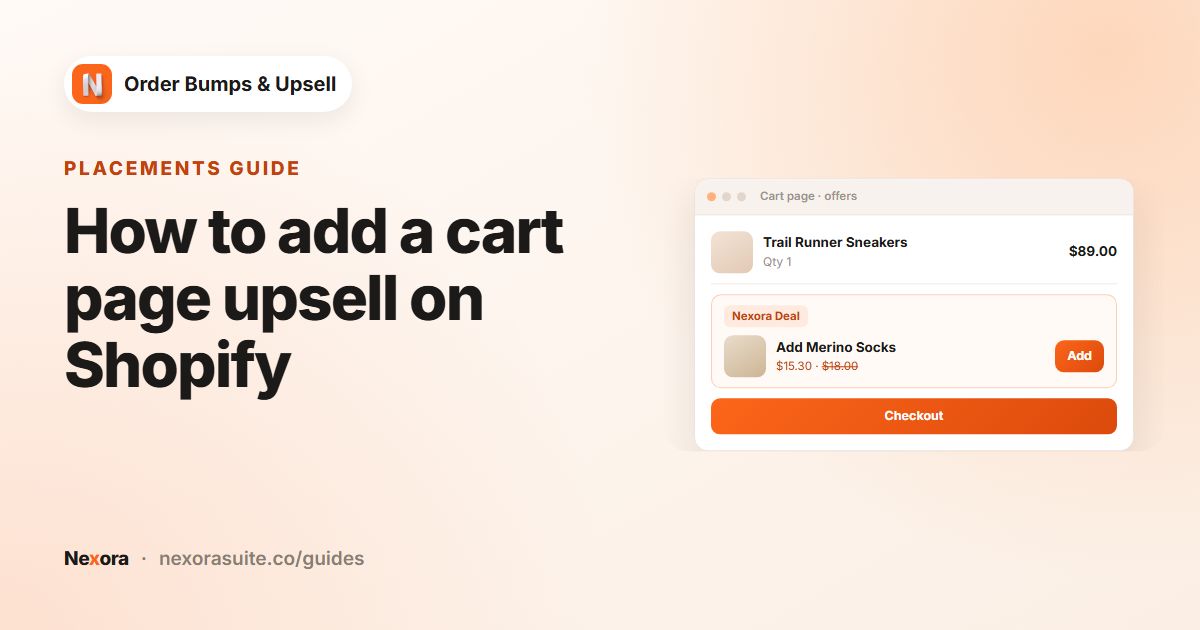
Click Open theme editor next to Add to Cart Page, add Nexora - Cart Offers to a section of the cart template, and save.
- Add checkout and Thank you blocks (optional)
Click Open checkout editor. On Shopify Plus, choose Add app block and select Nexora - Checkout Offers. For the Thank you page, switch to the Thank you page in the editor and add the same block. Save.
- Pick your theme
Go to Settings, choose your theme in Your theme, and click Save so the cart count and drawer update correctly.
- Create a campaign
Go to Campaigns and click Create campaign. Give it a Campaign name and keep the Manual type.
- Add an item and an offer
Click Add item and leave When customer buys on All products. Click Add offer, then Select product and pick the product you want to offer.
- Set the discount
Choose Percentage as the Discount type, enter 10 in Discount value, and set a Discount label such as "10% off when added".
- Choose pages and save
Open the Display Rules tab and check Target Pages. Make sure the campaign switch shows Activated, then click Save.
- Style the widget
Go to Design Settings, adjust colors and spacing on the Product Page tab, use Sync settings from Product Page on the Cart Page tab if you want them to match, and click Save.
- Check your storefront
Open any product page in your store and look for the widget. Add the offer, go to the cart, and confirm the discount label and reduced price appear on the offer line.
If the widget does not appear, check that the block is added to the template your products actually use, the campaign is active, and the page is ticked under Target Pages.
 Related guideHow to increase average order value on Shopify: a practical plan→
Recipe: offer an add-on for one specific product
Example: offer a protective case at a set price to anyone viewing or buying a particular phone.
- Create the campaign
Click Create campaign, keep Manual, and click Add item.
- Set the trigger
In When customer buys, choose Specific products and select the phone.
- Add the offer
Click Add offer, select the case, choose Manual price and enter the Sale price, for example 9.99.
- Combine with Add to Cart
On Display Rules, keep Product Page ticked and turn on Combine with Add to Cart button so the case is added together with the phone when the customer clicks your theme's Add to cart button.
- Save and test
Save, open the phone's product page, and add it to the cart to check the case is added at the sale price.
 Related guideHow to add Frequently Bought Together to Shopify product pages→
Recipe: show a bundle offer on larger carts
Example: on the cart page, offer two accessories together only when the cart is worth 50 or more.
- Add the offers
Create a Manual campaign with one item on All products and add an offer for each accessory.
- Use Bundle mode
On Display Rules, keep Layout on Stack and set Selection mode to Bundle, so customers tick the items they want and add them with one button.
- Set the cart value
Under Target Pages, tick only Cart Page. Under Cart Value, set Minimum to 50 and tick No maximum limit.
- Save and test
Save, then add products worth less than 50 to your cart: the widget stays hidden. Add more products and it appears.
 Related guideHow to add a cart page upsell on Shopify→
Recipe: automatic recommendations with a Thank you follow-up
Example: let Shopify's recommendations choose the products and invite customers to a second purchase after they order.
- Create an AI campaign
Click Create campaign and choose AI Recommendation. Set Algorithm to Related, Discount % to 15, and a Discount label such as "Thank-you deal".
- Choose the Thank you page
On Display Rules, tick Thank You under Target Pages (you can untick the other pages if you only want the follow-up offer).
- Add the block
In the checkout editor, switch to the Thank you page and add Nexora - Checkout Offers.
- Save and test
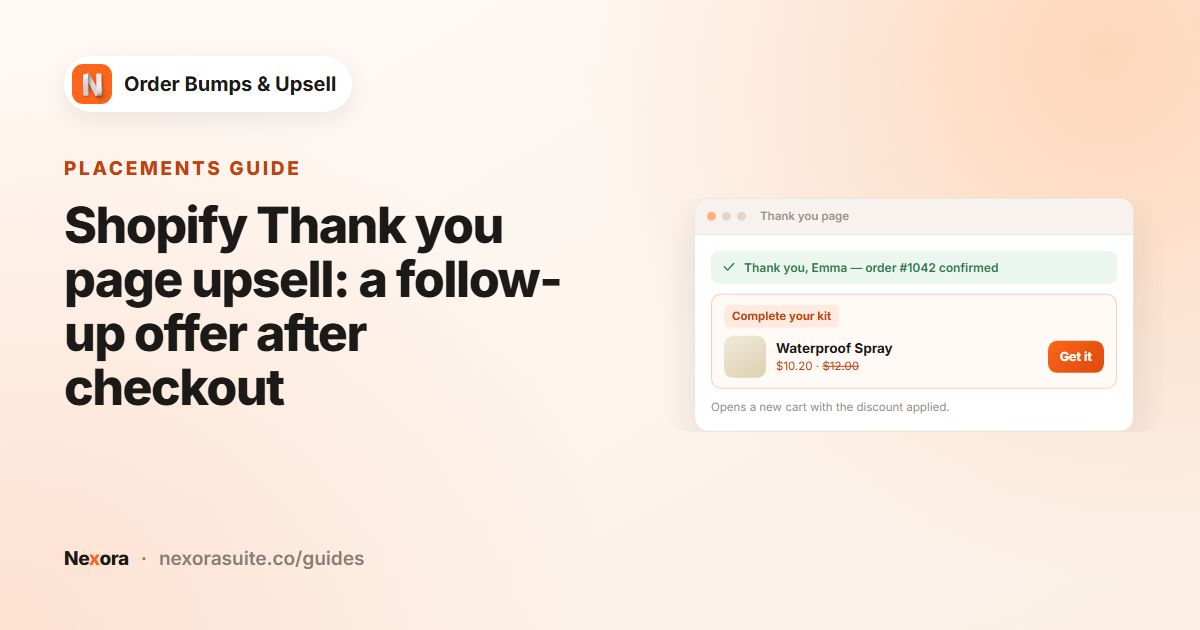
Place a test order. On the Thank you page, click the offer button: your store's cart opens with the product and its discount, ready for a new checkout.
 Related guideShopify Thank you page upsell: a follow-up offer after checkout→