
Getting started
What is an order bump?
An order bump is an extra product offered while the customer is already buying, often with a small discount. Nexora shows these offers on the product page, cart page, checkout and Thank you page.
Where can offers appear?
On the product page (Nexora - Bought Together block), the cart page (Nexora - Cart Offers block), checkout for Shopify Plus stores, and the Thank you page (Nexora - Checkout Offers block).
Do I need to edit my theme code?
No. You add the blocks in the theme editor and checkout editor, with no code changes.
What is the difference between Manual and AI Recommendation campaigns?
In Manual campaigns you pick the trigger products, the offer products and the discounts. AI Recommendation campaigns use Shopify's product recommendations to choose offer products automatically, with one discount percentage for all of them.
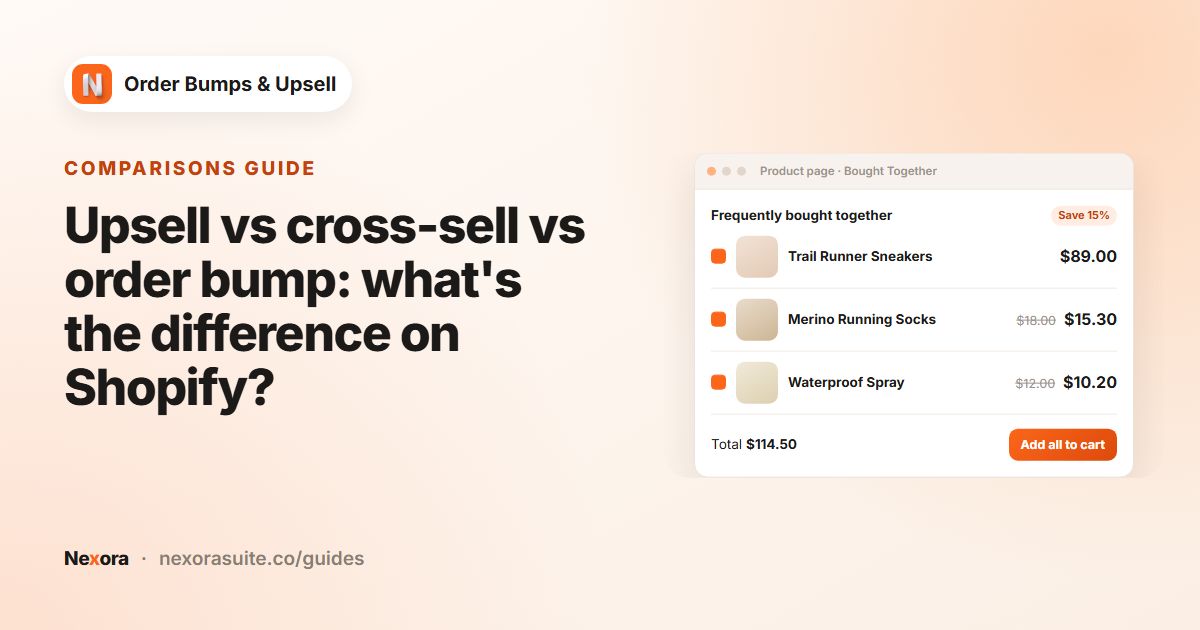 Related guideUpsell vs cross-sell vs order bump: what's the difference on Shopify?→
Campaigns & discounts
Which discount types are available?
Percentage, Fixed amount and Manual price (a set sale price). You can also set the discount to 0 to offer a product at its normal price.
How is the discount applied?
Automatically, through a Shopify automatic discount called Nexora Order Bump that the app creates. It only discounts items added from a Nexora offer, and customers do not need a code.
Will Nexora discounts conflict with my other discounts?
The Nexora Order Bump discount is set to combine with order, product and shipping discounts, so your other promotions can apply alongside it.
Can I run several campaigns at once?
Yes. Use the arrows on the Campaigns list to set priority. On product pages and in checkout the first matching campaign is shown; on the cart page offers from all matching campaigns are shown together.
Can one trigger have several offers?
Yes. Add as many offers as you like to an item, and use Max offers to show on Display Rules to control how many are visible at once.
Can I target collections?
The Specific collections trigger works on the product page only. For the cart page and checkout, use All products or Specific products.
Can I write offers in another language?
Yes. Title, description, button text, success message and discount labels are free text, so you can type them in any language.
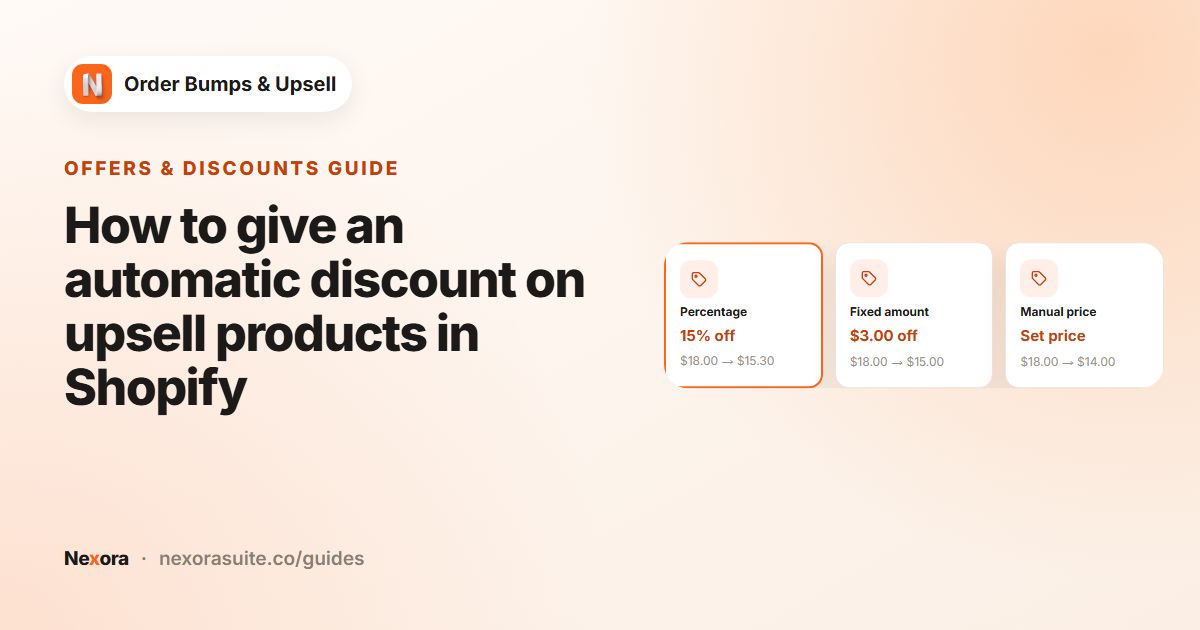 Related guideHow to give an automatic discount on upsell products in Shopify→
Checkout & Thank you page
Why can't I show offers in checkout?
Shopify only allows app blocks on the checkout steps for stores on Shopify Plus. On other plans, show your offer on the Thank you page instead.
Does the Thank you page offer add the product to the order that was just placed?
No. Shopify does not let apps change a completed order. The Thank you offer opens your store's cart with the product and its discount, and the customer checks out again as a new order.
Which plans support the Thank you page block?
All Shopify plans except Shopify Starter.
Can I change the look of checkout offers?
Yes, on the Checkout & Thank You tab of Design Settings. Shopify controls checkout styling, so the options are Shopify's built-in choices such as spacing, borders and button style.
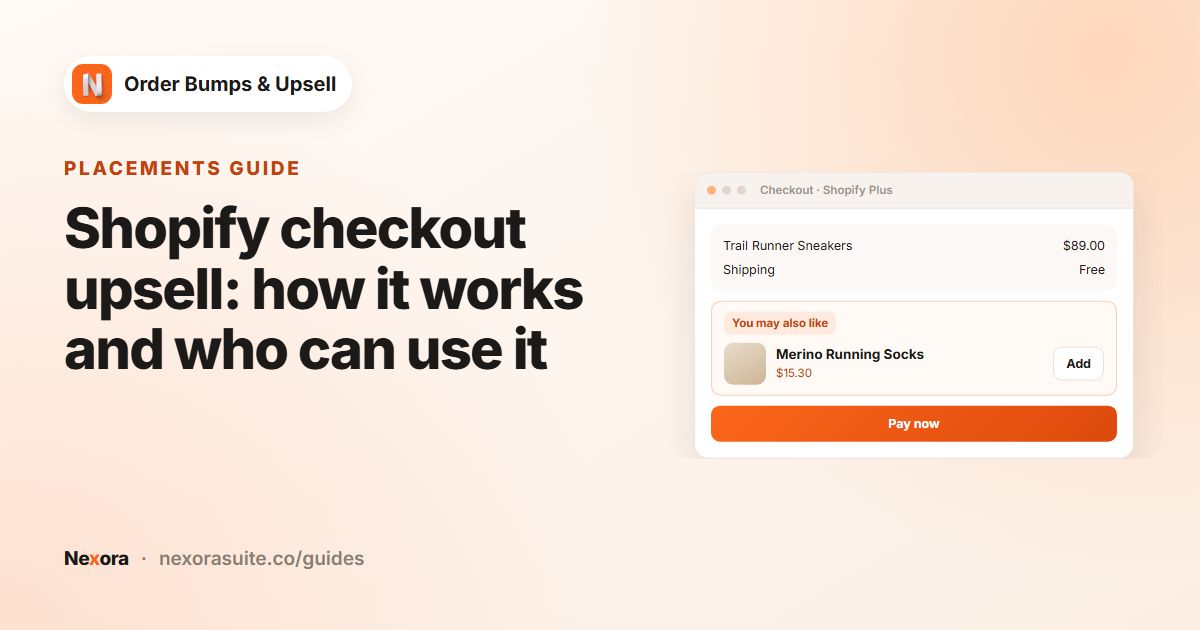 Related guideShopify checkout upsell: how it works and who can use it→
Storefront & theme
Which themes are supported?
The blocks work with Online Store 2.0 themes. Settings includes ready-made setups for 26 popular themes such as Dawn, Horizon, Impulse, Prestige and Symmetry, plus a Custom option for other themes.
After adding an offer, the cart count or drawer does not update. What can I do?
Go to Settings, select your theme in Your theme and save. If your theme is not listed or is customized, choose Custom and fill in Advanced overrides, or contact us and we will help.
Can the offer be added with my theme's Add to cart button?
Yes. Turn on Combine with Add to Cart button under Product page behavior on the Display Rules tab. Visible offer items are then added together with the main product.
What happens when an offer product is sold out?
Sold-out variants are marked in the dropdown and cannot be selected. If every variant is sold out, the offer shows a Sold out label and cannot be added.
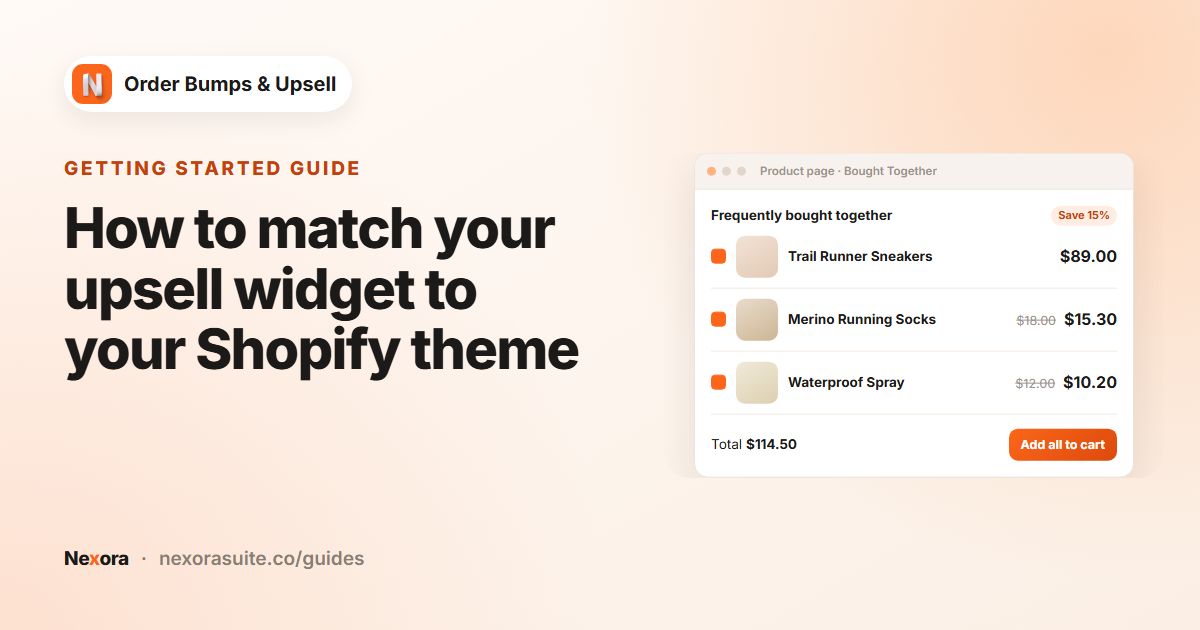 Related guideHow to match your upsell widget to your Shopify theme→
Pricing & support
How much does the app cost?
Nexora Order Bumps & Upsell is free, with no limits on campaigns or offers.
How do I get help?
Use the live chat inside the app, or email [email protected]. The Document page in the app also has step-by-step help articles.
Troubleshooting
My widget is not showing. What should I check?
Make sure the right block is added to the template your page uses, the campaign is Activated, the page is ticked under Target Pages, and the trigger matches the product or cart. Also check the Cart Value range on cart and checkout.
The offer was added but the discount is missing.
Check that the Nexora Order Bump discount is still active in Discounts in Shopify admin and that the offer has a discount value above 0. Saving any campaign recreates the discount if it is missing.
My AI Recommendation campaign shows no products.
Shopify needs some store activity before it can recommend products, and Complementary only works if complementary products are set up, for example in the Shopify Search & Discovery app. Try Related, or use a Manual campaign meanwhile.
I changed a campaign but the storefront still shows the old version.
Make sure you clicked Save, then reload the storefront page. Changes usually appear within a few moments.