
Overview
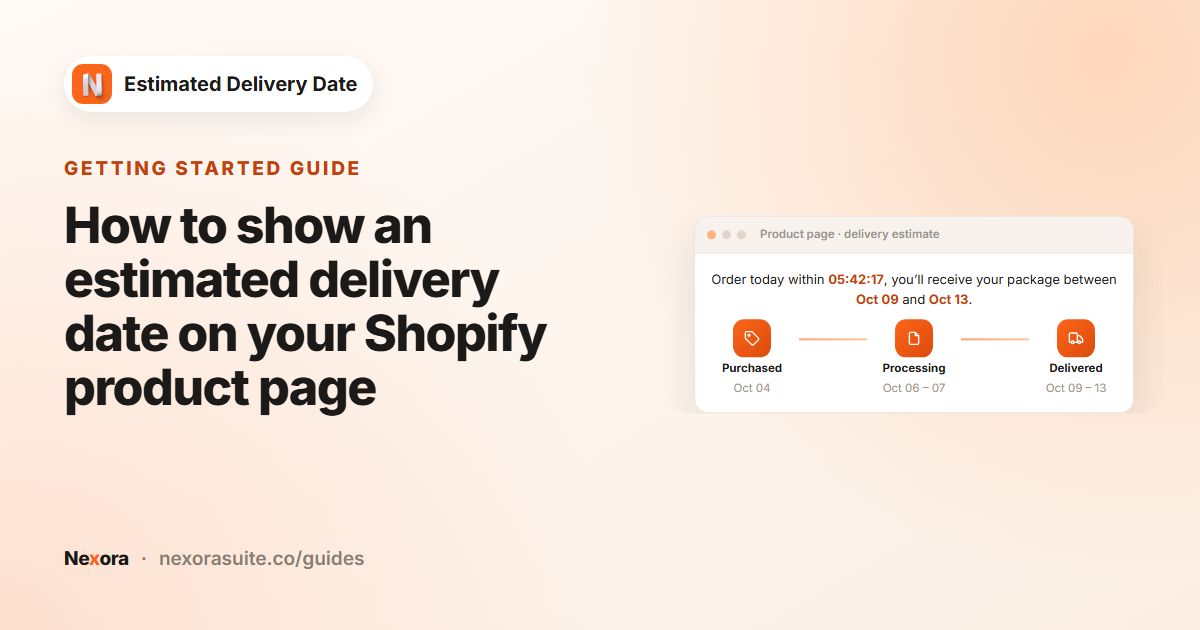
Nexora Estimated Delivery Date shows shoppers when their order is likely to arrive, right on your product page. Each widget has a short message (for example, "Order today within 04:12:36, you'll receive your package between 14/05/2026 to 16/05/2026") and a three-step timeline: Purchased, Processing and Delivered, each with an icon and a date.
Dates are worked out from your processing time, transit time, cut-off time, working days and blocked dates (holidays). You can create as many widgets as you like and target them at all products, specific collections or specific products, and at all or selected Shopify Markets.
- The app is free, with unlimited widgets.
- The widget appears on product pages through a theme app block that you add in the Shopify theme editor (Online Store 2.0 themes). There is no app embed to switch on.
- Everything is set up in four tabs: Conditions, Content, Design and Placement, with a Live Preview beside them.
The widget is shown on product pages only. It does not appear in the cart, at checkout, on the order status page or in emails.
 Related guideHow to show an estimated delivery date on your Shopify product page→
Dashboard and widget list
The app menu has three items: Home, Estimate date delivery and Document.
Home
- Create widget (top right) opens a new widget.
- Help center has two cards: Activate app block, with a Go to theme editor button and the steps to add the block, and Live support, with a Chat with us button that opens live chat.
- Your widgets lists every widget you have made, with Edit and Delete buttons.
Estimate date delivery
This page (titled Estimated Delivery Date) lists your widgets with their Name, Status (Active or Inactive) and Date created. Use Create widget to add one, Edit to change one, or Delete to remove it. You will be asked to confirm before a widget is deleted.
Document
An in-app guide to every setting, including a step-by-step explanation of how dates are calculated.
The widget editor
When you create or edit a widget, the editor shows a header card, the settings tabs on the left and the Live Preview on the right.
| Item | What it does |
|---|---|
| Widget name | An internal name to help you tell widgets apart. Shoppers never see it. |
| Status checkbox (next to Widget name) | Ticked = Active, unticked = Inactive. Inactive widgets are never shown on your store. |
| Conditions tab | Processing time, cut-off time, transit time, working days, blocked dates and markets. |
| Content tab | The message text, date format and the title and icon of each timeline step. |
| Design tab | Colours, borders, spacing, icon and line styling, font sizes and custom CSS. |
| Placement tab | Which products the widget applies to. |
| Live Preview | Updates instantly as you change settings, including a running countdown. |
Changes are kept in the editor until you click Save in the Shopify save bar at the top of the page. Click Discard to go back to the last saved version. If you try to leave with unsaved changes, you will be asked to confirm.
Your storefront only updates after you click Save. The Live Preview changes immediately, but the store does not.
The Live Preview uses your own computer's clock. On the storefront, each shopper sees dates and a countdown based on their own device's clock and time zone.
Conditions: order processing and cut-off time
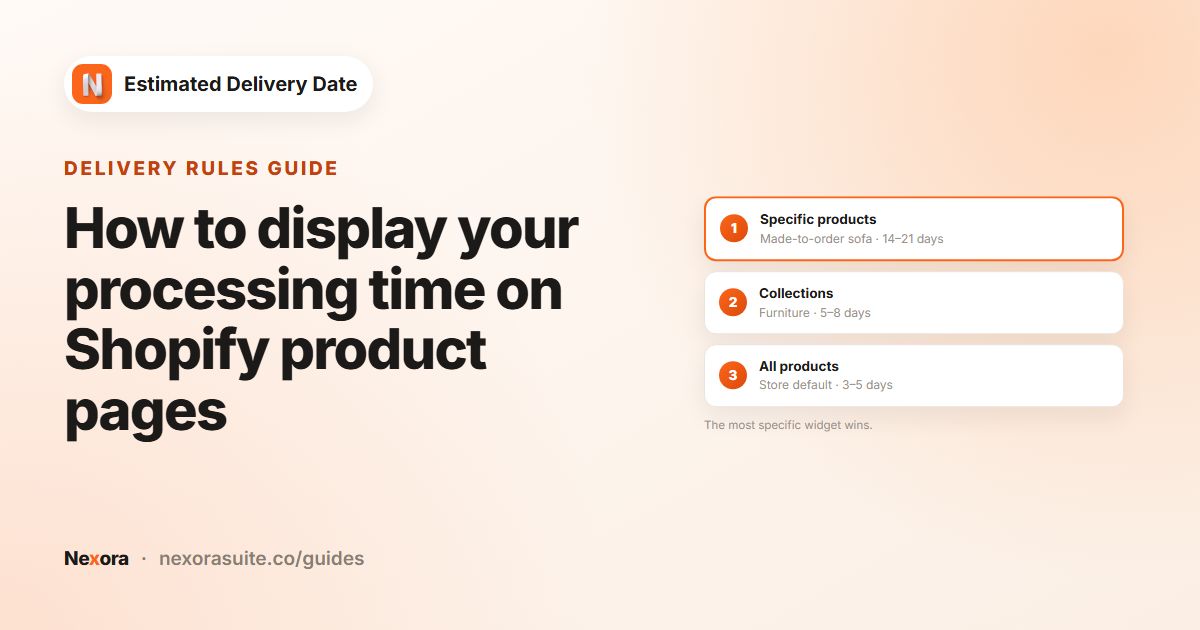
The Order Processing card describes how long it takes you to get an order ready to ship.
| Setting | What it does |
|---|---|
| Processing time › Shortest (days) | The fewest working days you need to prepare an order. Use 0 for same-day processing. Default: 1. |
| Processing time › Longest (days) | The most working days you may need. Default: 2. Shortest can't be larger than Longest; if it is, you'll see "Can't be longer than longest" and the widget can't be saved. |
| Cutoff time | Pick Hour (1–12), Minute (00–59) and AM/PM. Orders placed after this time start processing on the following day. Default: 5:00 PM. |
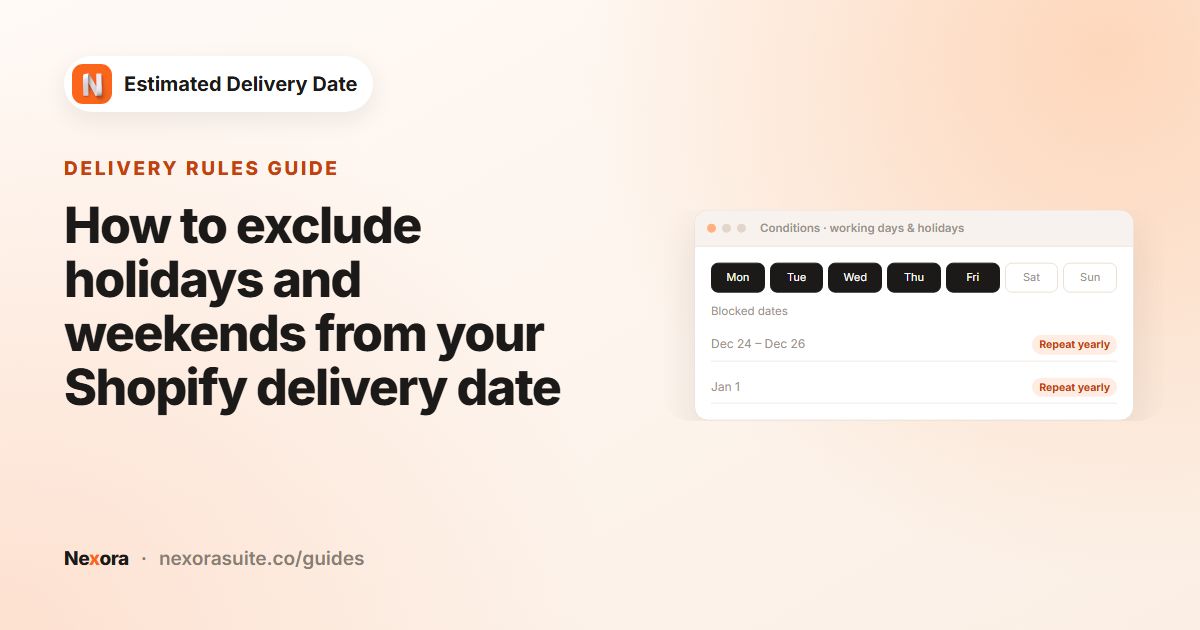
| Working days | Click the day buttons (M, T, W, Th, F, SA, S) to choose the days you process orders. Dark buttons are selected. Default: Monday to Friday. |
| Blocked dates (holidays) | Days you will not process orders, such as public holidays or a warehouse closure. See below. |
Adding blocked dates
- Click + Add blocked date
The Add blocked date range window opens with a calendar. Use the arrows to change month.
- Choose a day or a range
Click one day for a single date, or click a start day and an end day to block a range. Past dates can't be selected.
- Repeat every year (optional)
Switch on Repeat yearly for dates that come back each year, such as 25 December. Repeating dates are labelled (Yearly) in the list.
- Click Add
The date appears in the list. Click the remove icon next to it to delete it later.
Remember to click Save after adding or removing blocked dates.
 Related guideHow to display your processing time on Shopify product pages→
Conditions: order transit and markets
Order Transit
The Order Transit card describes how long your carrier takes once the parcel has left you. It has its own settings, separate from processing.
| Setting | What it does |
|---|---|
| Shortest (days) | The fewest transit days. Default: 1. |
| Longest (days) | The most transit days. Default: 2. Must be equal to or larger than Shortest. |
| Working days | The days the order is in transit (for example, add SA if your carrier delivers on Saturdays). Default: Monday to Friday. |
| Blocked dates (holidays) | Days with no deliveries, added the same way as processing blocked dates, including Repeat yearly. |
Markets
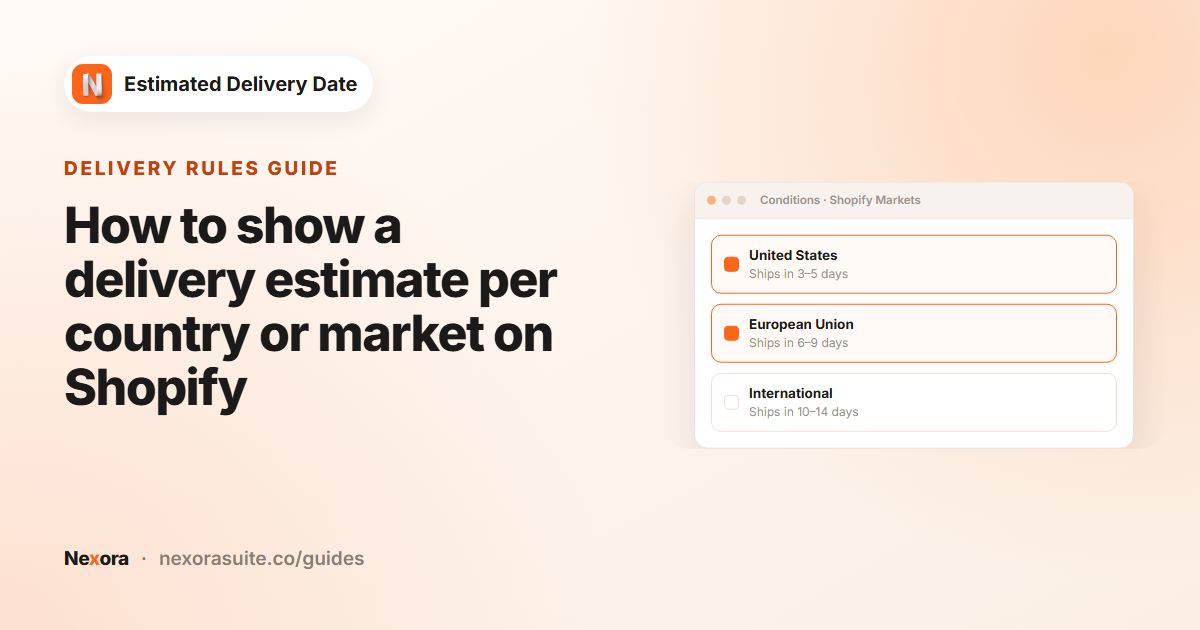
Choose where the widget is visible:
- All markets: the widget shows for every market (default).
- Specific markets: click Select markets, tick the markets you want in the window, then click Confirm. Chosen markets are listed below the button; use Edit markets to change them or the remove icon to drop one.
The market is the one Shopify uses for the shopper's visit. This lets you run, for example, a domestic widget with short transit times and an international widget with longer ones.
 Related guideHow to show a delivery estimate per country or market on Shopify→
How delivery dates are calculated
- Find the start day
If today is a processing working day and it is not yet past the cut-off time, processing starts today. Otherwise it starts on the next processing working day that isn't a blocked date.
- Work out the Processing dates
From the start day, the app counts forward the Shortest and Longest processing days, counting only processing working days and skipping processing blocked dates. With 0 days, processing ends on the start day.
- Work out the Delivered dates
From the last possible processing day (the Longest result), the app counts forward the Shortest and Longest transit days, counting only transit working days and skipping transit blocked dates.
- Show the result
The Purchased step shows today's date, Processing shows the processing range and Delivered shows the delivery range. The message uses the Delivered range for
{delivery_from}and{delivery_to}.
Example
Processing 1–2 days, transit 1–2 days, Monday to Friday for both, cut-off 5:00 PM. A shopper visits on Monday at 10:00 AM. Processing starts Monday, so Processing shows Tuesday to Wednesday. Transit counts from Wednesday, so Delivered shows Thursday to Friday.
The countdown
{counter}counts down (hours:minutes:seconds) to today's cut-off time.- After today's cut-off, it counts down to the cut-off time on the next calendar day, even if that day is not a working day.
- The countdown and the dates use the shopper's device clock and time zone, not your store's time zone.
The message text is shown as you wrote it on every day, so a message such as "Order today within…" still says "Order today" on weekends and blocked dates. The dates themselves are still worked out correctly.
 Related guideHow to exclude holidays and weekends from your Shopify delivery date→
Content: message, date format and steps
Description
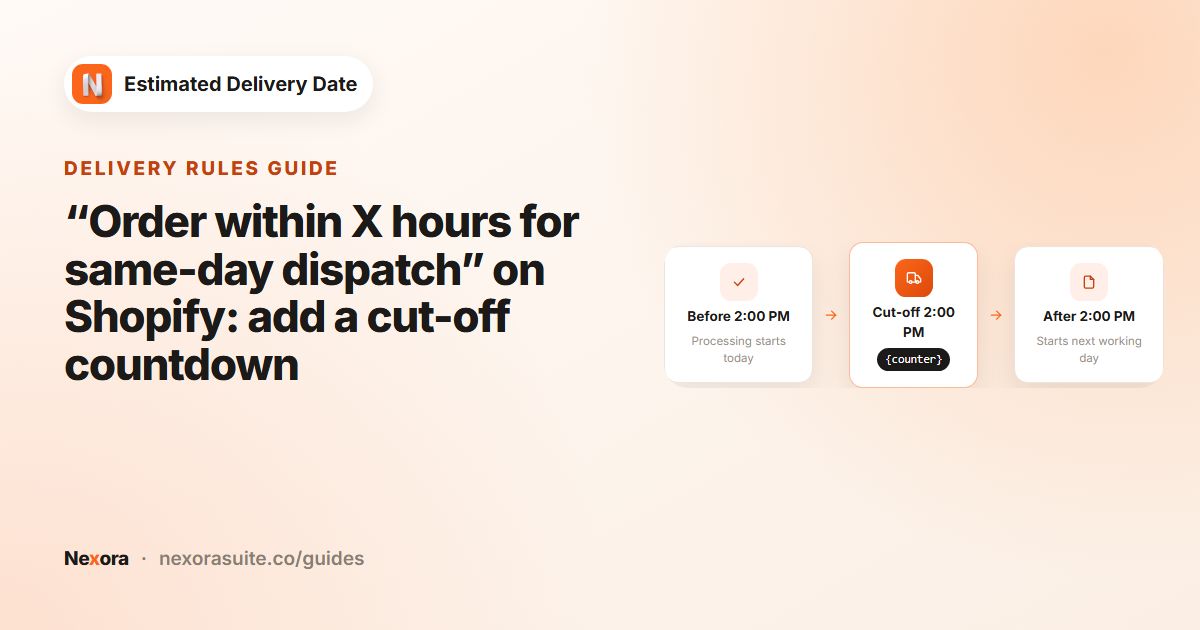
Template text is the message shown above the timeline. The default is: "Order today within {counter}, you'll receive your package between {delivery_from} to {delivery_to}".
| Variable | Shows |
|---|---|
{counter} | A live countdown until the processing cut-off time. |
{delivery_from} | The earliest estimated delivery date. |
{delivery_to} | The latest estimated delivery date. |
Use each variable no more than once in the message. If {counter} appears twice, the countdown is not shown and the raw text appears instead; a second {delivery_from} or {delivery_to} is not replaced.
Date settings
| Setting | What it does |
|---|---|
| Date separator | The character between day, month and year, for example /, - or .. Default: /. |
| Include year | Adds the year to the dates. Default: on. |
| Date format | With the year: DD/MM/YYYY, MM/DD/YYYY or YYYY/MM/DD. Without the year: DD/MM or MM/DD. The list updates to use your separator. |
Date settings apply to the dates in the message only. The timeline under each step always uses a short month-and-day style, for example "May 13", "May 13-18" or "May 30 – Jun 02". Month names are shown in English.
Purchased, Processing and Delivered
Each of the three steps has its own card:
- Title: the label under the icon. Rename it to anything you like, for example "Ordered", "Shipped" or "Arrives".
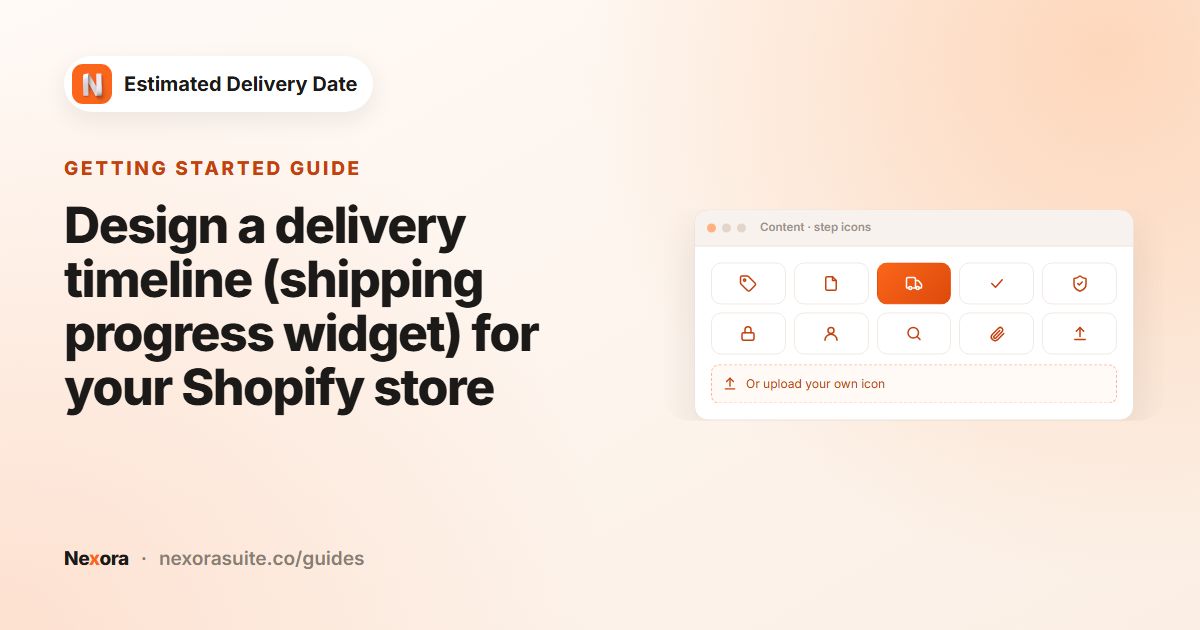
- Default icons: pick one of five built-in icons for that step. Purchased: bag, cart, card, receipt, gift. Processing: clipboard, box, gear, tag, refresh. Delivered: truck, check mark, home, map pin, star.
- Custom icon (overrides default): click Select to upload your own image. While a custom icon is set, the built-in choices are hidden. Use Change to swap it or the delete icon to go back to the built-in icons.
 Related guide“Order within X hours for same-day dispatch” on Shopify: add a cut-off countdown→
Design
The Design tab controls how the widget looks. Sliders can also be typed into directly. New widgets start with a warm orange style that you can change completely.
| Card | Settings |
|---|---|
| Background | Background color of the timeline box: a solid colour or a gradient. |
| Border | Border radius (0–32 px), Border width (0–8 px), Border color. |
| Spacing | Vertical padding (top and bottom, 0–64 px), Horizontal padding (0–64 px), Middle gap (space between each icon and its labels, 0–64 px). |
| Description | Margin bottom (space between the message and the timeline box, 0–64 px) and Text alignment (left, centre or right). |
| Icons & Progress line | Icon size (16–64 px), Icon padding (0–24 px), Icon stroke width (1–4). |
| Icon stroke color | Tick Override default color and pick a Color for the built-in icons. |
| Icon border | Show icon border, then Border width (0–8 px) and Icon background (solid or gradient). The border uses the progress line colour. |
| Progress line | Progress line width (1–8 px, in half steps), Progress line color (solid or gradient), Line gap from icon (0–40 px). |
| Line shadow | Enable shadow, then Offset X, Offset Y, Blur and Shadow color. |
| Line endpoints (dots) | Show endpoint dots, then Dot size (2–20 px) and Dot color. |
| Icon shadow | Enable shadow, then Offset X, Offset Y, Blur and Shadow color. |
| Typography | Font size (8–32 px) and Color for the Description, Step title and Date label; a Color for the Counter (countdown timer) and for the Delivery date (in description). |
| Custom CSS | Extra CSS for fine-tuning. See below. |
Icon stroke colour and stroke width apply to the built-in icons only. Uploaded custom icons are shown as they are, at the chosen Icon size.
Custom CSS
Anything you enter in CSS is added to the widget on your storefront and in the Live Preview. Useful selectors are .edd-desc (the message), .edd-widget (the timeline box), .edd-step (each step) and .edd-line (the progress lines).
Keep custom CSS aimed at the widget's own selectors so it doesn't change other parts of your product page.
 Related guideDesign a delivery timeline (shipping progress widget) for your Shopify store→
Placement: which products show the widget
Under Apply widget to, choose one option:
| Option | What it does |
|---|---|
| All products | The widget can show on every product page (default). |
| Specific collections | Click Select collections and pick one or more collections. The widget shows on products in any of them. |
| Specific products | Click Select products and pick one or more products. |
Use Change to edit the selection or Remove to clear it.
When more than one widget matches
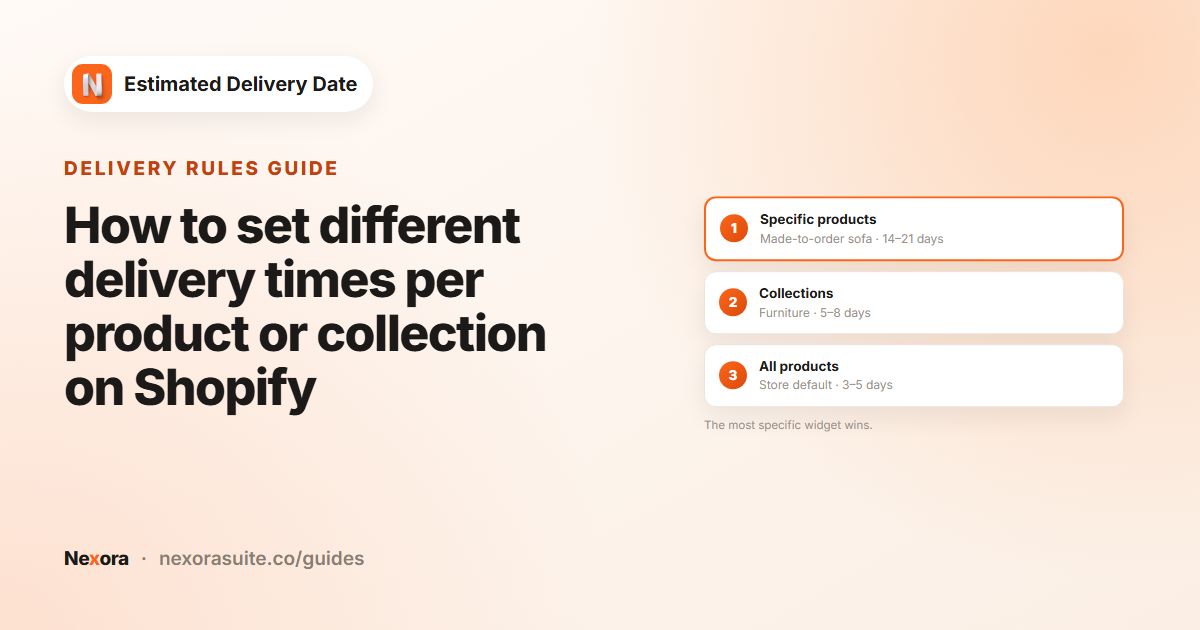
Only one widget is shown on a product page. The app looks for an active widget that matches the shopper's market in this order:
- Specific products
A widget that lists this exact product wins.
- Specific collections
If none, a widget for one of the product's collections is used.
- All products
If none, an All products widget is used.
So a broad widget for all products can act as your default, with more specific widgets for products or collections that need different lead times. If two widgets match at the same level, only one of them is shown, so avoid overlapping widgets at the same level.
 Related guideHow to set different delivery times per product or collection on Shopify→
Adding the widget to your product page
The widget is displayed through a theme app block called EDD Widget. It works with Online Store 2.0 themes whose product section supports app blocks.
- Open the theme editor
In the app, go to Home and click Go to theme editor, or go to Online Store › Themes › Customize in Shopify.
- Open a product page
Use the page selector at the top of the editor to switch to Products (your default product template).
- Add the block
In the product information section, click Add block, open the Apps list and choose EDD Widget.
- Position it
Drag the block to where you want it, for example under the price or the Add to cart button.
- Save the theme
Click Save in the theme editor.
- Add the block once to each product template you use. If you have several product templates, add it to each of them.
- The block has no settings of its own; everything is managed in the app.
- Only one widget shows per page, even if you add the block more than once.
The block shows nothing when there is no active widget that matches the product and the shopper's market. See Shopify's guide to app blocks for more about adding apps to your theme.
Pricing and support
Nexora Estimated Delivery Date is free, with unlimited widgets.
- Live chat: click Chat with us on the app's Home page.
- Email: [email protected].
- In-app guide: the Document page in the app menu.
- App Store listing: Nexora Estimated Delivery Date.