Why show a delivery date on the product page
“When will it arrive?” is one of the first questions a shopper has once they like a product. If the answer is only on a shipping policy page, many people won't go looking for it. A short line under the price, such as “Arrives between Oct 12 and Oct 14”, answers the question at the moment they are deciding.
A date is also easier to understand than a vague promise like “ships in 3–5 business days”. Shoppers don't have to count weekends or guess when you stop packing for the day; the date already takes that into account.
- It sets clear expectations before the order is placed.
- It helps shoppers buying for a specific day, such as a birthday, decide quickly.
- It shows your real lead times, so you are not over-promising.
Your options on Shopify
Shopify's own themes don't calculate a delivery date on the product page out of the box. In an Online Store 2.0 theme such as Dawn you can add a Text or Custom Liquid block to the product information section and type a fixed message, but that text never changes: it can't skip weekends, react to your daily cut-off or move forward on holidays.
| Approach | Good for | Limits |
|---|---|---|
| Static text block in the theme | A simple, general promise such as “Ships in 2–3 days” | No real dates, no countdown, has to be edited by hand |
| Custom theme code | Stores with a developer | You build and maintain the date logic yourself |
| Nexora Estimated Delivery Date | Real dates that update every day, without code | Product pages only; uses the shopper's device clock |
If you only want a general shipping note, a theme text block is perfectly fine. If you want an actual date range that keeps itself up to date, an app is the simpler route. See Shopify's guide to customising themes for adding blocks.
Step by step: add a delivery date with the app
- Install and create a widget
Install Nexora Estimated Delivery Date (it's free), open it and click Create widget. Enter a Widget name such as “Standard delivery” and leave the status checkbox ticked so it is Active.
- Set processing time
In the Conditions tab, under Order Processing, enter Shortest (days) and Longest (days) for Processing time. Use 0 if you can ship the same day.
- Choose a cut-off time
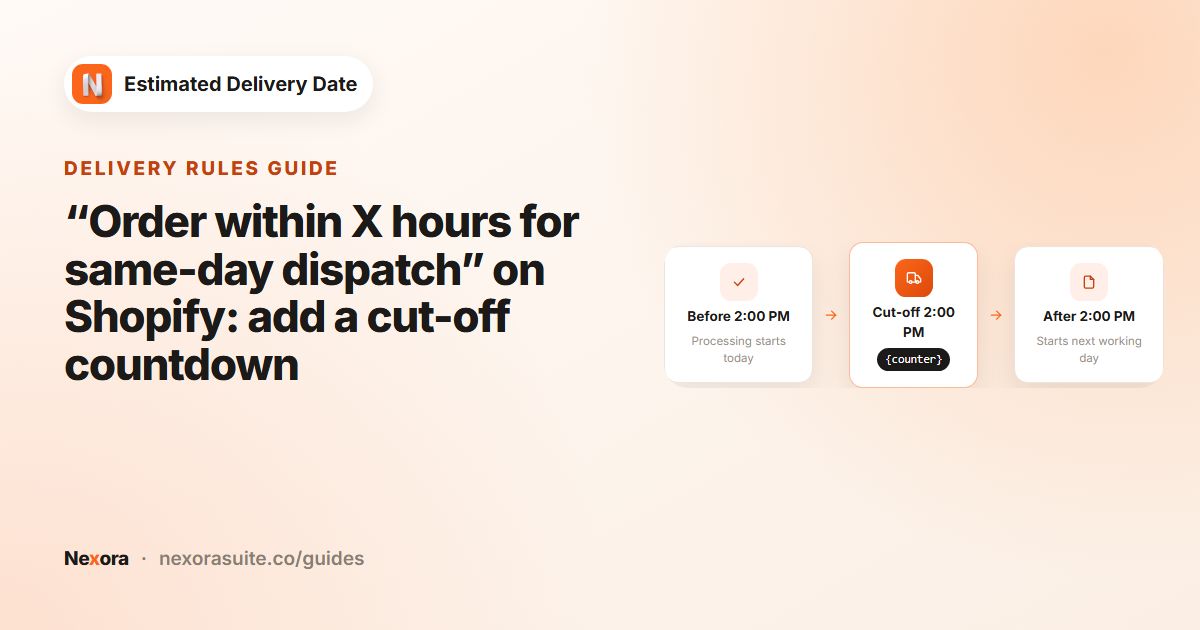
Pick the Hour, Minute and AM/PM for Cutoff time. Orders after this time start processing the next working day.
- Pick working days
Under Working days, select the days you pack orders (M, T, W, Th, F, SA, S).
- Set transit time
In Order Transit, enter your carrier's Shortest (days) and Longest (days) and the days it delivers.
- Check the message
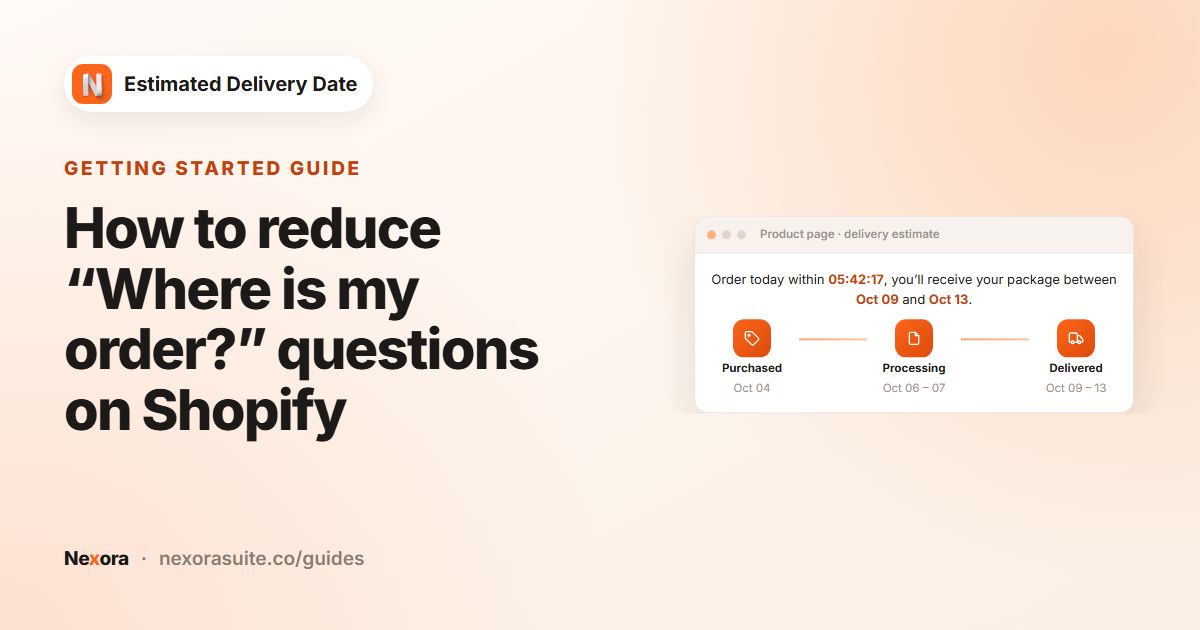
In the Content tab, review Template text. The default reads “Order today within {counter}, you'll receive your package between {delivery_from} to {delivery_to}”.
- Save
Click Save in the save bar at the top. The Live Preview changes instantly, but your store only updates after saving.
- Add the block to your theme
On the app's Home page click Go to theme editor, open a product page, click Add block in the product information section, choose Apps and then EDD Widget. Drag it under the price or Add to cart button and click Save.
The widget uses a theme app block only, so there is no app embed to switch on. It needs an Online Store 2.0 theme whose product section supports app blocks. See Shopify's guide to app blocks.
The settings that decide the date
| Setting | Where | What it does |
|---|---|---|
| Processing time | Conditions › Order Processing | Working days you need to prepare an order. 0 means same day. |
| Cutoff time | Conditions › Order Processing | Latest time an order still starts processing today. |
| Working days | Processing and transit cards | Days that count. Each card has its own. |
| Blocked dates (holidays) | Processing and transit cards | Days to skip, with an optional Repeat yearly. |
| Shortest (days) / Longest (days) | Conditions › Order Transit | How long the carrier takes. |
| Markets | Conditions | All markets or Specific markets. |
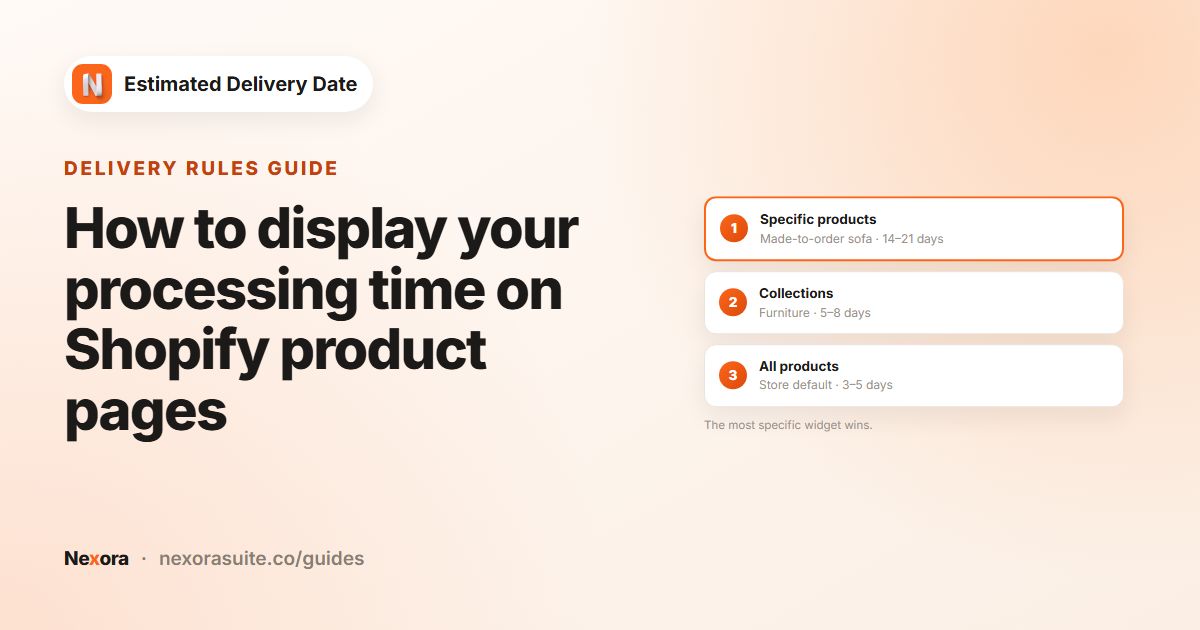
| Apply widget to | Placement | All products, Specific collections or Specific products. |
Delivery is counted from the Longest processing date, so the delivery range stays honest even on a slow packing day. The full method is in the documentation.
Example setup
A small homeware store packs orders Monday to Friday and needs 1–2 days. Its carrier takes 1–3 working days. Orders placed by 4:00 PM start processing that day.
- Processing time: Shortest (days) 1, Longest (days) 2.
- Cutoff time: 4 : 00 PM. Working days: M to F.
- Order Transit: Shortest (days) 1, Longest (days) 3, M to F.
A shopper visiting on Wednesday 7 October at 9:00 AM sees a countdown to 4:00 PM, Processing as Oct 08-09 and Delivered as Oct 12-14. With the date format set to DD/MM/YYYY, the message reads “Order today within 06:59:12, you'll receive your package between 12/10/2026 to 14/10/2026”.
Tips and common mistakes
- Forgetting to save. Settings only reach your store after you click Save in the app, and the block only appears after you save the theme.
- Missing product templates. If you use more than one product template, add EDD Widget to each of them.
- Shortest larger than Longest. You'll see “Can't be longer than longest” and the widget won't save.
- Wording on weekends. The message is shown as written every day, so “Order today” also appears on Saturday. Neutral wording such as “Order within {counter} for delivery by {delivery_to}” avoids this.
- Time zones. Dates and the countdown follow each shopper's device clock and time zone, not your store's.
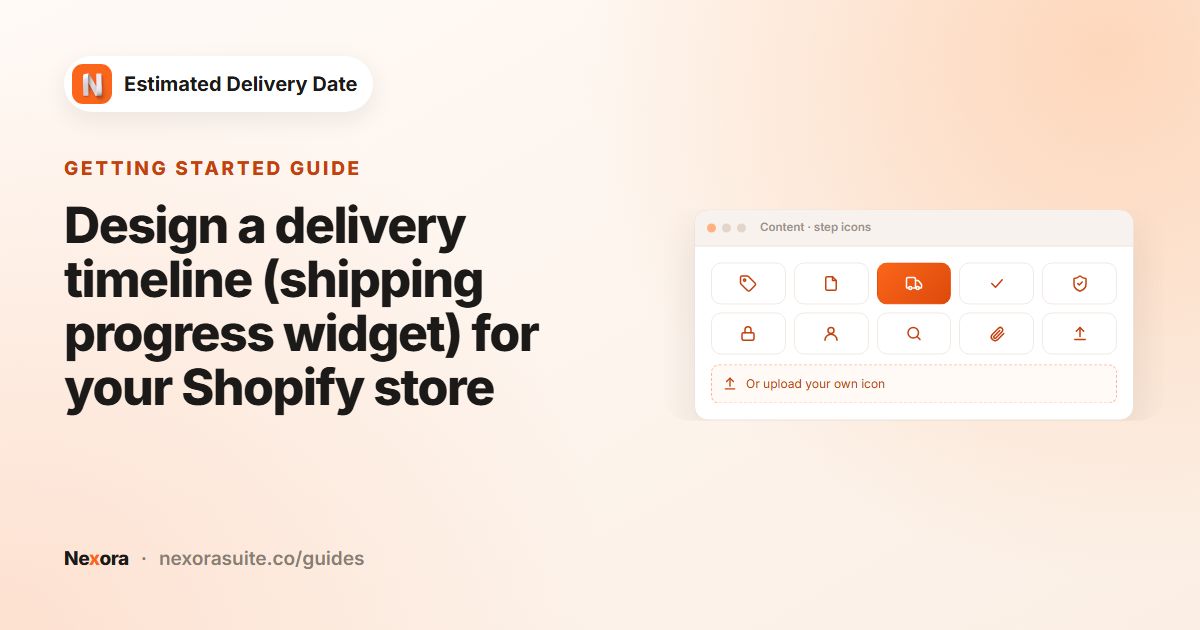
Once the basics work, give the timeline your own step names and icons in the Content tab. The tutorial walks through a full setup in about 10 minutes.
Frequently asked questions
Is the app free?
Yes. Nexora Estimated Delivery Date is free, with unlimited widgets.
Do I need to edit theme code?
No. You add the EDD Widget app block in the theme editor. It works with Online Store 2.0 themes whose product section supports app blocks.
Where does the delivery date appear?
On product pages, wherever you place the EDD Widget block, for example under the price or the Add to cart button.
Why don't I see the widget on my store?
Check that the block is on the product template you are viewing, the theme is saved, the widget is Active and saved, and its Placement and Markets match the product and the shopper's market.
Can I show more than one widget on a product page?
No. One widget is shown per page. If several match, the most specific one wins: product, then collection, then all products.