
Before you start
- Install Nexora Estimated Delivery Date from the Shopify App Store.
- Use an Online Store 2.0 theme whose product page supports app blocks (most current themes, including Dawn, do).
- Have these numbers ready: how many working days you need to prepare an order, how many days your carrier takes, your daily order cut-off time, and the days you and your carrier work.
- Note any upcoming holidays or closures you want to exclude.
Step 1: Create a widget and set your timings
- Create the widget
Open the app and click Create widget. Give it a Widget name, such as "Standard shipping", and make sure the status checkbox shows Active.
- Set processing time
In Conditions › Order Processing, enter Shortest (days) and Longest (days) for preparing an order. Use 0 if you ship the same day.
- Set the cut-off
Choose the Hour, Minute and AM/PM for your Cutoff time. Orders after this time start processing the next day.
- Choose working days
Under Working days, select the days you process orders.
- Add blocked dates
Click + Add blocked date for holidays or closures. Turn on Repeat yearly for annual holidays.
- Set transit time
In Order Transit, enter the carrier's Shortest (days) and Longest (days), and choose the days it delivers.
- Choose markets
Leave Markets on All markets, or choose Specific markets and click Select markets.
Watch the Live Preview on the right as you go. It shows the dates the widget will produce.
Step 2: Write the message and name the steps
- Edit the message
Open the Content tab and edit Template text. Keep
{counter},{delivery_from}and{delivery_to}where you want the countdown and dates to appear, using each once. - Pick a date format
Under Date settings, set the Date separator, decide on Include year, and choose a Date format such as MM/DD/YYYY for US shoppers.
- Name the steps
In the Purchased, Processing and Delivered cards, change each Title if you like and pick one of the Default icons, or upload your own under Custom icon (overrides default).
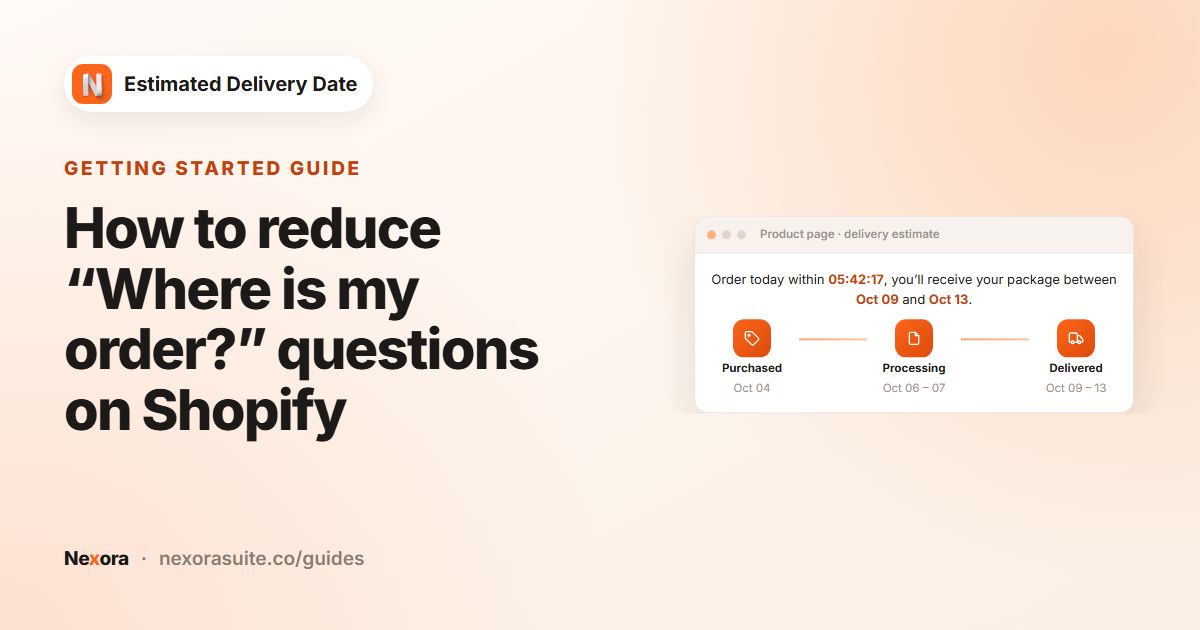 Related guideHow to reduce “Where is my order?” questions on Shopify→
Step 3: Style the widget and choose products
- Match your brand
In the Design tab, change the Background color, Progress line color, Icon background and Typography colours to suit your theme. Turn shadows and endpoint dots on or off.
- Choose products
In the Placement tab, keep All products for a store-wide widget, or pick Specific collections or Specific products.
- Save
Click Save in the save bar at the top. You'll see "Widget saved successfully".
Step 4: Add the block to your product page
- Open the theme editor
Go to the app's Home page and click Go to theme editor.
- Switch to a product page
Use the page selector at the top to open your product template.
- Add EDD Widget
In the product information section, click Add block, choose Apps, then EDD Widget.
- Place and save
Drag the block to a good spot, such as under the Add to cart button, and click Save.
Step 5: Check it on your store
- Open a product covered by the widget on your live store or theme preview.
- Check the message, the countdown and the three dates, and compare them with the Live Preview.
- If you used Specific collections, Specific products or Specific markets, test with a product and market that should match, and one that shouldn't.
Dates follow the clock and time zone of the device viewing the page, so a shopper in a different time zone may see a slightly different countdown.
Recipe: Same-day dispatch with an afternoon cut-off
Goal: orders placed before 2:00 PM on weekdays are processed the same day.
- Processing
Set Shortest (days) to 0 and Longest (days) to 0 or 1.
- Cut-off
Set Cutoff time to 2 : 00 PM.
- Message
Use a message such as "Order within {counter} to ship today. Arrives {delivery_from} – {delivery_to}".
- Save
Click Save.
Because the message text is the same every day, wording like "to ship today" will also show on weekends. Choose neutral wording, such as "Order within {counter} for delivery by {delivery_to}", if that matters to you.
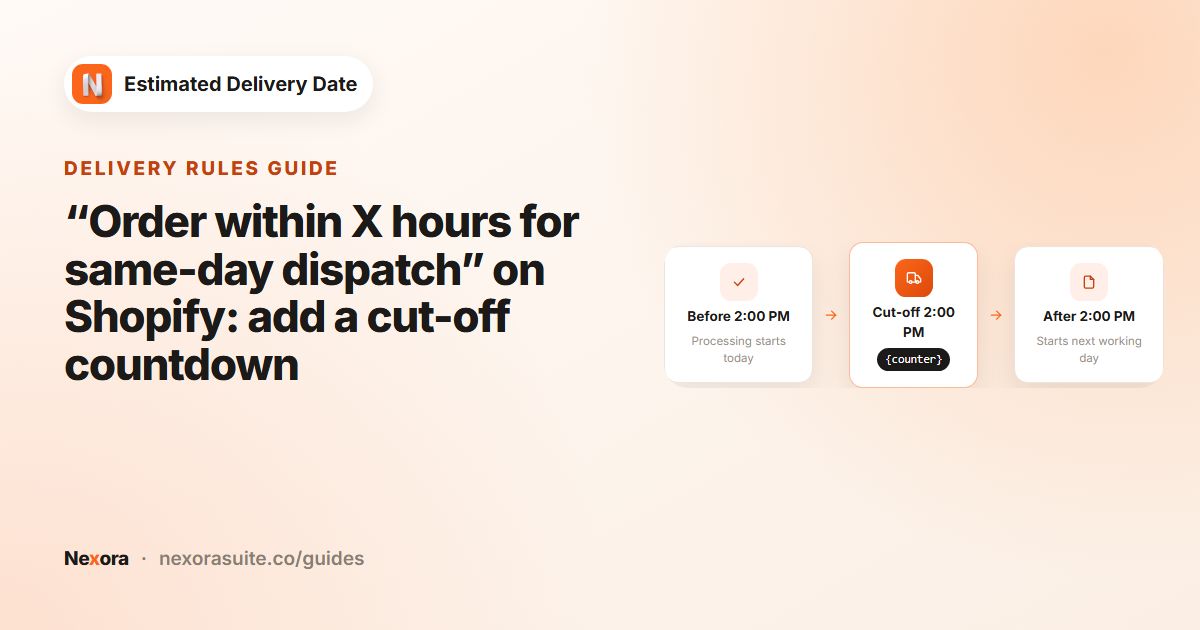 Related guide“Order within X hours for same-day dispatch” on Shopify: add a cut-off countdown→
Recipe: Block out the holiday season
Goal: no processing or deliveries over Christmas and New Year, every year.
- Processing closure
In Order Processing › Blocked dates (holidays), click + Add blocked date, select 24 December to 1 January, switch on Repeat yearly and click Add.
- Carrier closure
Do the same in Order Transit for the days your carrier doesn't deliver, for example 25 and 26 December.
- Save
Click Save. Estimated dates will now skip these days automatically each year.
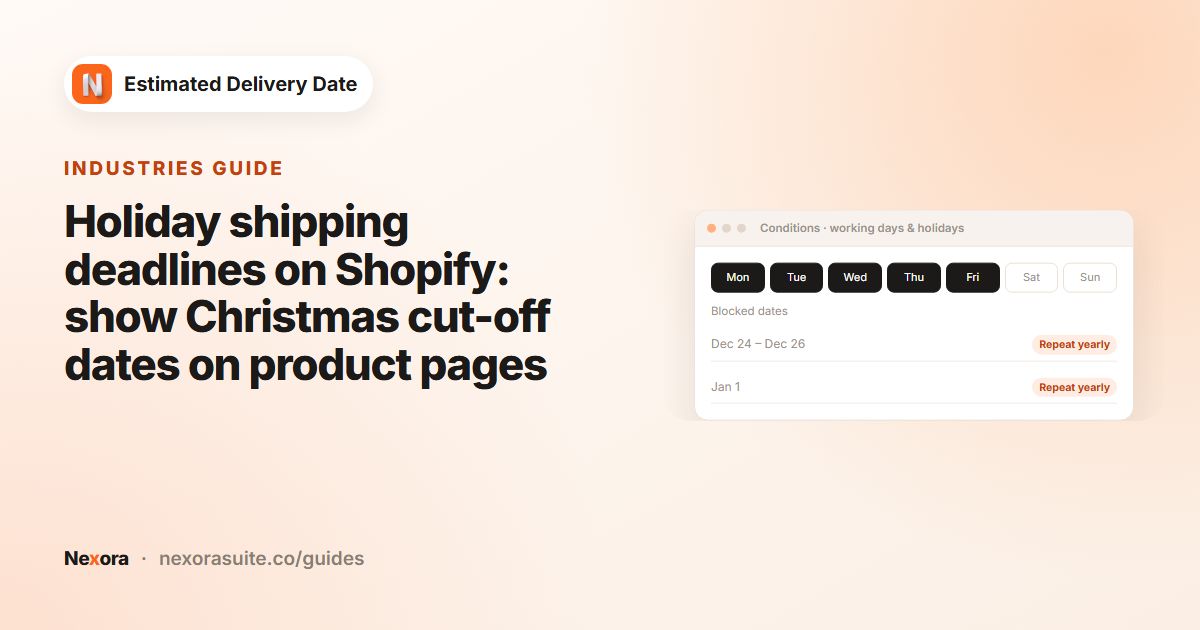 Related guideHoliday shipping deadlines on Shopify: show Christmas cut-off dates on product pages→
Recipe: Longer lead time for a made-to-order collection
Goal: most products ship in 1–2 days, but a "Made to order" collection takes 5–7 days.
- Default widget
Keep your main widget on All products with processing of 1–2 days.
- Second widget
Create a new widget named "Made to order", set processing to 5–7 days and adjust the message if you like.
- Target the collection
In Placement, choose Specific collections, click Select collections and pick "Made to order". Click Save.
Products in that collection now show the longer estimate, because a collection widget takes priority over an All products widget. Everything else keeps the default.
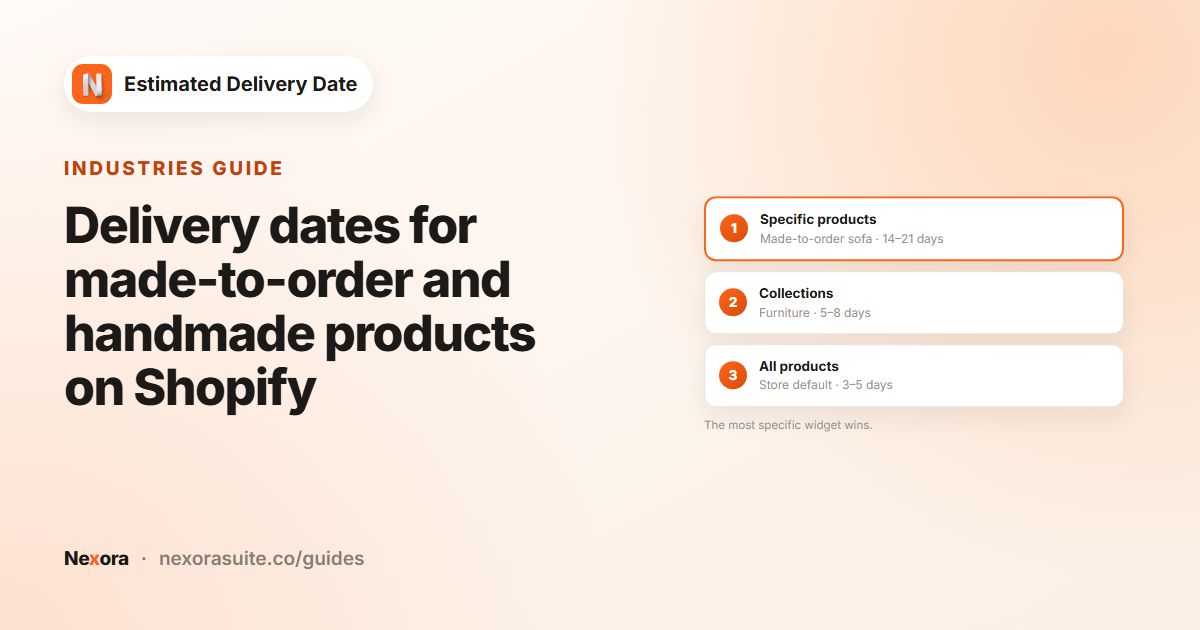 Related guideDelivery dates for made-to-order and handmade products on Shopify→
Recipe: Different estimates for domestic and international shoppers
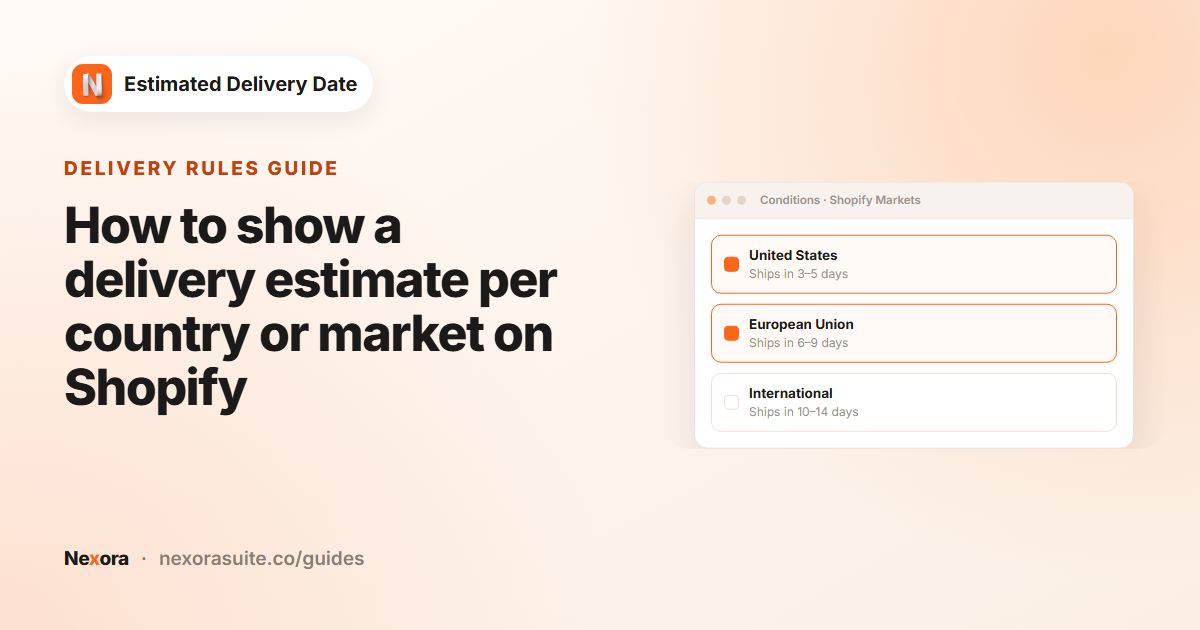
Goal: shoppers in your home market see 1–3 day transit, while international shoppers see 5–10 days. This uses Shopify Markets.
- Domestic widget
Create a widget with transit of 1–3 days. Under Markets, choose Specific markets, click Select markets, tick your home market and click Confirm.
- International widget
Create a second widget with transit of 5–10 days, and select your international markets the same way.
- Save both
Both can use All products in Placement. Each shopper sees the widget for their market.
 Related guideHow to show a delivery estimate per country or market on Shopify→