What made-to-order stores need from a delivery estimate
When an item is made after it's ordered, the wait is part of the product. Shoppers buying a handmade ring, a custom portrait or a piece of furniture built to size usually accept a longer lead time, but they want to know it upfront and they want it to be accurate.
- Explain the wait. Show making time separately from shipping, so a three-week total doesn't look like slow delivery.
- Be precise without over-promising. Use a range that covers your busy weeks.
- Respect the maker's calendar. Studio days, craft fairs and holidays shouldn't count as making days.
- Keep in-stock items fast. Ready-made products in the same store should still show their shorter estimate.
Many makers also sell a few ready-made pieces alongside commissions. The setup below keeps both honest: a quick default for stock items and a separate, longer estimate only where the item is made after the order.
Recommended setup
| Feature | Recommended value | Why |
|---|---|---|
| Processing time | Your real making range, e.g. 7–10 days | Shown as its own step; delivery is counted from the longest value |
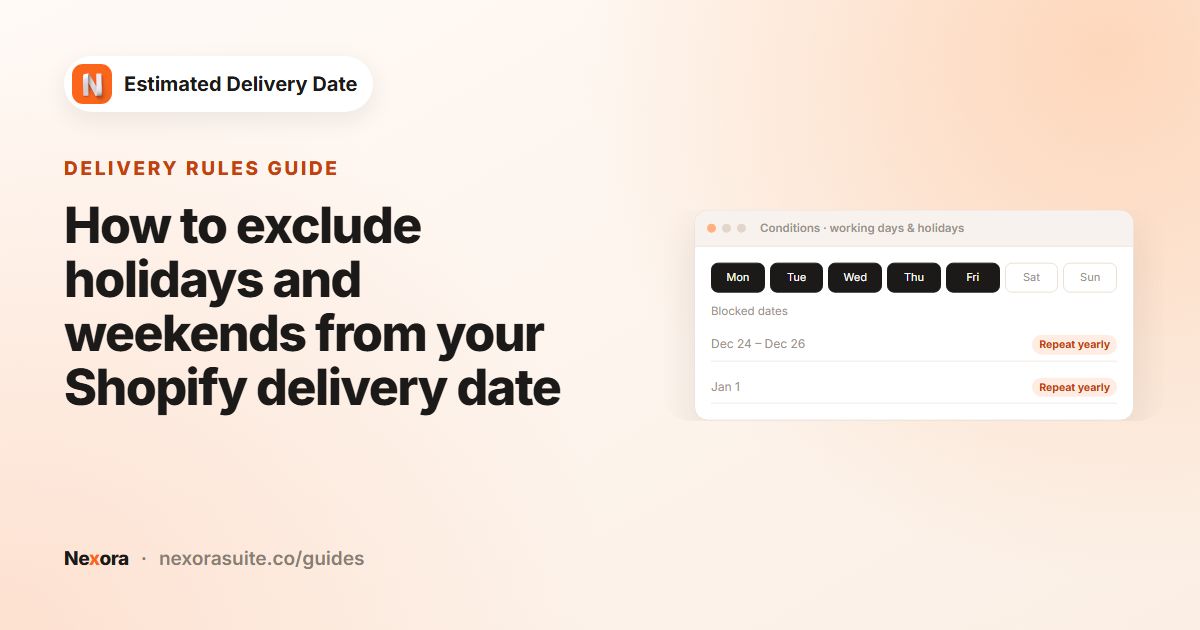
| Processing Working days | Only the days you make items, e.g. T to SA | Days off don't count toward making time |
| Blocked dates (holidays) | Holidays, fairs, supply breaks | Pushes the estimate past days you aren't working |
| Cutoff time | Early afternoon, e.g. 3 : 00 PM | Orders after it start the next making day |
| Order Transit | Your carrier's days, e.g. 2–4 | Kept separate from making time |
| Placement | Specific collections: Made to order | In-stock items keep the default widget |
| Processing step Title | “Made for you” or “Handcrafted” | Tells the shopper what's happening |
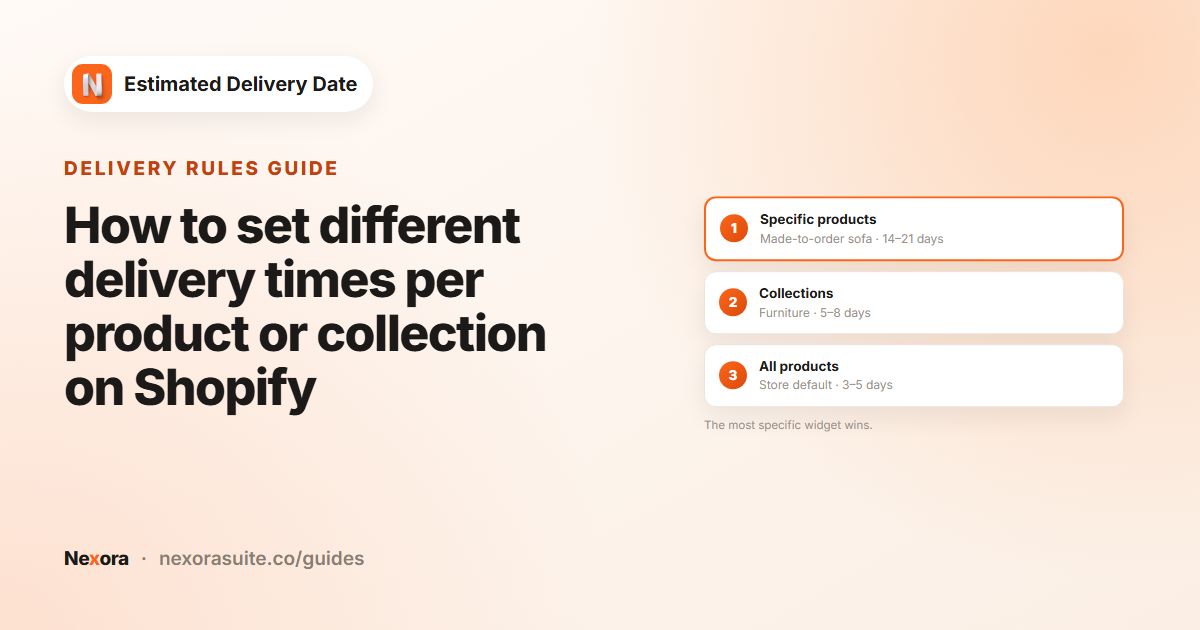
A collection widget takes priority over an All products widget, so made-to-order products show the longer estimate while everything else keeps your standard one.
Steps
- Group your made-to-order products
In Shopify admin, put them in a collection, for example “Made to order”. A collection keeps working as you add new products.
- Keep a default widget
Make sure you have an All products widget for ready-made items, for example processing 1–2 days.
- Create the made-to-order widget
Click Create widget and name it “Made to order”. In Conditions › Order Processing, set Shortest (days) and Longest (days) to your making range, then set Cutoff time and Working days.
- Add your days off
Under Blocked dates (holidays), click + Add blocked date for holidays, fairs or a planned break. Use Repeat yearly for fixed annual dates.
- Set transit
In Order Transit, enter your carrier's Shortest (days), Longest (days) and delivery days.
- Write the message
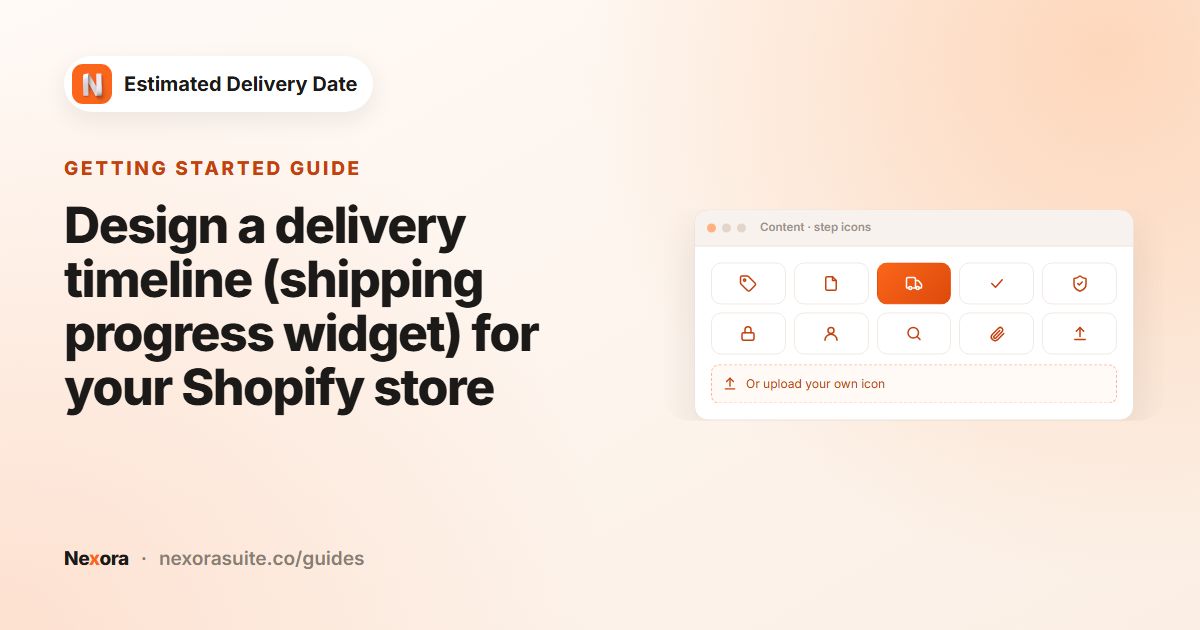
In Content, change Template text, for example “Each piece is made to order. Estimated delivery {delivery_from} – {delivery_to}”. Rename the Processing step and pick an icon such as gear or box.
- Target the collection
In Placement, choose Specific collections, click Select collections, pick “Made to order” and click Save.
Example: a furniture maker
A small workshop sells ready-made side tables and made-to-order dining tables. Both are packed and made Monday to Friday, with a 3:00 PM cut-off, and the carrier takes 2–4 working days.
| Widget | Processing | Shopper on Mon 5 Oct, 9 AM: Processing | Delivered |
|---|---|---|---|
| Default (All products) | 1–2 days | Oct 06-07 | Oct 09-13 |
| Made to order (collection) | 7–10 days | Oct 14-19 | Oct 21-23 |
The dining table page shows Purchased on Oct 05, Made for you on Oct 14-19, and Delivered on Oct 21-23. Because the making step is visible, the two-week wait reads as craftsmanship rather than a slow parcel.
Tips for makers
- Drop the countdown if it doesn't help. On a two-week lead time, a few hours rarely matter. Remove
{counter}from Template text and the dates still show. - Plan breaks early. Add holidays or a studio break as blocked dates before orders come in for that period. Past dates can't be selected.
- Adjust for busy seasons. If your queue grows, raise Longest (days) for a while and lower it again later. Click Save after each change.
- One-off commissions. For a single product with its own lead time, a Specific products widget beats the collection widget.
- Neutral wording. The message is shown as written every day, so avoid “ships today” for items that are made later.
More on targeting products and collections: different delivery times per product.
Frequently asked questions
Can I show a long making time without it looking like slow shipping?
Yes. Making time is shown as the Processing step, separate from Delivered. Rename it to something like “Made for you”.
Do weekends count as making days?
Only the days you select under processing Working days count. Leave out the days you don't work.
Can ready-made and made-to-order products show different dates?
Yes. Use an All products widget for ready-made items and a Specific collections widget for made-to-order. The collection widget wins for those products.
Is there a maximum processing time?
Enter the range that matches your workflow; Shortest (days) just can't be larger than Longest (days).
How do I pause the made-to-order estimate during a break?
Add the break as Blocked dates (holidays) so the dates move past it. Avoid making the widget Inactive for this: those products would then fall back to your shorter All products estimate.
Can I rename the Delivered step too?
Yes. Each of the three steps has its own Title in the Content tab, for example “Delivered to you” or “At your door”.