Why one delivery time doesn't fit every product
Few stores have a single lead time. Items in stock ship in a day or two, personalised items need extra time, bulky goods go with a slower carrier, and a few products might be dropshipped or made to order. Showing the same estimate on all of them means some pages promise too much and others too little.
The fix is to set a sensible default for most of the catalogue and then override it only where a product or collection really is different.
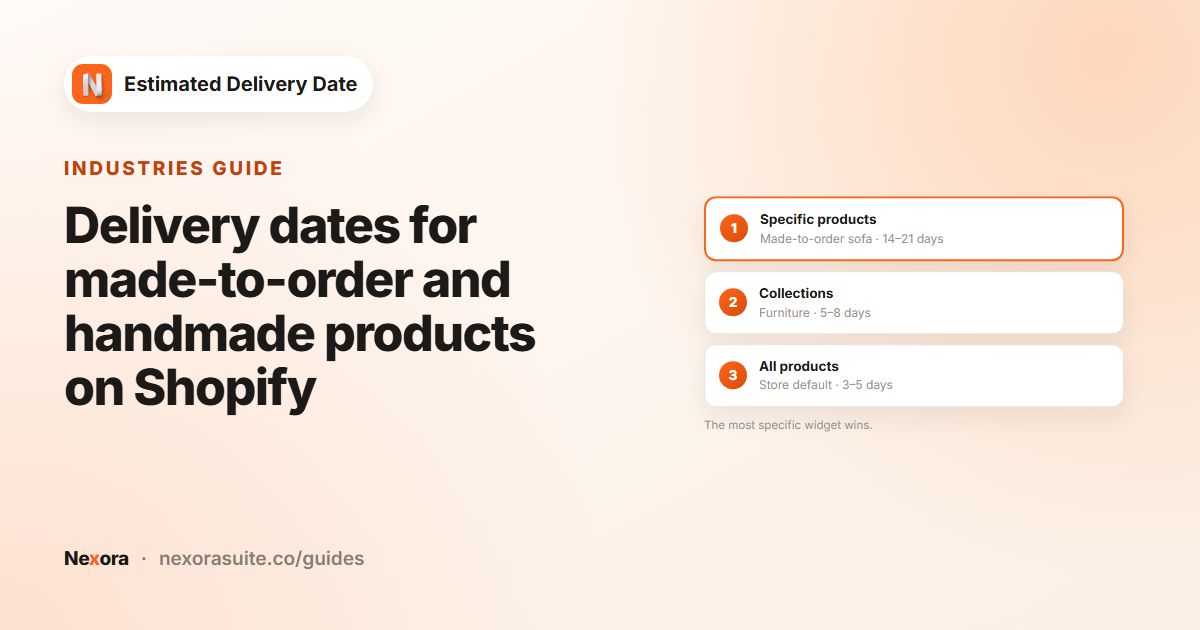
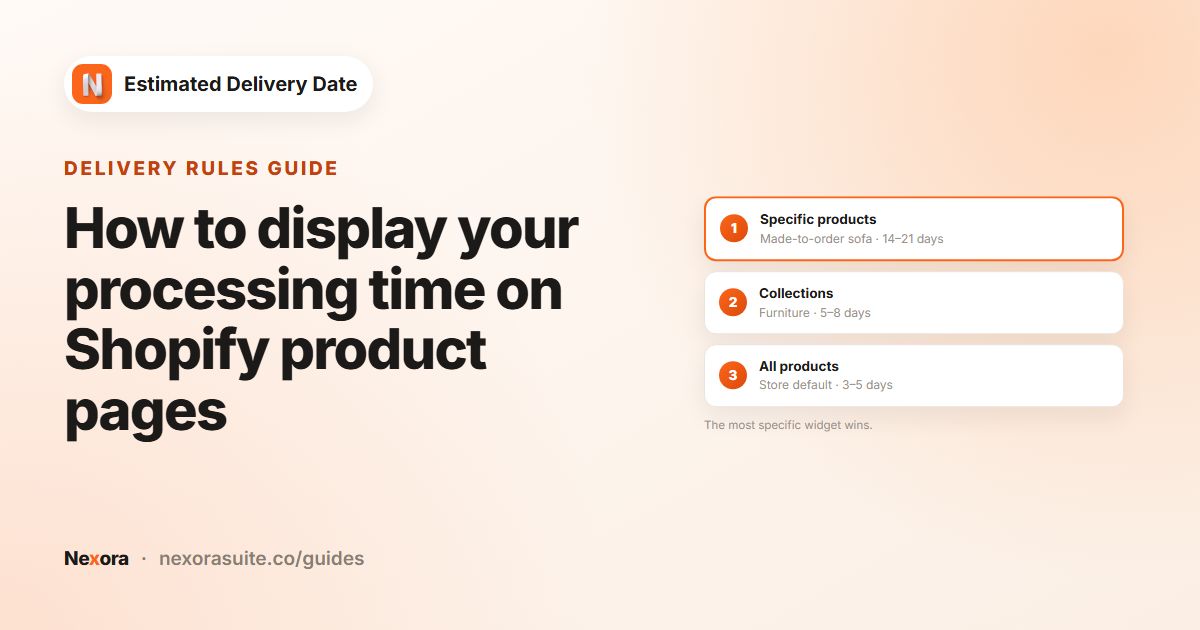
Think of it in layers. The bottom layer is one widget for All products with your typical lead time. On top of that, add a widget for each collection that behaves differently, and only use Specific products for genuine one-offs. Fewer, broader widgets are easier to keep up to date than many narrow ones.
Your options on Shopify
Without an app, the usual approach is to write the lead time into each product description, or to create separate product templates with different text blocks and assign them to products. Both work, but the text is static and every change means editing several places.
In Nexora Estimated Delivery Date, each widget is its own set of rules. You can create as many as you like for free, and the Placement tab decides which products each one covers. Because widgets are picked automatically, the same EDD Widget block on your product template shows the right estimate on every product.
Step by step: a default widget plus overrides
- Create the default
Click Create widget, name it “Default”, set your usual processing and transit days in Conditions, and in Placement keep Apply widget to on All products. Click Save.
- Create a collection widget
Click Create widget again, name it after the collection (for example “Furniture”), set its longer Processing time and Order Transit days, and adjust the Template text if you want different wording.
- Target the collection
In Placement, choose Specific collections, click Select collections and pick one or more collections. Click Save.
- Create a product widget (optional)
For a single product with its own lead time, create another widget, choose Specific products, click Select products and pick it.
- Check each page
Open a product from each group on your store and confirm the estimate. Use Change or Remove in Placement to adjust a selection later.
You only add the EDD Widget block to your product template once. The app chooses which widget to show on each product.
Which widget wins
Only one widget appears on a product page. The app looks for an Active widget that also matches the shopper's market, in this order:
| Priority | Placement | Used when |
|---|---|---|
| 1 | Specific products | A widget lists this exact product |
| 2 | Specific collections | No product widget, but a widget covers one of the product's collections |
| 3 | All products | Nothing more specific matches |
If two widgets match at the same level, for example two collection widgets for a product that sits in both collections, only one of them is shown and you can't choose which. Avoid overlaps at the same level, or move the product into a single widget with Specific products.
Example: a home store with three lead times
| Widget | Placement | Processing | Transit |
|---|---|---|---|
| Default | All products | 1–2 days | 1–3 days |
| Furniture | Specific collections: Furniture | 5–8 days | 3–5 days |
| Engraved board | Specific products: Engraved oak board | 3–4 days | 1–3 days |
A cushion shows the default estimate. A sofa in the Furniture collection shows the longer one. The engraved oak board shows its own estimate, even if it also sits in a collection with a widget, because a product widget comes first.
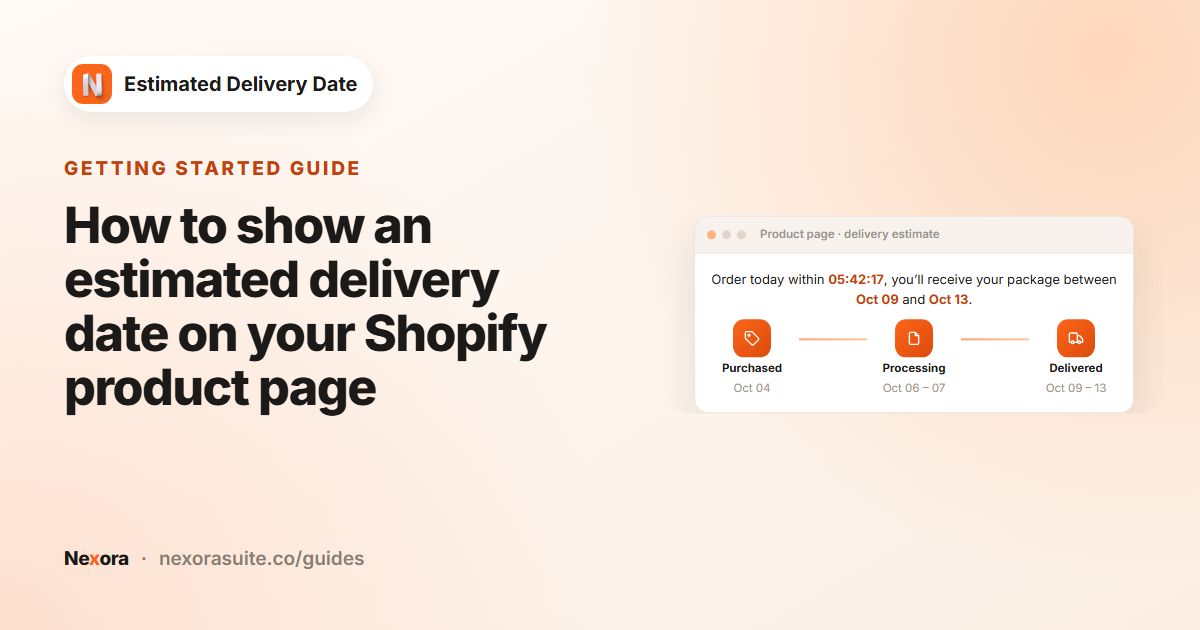
Each widget can also have its own look. For example, the Furniture widget could rename Delivered to “Two-person delivery” and use the truck icon, while the engraved board renames Processing to “Engraved”.
Tips and common mistakes
- Always keep a default. Without an All products widget, products outside your collections show nothing.
- Use collections for groups. A collection widget keeps working as you add products to that collection.
- Name widgets clearly. The Widget name is internal only, so describe what it covers.
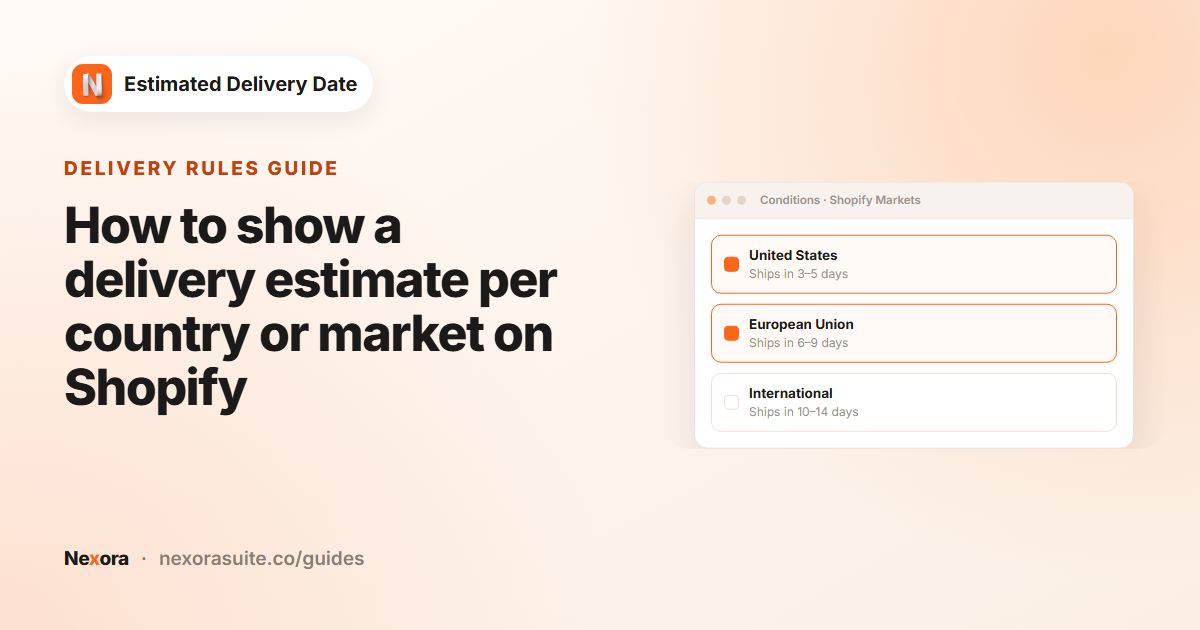
- Markets apply too. A widget limited to Specific markets is skipped for shoppers in other markets, and the next matching widget is used.
- Pause instead of deleting. Untick the status checkbox to make a widget Inactive for a while.
For a full made-to-order setup, see made-to-order delivery dates.
Frequently asked questions
How many widgets can I create?
As many as you like. The app is free with unlimited widgets.
What if a product is in two collections with different widgets?
Only one is shown and you can't control which. Avoid overlapping collection widgets, or create a Specific products widget for that product.
Does a product widget override a collection widget?
Yes. Specific products comes first, then Specific collections, then All products.
Do I need a different product template for each widget?
No. Add the EDD Widget block once to each product template you use; the app picks the right widget per product.
Why does a product show no estimate?
No active widget matches it and the shopper's market. Add an All products widget as a fallback.
Can each widget have its own message and design?
Yes. Every widget has its own Content and Design settings, so a collection widget can use different wording, step titles, icons or colours.