Why international shoppers need their own estimate
A parcel to a neighbouring town and a parcel to another continent don't take the same time. If your product page shows a two-day estimate to everyone, international shoppers are given a promise you can't keep, and if you show the slowest estimate to everyone, domestic shoppers see a delivery time that's worse than reality.
Splitting the estimate by market lets each group see a realistic range, while your processing rules stay the same.
How Shopify Markets fits in
Shopify Markets lets you group countries or regions into markets, each with its own settings such as currency and language. Shopify decides which market applies to a visit; the app reads that market and doesn't detect location itself. See Shopify's guide to Markets.
Shopify themes don't show a market-specific delivery date on the product page by default. In Nexora Estimated Delivery Date, every widget has a Markets setting, so you can run one widget for your home market and another for international markets, both on the same product pages.
| Markets option | What it does |
|---|---|
| All markets | The widget can show for every market (default). |
| Specific markets | The widget shows only for the markets you select. |
Step by step: domestic and international widgets
- Check your markets
In Shopify admin, confirm the markets you sell to are set up, for example a home market and an International market.
- Create the domestic widget
In the app, click Create widget, name it “Domestic” and set Order Processing and Order Transit for local delivery.
- Limit it to your home market
In Conditions › Markets, choose Specific markets, click Select markets, tick your home market and click Confirm. The chosen market appears below the button.
- Create the international widget
Create a second widget named “International” with the same processing settings and longer Order Transit days. Select your other markets the same way.
- Keep placement broad
Both widgets can use All products in Placement.
- Save both
Click Save on each widget. Use Edit markets or the remove icon later to change a selection.
How the right widget is chosen
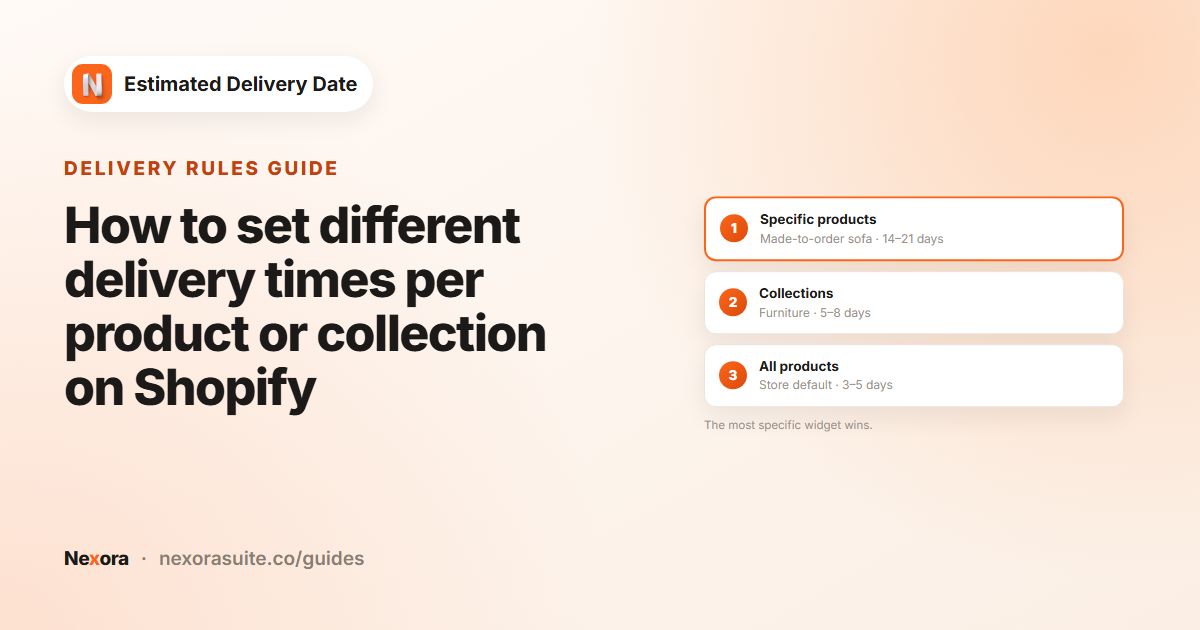
For each product page, the app looks for an Active widget that matches the shopper's market, checking Specific products first, then Specific collections, then All products. A widget limited to other markets is skipped.
- If a market has no matching widget, nothing is shown for shoppers in that market.
- An All markets widget acts as a catch-all, but avoid having it at the same placement level as a market widget that covers the same products, because only one widget at a level is shown and you can't choose which.
- Market and placement combine: you can have a domestic widget for a Furniture collection and a separate international one for it.
A simple way to test is to switch markets on your storefront, for example with your theme's country selector if it has one, and reload a product page. Each market should show its own widget's dates. If a market shows nothing, check that it is ticked in one of your widgets and that the widget is Active and saved.
Example: home market and international
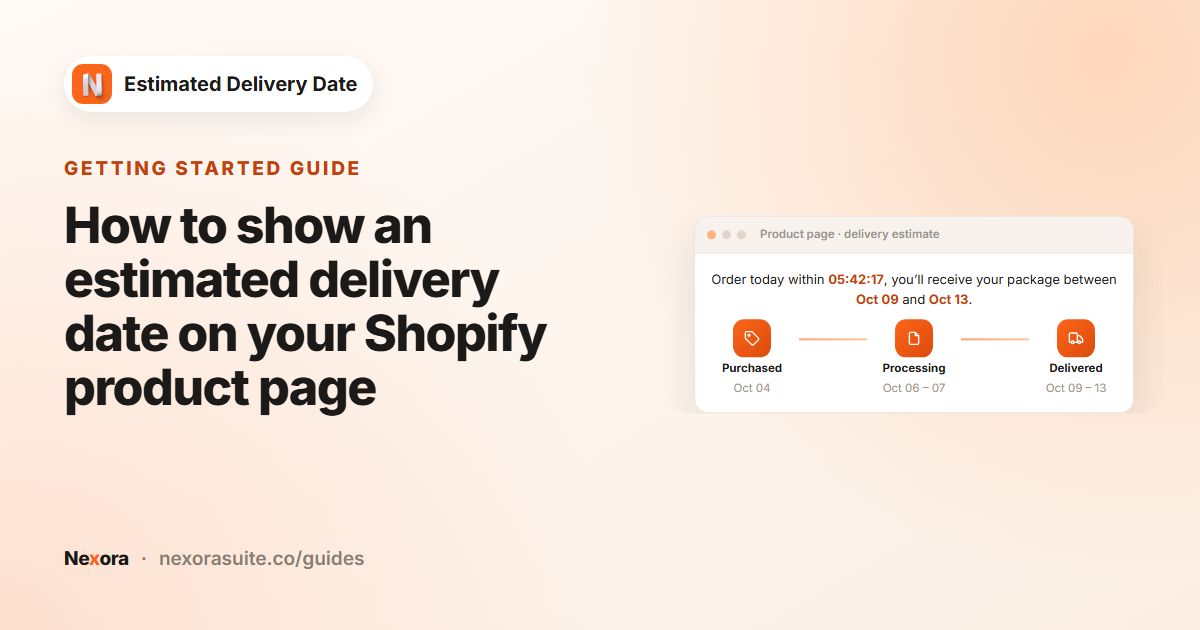
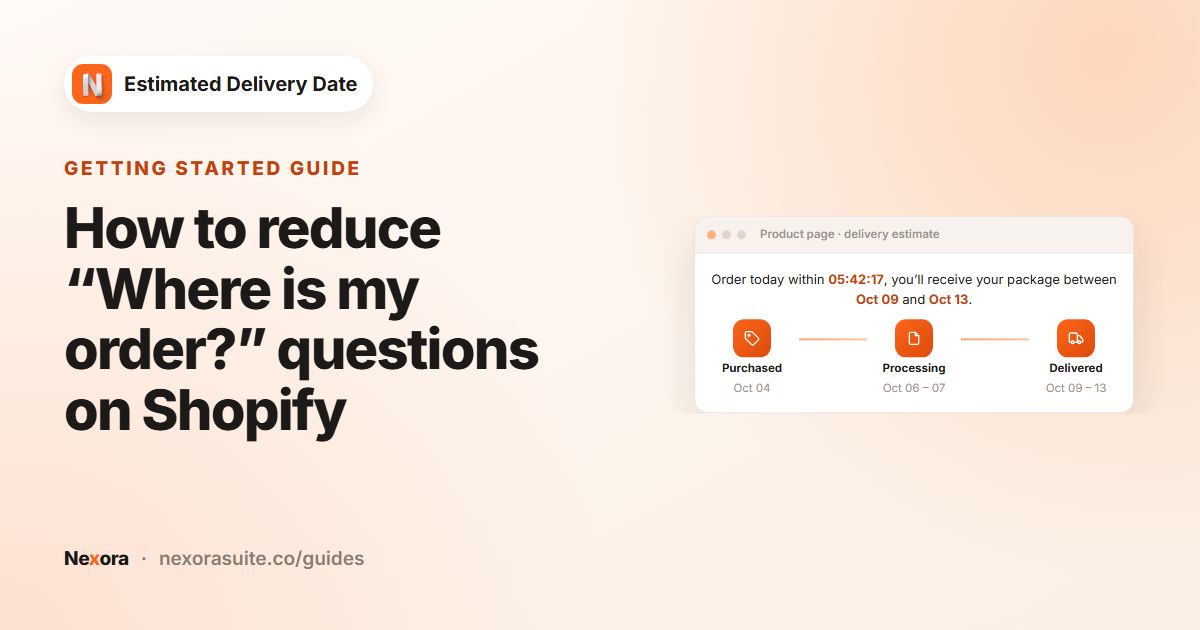
Both widgets: processing 1–2 days, Cutoff time 4 : 00 PM, Monday to Friday. Domestic transit 1–3 days; international transit 5–10 days. A shopper visits on Wednesday 7 October at 9:00 AM.
| Widget | Markets | Processing | Delivered |
|---|---|---|---|
| Domestic | Home market | Oct 08-09 | Oct 12-14 |
| International | All other markets | Oct 08-09 | Oct 16-23 |
For the international widget, a message without a countdown often reads better, such as “Estimated international delivery: {delivery_from} – {delivery_to}”.
Tips and common mistakes
- Time zones. Dates and the countdown use the shopper's device clock and time zone. A shopper abroad sees a countdown to your cut-off hour in their own local time, which may not match your real cut-off. Leaving
{counter}out of international messages avoids confusion. - Date formats. Pick a Date format that suits each audience, for example MM/DD/YYYY for a US market and DD/MM/YYYY elsewhere. Timeline labels always use the short “Oct 12” style.
- Separate wording. Each widget has its own Template text, so the international message can mention possible customs delays in your own words.
- Markets list won't load? Reopen the app so Shopify can refresh permissions, or contact us via live chat.
The tutorial includes a domestic and international recipe you can follow step by step.
Frequently asked questions
Does the app detect the shopper's country?
No. It uses the market that Shopify applies to the visit, through Shopify Markets.
Can one widget cover several markets?
Yes. Under Specific markets, tick as many markets as you need in Select markets.
What happens in a market with no widget?
Nothing is shown on product pages for shoppers in that market.
Can I use different date formats per market?
Yes, by giving each market's widget its own Date format. This applies to the dates in the message.
Do I need Shopify Markets set up?
Only for market-specific widgets. With All markets, the widget works for every shopper.
Can I combine market widgets with collection widgets?
Yes. Each widget has both a Markets setting and a Placement setting, so you can have, for example, a domestic and an international widget for the same collection.