What a cut-off countdown does
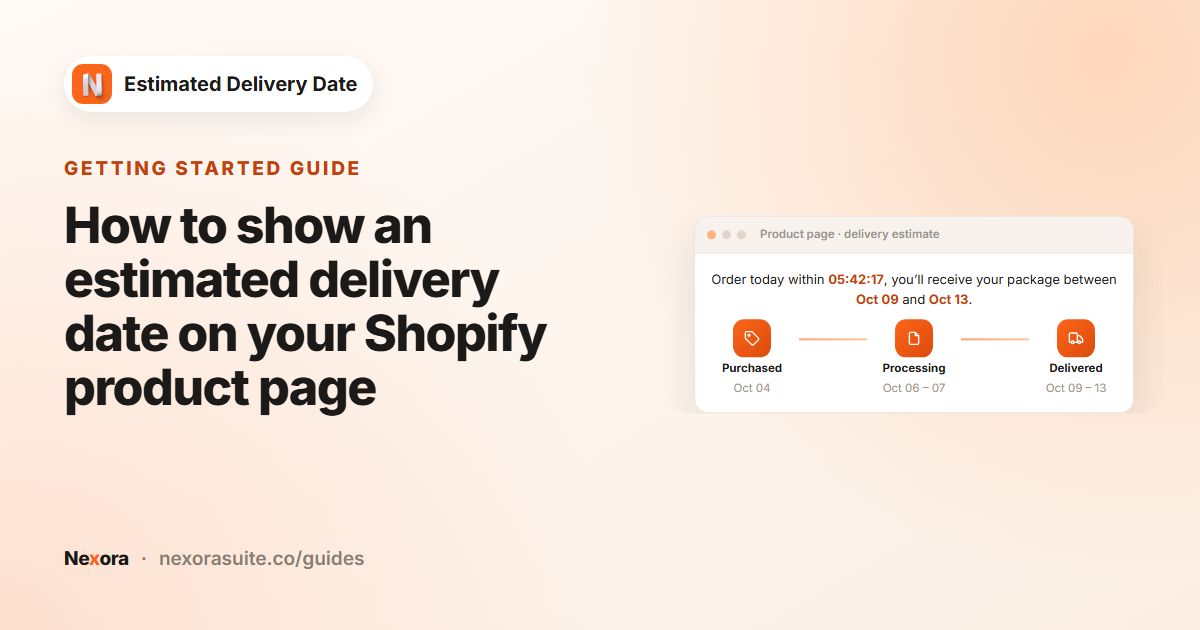
Most stores have a time of day after which new orders are packed the next day. A cut-off countdown makes that time visible: “Order within 03:12:45 to ship today”. It tells the shopper exactly how long they have, and the delivery date underneath explains what they gain by ordering now.
Used honestly, it is simply useful information. It only works if the cut-off matches what your team really does, so start from your actual packing routine rather than a number that sounds good.
Your options on Shopify
Shopify themes don't include a cut-off countdown for the product page. A theme Text block can say “Orders before 2 PM ship the same day”, which is accurate but static: it doesn't count down and doesn't change the delivery date after 2 PM. A live timer needs either custom code or an app.
Nexora Estimated Delivery Date links the countdown to the date calculation, so the timer and the dates always agree. It is free and runs from a theme app block on the product page.
Step by step: set up same-day dispatch with a countdown
- Open or create a widget
In the app, click Create widget or Edit an existing one.
- Allow same-day processing
In Conditions › Order Processing, set Processing time › Shortest (days) to 0. Set Longest (days) to 0 if you always ship the same day, or 1 if some orders slip to the next day.
- Set the cut-off
Under Cutoff time, choose Hour (1–12), Minute (00–59) and AM/PM, for example 2 : 00 PM.
- Choose packing days
Under Working days, select the days you dispatch, for example M to F.
- Set transit
In Order Transit, enter the carrier's Shortest (days) and Longest (days) and its delivery days.
- Add the countdown to the message
In the Content tab, write Template text with
{counter}where the timer should appear, for example “Order within {counter} to ship today. Arrives {delivery_from} – {delivery_to}”. - Save and add the block
Click Save. If you haven't yet, add the EDD Widget block to your product template in the theme editor.
Use {counter} only once. If it appears twice in Template text, no timer is shown and the raw text {counter} appears instead.
How the countdown behaves
| Situation | Countdown | Dates |
|---|---|---|
| Working day, before cut-off | Counts down to today's cut-off | Processing starts today |
| Working day, after cut-off | Counts down to the cut-off on the next calendar day | Processing starts the next working day |
| Weekend or blocked date | Counts down to the cut-off on the next calendar day | Processing starts the next working day that isn't blocked |
The countdown always targets the next calendar day after the cut-off, even if that day is a Saturday or a holiday. The dates are still calculated correctly from your working days; only the timer works on calendar days.
The timer and the dates use the shopper's own device clock and time zone. A shopper in another time zone sees a countdown to 2:00 PM in their time, not yours, so this works best when most shoppers are in your time zone, or with markets set up separately (see delivery estimates per market).
Example: 2 PM same-day dispatch
Processing 0–0 days, Cutoff time 2 : 00 PM, transit 1–3 days, Monday to Friday for both.
| Shopper visits | Countdown targets | Processing | Delivered |
|---|---|---|---|
| Tue 6 Oct, 11:00 AM | Tue 2:00 PM | Oct 06 | Oct 07-09 |
| Tue 6 Oct, 3:00 PM | Wed 2:00 PM | Oct 07 | Oct 08-12 |
| Fri 9 Oct, 3:00 PM | Sat 2:00 PM | Oct 12 | Oct 13-15 |
On Friday afternoon the timer shows about 23 hours, counting to Saturday's 2:00 PM, while the dates correctly show Monday processing. If that combination looks odd for your store, use wording that doesn't depend on the day, as below.
Tips and common mistakes
- “Order today” on weekends. The message is shown exactly as written every day. “Order within {counter} to ship today” still appears on Saturday. Neutral wording such as “Order within {counter} for delivery by {delivery_to}” reads correctly on any day.
- Leave a buffer. If your last courier collection is at 3:00 PM, a 2:00 PM cut-off gives your team time to pack.
- Make the timer stand out. In Design › Typography, set a Color for Counter (countdown timer).
- No timer wanted? Remove
{counter}from Template text; the dates still work. - Test in the Live Preview. It runs the countdown using your computer's clock.
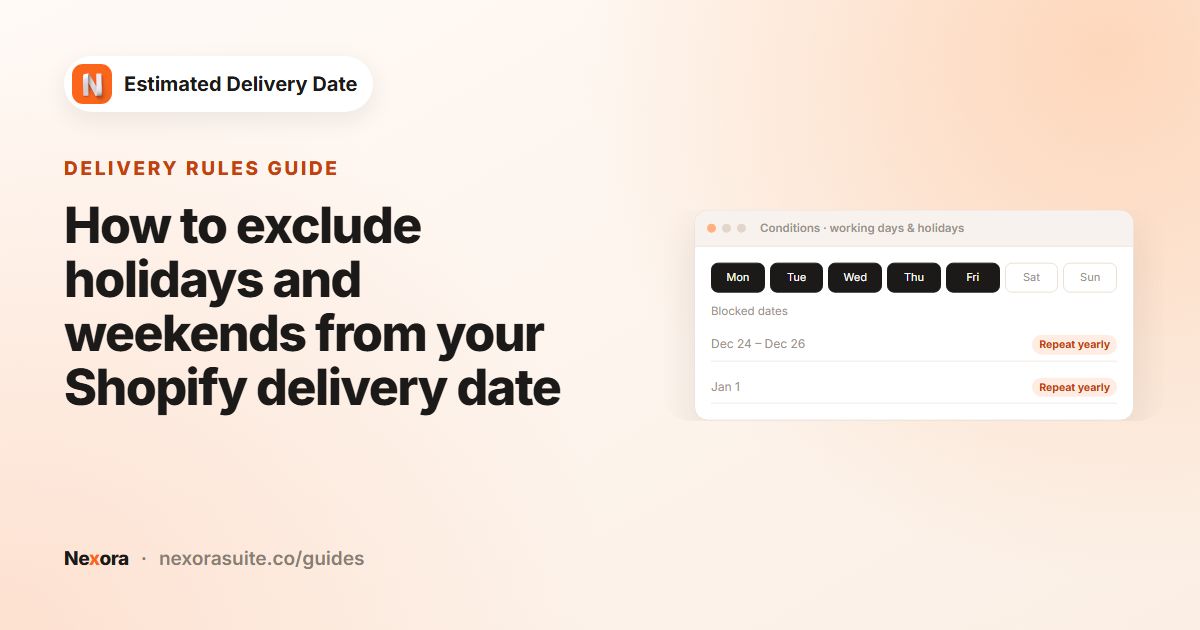
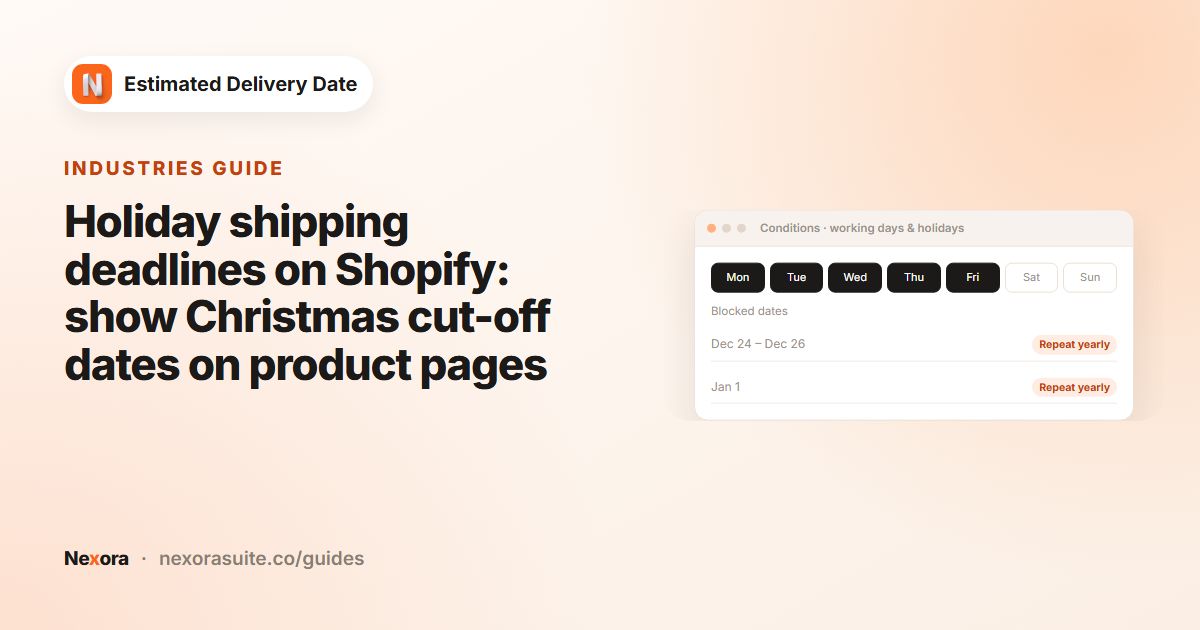
To exclude holidays from both the dates and your same-day promise, add them under Blocked dates (holidays). See excluding holidays and weekends.
Frequently asked questions
What format does the countdown use?
Hours, minutes and seconds, for example 03:12:45, updating every second.
What happens after the cut-off time?
The countdown starts counting to the cut-off time on the next calendar day, and the estimated dates move forward to the next working day.
Does the countdown use my store's time zone?
No. It uses the shopper's device clock and time zone, so shoppers elsewhere see a countdown to the cut-off in their own local time.
Can I use {counter} twice in the message?
No. With more than one {counter}, the timer isn't shown and the raw text appears. Use it once.
Can I set a cut-off with minutes, like 1:30 PM?
Yes. Cutoff time has separate Hour, Minute and AM/PM fields.