What processing time is, and why to show it
Processing time (sometimes called handling time) is how long it takes you to get an order ready to leave: picking, packing, printing a label, or making the item. It is separate from transit time, which is how long the carrier takes once the parcel has left you.
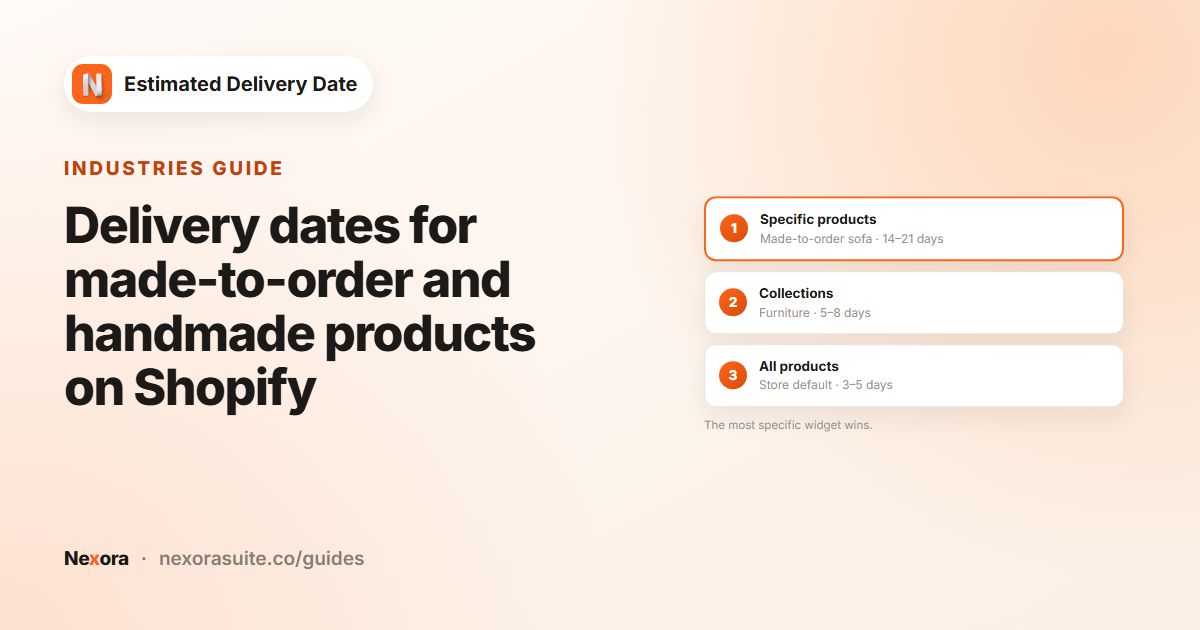
Shoppers rarely think about the two separately, so if you only show the carrier's speed, your delivery estimate will be too optimistic. Showing processing as its own step explains why an order placed today won't arrive tomorrow, and makes longer lead times for handmade or personalised items feel expected rather than surprising.
It also helps you. When processing time is written down as two numbers, Shortest (days) and Longest (days), it becomes a commitment your team can plan around, and a quick thing to adjust when you get busier or quieter.
Your options on Shopify
Shopify themes don't show your processing time on the product page out of the box. Common workarounds are a line in the product description, a theme Text block or a shipping policy page. They work, but they show a fixed number of days that the shopper has to translate into a date themselves, and they don't account for weekends or your cut-off time.
| Approach | Shows | Updates by itself |
|---|---|---|
| Product description or Text block | “Ships in 1–3 business days” | No |
| Shipping policy page | General lead times | No, and shoppers may not read it |
| Nexora Estimated Delivery Date | A dated Processing step and a delivery range | Yes, every day |
Step by step: show processing time as dates
- Open the Conditions tab
Create a widget with Create widget, or Edit one, and open Conditions.
- Enter processing days
In Order Processing, set Processing time › Shortest (days) (the fewest working days you need) and Longest (days) (the most). Use 0 for same day. Shortest can't be larger than Longest.
- Set the cut-off
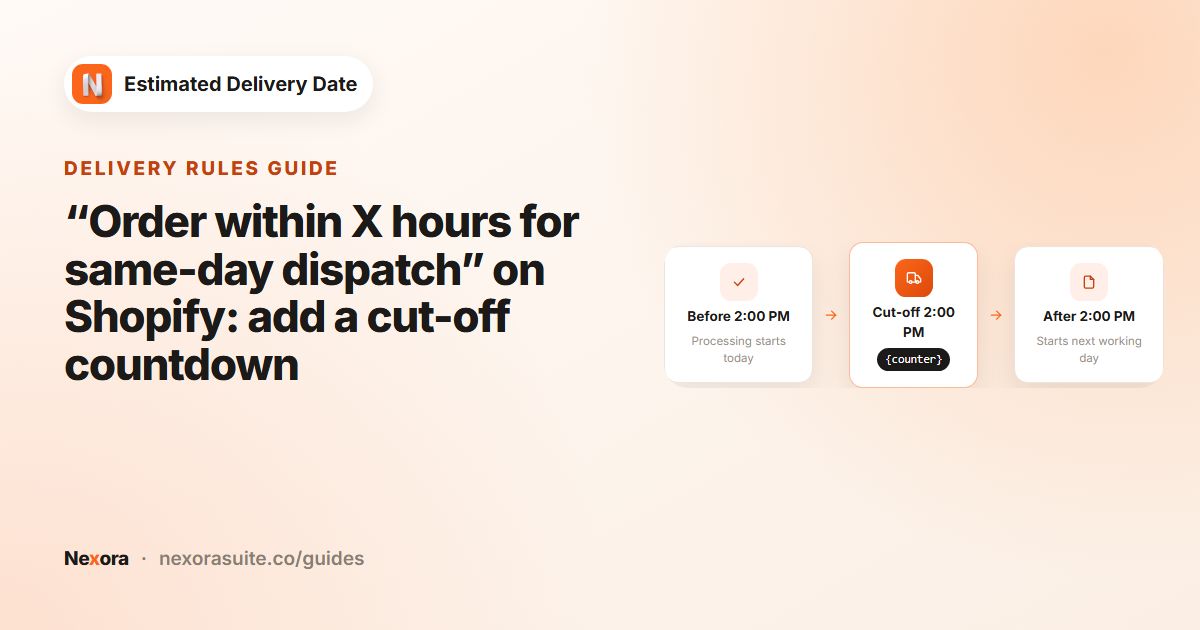
Choose Cutoff time (Hour, Minute, AM/PM). Orders after this start processing the next working day.
- Choose processing days
Under Working days, select only the days your team packs or makes orders.
- Add closures
Add days off under Blocked dates (holidays), with Repeat yearly for annual ones.
- Name the step
In the Content tab, open the Processing card and change Title if you prefer, for example “Packed”, “Made” or “Dispatched”. Pick one of the Default icons or upload your own.
- Save
Click Save, and make sure the EDD Widget block is on your product template.
How processing time is counted
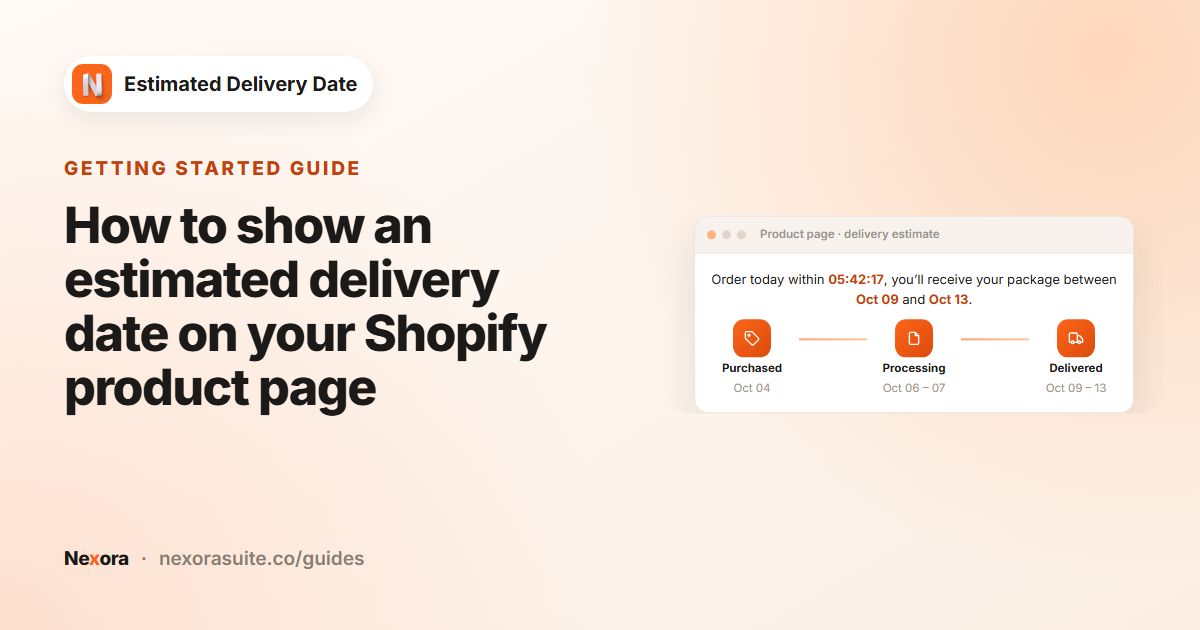
- The start day is today if it's a processing working day and before the cut-off; otherwise the next working day that isn't blocked.
- The Processing step shows the start day plus Shortest (days) to the start day plus Longest (days), counting only processing working days.
- Transit is counted from the Longest processing date, so the delivery range already allows for your slowest packing day.
- The timeline shows short dates such as “Oct 06-07”, with English month names.
Here is how different processing ranges change the result for the same shopper (Monday 5 October at 10:00 AM, cut-off 3:00 PM, Monday to Friday, transit 2–3 days):
| Processing time | Processing step | Delivered step |
|---|---|---|
| 0–0 days | Oct 05 | Oct 07-08 |
| 0–1 days | Oct 05-06 | Oct 08-09 |
| 1–2 days | Oct 06-07 | Oct 09-12 |
| 1–3 days | Oct 06-08 | Oct 12-13 |
| 3–5 days | Oct 08-12 | Oct 14-15 |
Notice that a wider processing range pushes the whole delivery range later, because delivery starts from the longest processing date.
Example: a print shop with a 1–3 day turnaround
A poster shop prints Monday to Friday, needs 1–3 days, and stops taking same-day jobs at 3:00 PM. It renames the step to “Printed” and uses the box icon.
- Shortest (days) 1, Longest (days) 3, Cutoff time 3 : 00 PM, Working days M to F.
- Template text: “Printed and shipped within 1–3 working days. Estimated delivery {delivery_from} – {delivery_to}”.
- Processing card: Title “Printed”.
Tips and common mistakes
- Use your real worst case for Longest. It's the figure delivery is counted from.
- Don't add processing to transit. Keep carrier days in Order Transit, not in Processing time.
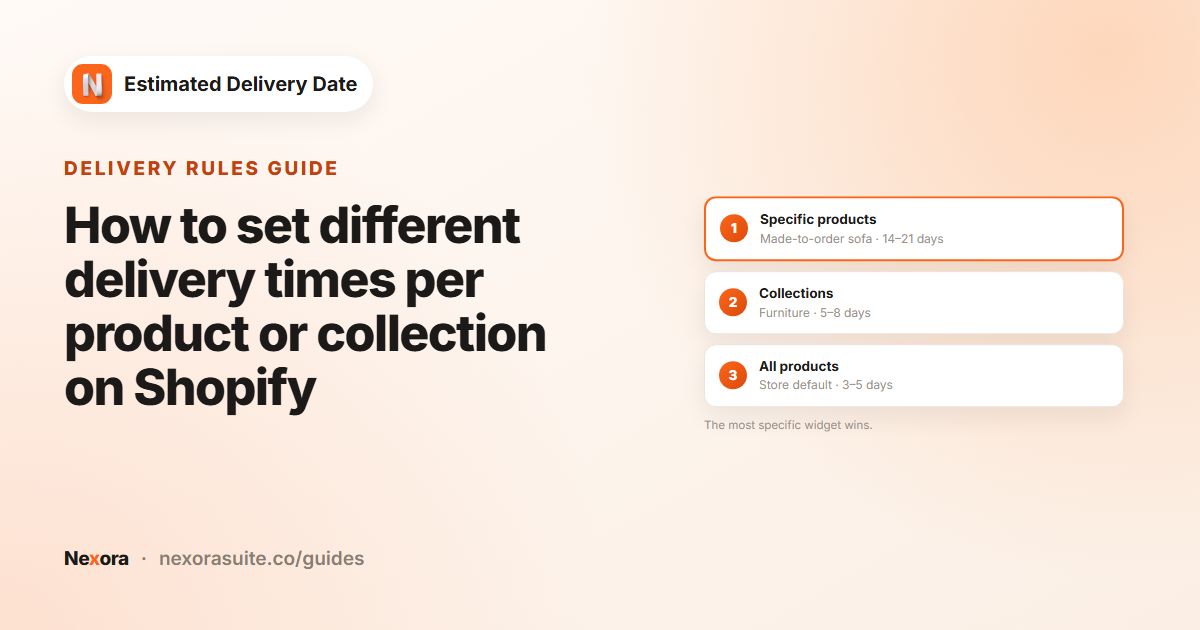
- Different products, different lead times. Create a second widget for a collection or product; see delivery times per product.
- Saving errors. “Can't be longer than longest” means Shortest is larger than Longest.
Frequently asked questions
What's the difference between processing time and transit time?
Processing is how long you take to prepare the order; transit is how long the carrier takes. The app has separate Order Processing and Order Transit cards for each.
Can I set processing time to zero?
Yes. A Shortest (days) of 0 means orders placed before your cut-off on a working day can be processed the same day.
Is processing time counted in working days?
Yes. Only the days selected under processing Working days count, and Blocked dates (holidays) are skipped.
Can I rename the Processing step?
Yes. Change Title in the Processing card of the Content tab.
Why is my delivery range later than I expected?
Delivery is counted from the Longest processing date, not the shortest. Reducing Longest (days) brings the delivery range forward.
Can different products have different processing times?
Yes. Create a separate widget with its own Processing time and target it with Specific collections or Specific products in the Placement tab.