Why weekends and holidays matter
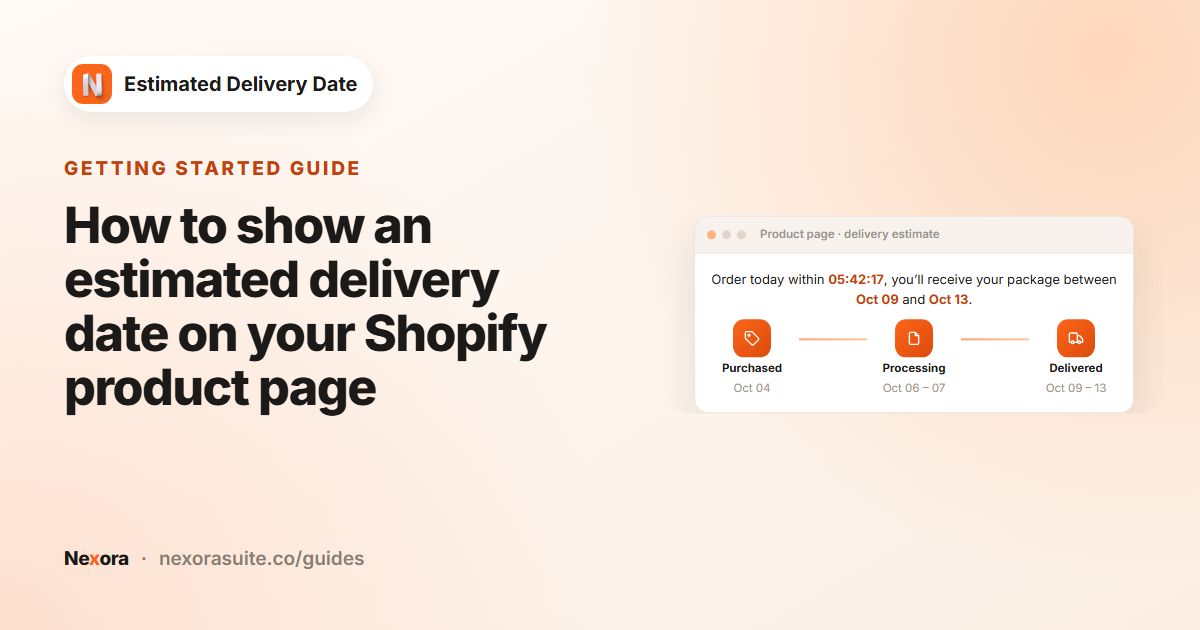
A delivery estimate that counts Saturday, Sunday and bank holidays as working days will be wrong several times a year, and usually at the busiest moments. A shopper ordering on a Friday evening before a long weekend should see a date that reflects the days you are actually closed.
There are usually two calendars to think about: when your team packs orders and when your carrier delivers. They often differ. Many carriers deliver on Saturdays even if your warehouse is closed, and a carrier may stop for a day when you are open.
Your options on Shopify
Shopify themes don't work out product-page delivery dates, so there is no theme setting for holidays. A static text block can be edited before each holiday, but you have to remember to change it and change it back. An app that counts working days handles this automatically.
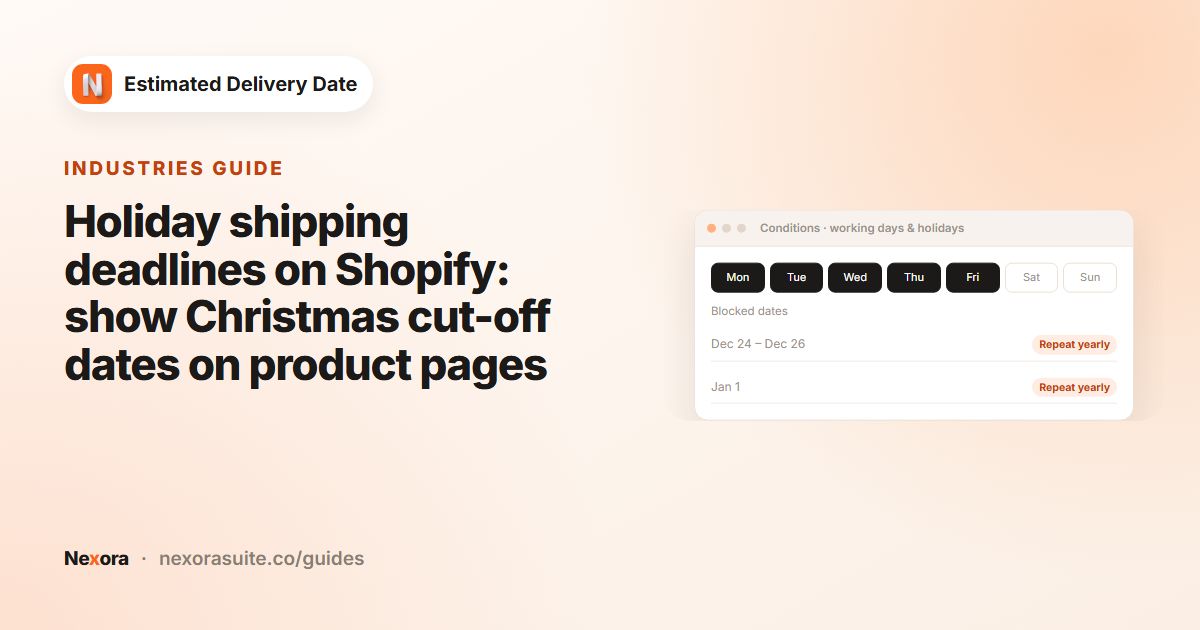
In Nexora Estimated Delivery Date, weekends are handled by Working days, and one-off or annual closures by Blocked dates (holidays). Both exist separately in Order Processing and Order Transit.
Step by step: set working days and blocked dates
- Open the widget
In the app, click Edit on your widget and open the Conditions tab.
- Choose packing days
In Order Processing, under Working days, click the day buttons (M, T, W, Th, F, SA, S). Dark buttons are selected. Leave SA and S unselected to skip weekends.
- Add a processing holiday
Under Blocked dates (holidays), click + Add blocked date. In the Add blocked date range window, click one day, or a start day and an end day for a range. Past dates can't be selected.
- Repeat it every year
Switch on Repeat yearly for dates such as 25 December or 1 January, then click Add. The date is labelled (Yearly) in the list.
- Set the carrier's calendar
In Order Transit, choose the carrier's Working days (add SA if it delivers on Saturdays) and add its own Blocked dates (holidays) the same way.
- Save
Click Save in the save bar. Removing a date later is done with the remove icon next to it, followed by Save.
How the app uses these settings
| Setting | Affects | Effect |
|---|---|---|
| Processing Working days | Start day and Processing dates | Only these days count as packing days |
| Processing Blocked dates (holidays) | Start day and Processing dates | Skipped, even if they fall on a working day |
| Transit Working days | Delivered dates | Only these days count as transit days |
| Transit Blocked dates (holidays) | Delivered dates | Skipped when counting transit |
| Repeat yearly | Any blocked date | Applies to the same day and month every year |
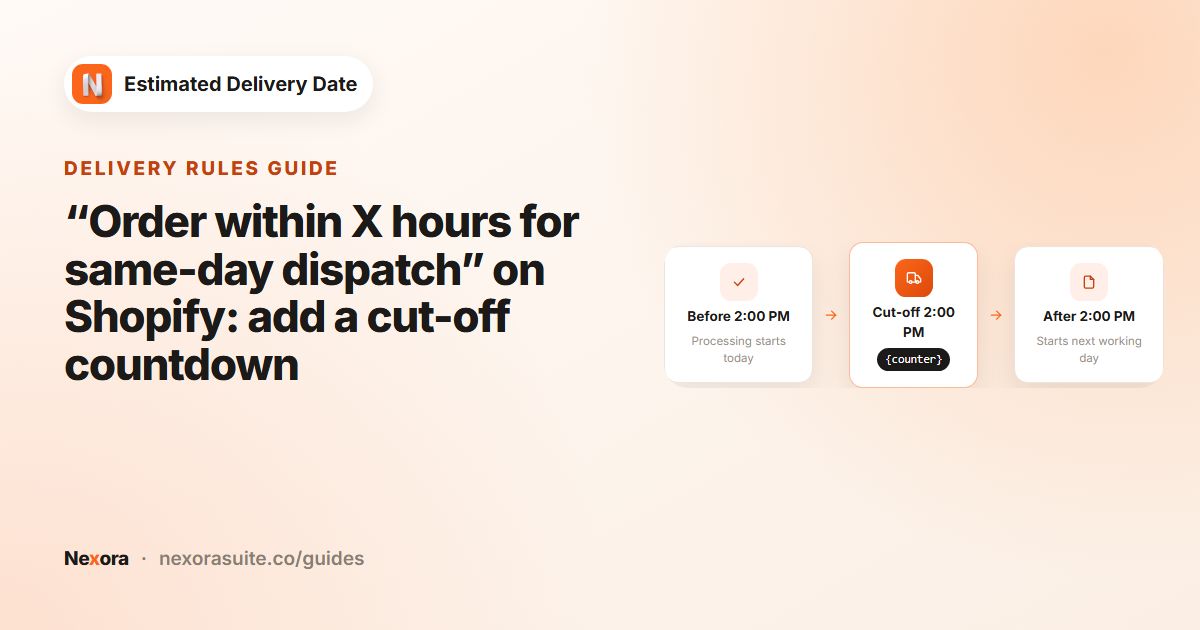
If an order arrives on a weekend, a blocked date or after your Cutoff time, processing starts on the next working day that isn't blocked. Transit is then counted from the last possible processing date. The full method is in the documentation.
Example: Christmas and New Year closure
A store packs Monday to Friday with processing of 1–2 days and a 5:00 PM cut-off. Its carrier takes 2–4 working days, Monday to Friday. The store closes from 24 December to 1 January, and the carrier doesn't deliver on 25 and 26 December.
- Order Processing › Blocked dates (holidays): 24 Dec – 1 Jan, Repeat yearly.
- Order Transit › Blocked dates (holidays): 25 Dec – 26 Dec, Repeat yearly.
| Shopper visits Tue 22 Dec 2026, 10 AM | Processing | Delivered |
|---|---|---|
| Without blocked dates | Dec 23-24 | Dec 28-30 |
| With blocked dates | Dec 23 – Jan 04 | Jan 06-08 |
Without the closure, the widget would promise delivery before New Year even though nobody is packing on 24 December. With it, the latest processing date jumps to Monday 4 January, and delivery is counted from there.
Tips and common mistakes
- Add holidays to both cards. A processing closure doesn't stop the carrier, and a carrier holiday doesn't stop packing. Add each where it applies.
- Moving holidays. Holidays that change date each year, such as Easter, should be added without Repeat yearly and updated each year.
- Plan ahead. Past dates can't be picked, and a closure only helps if it's in place before shoppers order, so add next year's closures well in advance.
- Message wording. The message text doesn't change on blocked days, so “Order today” still appears. The dates themselves skip the closure.
- One widget per page. If you run several widgets (for different collections or markets), add the blocked dates to each of them.
Planning seasonal deadlines? See holiday shipping deadlines for a Christmas cut-off setup.
Frequently asked questions
Do weekends count as delivery days?
Only if you select them. Untick SA and S under Working days to skip weekends, separately for processing and transit.
Can my carrier deliver on Saturday while I don't pack on Saturday?
Yes. Leave SA off in Order Processing and select it in Order Transit.
How do I block the same holiday every year?
Add the date with + Add blocked date, switch on Repeat yearly and click Add. It is labelled (Yearly).
Can I block a whole week?
Yes. In the Add blocked date range window, click the first day and then the last day to block the range.
Why does the message still say “Order today” on a holiday?
The message is shown as you wrote it on every day. The dates are still calculated correctly. Use neutral wording if this matters to you.